
How to fix: Cannot open HTML links in Outlook…due to restrictions – problem.
On a customer’s computer, the following error appeared when the user tried to open links in email messages using Outlook 2007: “This operation has been cancelled due to restrictions in effect on this computer. Please contact your system administrator”. The user was already the administrator of his computer and the above error occurred after the installation of Opera Web browser on his computer.
Usually the “Operation has been cancelled due to restrictions “ Outlook error, means that the corresponding registry settings (keys) that are used to handle the default actions to open hyperlinks are misconfigured.
The solution below contains step by step instructions on how to resolve the “This operation has been cancelled due to restrictions in effect on this computer. Please contact your system administrator” error when you try to open hyperlinks in Outlook 2007 email program. The solution has been applied & worked successfully on a Windows 7 based computer.
How to solve “Operation has been cancelled due to restrictions…" error in Outlook.
Step 1. Modify Registry Subkeys for HTML files.
1. Open Windows Registry Editor. To do that:
1. Press “Windows”
+ “R” keys to load the Run dialog box.
2. Type “regedit” and press Enter.
![Image-201_thumb_thumb_thumb_thumb[1]](https://www.wintips.org/wp-content/uploads/2014/06/Image-201_thumb_thumb_thumb_thumb1.png "Image-201_thumb_thumb_thumb_thumb[1]")
![image_thumb[6]](https://www.wintips.org/wp-content/uploads/2014/06/image_thumb6.png "image_thumb[6]")
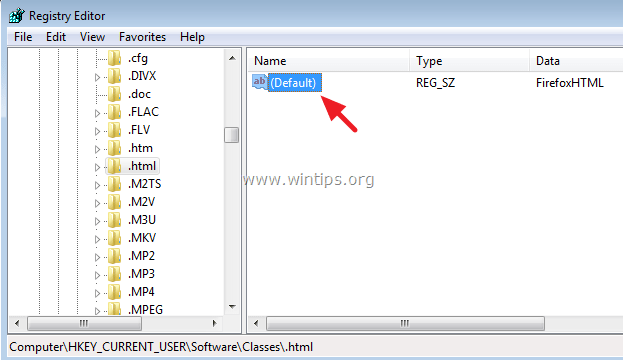
2. Inside Windows Registry, navigate (from the left pane) and highlight this key:
HKEY_CURRENT_USER\Software\Classes\.html

3. At the right pane, double click to open the “Default” string.
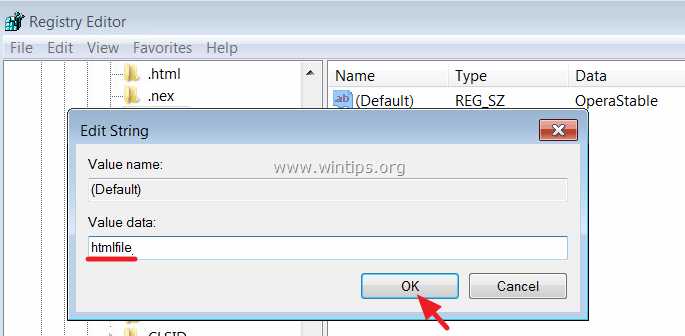
4. At the value data field, delete any other value, type “htmlfile” menu and press OK.

5. Do the same modification to the following registry subkeys: .htm, .shtml, .xhtml.
HKEY_CURRENT_USER\Software\Classes\.htm
HKEY_CURRENT_USER\Software\Classes\.shtml
HKEY_CURRENT_USER\Software\Classes\.xhtml

6. Close Registry editor and try to open a hyperlink in Outlook now.
You ‘re done!


- Remote Desktop (RDP/RDS) Stops Working After September 2026 Windows Update: How to Fix - September 15, 2026
- Windows 11 KB5124008 Causes No Sound or USB Audio Code 10: How to Fix - September 14, 2026
- Copilot Missing or Grayed Out in Outlook: How to Fix - September 10, 2026




December 31, 2020 @ 1:53 am
Editing the registry solved the problem for me. Thanks!
June 18, 2019 @ 1:31 am
I have Outlook 2013 with Windows 8.1. Will this fix work for those platforms?
June 18, 2019 @ 10:47 am
@John: Yes
June 21, 2019 @ 2:29 am
It works – you're awesome! Thanks so much.
June 20, 2018 @ 5:06 am
Setting the default browser fixed the issue for me
March 17, 2018 @ 12:48 am
It worked. I'm really happy
Thank you
February 8, 2018 @ 7:04 pm
Excellent — this worked for me
Thank you!!!!!!!!!
January 31, 2018 @ 12:21 pm
Worked like a charm. Thank you!!
January 7, 2018 @ 4:19 am
Thank you so much. I am arounbd a long time but could never solve this problem until I found your solution. Works like a charm. Grateful :)
November 13, 2017 @ 12:09 pm
Uninstall chrome,
set internet explorer to default,
turn off windows firewall,
try to open the hyperlink,
if its works,
on the firewall back,
restart the computer and it should be ok
November 1, 2017 @ 11:29 pm
This helped me as well! Thank you so much!
September 8, 2017 @ 11:52 pm
Correction! After making all default links to htmlfile it worked.
December 11, 2015 @ 11:16 pm
This did not work. All values were already "htmlfile". NOTE: I run only Firefox, I have deselected MSIE using Control Panel, I do not have Google Chrome installed. I have never knowingly and/or willingly installed Chrome (don't get me started), but of course I imagine that some other program could have done that for me and now this is messed up after that program was uninstalled.
July 14, 2015 @ 2:57 pm
Thank you.
Tried a couple of thing s but nothing was working, however this worked for me
Imran