
How to Fix: Chrome Installation failed – The Google Chrome installer failed to start (Solved)
In a Windows-based computer, you might encounter the following installation error when attempting to install Google Chrome: "Installation failed. The Google Chrome installer failed to start."
This issue can arise after launching the Chrome installer file (ChromeSetup.exe), effectively preventing Chrome's installation. To resolve this problem and bypass the Chrome installation error, follow the steps outlined in this guide.

How to Solve the Chrome's "Installation Failed – The Google Chrome Installer Failed to Start" Problem in Windows 10/8/7/Vista & XP
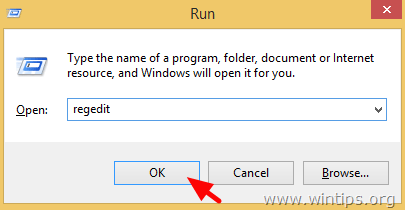
1. Simultaneously press the “Win”  + “R” keys to load the Run dialog box.
2. Type regedit and press Enter to open the Registry Editor.
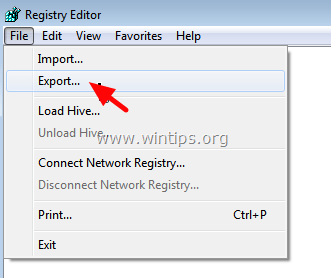
IMPORTANT: Before you continue, first take a backup of your registry. To do that:
- From the main menu, go to File & select Export.
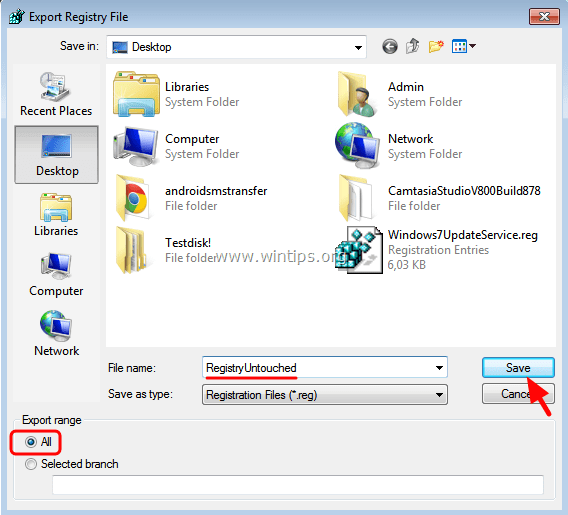
- Specify a destination location (e.g., your Desktop), give a filename (e.g., “RegistryUntouched”), select at Export range: All and press Save.
3. After you have backed up your registry, navigate (from the left pane) to this key:
HKEY_LOCAL_MACHINE\SOFTWARE\Google\Update\Clients
* Note for 64bit OS & Windows XP:
- On Windows 64bit, navigate to this key:
HKEY_LOCAL_MACHINE\SOFTWARE\Wow6432Node\Google\Update\Clients - On Windows XP, navigate to this key:
HKEY_CURRENT_USER\SOFTWARE\Google\Update\ClientState
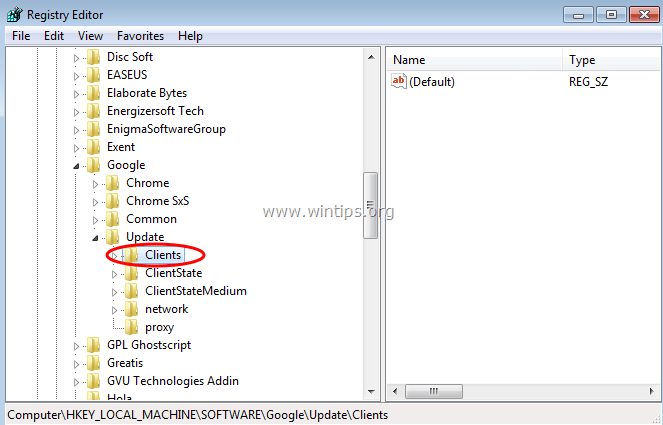
4. Expand the Clients key and right-click at {430FD4D0-B729-4F61-AA34-91526481799D} key. Select Delete.

5. Then navigate to this key:
HKEY_CURRENT_USER\Software\Google\Update\Clients
6. Perform the same operation and delete the {430FD4D0-B729-4F61-AA34-91526481799D} key, if it exists.
7. Try to install Chrome now. The Chrome installation problem should be resolved!
Additional Solutions
Solution 1: Run the Installer as an Administrator
Right-click on the ChromeSetup.exe file and select Run as administrator. Running the installer with administrative privileges can often resolve permission-related issues that prevent the installation process from starting correctly.
Solution 2: Use the Offline Installer
If the online installer fails, downloading and using the offline installer for Google Chrome can be an effective alternative. The offline installer does not require an internet connection during installation, which can help bypass network-related issues. You can find the official offline installer on the Google Chrome website.
Solution 3: Check System Requirements
Ensure that your system meets the minimum requirements for installing Google Chrome. Incompatible hardware or outdated software can cause installation failures. Visit the official Google Chrome support page for detailed system requirements.
Summary
In summary, to resolve the "Installation failed – The Google Chrome installer failed to start" issue, you can modify the Windows Registry, run the installer as an administrator, or use the offline installer. Additionally, verifying system requirements can prevent compatibility issues. These steps should help you successfully install Google Chrome on your Windows computer.
Frequently Asked Questions
What causes the 'Installation failed. The Google Chrome installer failed to start' error on Windows?
This error can occur when launching the Chrome installer file, preventing the installation of Chrome. It may arise due to registry issues, permission problems, or network-related issues during installation.
How can I use the Registry Editor to fix the Chrome installation error?
First, back up your registry by selecting File > Export in the Registry Editor. Then, navigate to HKEY_LOCAL_MACHINE\SOFTWARE\Google\Update\Clients and delete the {430FD4D0-B729-4F61-AA34-91526481799D} key. Follow similar steps for HKEY_CURRENT_USER\Software\Google\Update\Clients.
What are additional solutions if modifying the registry doesn't fix the installation error?
You can try running the Chrome installer as an administrator, using the offline installer from the Google Chrome website, or checking if your system meets the minimum requirements for Chrome.
Why should I consider using the offline installer for Google Chrome?
The offline installer doesn't require an internet connection during installation, which can help bypass network-related issues that may prevent the installation process from starting correctly.


- Always On VPN Stuck on Connecting After KB5124008 Update: How to Fix - September 24, 2026
- How to Disable Passkey Prompts and Delay Enforcement in Microsoft 365 - September 24, 2026
- Remote Desktop (RDP/RDS) Stops Working After September 2026 Windows Update: How to Fix - September 15, 2026




July 7, 2019 @ 12:21 am
I am on windows 10. Chrome stopped updating, Recommendation was to uninstall and reinstall. Performed uninstall. Reinstall is failing with *no* error codes. The installer appears to try to open, then fails. Have attempted steps outlined here. Any thoughts?
July 7, 2019 @ 8:49 am
@Heidi: If you have MCAfee product installed, proceed and uninstall it.. Additionally, delete the "Chrome" folder from the following locations on disk:
C:\Users\%Username%\AppData\Local\Google\
C:\Program Files\
C:\Program Files (x86)\
July 20, 2019 @ 1:11 am
So frustrating. Same results. This is really baffling.
August 28, 2019 @ 12:13 pm
@Heidi: The final solution is to delete all "Chrome" entries from registry.
June 30, 2019 @ 6:56 pm
I simply ran ChromSetup as an administrator. Problem solved.
May 27, 2019 @ 11:59 pm
Thank you! Your Method still works however I have deleted some other registry keys.
May 10, 2019 @ 4:56 am
After the chrome browser crash, I removed the browser and reinstalled, reported "Unknown Installer Error", please help me! Thank you!
May 10, 2019 @ 10:36 am
@nguyen trong hieu: Follow the instructions above to delete the mentioned registry key. Then follow the instruction in this article to completely remove and then to reinstall Chrome.
December 1, 2018 @ 2:55 pm
I cant find the {430FD4D0-B729-4F61-AA34-91526481799D key. I only have this one {8A69D345-D564-463c-AFF1-A69D9E530F96}. What to dooo?
December 2, 2018 @ 12:22 pm
@Alishba: First of all see the note for 64bit OS or Windows XP. If you still cannot find the mentioned key:
1. Open Registry Editor.
2. Go to Edit > Find.
3. Search for: "{430FD4D0-B729-4F61-AA34-91526481799D}" (without quotes) and delete it from all registry locations.
e.g.
HKEY_CURRENT_USER\Software\Google\Update\ClientState\
HKEY_USERS\S-1-5-21-xxxxxxxxx-xxxxxxxxx-xxxxxxxxx-1000\Software\Google\Update\Clients\
HKEY_USERS\S-1-5-21-xxxxxxxxx-xxxxxxxxx-xxxxxxxxx-1000\Software\Google\Update\ClientState\
June 30, 2019 @ 5:15 am
i can't find any key like this i just found {8A69D345-D564-463c-AFF1-A69D9E530F96}. but still i can't install chrome. please help.
PS: i unistalled and deleted my chrome because of "mail.ru" has affected it and i deleted all the keys,values and data related to mail.ru. i thing it should be the problem please help.
June 30, 2019 @ 11:24 am
@nirav laiya: If you have MCAfee product installed, proceed and uninstall it.. Additionally, delete the "Chrome" folder from the following locations on disk:
C:\Users\%Username%\AppData\Local\Google\
C:\Program Files\
C:\Program Files (x86)\
March 19, 2018 @ 10:27 pm
I was getting error code 0x80070002 every time I tried to install, and this totally solved my problem.
March 18, 2018 @ 5:06 pm
Very Very real and useful solution. after lot of googling finally this worked.
March 9, 2018 @ 12:19 am
This is the only real solution! Thank you!
February 22, 2018 @ 12:02 am
it would be nice if you would tell us what is being done.. I am grateful nonetheless.
December 11, 2017 @ 4:57 pm
Thanks to this wonderful contribution, it really worked for me
April 27, 2017 @ 9:55 am
this is tutorial shared fo me. perfect brother
December 26, 2016 @ 9:29 am
It said error while deleting key, i cant delete the {430FD4D0-B729-4F61-AA34-91526481799D}
December 21, 2016 @ 8:50 am
Thanks, great tips
May 4, 2016 @ 5:23 pm
I didn't even have a Google folder under Local Machine, getting so frustrated that I cannot get Chrome installed!
May 5, 2016 @ 8:45 am
@Josh: Please continue reading the article and apply the rest steps. Inform me about the results!