
How to define which user on your network can access your shared files and folders.
While working in a network environment there is the need to share files and folders across your network with others. But before proceeding to share your files with other users on your network, you must seriously think and write down the permissions level for each account that has access to your files, to ensure your file's safety and security.
Example: Lets say that we work in a network environment with three (3) workstations running Windows 7 Professional operating system and we want to share a folder in our (1st) workstation with other user/s in our network: e.g. User1 from Workstation No2 and User2 From Workstation No3.
Step 1: Create the user/s that should have access to your files.
The first action is to create the user/s from other workstations that we want to share with (e.g. User1, User2, etc.).
How to create a new user in Windows 7 Pro.
1. Go to “Start” > “Control Panel”
2. Click to open to open “Add or remove user accounts”.

3. Click on “Create a new account”.
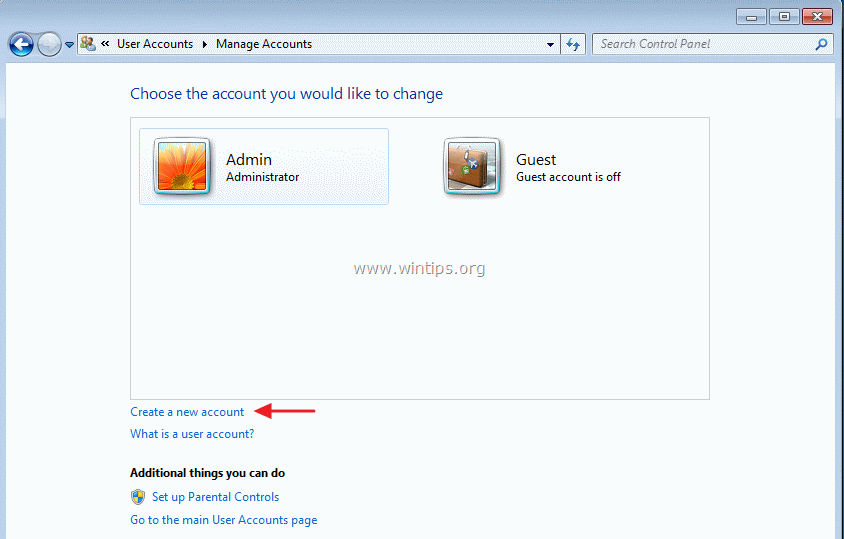
4. Give a name for the new account (e.g. User1) and specify the permission level in the current workstation (e.g. Standard user), then click on “Create Account” button.

5. Repeat the above procedure if you wish to create more accounts (e.g. User2).
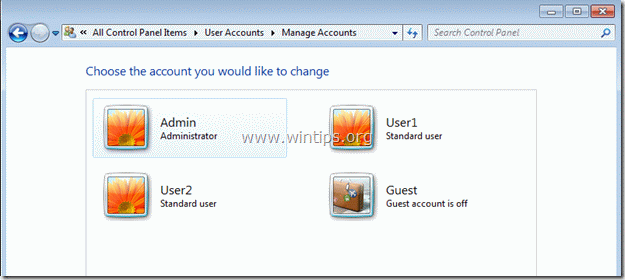
6. Finally on your screen you should view three (3) active user accounts and the Guest account which is “off / Disabled”.
1st account = Admin from our -1st- workstation with Administrator privileges.
2nd account = User 1 from Workstation No2 as a Standard user.
3rd account = User 2 from Workstation No3 as a Standard user.
Step 2: Create the folder you want to share.
The next step is to create a folder to share with others in your network.
How to create a new shared folder*.
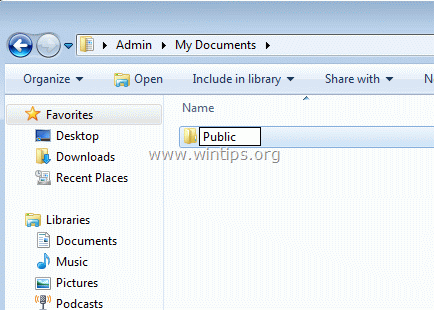
* e.g. Lets say that we want to create a new shared folder named “Public” inside “My Documents” folder.
1. Right click inside My Documents folder and choose “New” > “Folder”.
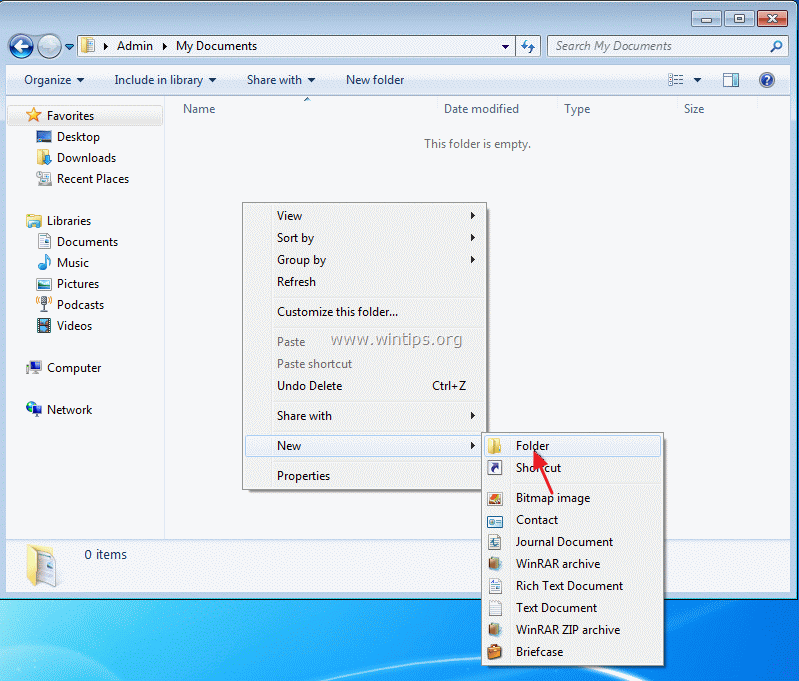
2. Name the new folder with a preferred name e.g. “Public” in our example. and press “Enter”.
Step 3: Specify the sharing permission level.
How to specify sharing permissions.
1. Right click on the newly created folder and choose “Share with” > “Specific people”

2. In “File Sharing” window, click on the drop-down arrow to display the current users installed on your computer.

3. Select the User/s you wish to share your files with (e.g. Useer1) and click “Add”.

4. Now using the drop-down arrow beside each added user, modify the share permissions: Read or Read/Write.

5. When finished, click the “Share” button.

6. In the next screen click “Done”.
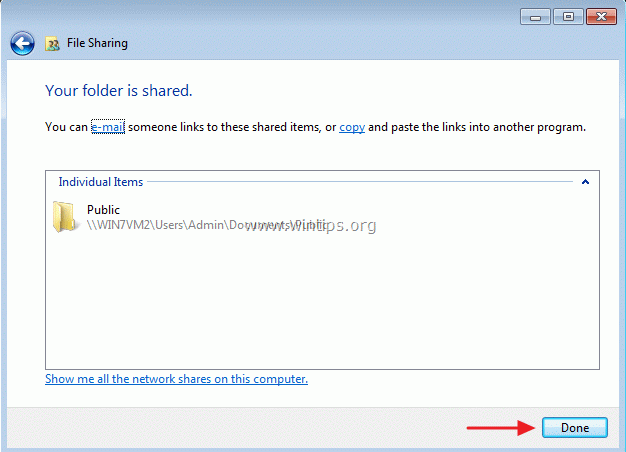
Step 4: Modify the sharing permissions*.
* Proceed to this step if you wish to specify advanced sharing permissions.
How to modify sharing permissions.
1. Right click on the shared folder (e.g. Public) and choose “Properties”.
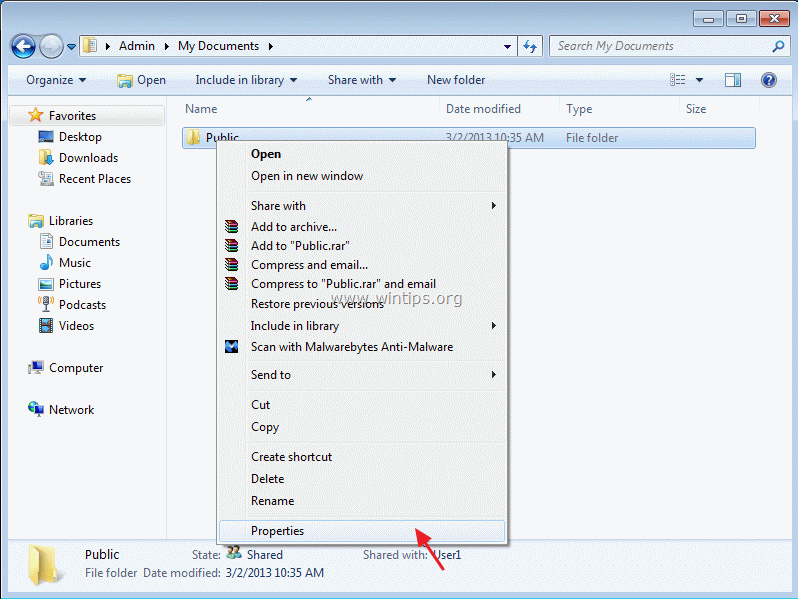
2. In the folder properties window, click on “Security” tab.

3. Select the user you want to modify it’s sharing permissions (e.g. User1) and choose “Edit”.

4. Look at “Permissions for User1” part and modify its' sharing permissions by checking the corresponding box:
Allow or Deny beside each permission.
Permission levels description:
a. Full control: means that the user/s have full rights inside the shared folder (Read, Write, Modify, Delete and Execute)
b. Read & Execute: Means that the user/s can only Read and open files or applications from inside the shared folder.
c. List folder contents: Means that the user/s can view the contents inside the shared folder but cannot perform other actions (e.g. open or write files ).
d. List folder contents: The user/s can only view a list of the files inside the shared folder.
e. Read: The user/s can only read the folder contents.
f. Write: The user can only write inside the shared folder.

5. When finish specifying the sharing permissions, click “OK” twice to exit.
Now proceed to try your sharing settings and start to share with others.


- Windows Update Uninstall Failed with Error 0x800F0825: How to Fix - October 7, 2026
- Apps and Games Crash After KB5124010 Due to AC-3 Audio: How to Fix - October 5, 2026
- How to Fix Windows 11 Update Error 0x80073712 - October 5, 2026



April 26, 2025 @ 5:48 pm
Throughout the years it's been almost impossible to find a description of how network users integrate with a Local Area Network. It's happened here again.
The title of the item is '…which user on your network ', and you talk about creating local users (or by implication existing users on a computer) of the same names of other users on other LAN computers.
NOWHERE do you (or anyone else in the world) describe how the new or local users who happen to exist already RELATE to previously-existing users on other computers.
If the implication is that users of the same name automatically integrate with each other, PLEASE SAY IT. Need they have the same passwords? Any passwords?
I get the impression that same-name users link like tentacles of an octopus, all individual entities, but linked to the network whole. Like an underground network of fungus, individual pieces, but part of a whole.
NO-ONE EVER SAYS IT.
Is a username (and maybe a password) a qualifying criterion? No-one says.
How about you, Konstantinos?
April 28, 2025 @ 9:39 am
The correct setup for security, is to create different users with different passwords from each other.
September 29, 2023 @ 7:25 am
Thank you very much its soo helpful