
Windows Resource Protection could not start the repair service (Solved)
Windows Resource Protection could not start the repair service is an error which may occur in a Windows 10, 8, or 7 based computer while you are trying to run the System File Checker tool (SFC /SCANNOW) to scan and repair Windows system files.
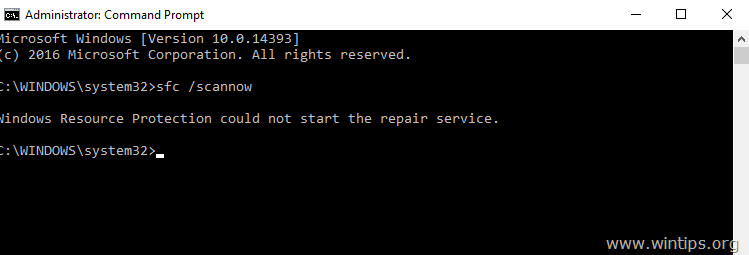
The Windows Resource Protection could not start the repair service error is caused because the Windows Modules Installer (aka "TrustedInstaller") is disabled on the system.
This tutorial contains instructions on how to resolve the SFC /SCANNOW "Windows Resource Protection could not start the repair service" error.
How to fix "Windows Resource Protection could not start the repair service" problem.
1. Simultaneously press the Windows + R keys to open run command box.
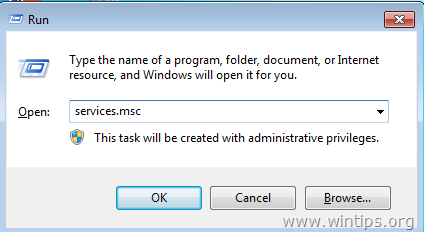
2. In run command box, type: services.msc and press Enter.
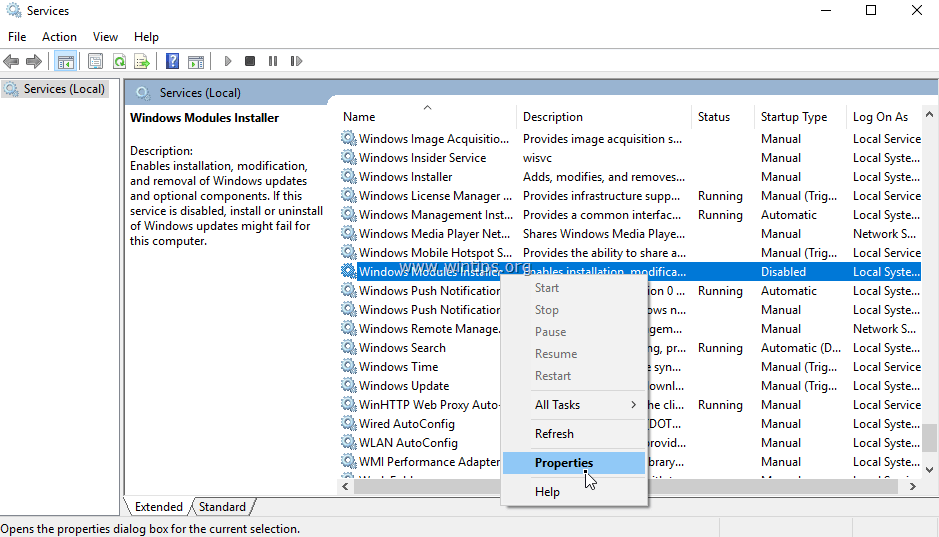
3. In the list of services double click at "Windows Modules Installer" service.
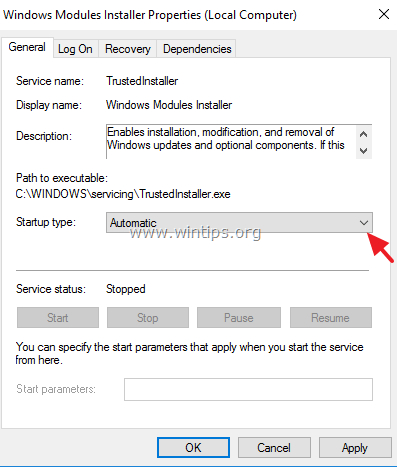
4.Set the startup type to Auto and click OK
5. Restart your computer.
6. After the restart, you 'll be able to run the "sfc /scannow" command without any problems. *
* Note: If the "Windows Resource Protection could not start the repair service" appears again, then:
1. Navigate to Windows services management and make sure that the "Windows Modules Installer" is started.
2. Check your system for virus and malware infections by using this guide: Quick Malware Scan and Removal Guide for PC's.
That's it! Let me know if this guide has helped you by leaving your comment about your experience. Please like and share this guide to help others.


- Remote Desktop (RDP/RDS) Stops Working After September 2026 Windows Update: How to Fix - September 15, 2026
- Windows 11 KB5124008 Causes No Sound or USB Audio Code 10: How to Fix - September 14, 2026
- Copilot Missing or Grayed Out in Outlook: How to Fix - September 10, 2026


April 15, 2017 @ 2:47 am
Unfortunately did not work for me. Same problem "Windows Resource Protection could not start the repair service"
April 12, 2017 @ 8:42 pm
thank you very very much …. it is ok.
my probled solved
my regarads to you