
How to Fix Sysprep msdtcprx.dll 0x0f0082 0x000000b7 Error (Solved)
Description of "Sysprep msdtcprx.dll" Fatal Error: On a Windows 7 based computer, Sysprep fails with error: "A fatal error occurred while trying to sysprep the machine" while executing msdtcprx.dll, SysPrepDtcCleanup" process. The sysprep log file (setuperr.log) which is created under C:\Windows\System32\sysprep\Panther folder displays the following error(s):
"[0x0f0082] SYSPRP LaunchDll:Failure occurred while executing 'C:\Windows\system32\msdtcprx.dll,SysPrepDtcCleanup', returned error code -2146434815[gle=0x000000b7]
"[0x0f0070] SYSPRP RunExternalDlls:An error occurred while running registry sysprep DLLs, halting sysprep execution. dwRet = -2146434815[gle=0x000000b7]"
"[0x0f00a8] SYSPRP WinMain:Hit failure while processing sysprep cleanup providers; hr = 0x80100101[gle=0x000000b7]"

According to Microsoft KB2693187 article, the error occurs on VMware virtual machines, because when the Sysprep command tries to stop the Microsoft MSDTC service, the VMware tool tries to start the MSDTC service. For the specific issue, Microsoft offers a Hotfix to download, but the Hotfix did not work on some cases.
When Sysprep fails on "msdtcprx.dll" while executing the "SYSPrepDtcCleanup" process that means that the MSDTC (Microsoft Distributed Transaction Coordinator) service is corrupted and the SYSPrepDtcCleanup process is unable to reset the MSDTC logs. To fix the problem you have to uninstall and reinstall the MSTDC service.
How to solve Sysprep msdtcprx.dll 0x0f0082: Error code 2146434815[gle=0x000000b7].
Step 1. Uninstall and then re-install the MDSTC service.
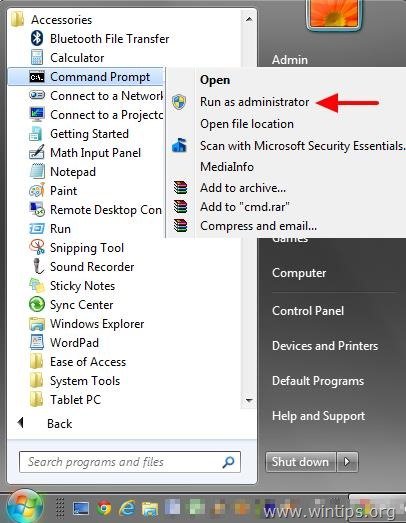
1. Open command prompt with Administrative privileges. To do that:
In Windows 7 & Vista go to:
- Start > All Programs > Accessories
- Right-click at “Command prompt” item and choose “Run as administrator”.
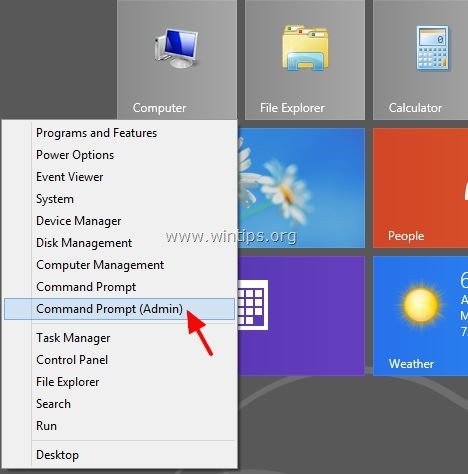
In Windows 10, 8 & 8.1:
- Right-click at the screen's bottom-left corner (Start menu) and from the pop-up menu, choose “Command Prompt (Admin)”.
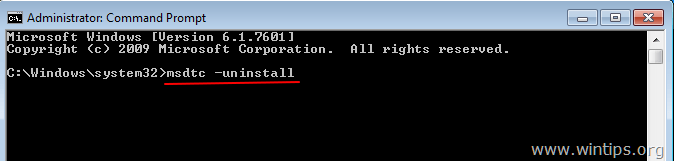
2. In command prompt window type the following command and press Enter to uninstall the MSDTC service:
msdtc –uninstall
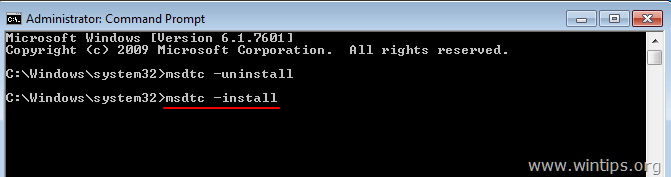
3. Then re-install the MSDTC service by typing the following command (and press Enter).
msdtc –install
4. Close command prompt.
That's it! Let me know if this guide has helped you by leaving your comment about your experience. Please like and share this guide to help others.


- Remote Desktop (RDP/RDS) Stops Working After September 2026 Windows Update: How to Fix - September 15, 2026
- Windows 11 KB5124008 Causes No Sound or USB Audio Code 10: How to Fix - September 14, 2026
- Copilot Missing or Grayed Out in Outlook: How to Fix - September 10, 2026



