
How to Disable Low Disk Space warning message on Windows 10, 8, 7 or Vista.
When a storage disk (drive) runs out of disk space, then Windows displays the following warning messages "Low Disk Space on Drive X:" or "You are running out of disk space on Local Disk X:. To free space on this drive by deleting old or unnecessary files, click here…".
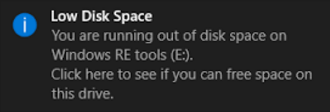
Windows is informing users with the "low disk space warning" message, when a drive reaches its storage limits. In fact the first warning message appears when the drive has 200MB of free disk space, the second warning appears at 80 MB and the third warning appears at 50MB.
This article was written because in some cases, the "low disk space" warning message(s) becomes annoying, especially if it concerns a drive that we don't use (e.g. a Recovery drive or a portable drive).
This tutorial contains instructions on how to prevent Windows to check for low disk space on all connected storage devices (drives) in Windows 10, 8.1, 8, 7 & Vista.
How to disable Low Disk Space Warning Message on All Drives.
Important Notices:
1. Unfortunately there isn't a way to disable the low disk space warning message on a specific drive. So, if you follow the below steps, you will disable the "low disk space" notification to all drives on your computer and that action is not suggested, unless you manually check for the available disk space – basically – on the system drive.
2. For preventive purposes, always create a restore point before modifying the registry. If after registry modification, something goes wrong then restore your system to this restore point.
- To create a restore point:
a. Type Create a restore point at the search box and then click on the result.

b. Then click the Create button, to immediately create a restore point.

To disable the "low disk space" warnings on all disks (drives):
1. Open Windows Registry Editor. To do that:
1. Press “Windows”
+ “R” keys to load the Run dialog box.
2. Type regedit and press Enter.


2. At the left pane, navigate to this key:
- HKEY_LOCAL_MACHINE\Software\Microsoft\Windows\CurrentVersion\Policies\Explorer

3. Right click on an empty space at the right pane and select New > DWORD Value
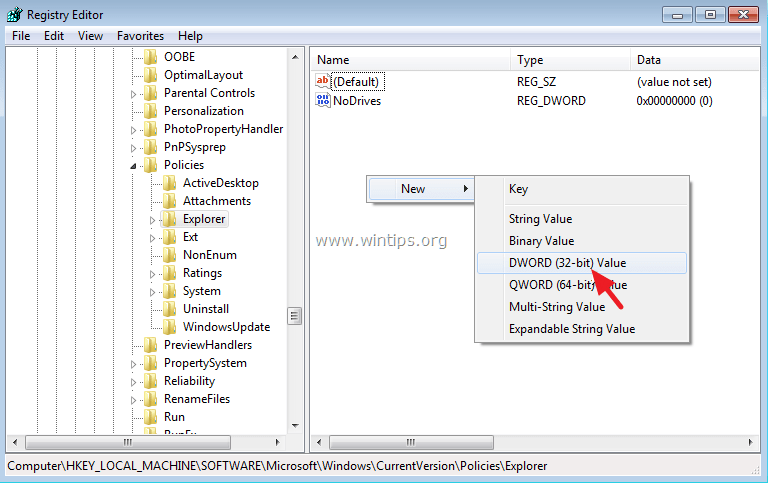
4. Give at the new value the name: NoLowDiskSpaceChecks
5. Double click at the NoLowDiskSpaceChecks value and at the Value data box type 1
6. Click OK

7. Close Registry Editor and restart your computer.
That's it! Let me know if this guide has helped you by leaving your comment about your experience. Please like and share this guide to help others.


- Remote Desktop (RDP/RDS) Stops Working After September 2026 Windows Update: How to Fix - September 15, 2026
- Windows 11 KB5124008 Causes No Sound or USB Audio Code 10: How to Fix - September 14, 2026
- Copilot Missing or Grayed Out in Outlook: How to Fix - September 10, 2026



