Fix: DISM Error 1910 The object exporter specified was not found. (Solved)
The DISM error 1910 "The object exporter specified was not found.", may occur after running the "DISM /Online /Cleanup-Image /RestoreHealth" command on a Windows 10 based compute whenever you try to repair the Windows image.
In my case the error 1910 occurred when using DISM with the "/Source" option, in order to specify another location as the source of the appropriate files:
- DISM /Online /Cleanup-Image /RestoreHealth /Source:WIM:X:\sources\install.wim file:1 /LimitAccess

Deployment Image Servicing and Management tool
Version: 10.0.14393.0
Image Version: 10.0.14393.0
Error: 1910
The object exporter specified was not found.
The DISM log file can be found at C:\WINDOWS\Logs\DISM\dism.log"
In this tutorial you will find detailed instructions to resolve the error 1910 (The object exporter specified was not found) when running the DISM command on Windows 10.
How to Fix DISM Error 1910: The object exporter specified was not found.
Method 1. Run DISM with /StartComponentCleanup & /AnalyzeComponentStore.
1. Right click at Start menu  and select Command Prompt (Admin).
2. Type the following command and press Enter: *
- DISM /Online /Cleanup-Image /StartComponentCleanup
* Note: If your receive "Error: 2, The system cannot find the file specified." after running the above command, then:
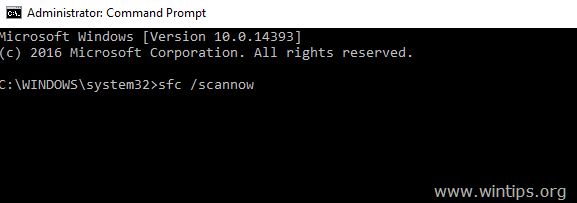
1. Type sfc /scannow and press Enter.
2. After SFC, run the above command again.

3. When the "StartComponentCleanup" process is completed run the following command:
- SFC /SCANNOW
4. When SFC is completed, give the following command (and press Enter).
- DISM /Online /Cleanup-Image /AnalyzeComponentStore
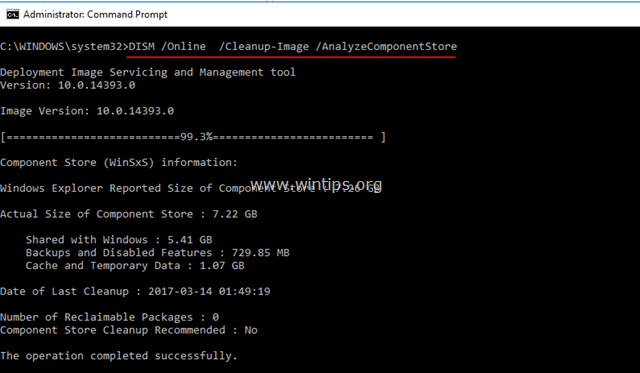
5. When the "AnalyzeComponentStore" process is completed, type the sfc /scannow command (again) and press Enter:
- SFC /SCANNOW
6. After SFC scan, restart your computer.
7. After restart, run DISM with the "/RestoreHealth" switch to repair the Windows image:
- DISM /Online /Cleanup-Image /RestoreHealth
The above steps in short: Before running the "DISM /Online /Cleanup-Image /RestoreHealth" command run the following commands in order to fix DISM Error 1910:
-
- DISM /Online /Cleanup-Image /StartComponentCleanup
- SFC /SCANNOW
- DISM /Online /Cleanup-Image /AnalyzeComponentStore
- SFC /SCANNOW
- DISM /Online /Cleanup-Image /RestoreHealth
Method 2. Fix DISM Error 0x800f081f with Repair Upgrade.
The other method to fix DISM /RestoreHealth error 1910 is to perform a repair upgrade of Windows 10.
Step 1. Upgrade Windows 10 using the Media Creation Tool.
1. Download and run the media creation tool according your OS Version.
2. Accept the License Terms.
3. Choose the option Upgrade this PC now and press Next.

4. Wait until Windows Upgrade is completed and then continue to step-2.
Step 2. Use DISM and SFC tools to complete repairs.
– After Windows upgrade:
1. Right click at Start menu and select Command Prompt (Admin).
2. At the command prompt window give the following command in order to complete the repairs:
- DISM /Online /Cleanup-Image /StartComponentCleanup
- Dism /Online /Cleanup-Image /RestoreHealth
- sfc /scannow
Good luck! Let me know if this guide has helped you by leaving your comment about your experience. Please like and share this guide to help others.


- Fix "The Trust Relationship Between This Workstation and the Primary Domain Failed" - September 8, 2026
- Fix New Outlook and Teams Not Opening After KB5121003 on ARM PCs - September 3, 2026
- Windows 11 KB5120998 Breaks Mouse Cursor and Wallpaper Personalization (FIX) - September 1, 2026