
FIX: VirtualBox Error 0x80004005: Failed to open session for VM – Duplicate config values CMPXCHG16B and IsaExts/CMPXCHG16B (Solved)
This tutorial contains instructions to resolve the VirtualBox Error 0x80004005, when you try to start a Windows 8.1 or a Windows 10 virtual machine:" Duplicate config values '/CPUM/CMPXCHG16B' and '/CPUM/IsaExts/CMPXCHG16B – please remove the former!'".
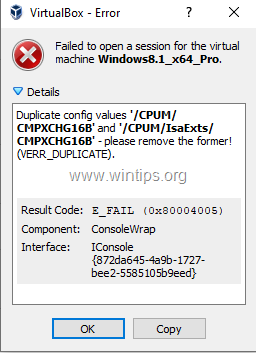
After updating Oracle VM VirtualBox to version 6.0 the following error may appear when trying to start a Windows 10 or 8.1 VM machine:
"Failed to open a session for the virtual machine <VM_Name>.
Duplicate config values '/CPUM/CMPXCHG16B' and '/CPUM/IsaExts/CMPXCHG16B' – please remove the former! (VERR_DUPLICATE).
Result Code: E_FAIL (0x80004005)
Component: ConsoleWrap
Interface: IConsole {872da645-4a9b-1727-bee2-5585105b9eed}"
How to FIX: Duplicate config values '/CPUM/CMPXCHG16B' and '/CPUM/IsaExts/CMPXCHG16B' in VirtualBox.
The error "Duplicate config values '/CPUM/CMPXCHG16B'..", occurs because the "CMPXCHG16B" CPU instruction is enabled on both the "VirtualBox.xml" file (C:\Users\Username\.VirtualBox\VirtualBox.xml), and on Virtual Machine's .vbox file.
To resolve the problem, follow the instructions below to remove the following line from the above locations:
<ExtraDataItem name="VBoxInternal/CPUM/CMPXCHG16B" value="1"/>"
1. Close VirtualBox Manager
2. Open Command Prompt as Administrator.
3. Type the following command:
- cd \Program Files\Oracle\VirtualBox
4. Then give the below command to list the VM Machines.
- VBoxManage.exe list vms
5. From the output of the above command, notice the name of the VBOX machine, where you receive the error 0x80004005.
e.g At this example, the VM machine with the "0x80004005" error, is the "Windows8.1_x64_Pro".

6. Then type the following command, but replace the "VM Name" value, with the name of the VBOX machine that you face the error 0x80004005, and press Enter:*
- VBoxManage.exe setextradata "VM Name" VBoxInternal/CPUM/CMPXCHG16B
* Note: The above command will disable the "CMPXCHG16B" instruction on the selected VM machine, by removing the line "<ExtraDataItem name="VBoxInternal/CPUM/CMPXCHG16B" value="1"/>" from machine's .vbox file.
e.g. At this example the command will be:
- VBoxManage.exe setextradata "Windows8.1_x64_Pro" VBoxInternal/CPUM/CMPXCHG16B

7. Now, try to start the VM machine that has the problem. If you receive the same error, then close the VirtualBox Manager and give the following command (as admin): *
- VBoxManage.exe setextradata global VBoxInternal/CPUM/CMPXCHG16B
* Note: The above command will disable the "CMPXCHG16B" instruction globally (on all VM's), by removing the line "<ExtraDataItem name="VBoxInternal/CPUM/CMPXCHG16B" value="1"/>" from the "VirtualBox.xml" file.

That's it! Let me know if this guide has helped you by leaving your comment about your experience. Please like and share this guide to help others.


- Remote Desktop (RDP/RDS) Stops Working After September 2026 Windows Update: How to Fix - September 15, 2026
- Windows 11 KB5124008 Causes No Sound or USB Audio Code 10: How to Fix - September 14, 2026
- Copilot Missing or Grayed Out in Outlook: How to Fix - September 10, 2026




December 23, 2020 @ 12:57 pm
Your second suggestion
VBoxManage.exe setextradata global VBoxInternal/CPUM/CMPXCHG16B
worked just fine.