How to View the RDS CALS Authorization Number and License Number in VLSC.
In order to install the RDS Licenses on the Remote Desktop License Server, you need to know the Authorization Number and License Key. This information, (the RDS authorization number and the license key), can be found either in the confirmation email you received when you purchased the RDS licenses, or in Microsoft Volume Licensing Service Center (after logging into your account).
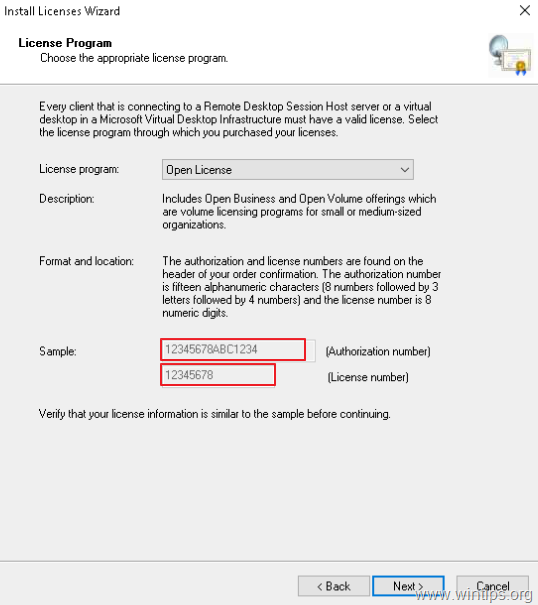
This tutorial was written for users that want to find out the RDS CALS Authorization Number and License Key from VLSC.
Where to Find the RDS CALS Authorization Number & License Number in Volume Licensing Service Center (VLSC).
To see the Authorization Number and the License Key for the purchased RDS CALS in Microsoft Volume Licensing Service Center (VLSC):
1. Sign in to VLSC.
2. From the menu go to Licenses and click Relationship Summary

3. Click at License ID number.
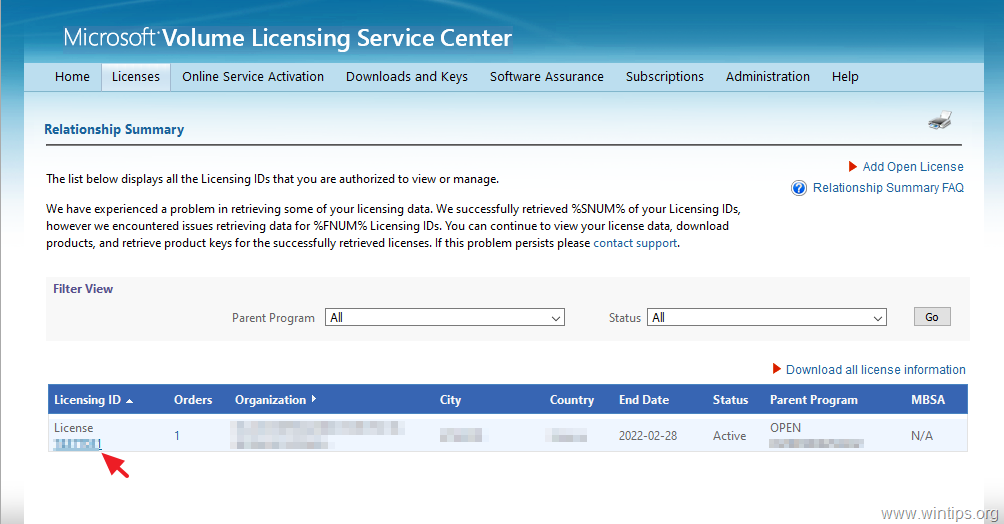
4. At the next screen, you can find out:
a. At License Details field, the License Number
b. At Parent Program field, the Authorization number.

That's it! Let me know if this guide has helped you by leaving your comment about your experience. Please like and share this guide to help others.
Still having trouble fixing this issue?
💬 Get WinTips Remote Support →

- How to Set Microsoft Edge as the Default Browser on iOS Devices Using Intune. - November 2, 2026
- How to Fix SecurityHealthSystray.exe – Bad Image Error (0xc000012f) on Windows 11. - October 26, 2026
- FIX: Windows Hello for Business PIN error 'Your credentials could not be verified' with 'status: 0xc000005e substatus: 0x0' or 'status: 0xc0000bb, substatus: 0x0'. - October 20, 2026