
FIX: Outlook Signatures Missing after Office Update. (Disable Outlook Roaming Signatures).
If your Outlook Signatures are missing/disappeared after an Office update, in this guide you'll learn how to restore them by disabling the Outlook "Roaming Signatures" feature.
Many users reported that after updating Microsoft Office they cannot set the default signature for new and replies/forwards messages in Outlook, because their signatures are missing in "Signatures" settings/options.
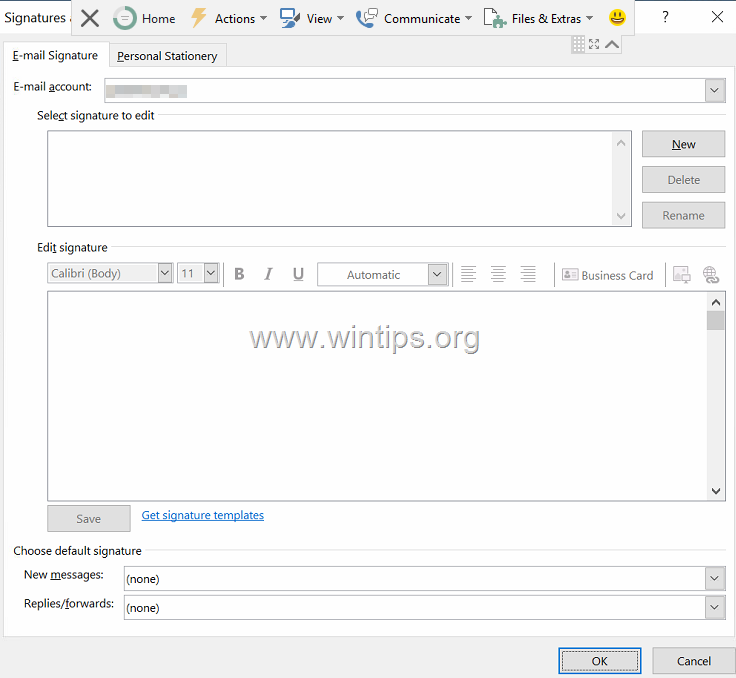
The above issue occurs because the latest versions of Outlook have enabled the "Roaming Signatures" feature which allows email signatures to be stored in a user's mailbox in the cloud* rather than locally on the computer. With this feature, the user's email signature will always be available when accessing Microsoft Outlook from any Windows device using their Microsoft account.
However, if you have a POP3/IMAP account and not an Office 365 account (aka "Microsoft 365 account"), the "Roaming Signatures" feature is useless and must be disabled in order to force Outlook to "look" for signatures locally and not in the cloud.
So, if you don't want to use the "Roaming Signatures" feature in Outlook and you want to use the locally stored signature(s) for your email messages, follow the instructions below to restore your signatures.
How to Disable the Roaming Signatures in Outlook.
1. Close Outlook
2. Open Registry Editor. To do that:
1. Simultaneously press the Win
+ R keys to open the run command box.
2. Type regedit and press Enter to open Registry Editor.

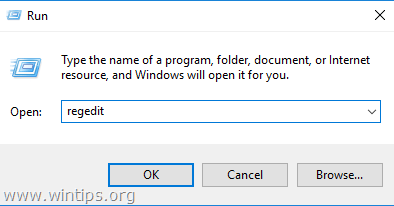
3. At the left pane, navigate to this registry location/folder:
- HKEY_CURRENT_USER\SOFTWARE\Microsoft\Office\16.0\Outlook\Setup
4. Right-click at the Setup key and select New > DWORD (32-bit) Value.
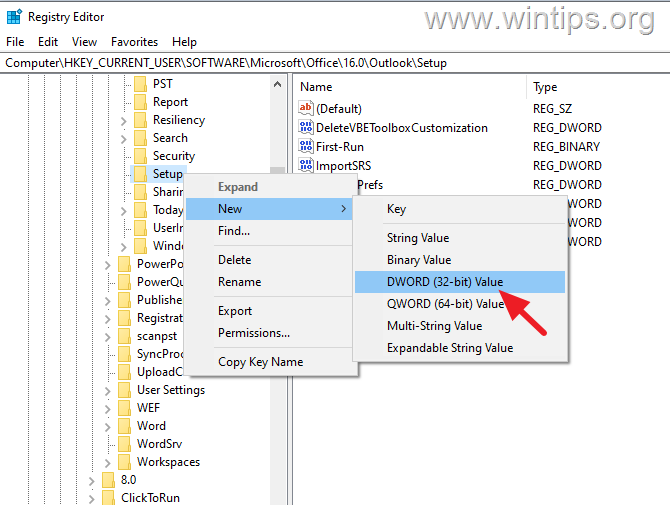
5. Rename the "new value" to: DisableRoamingSignaturesTemporaryToggle

6. Then double-click at the newly created value, set the Value Data to 1 and click OK.

7. Close the Registry Editor.
8. Open Outlook and you should be able to view your signatures again.
That's it! Let me know if this guide has helped you by leaving your comment about your experience. Please like and share this guide to help others.


- Always On VPN Stuck on Connecting After KB5124008 Update: How to Fix - September 24, 2026
- How to Disable Passkey Prompts and Delay Enforcement in Microsoft 365 - September 24, 2026
- Remote Desktop (RDP/RDS) Stops Working After September 2026 Windows Update: How to Fix - September 15, 2026




October 23, 2023 @ 6:39 pm
On my machine is worked great, on some of our users machine that path in RegEdit isn't there
October 25, 2023 @ 9:22 am
Create manually the missing key.