
FIX: Right-Click crashes Explorer on Windows 11 (Solved)
If Explorer hangs or crashes on right-click in Windows 11, continue reading below to fix the problem.
The problem of right-clicking on the desktop or an item causing File Explorer to crash in Windows 11 can be due to various reasons, such as conflicts with third-party software, third-party extensions, corrupted system files or incompatible drivers.
In this guide, you will find detailed instructions on how to fix Explorer crashing when you right-click in Windows 11/10.
How to FIX: Windows 11/10 File Explorer crashes on right click.*
Important: If you're using a third-party utility like Explorer Patcher to customize the Windows 11 Start Menu, Taskbar, System Tray, etc. then uninstall it, because sometimes this is the cause of the problem.
* Note: Except for Method-1, all other methods are also applicable to Windows 10.
Method 1. Restore the Classic Windows Right-Click Context menu.
Windows 11 comes with a modern designed right-click menu which can sometimes crash File Explorer. In such a case, restoring the classic content menu in File Explorer may solve the problem.
1. Type "cmd" or "command prompt" in Search and then open Command Prompt as Administrator.

2. Copy and paste the command below into the terminal, then press Enter:
- reg add "HKCU\Software\Classes\CLSID\{86ca1aa0-34aa-4e8b-a509-50c905bae2a2}\InprocServer32" /f /ve

3. Close the command prompt windows and restart your computer to apply the change.
4. After the reboot you should have the classic Windows right-click menu and the problem should be solved. *
* Note: If the problem remains, open again Command Prompt as Administrator, give the below command to undo the change, restart your PC and continue to next method.
-
reg delete "HKCU\Software\Classes\CLSID\{86ca1aa0-34aa-4e8b-a509-50c905bae2a2}" /f

Method 2. Remove Third-Party Shell Extensions that may causing Explorer to crash.
Another reason why Explorer may crash with a right click, is a third-party extension. So go ahead and disable all third party extensions in the right-click context menu, to see if that's the cause. To do that:
1. Download the ShellExView utility from NirSoft. (Scroll down the page that opens to find the download link)
2. Extract the downloaded shellexview.zip file to a folder.
3. Then explore the folder's contents and double-click at shexview.exe application
4. In ShellExView utility, select the Options menu and click on Hide All Microsoft Extensions.

5a. Now press and hold-down the CTRL button and click one-by-one all the Context Menu extensions to select all of them.

5b. Now, press F7 or right-click and choose Disable Selected items. Then ask Yes on the confirmation window.
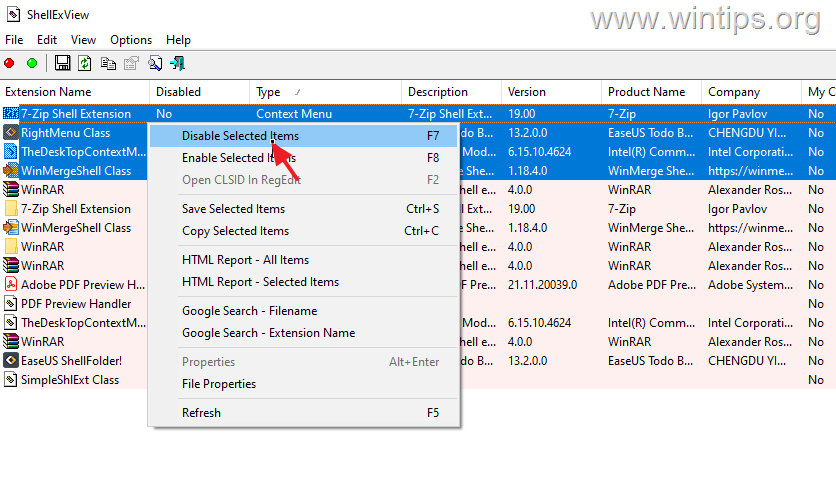
6. Now reboot your computer and check if File Explorer has stopped crashing when your right-click on the desktop or on a object. According the result, proceed as follows:
- If the problem persists and the file explorer still crashing, repeat the steps 5a & 5b above, to enable all the disabled Context menu extensions and skip to method-3 below.
- If the problem is fixed, proceed to find out which particular Context Menu extension is causing the problem by using the below procedure:
- Open the ShellExView utility.
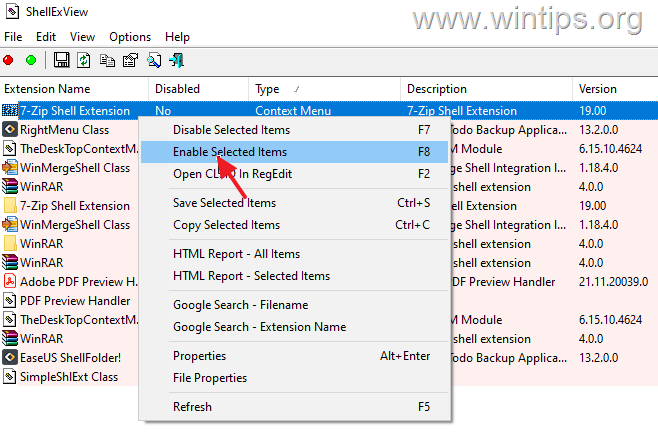
- Click on the first Context Menu extension on the list and press F8 or right-click on it and choose Enable.
- Then restart your PC. If the right-click is working without crashing File Explorer, proceed to enable the next disabled Shell extension. If File Explorer crashes, disable again the particular extension you enabled before or uninstall the program that installed it.
Method 3. Repair Windows System Files.
Repairing Windows system files is a common but important step in solving Windows 10/11 problems like the one mentioned here.
1. Open Command Prompt as Administrator. To do that, type "cmd" or "command prompt" in the Search and then click Run as administrator in Command Prompt result.

2. At the command prompt window, type the following command & press Enter:
- dism.exe /Online /Cleanup-Image /Restorehealth
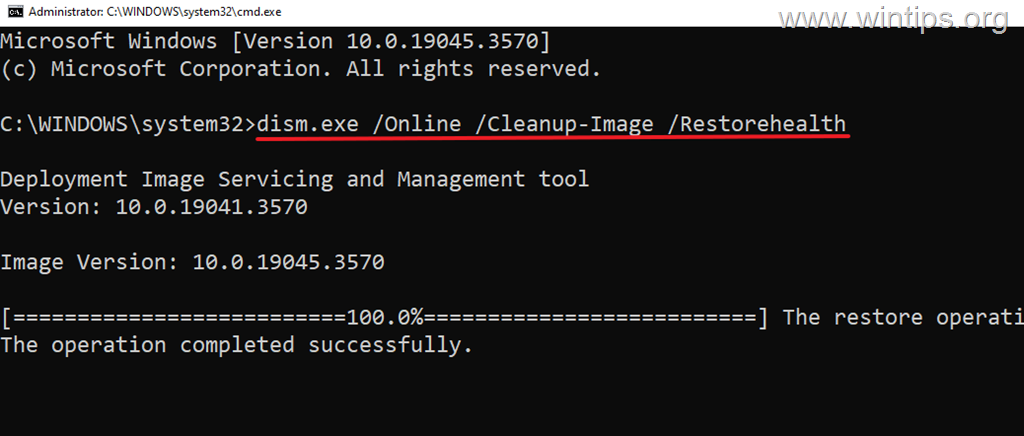
3. Be patient until 'Deployment Image Servicing and Management' (DISM) tool repairs component store.
4. When the operation is completed, give the command below and press Enter:
- sfc /scannow
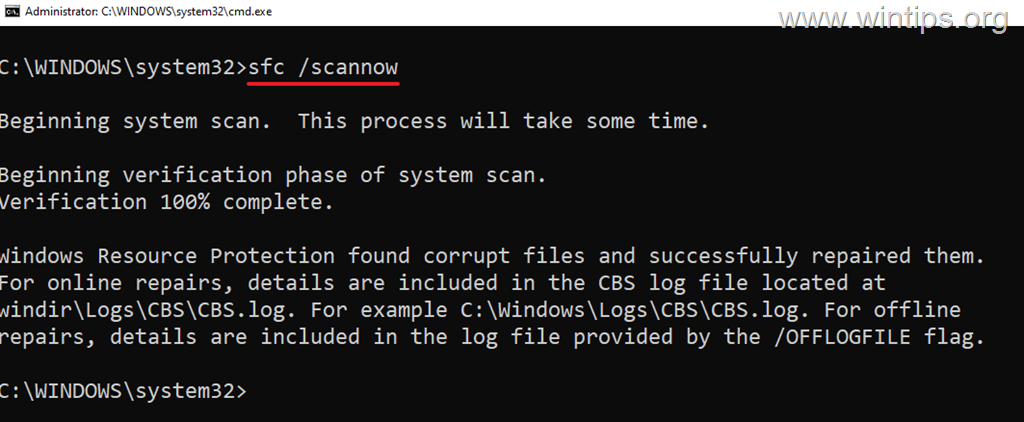
5. When SFC scan is completed, restart your computer.
6. After restarting check if the problem is fixed.
Method 4. Reinstall or Update Graphics Drivers.
Some times the crashing and freezing issues in Windows 10/11 File Explorer are caused by a faulty Graphics driver. So, proceed to uninstall and reinstall the Graphics Drivers, as instructed below:
1. Right-click on the Start menu and select Device Manager.

2. Expand the Display adapters section.
3. Right-click on your display adapter and select Uninstall Device.

4. At next window, choose to Delete the driver software for this device and click Uninstall.
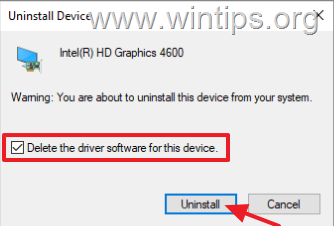
5. Wait a few seconds and then restart your PC.
6. After restart, Windows will automatically re-install the graphics driver from the Windows Update servers.
* Note: To make sure the driver installation is complete, go to Device Manager and check that your display adapter model is listed there. If not, check and install all available Windows updates or install the latest graphics driver from the GPU manufacturer's support site.
Method 5. Repair Windows with an In-place Upgrade.
If, after following the methods above, you're still having problems, your last option is to repair Windows with an in-place upgrade. To do this, use the instructions in one of these tutorials, depending on your version of Windows.
- How to Repair Windows 10 with an In-Place Upgrade.
- How to Repair Windows 11 with an In-Place Upgrade.
That's it! Which method worked for you?
Let me know if this guide has helped you by leaving your comment about your experience. Please like and share this guide to help others.
Frequently Asked Questions
Why does File Explorer crash when I right-click in Windows 11?
The issue could be caused by conflicts with third-party software, third-party extensions, corrupted system files, or incompatible drivers.
What can I do to fix the right-click crash issue in Windows 11 Explorer?
You can try restoring the classic Windows right-click menu, removing third-party shell extensions, or repairing Windows system files.
How do I restore the classic right-click menu in Windows 11?
Open Command Prompt as Administrator, enter the specified registry command to restore the classic menu, and restart your computer.
How can I remove third-party shell extensions that might be causing Explorer to crash?
Use the ShellExView utility to disable third-party context menu extensions and determine if they are the source of the issue.


- Windows Update Uninstall Failed with Error 0x800F0825: How to Fix - October 7, 2026
- Apps and Games Crash After KB5124010 Due to AC-3 Audio: How to Fix - October 5, 2026
- How to Fix Windows 11 Update Error 0x80073712 - October 5, 2026



August 15, 2026 @ 2:46 pm
Thank you for this article! My explorer in Win 11 would hang for everything! I followed the procedure you recommended using the ShellExView utility, and was FINALLY able to identify and remove the problem program and extension. Blessings!
February 20, 2026 @ 9:24 pm
My file explorer started to hang after a failed update. The first solution worked like a charm for me. This was so annoying!!!! Thanks so much!!!
December 24, 2025 @ 12:31 pm
Thank you! I know absolutely nothing about computers, but was able to follow this (it was a shell extension issue – StartAllBack). :-)
September 19, 2025 @ 11:46 am
Try- control panel- indexing options- advanced- REBUILD.
Depending on system run when you're sleeping.
If this doesn't work then -rt click windows start in taskbar- computer mgnt- Services,
now disable windows search.
Searching folders or drives actually works better with this disabled.
Microsuck for you.
This was on 26200-6584 25H2, which doesn't have any great performance boost, but does have more junk and logging, because SSD's love writes, telem, lol.