
How to Create a DDM Update Policy for iOS Devices in Intune.
Creating a DDM Update Policy for iOS devices ensures faster, more reliable, and more secure updates across your organization. So, in this guide, you'll learn what a DDM update policy is, the requirements, and the exact steps to setup one in the Microsoft 365 Intune Center.
Declarative Device Management (DDM) is Apple's modern way to apply at once the required configuration settings on iOS, iPadOS, and macOS devices without sending multiple commands. For example, unlike traditional MDM, DDM allows devices to automatically apply updates and report their compliance status to the server without requiring the server to constantly check devices to see if an update has finished.
As you can understand, Apple's DDM is the next-generation device management system that reduces reliance on server commands and improves speed, reliability, and security.
How Declarative Device Management (DDM) Works.
- The server sends a declaration with all the configuration settings that need to be applied to the device. (e.g. the "Update" or the "Password" policy).
Once the declaration is delivered to the device, the device:
- Stores the declaration locally.
- Applies it automatically.
- Ensures it remains compliant.
- Reports back to the server its compliance status and whether the policy has been applied.
What is a DDM Update Policy?
A DDM Update Policy uses Apple’s Declarative Device Management framework that force devices to install updates as soon as the policy is applied and conditions are met. With a DDM Update Policy you can:
- Automatically install iOS/iPadOS software updates.
- Enforce minimum OS versions.
- Ensure faster update delivery.
- Reduce delays caused by traditional MDM commands.
- Improve compliance reporting.
Requirements to apply a DDM Update Policy in Intune
- iOS Version: 15+
- Devices must be automatically enrolled in Intune through Apple Business Manager or Apple School Manager.
How to Setup an iPhone/iPad Update Policy using Declarative Device Management (DDM) In Microsoft 365 Intune.
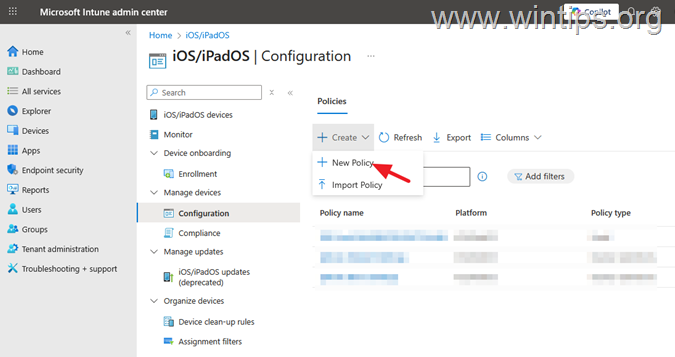
1. Navigate to Microsoft InTune Admin Center > Devices > iOS/iPadOS > Configuration.
2. Click Create and select below New Policy.
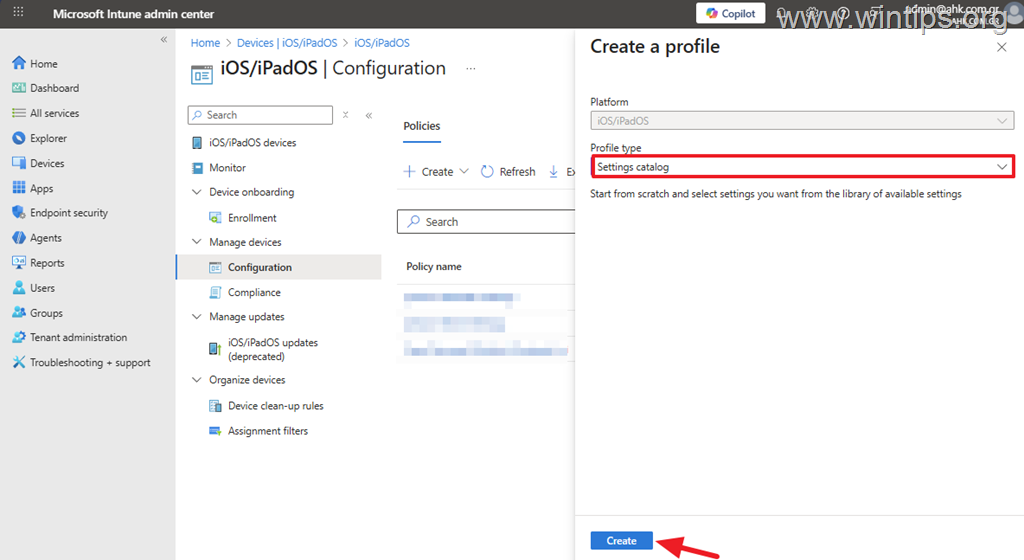
3. Select Platform: iOS/IpadOS, Profile type: Settings catalog and click Create.
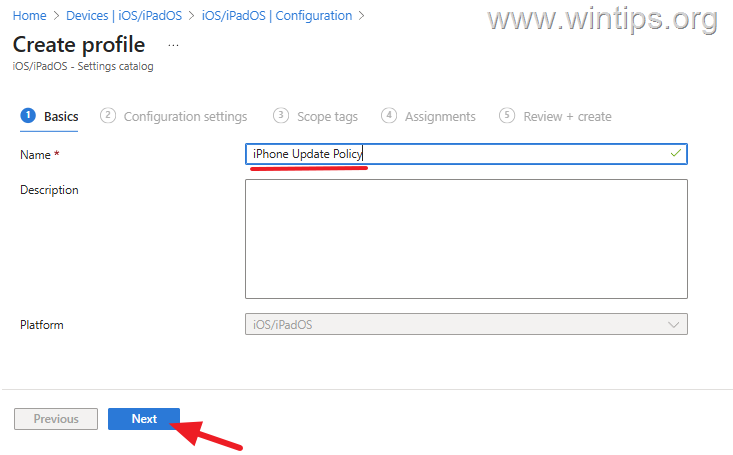
4. Type a name for the new policy (e.g. "iPhone Update Policy") and click Next.
5. IN 'Configuration settings' click Add settings.
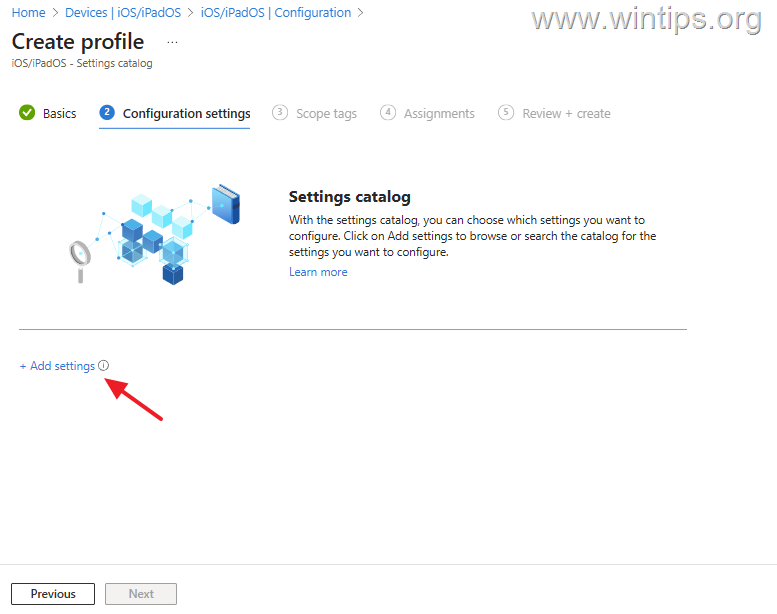
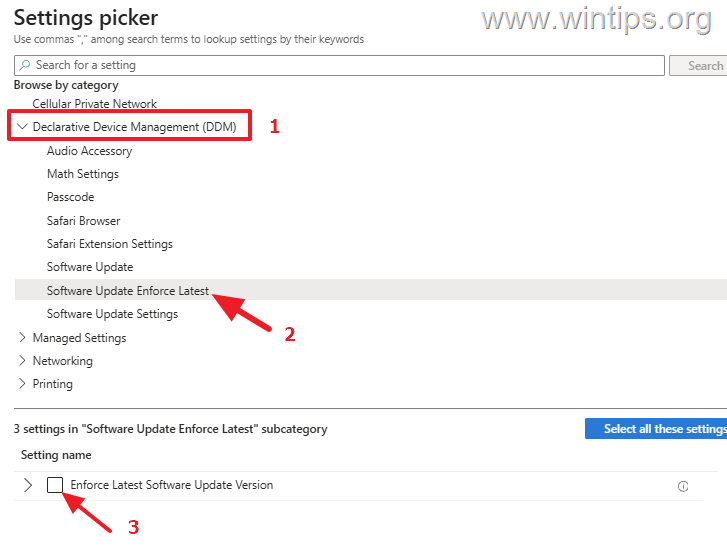
5a. In 'Settings picker', select Declarative Device Management (DDM) and below click on Software Update Enforce Latest and below check the option Enforce Latest Software Update Version.
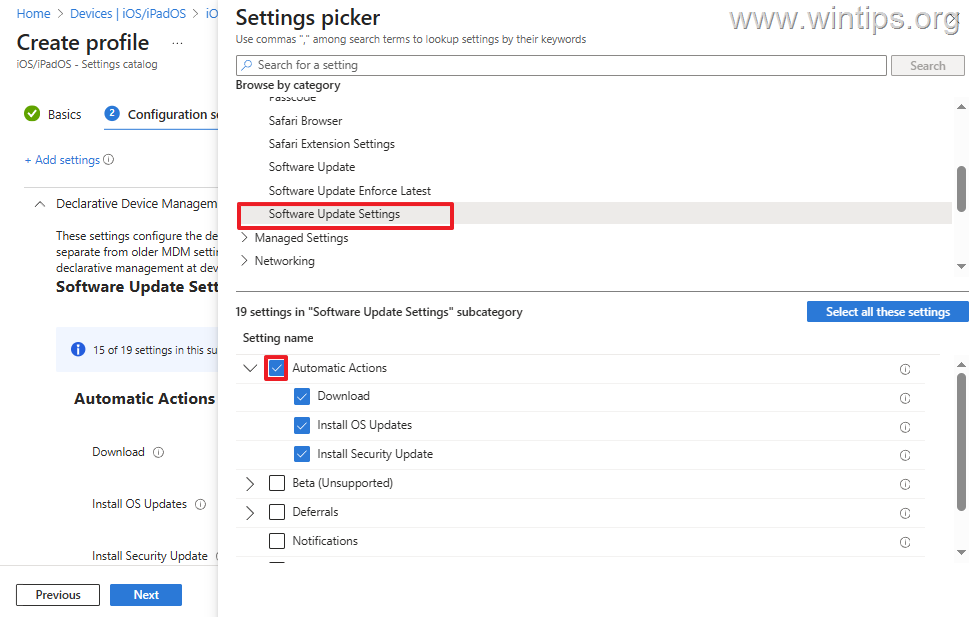
5b. Now click on Software Update Settings and below check all the Automatic Actions.
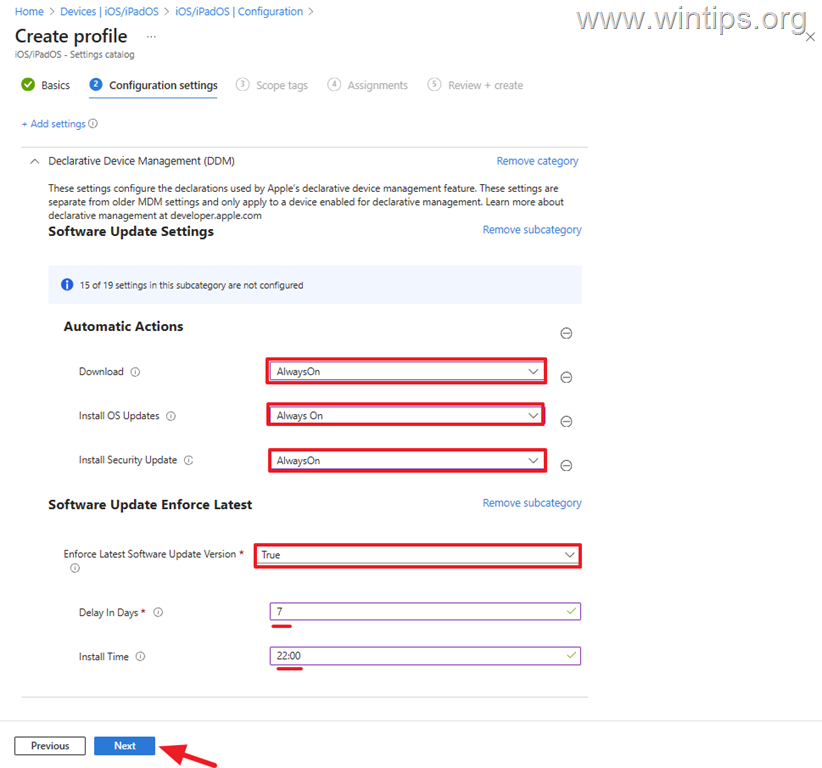
6. Now close the "Settings picker" window and do the following to configure the update policy for your iOS devices:
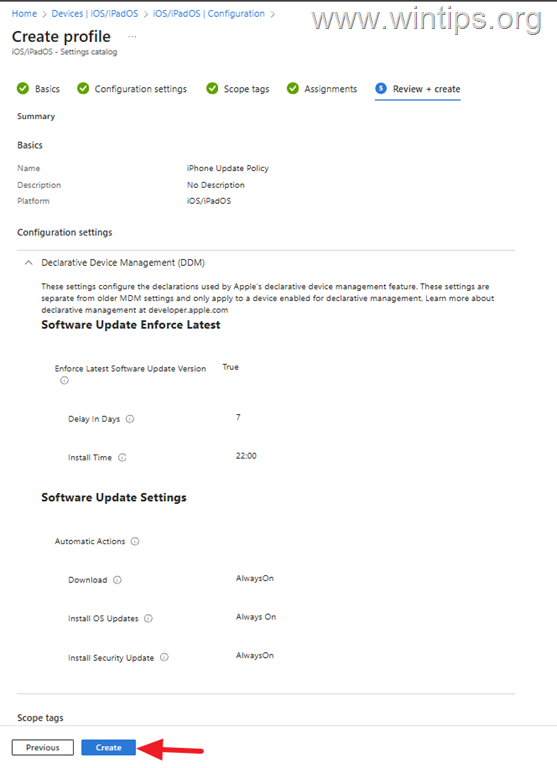
- In the Automatic Actions section, set all actions to AlwaysOn to force iOS devices to automatically download and install operating system and security updates.
- In the Software Update Enforce Latest (version) section, set the Enforce Latest Software Update Version option to True to force devices to update to the latest iOS version, and below, set the deadline for the update to install after it is released. (e.g. "7 days"). When done, specify below the Install Time (e.g. "22:00") and click Next.
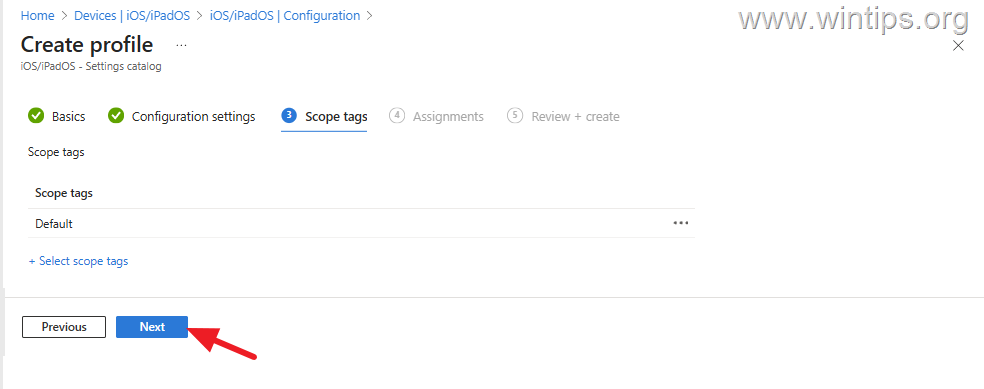
7. In 'Scope tags', click Next.
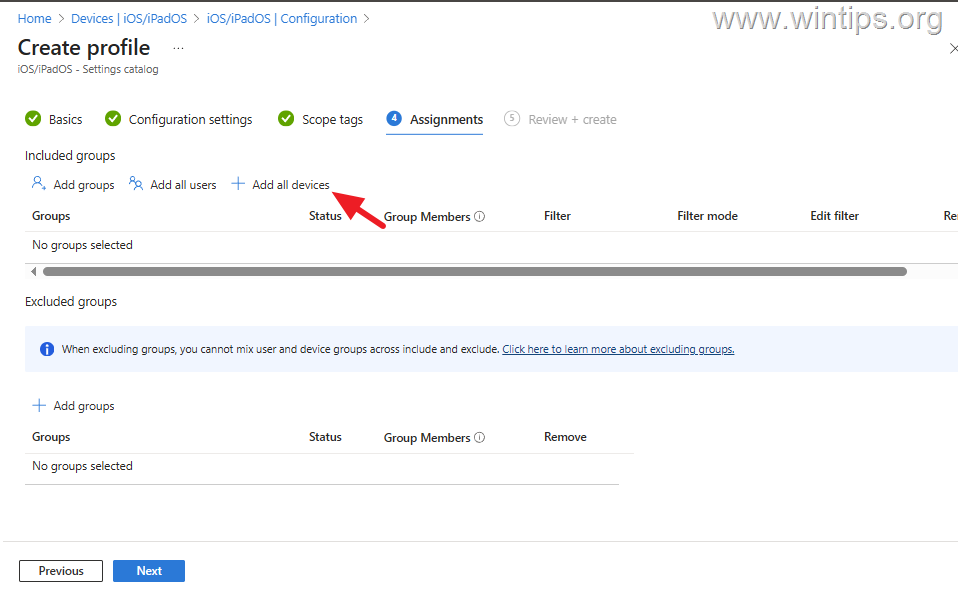
8. In "Assignments" click Add all devices to assign the policy to all managed iOS devices and then click Next.
9. Finally, review and click Create to create and deploy the DDM Update policy to the selected iOS devices.
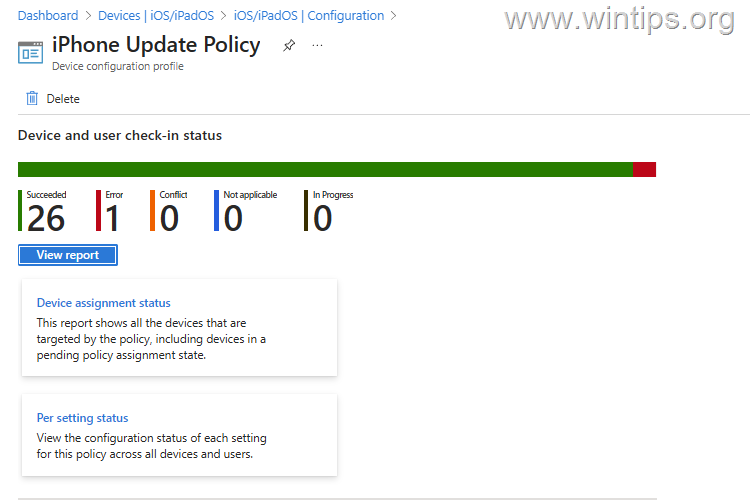
10. After the policy is deployed to devices, and after waiting at least a few hours, click on the policy to check if it has been applied to all devices and troubleshoot any errors.
Conclusion
Creating a DDM update policy for iOS devices enables organizations to maintain a secure and up-to-date fleet of devices with minimal effort. By following this guide, you can leverage Apple's innovative DDM feature and automate updates to your iOS devices through Intune to improve security and user experience.
That's it! Let me know if this guide has helped you by leaving your comment about your experience. Please like and share this guide to help others.
Frequently Asked Questions
What is Declarative Device Management (DDM)?
Declarative Device Management (DDM) is Apple's modern approach to applying configuration settings on iOS, iPadOS, and macOS devices by allowing devices to automatically apply updates and report compliance without the need for multiple server commands.
How does a DDM Update Policy benefit an organization?
A DDM Update Policy ensures faster and more reliable updates by automatically installing software updates, enforcing minimum OS versions, ensuring faster delivery, reducing delays, and improving compliance reporting.
What are the requirements to apply a iOS DDM Update Policy in Microsoft Intune?
To apply a iOS Update Policy in Intune, the devices must run iOS version 15 or higher and be automatically enrolled in Intune via Apple Business Manager or Apple School Manager.
How do you set up a DDM Update Policy in Microsoft 365 Intune?
To set up a DDM Update Policy, navigate to the Microsoft Intune Admin Center under Devices > iOS/iPadOS > Configuration. Create a new policy with the desired settings, assign it to the devices, and ensure it is properly deployed and functioning within the organization.


- Remote Desktop (RDP/RDS) Stops Working After September 2026 Windows Update: How to Fix - September 15, 2026
- Windows 11 KB5124008 Causes No Sound or USB Audio Code 10: How to Fix - September 14, 2026
- Copilot Missing or Grayed Out in Outlook: How to Fix - September 10, 2026



