
How to back up Microsoft 365 data to a Synology NAS with Active Backup for Microsoft 365 (FREE)
In this guide, you will learn how to back up your data from Microsoft 365 to a Synology NAS for free, using Synology's Active Backup for Microsoft 365.
It’s a common misconception that Microsoft 365 (aka "Office 365") is the only way to protect your business data. But while Microsoft ensures high availability, uptime, and basic data retention, it doesn’t provide complete backup protection against many real-world threats. Accidental deletions, ransomware attacks, or a variety of other reasons can lead to data loss—something Microsoft clearly states in its Shared Responsibility Model. This is where a dedicated backup solution becomes essential.
Synology Active Backup for Microsoft 365 allows organizations to take local backups of their Microsoft 365 data directly on a Synology NAS, with a one-time setup and no additional cost. More specifically, with Active Backup for Microsoft 365 you can backup:
- Exchange Online mailboxes
- Users' OneDrive.
- SharePoint Online sites
- Microsoft Teams files.
Requirements:
To be able to backup your Microsoft365 data on your Synology NAS with Active Backup for Microsoft 365, you need the following:
- A Synology NAS running DSM 6.1-15217 or above. For compatible NAS models click here.
- A Synology Account to activate Active Backup for Microsoft 365.
- A Microsoft 365 account with global admin privileges.
- Enough storage space on your Synology NAS to store the backup(s).
How to Back Up Microsoft 365 to a Synology NAS.
Step 1. Install & Activate Active Backup for Microsoft 365.
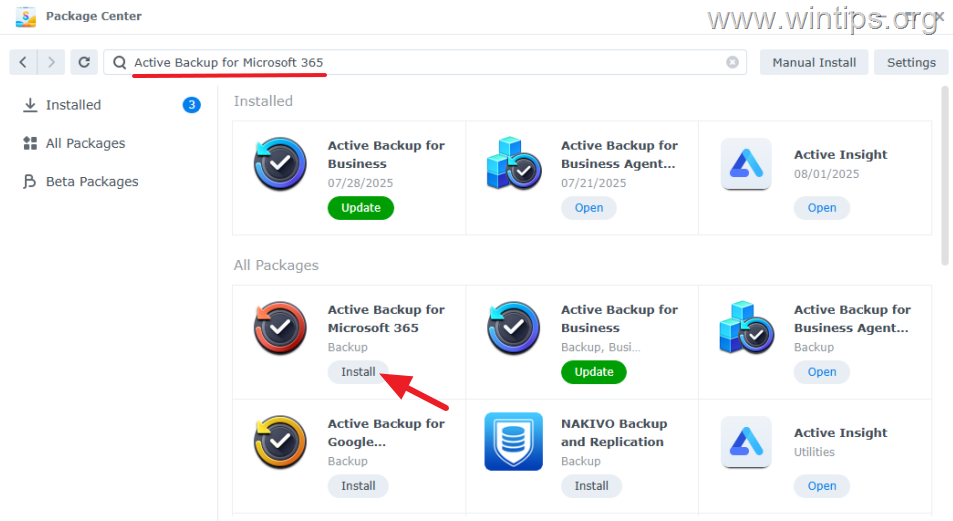
1. In your Synology's DSM, open Package Center and search for "Active Backup for Microsoft 365".
2. Then click Install on Active Backup for Microsoft 365 to install the product.
3. After installation open Active Backup for Microsoft 365, click Activate and then to activate the product using your Synology Account.
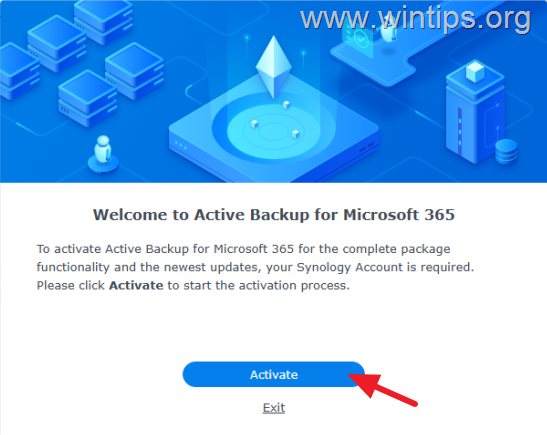
4. Accept the Privacy Statement and then use your Synology Account credentials to activate the Active Backup for Microsoft 365 package.
5. Once the package is activated click OK and proceed to next step.
Step 2. Create a new shared folder to store Microsoft 365 Backups.
Now proceed to create a new folder on your Synology NAS to store the Office 365 backups.
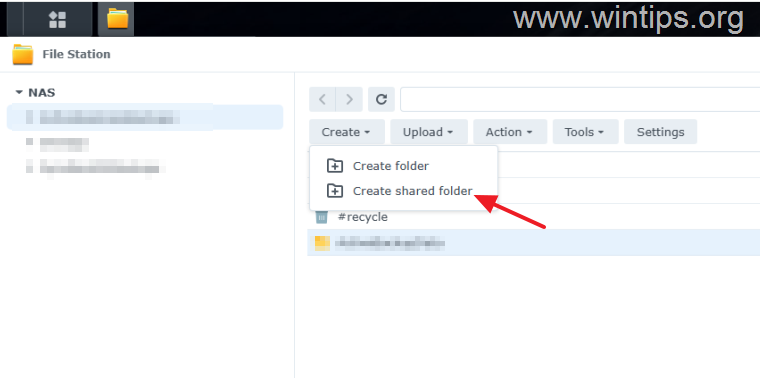
1. On your Synology's DSM, open File Station and choose Create > Create Shared folder.
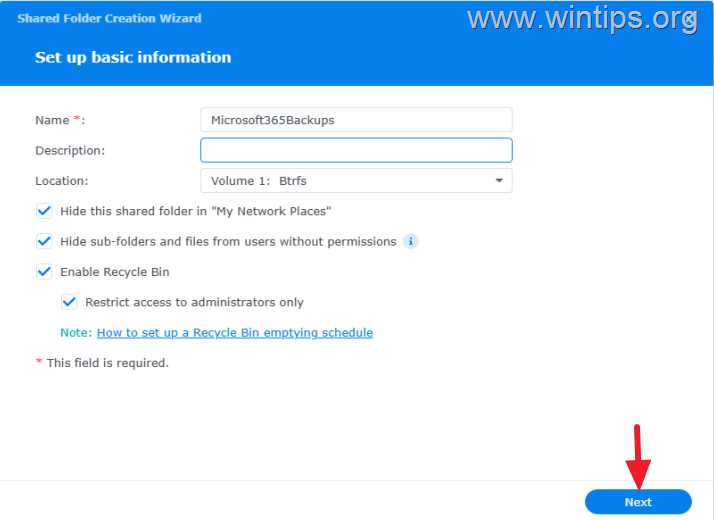
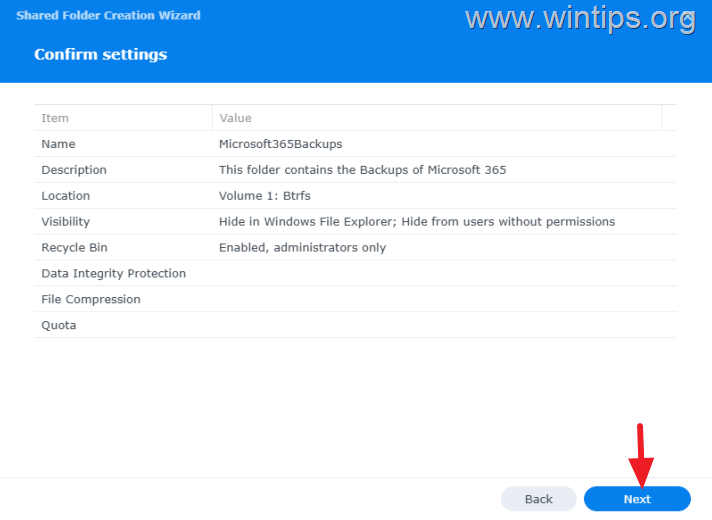
2. Type a name for the new shared folder (e.g. "Microsoft365Backups") and then change the folder settings below according your needs. Then, click Next.
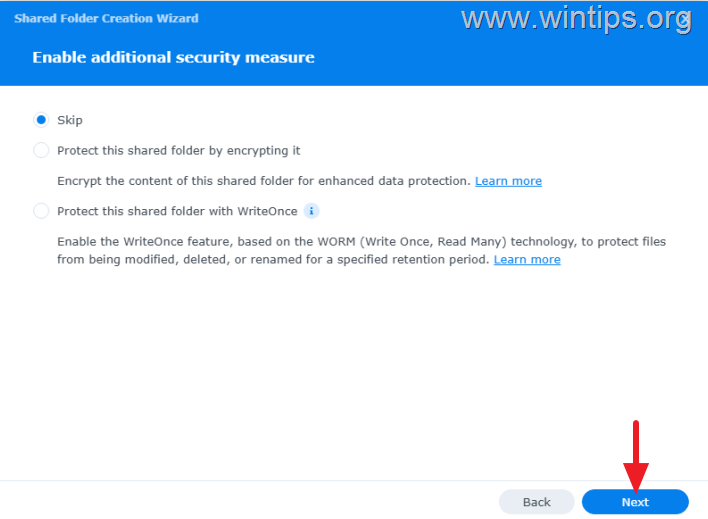
3. In the next screen enable any additional security measure your want and then click Next again.
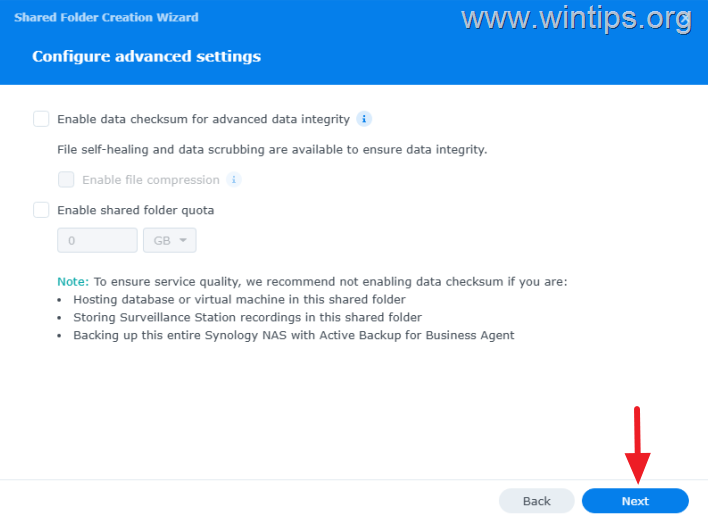
4. Now modify (if you want), the advanced settings of the shared folder and click Next.
5. Now, review and confirm all the shared folder settings and click Next to create the new shared folder.
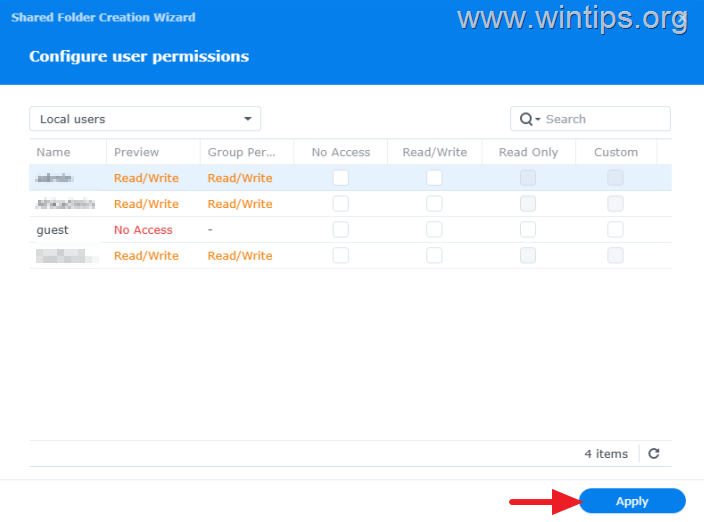
6. Finally, specify the user permissions and click Apply. Then continue to next step.
Step 3. Create a Backup Task to back up Microsoft 365 Data.
Now lets create a new backup task, to backup the M365 data to your Synology NAS.
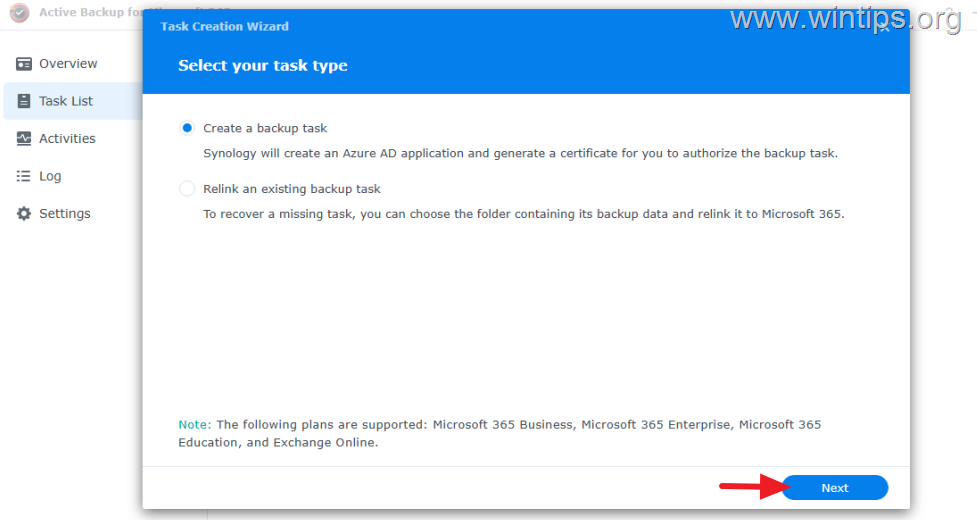
1. Open Active Backup for Microsoft 365 and click Next to Create a backup task.
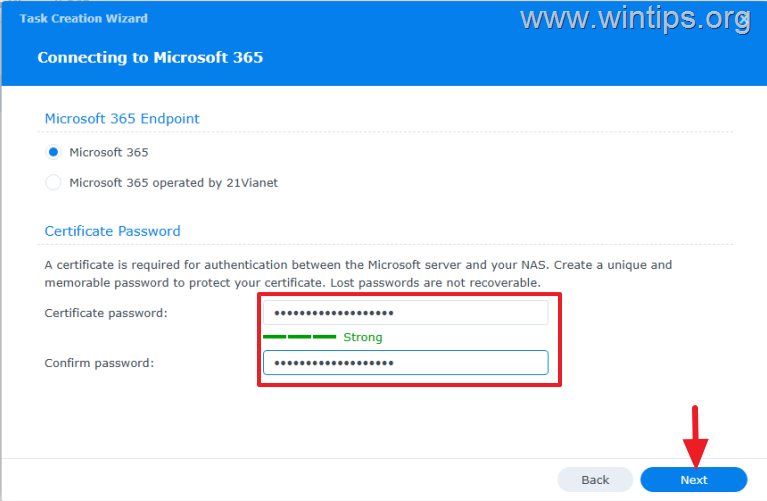
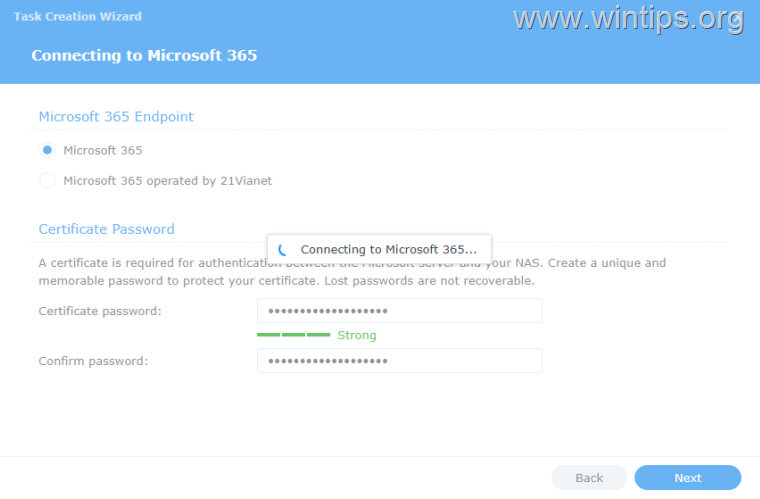
2. Now select the Microsoft 365 endpoint type, then enter a very strong password for the certificate that will be used to authenticate your Microsoft endpoint with your NAS. When done, click Next.
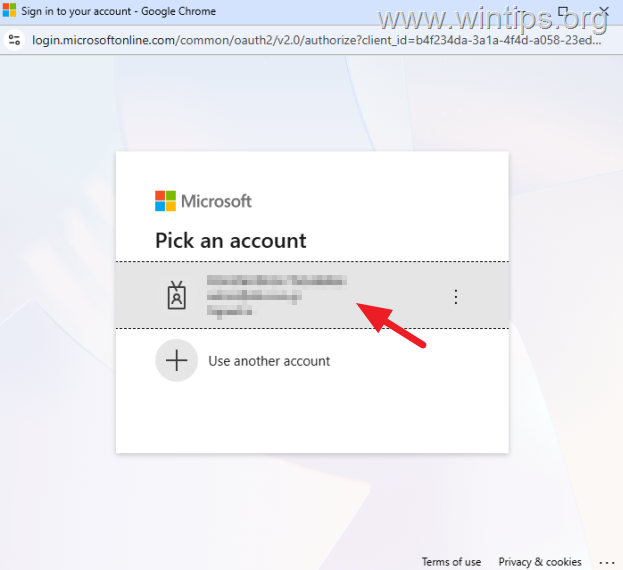
3. On the pop-up window, login to your Microsoft 365 tenant using your Microsoft365 admin credentials.
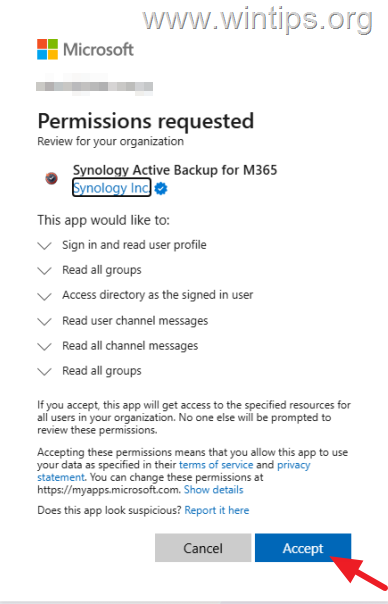
4. On the next screen Accept the read and access permissions requested by Synology Active Backup for M365.
5. Now wait until "Synology Active Backup for M365" connects to Microsoft 365.
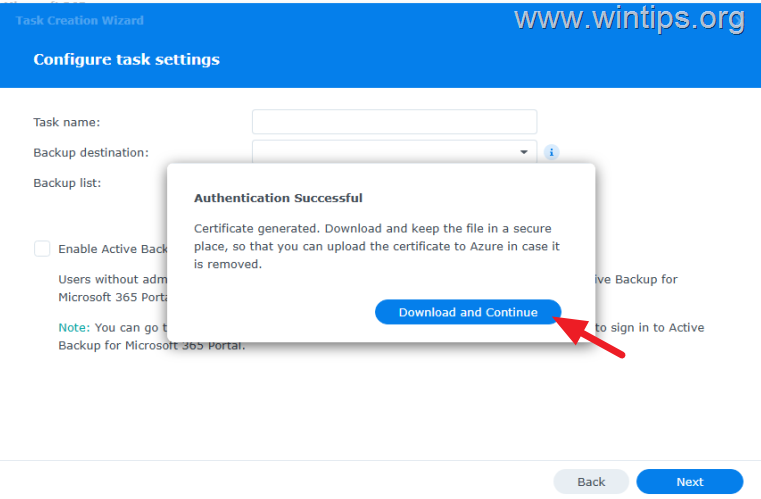
6. After successfully certifying in M365, download and save the generated certificate in a safe place, in case you need it in the future.
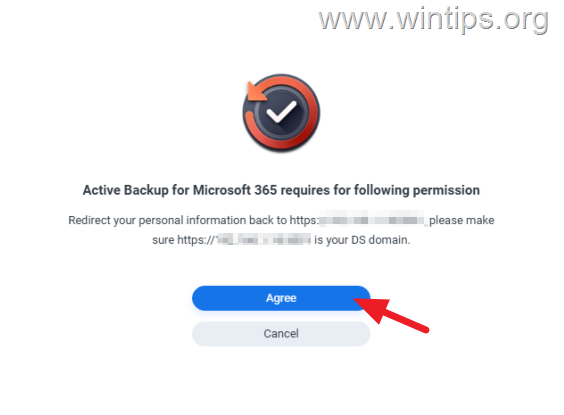
7. Click Agree to redirect our personal information back to your Synology.
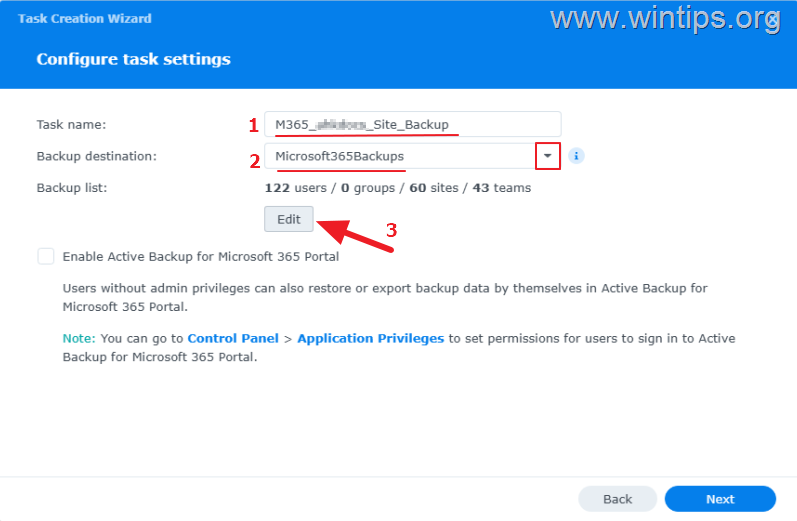
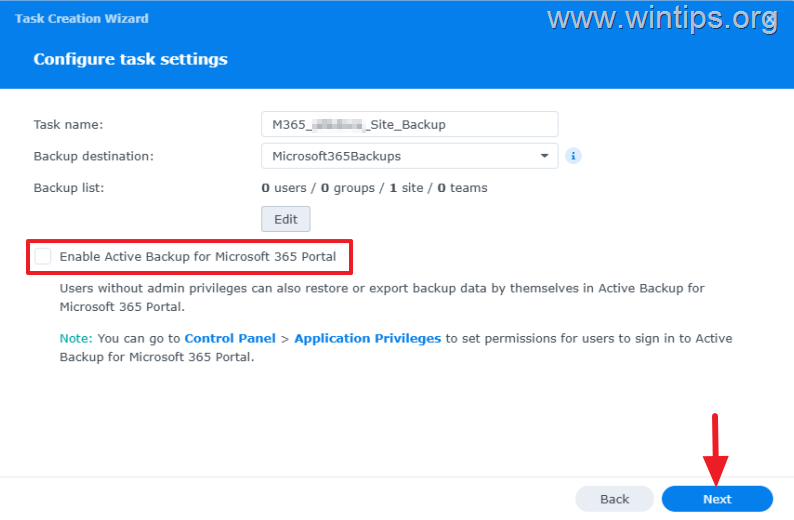
8a. On the next screen, do the following:
-
Type a name for the backup task.
-
Click the drop-down arrow and select the shared folder you created in step-2 as the backup destination.
-
Click Edit.
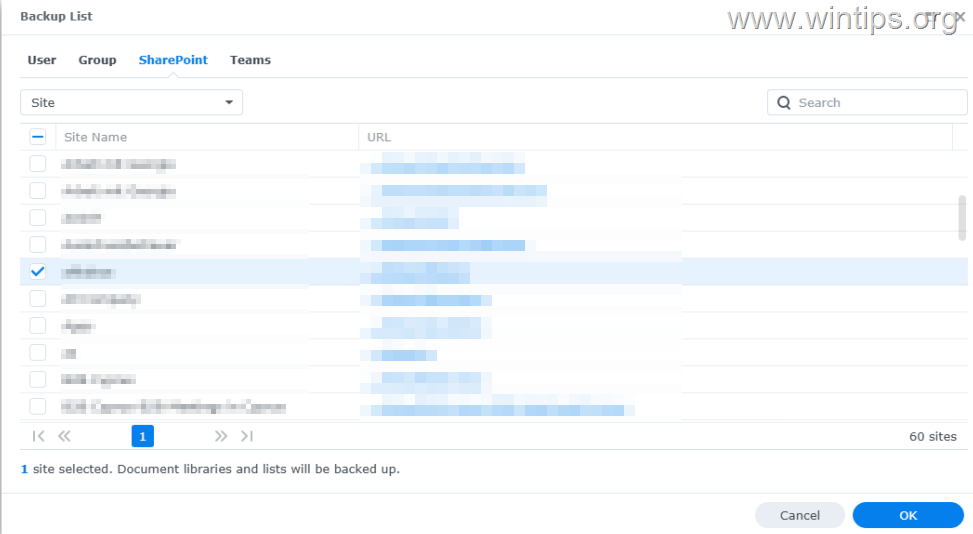
3a. In the Backup List options, you will see that by default, all Users, Groups, SharePoint Sites, and Teams data will be backed up. If you do not want this, go to all tabs and select only the data you want to back up. (e.g. in this guide we have chosen to back up only a specific SharePoint site). When you are finished, click OK to continue.
8b. Back in the "Configure task settings" window, select whether you want the user(s) to be able to restore their data or not, and then click Next to continue.
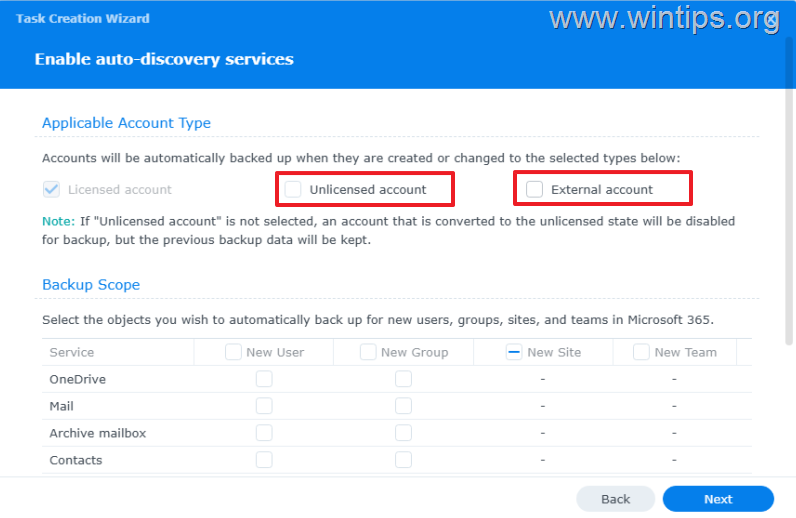
9. In the "Enable Auto-discovery Services" options, do the following:
-
In the Applicable Account Type: choose whether to back up data in unlicensed and external accounts.
-
In the Backup Scope settings, choose if you want to include in the backup data from new users, groups, sites, and groups that are created in the future.
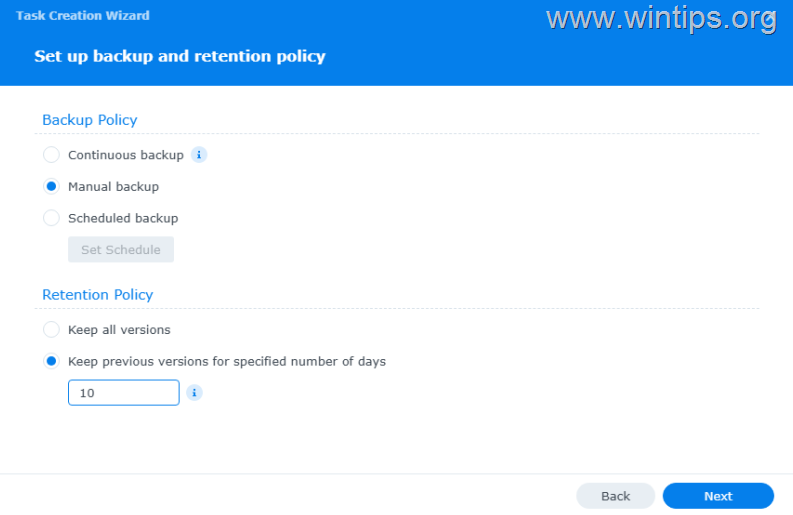
10. In the "Set up backup and retention policy" window, do the following and click Next:
-
Backup Policy: Specify the backup frequency, choosing either Continuous, Manual or Scheduled backup.
-
Retention Policy: Specify the number of backup versions you want to keep.
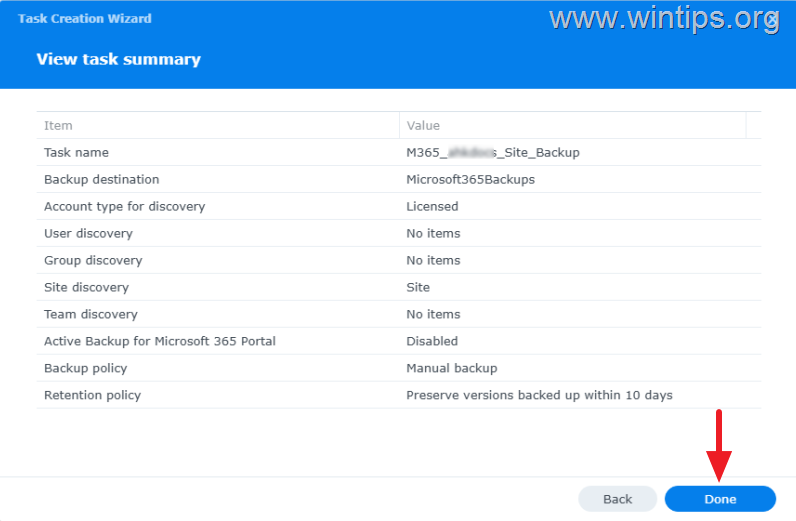
11. Finally, review all the settings of the backup job you created and, if you agree, click Done.
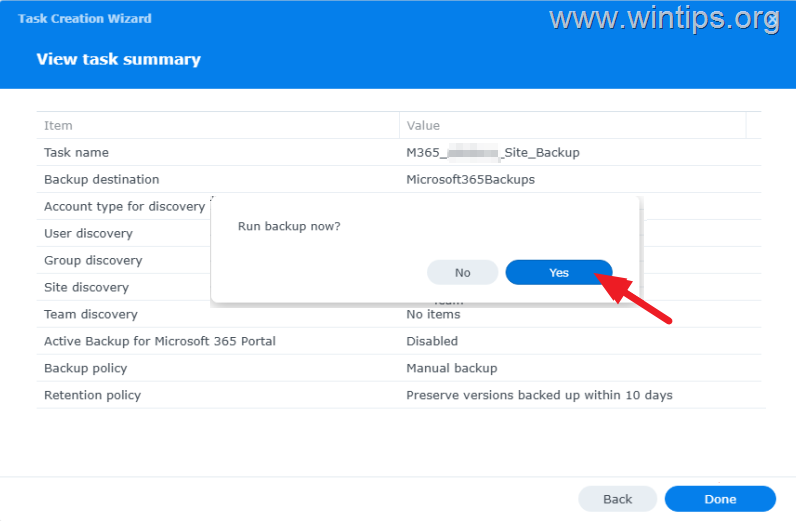
12. Now, you'll be asked if you want to back up now. If so, click Yes to create the first backup of your selected Microsoft 365 data.
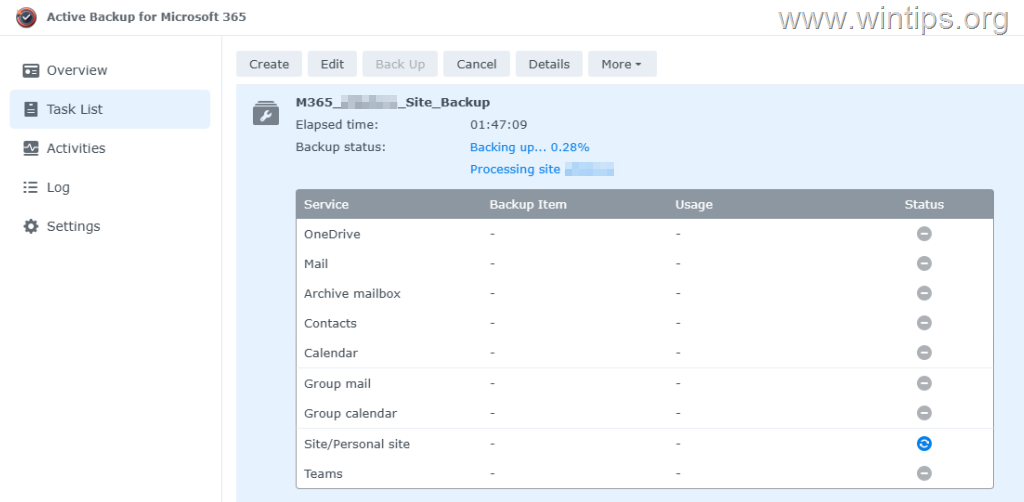
13. After starting the backup process, go to the Task List tab to view the progress and wait until the backup is complete.
Summary.
To back up Microsoft 365 to a Synology NAS, install Active Backup for Microsoft 365, connect your Microsoft 365 tenant, select Exchange, OneDrive, SharePoint, and Teams data, create a backup task, set your schedule, and start the backup.
That's it! Let me know if this guide has helped you by leaving your comment about your experience. Please like and share this guide to help others.
Frequently Asked Questions
What is the main benefit of using Synology Active Backup for Microsoft 365?
The main benefit is that it allows organizations to take local backups of their Microsoft 365 data directly on a Synology NAS, without additional costs or recurring fees.
What types of Microsoft 365 data can be backed up using Synology Active Backup for Microsoft 365?
You can back up Exchange Online mailboxes, Users' OneDrive, SharePoint Online sites, and Microsoft Teams files using Synology Active Backup for Microsoft 365.
What are the requirements to back up Microsoft 365 data on a Synology NAS?
To back up Microsoft 365 data on a Synology NAS, you need a Synology NAS running DSM 6.1-15217 or above, a Synology Account, a Microsoft 365 account with global admin privileges, and enough storage space on your Synology NAS.
How do you activate Active Backup for Microsoft 365 on your Synology NAS?
To activate Active Backup for Microsoft 365, install the package from the Package Center, open it, click Activate, accept the privacy statement, and use your Synology Account to complete the activation.


- Remote Desktop (RDP/RDS) Stops Working After September 2026 Windows Update: How to Fix - September 15, 2026
- Windows 11 KB5124008 Causes No Sound or USB Audio Code 10: How to Fix - September 14, 2026
- Copilot Missing or Grayed Out in Outlook: How to Fix - September 10, 2026



