
How to Require MFA for All Users in Microsoft 365 with a Conditional Access Policy.
In this guide, you’ll learn how to require Multi-Factor Authentication (MFA) for all users using a Conditional Access policy in Microsoft 365.
Multi-factor authentication (MFA) is one of the most effective ways to secure and protect Microsoft 365 accounts. According to Microsoft, MFA can block over 99% of attacks and account compromises. By requiring an additional verification step beyond just a password, MFA significantly reduces the risk of unauthorized access.
The best and recommended way to enforce MFA for all users is to use a Conditional Access (CA) policy in Microsoft 365 Entra ID. This policy will require users to use MFA to sign in to their Microsoft 365 account and apps, whether they sign in from mobile or desktop. This approach provides flexibility, using a modern authentication method, and offers much greater security than the simple password-based authentication method.
How to Implement Multi-Factor Authentication for All Users with a CA Policy in Microsoft 365.
Requirements:
- Microsoft Entra ID admin permissions.
- Microsoft 365 Business Premium.
To create a Conditional Access (CA) policy that requires all users to authenticate with MFA in order to sign-in to Microsoft 365 apps & services:
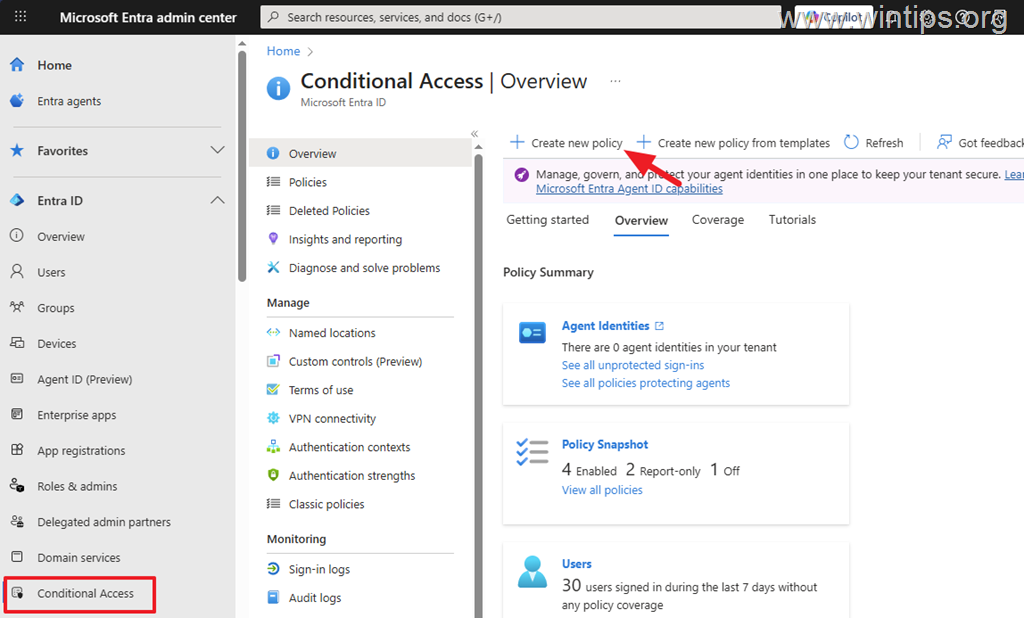
1. Navigate to Microsoft Entra admin center, select Conditional Access on the left side, and then click Create new policy.
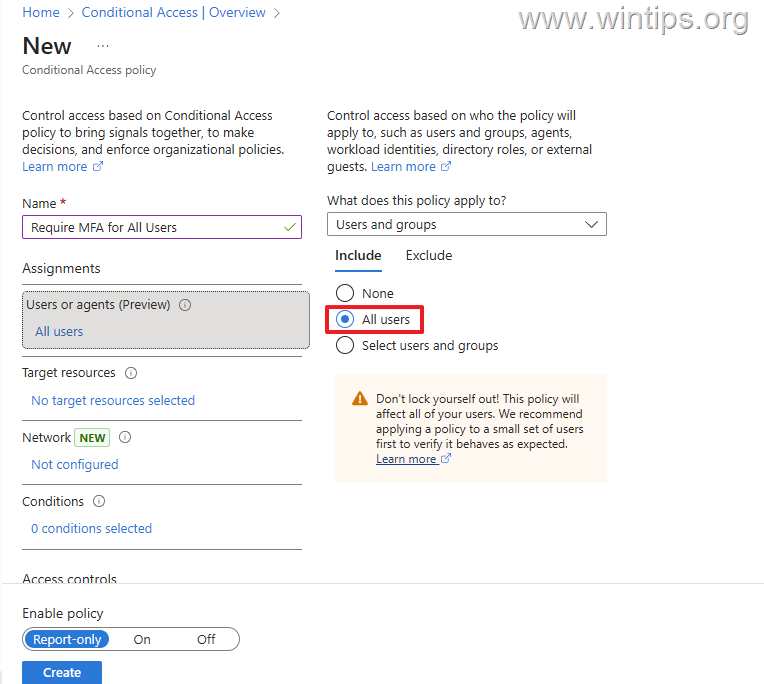
2. Type a name for the new policy (e.g., "Require MFA for All Users"). Naming the policy clearly helps in future management and auditing processes.
3. Now click at Users or agents (Preview) and do the following:
3a. On the Include tab, select All users. This ensures that every account within your organization will be subject to the MFA requirement.
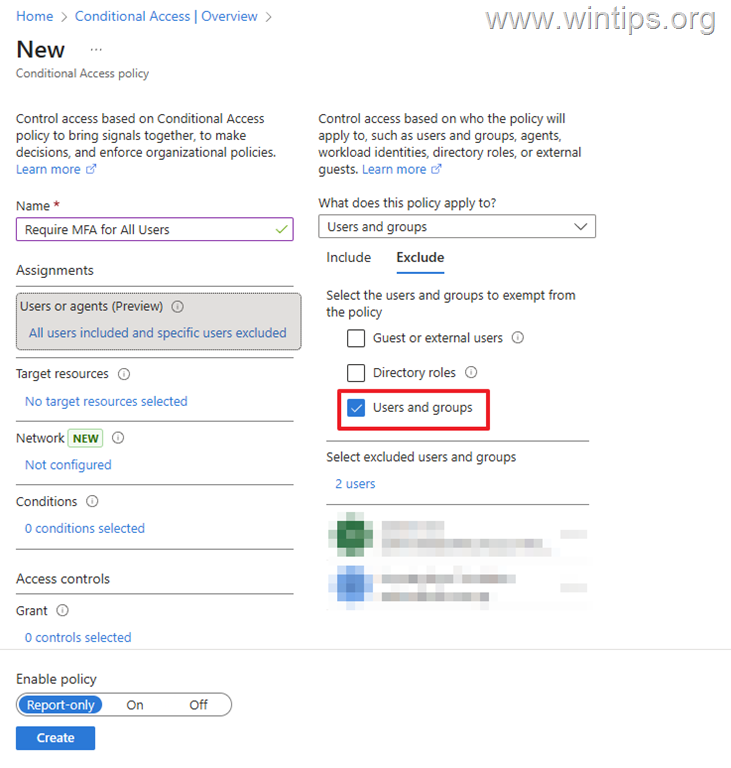
3b. On the Exclude tab, select Users and groups, and then in the "Select excluded users and groups" window that opens, select at least your Microsoft 365 administrator account to avoid locking yourself out, and also select any other global Microsoft 365 administrator account in your tenant (e.g., the "Break Glass Administrator" account). This step is crucial to maintain administrative access in case of an issue with MFA.
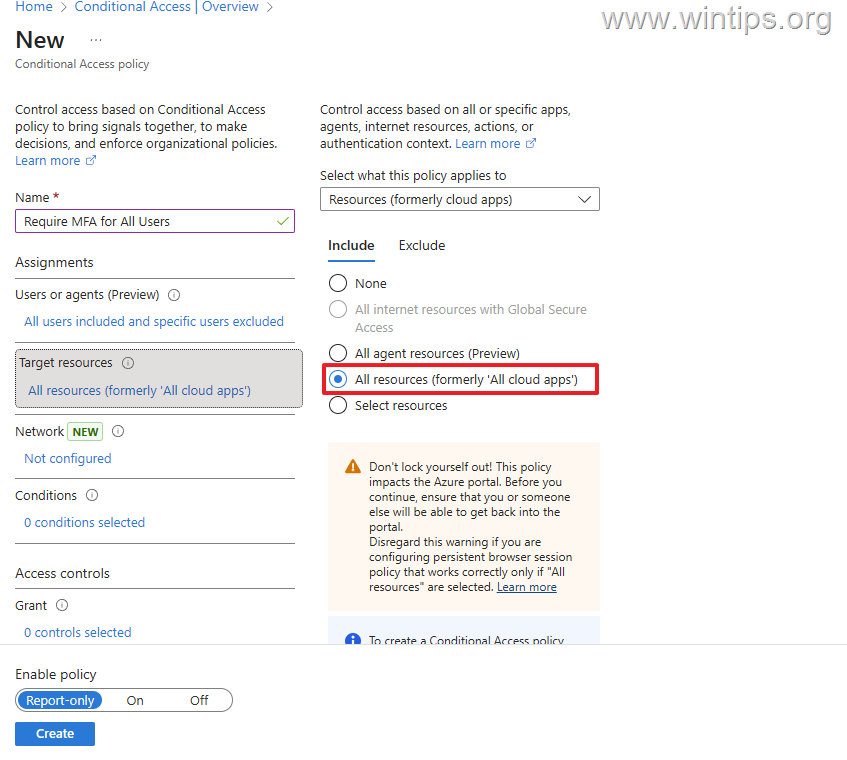
4. Now select Target Resources and on the Include tab select All resources (formerly 'All cloud apps'). This ensures that MFA is required for accessing any application within your Microsoft 365 environment, providing comprehensive security coverage.
5. Now select Grant and in the window that opens, select Grant access and below select Require multifactor authentication. When finished, click Select. This step enforces the MFA requirement, ensuring that users must authenticate with a second factor.
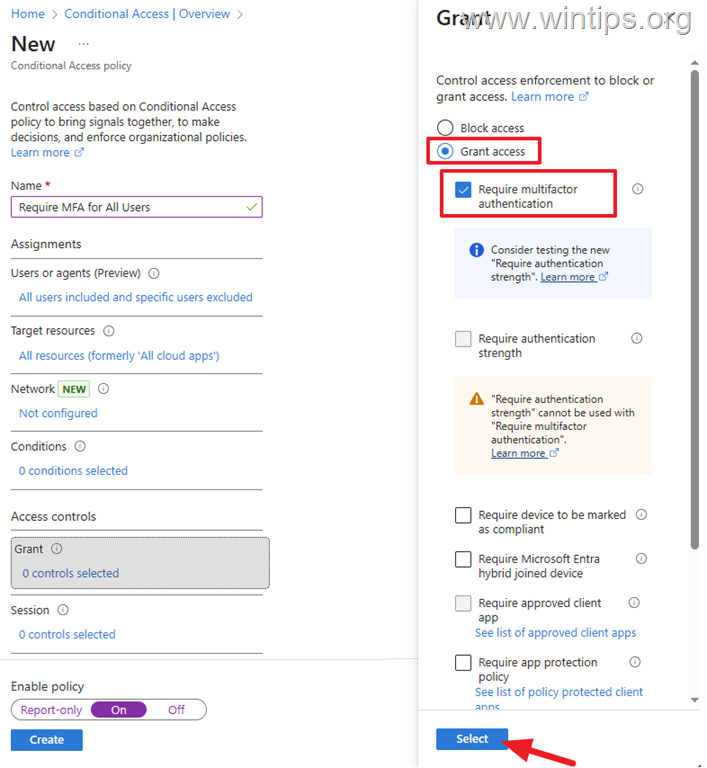
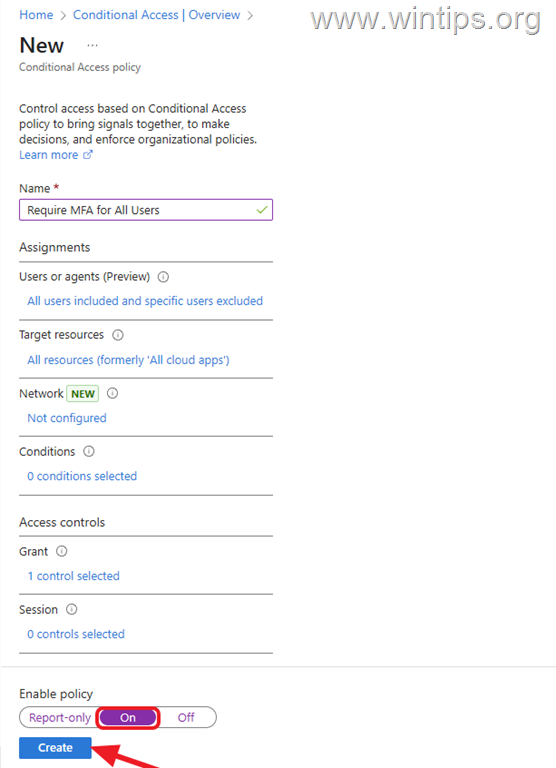
6. Set the Enable policy to On if you want to enable the policy immediately, or to Report-only if you want to test the policy first. Finally, click Create. Testing the policy in 'Report-only' mode can help identify potential issues without enforcing the policy immediately.
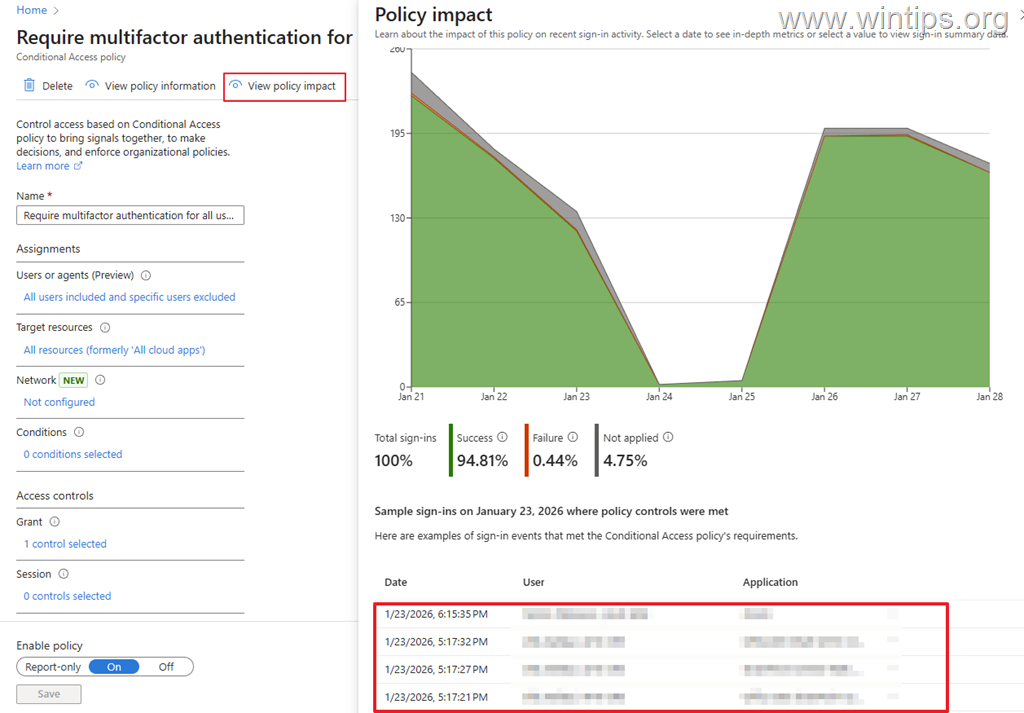
7. To see the impact of the policy, wait a few days after enabling the policy (On), or testing it (Report Only), and then click the policy and select View Policy Impact from the top menu. This will allow you to monitor the policy's effectiveness and make any necessary adjustments. Then, click the corresponding color on the map to see in a list below which users the policy has been successfully applied to, failed to apply to, or not applied to.
Summary
Requiring MFA for all users using a Conditional Access policy is one of the most important security steps you can take in Microsoft 365. It provides strong protection against credential theft and ensures secure access to all cloud applications. By following the steps above, you can deploy MFA securely, avoid lockouts, and significantly improve your organization's security.
That's it! Let me know if this guide has helped you by leaving your comment about your experience. Please like and share this guide to help others.
Frequently Asked Questions
What is Multi-Factor Authentication (MFA) and why is it important?
Multi-Factor Authentication (MFA) is a security measure requiring an additional verification step beyond a password. It blocks over 99% of attacks and account compromises, significantly reducing the risk of unauthorized access to Microsoft 365 accounts.
What are the prerequisites for setting up a Conditional Access policy in Microsoft 365?
To set up a Conditional Access policy, you need Microsoft Entra ID admin permissions and a Microsoft 365 Business Premium subscription.
How can I avoid locking myself out as an administrator when enabling MFA?
When setting up the Conditional Access policy, ensure you exclude your Microsoft 365 administrator account and any other global administrator accounts from the MFA requirement. This step maintains administrative access in case of issues with MFA.
What should I do if I want to test the Conditional Access policy before fully implementing it?
Set the policy to 'Report-only' mode to test its impact without enforcement. This allows you to identify potential issues and monitor the policy's effectiveness before enabling it fully.


- Remote Desktop (RDP/RDS) Stops Working After September 2026 Windows Update: How to Fix - September 15, 2026
- Windows 11 KB5124008 Causes No Sound or USB Audio Code 10: How to Fix - September 14, 2026
- Copilot Missing or Grayed Out in Outlook: How to Fix - September 10, 2026



