How to Resolve Error "Something Went Wrong 657rx" in Outlook or Microsoft 365 Apps.
If you’re encountering the error "Something went wrong [657rx]" when attempting to open Outlook or other Microsoft 365 applications such as Word or Teams, this guide will provide you with comprehensive solutions to resolve the issue.
The sign-in error "Something went wrong [657rx]" accompanied by the message "The credential is invalid. Unexpected sub status (6008)" and "Code: 2148073494" typically occurs during the sign-in process or when adding an account to Outlook, accessing SharePoint, or opening Microsoft 365 apps either locally or via a web browser.
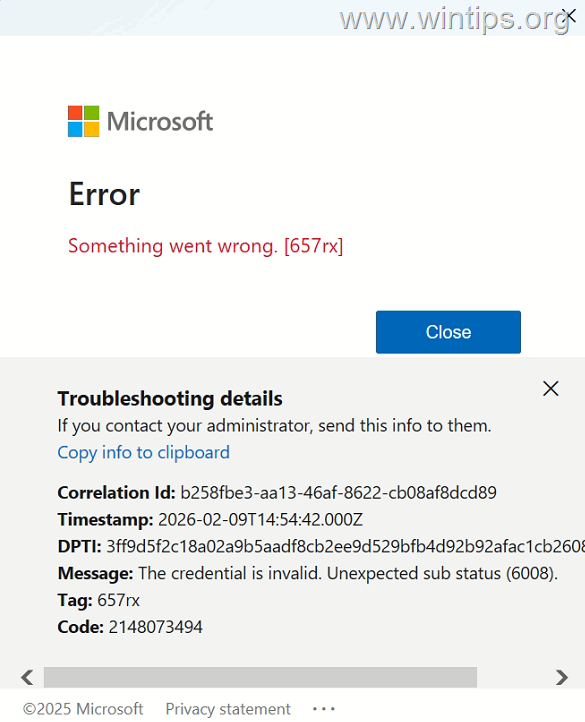
This error often arises after a password change or due to an expired or corrupted login session. In some cases, simply restarting your computer or clearing your browser's cache and cookies can resolve the issue.
In this guide, you will find detailed instructions to fix the Microsoft 365 Sign-in error "Something went wrong [657rx] – The credential is invalid. Unexpected sub status (6008) – 2148073494".
How to FIX Microsoft 365 Error 657rx in Outlook or Other Microsoft Office Apps.
Before proceeding with the methods listed below, perform the following preliminary steps:
1. Reboot your computer.
2. After rebooting, check if the issue persists. If so, follow the instructions below based on where you are experiencing the error:
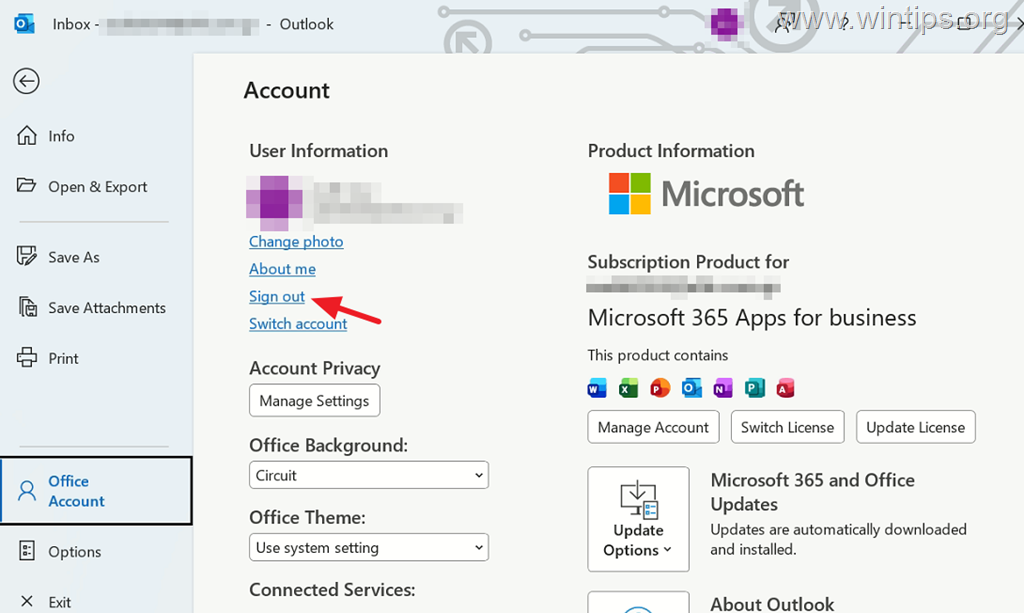
A. If the 657rx sign-in problem appears in Outlook, Teams, or other Office apps, then log out of all Microsoft 365 apps and sign in again. To do that:
- Close all Office apps.
- Open Outlook (or any other Office app) and from the File menu select Account and then select Sign out under your account.
- Now close & re-open Outlook.
- Sign into your account and check if the problem persists. If so, continue to Method-1.
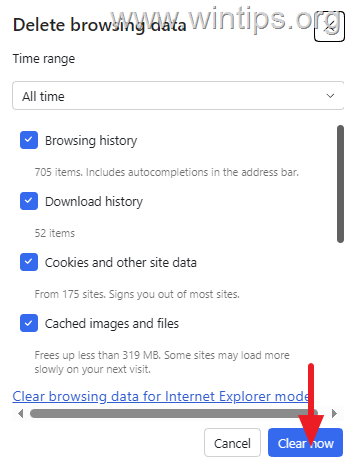
B. If you're experiencing the sign-in error 657rx when trying to access Microsoft 365 resources using your browser, check if the problem persists in another browser* or clear the browsing data (cache, cookies, etc.). To clear the browsing data:
- Press Ctrl + Shift + Del and then hit Clear now.
- Restart the browser, and check if the problem persists. If so, continue to Method-2 below.
* Note: To avoid sign-in issues in Microsoft 365, always use the EDGE browser.
Method 1. Disconnect and Reconnect Work or School Account
The simplest method to fix the Outlook login error 657rx is to disconnect your Microsoft account from Windows and reconnect it. This action refreshes the authentication tokens associated with your account, which can resolve issues caused by outdated or corrupted credentials.
1. Navigate to Settings > Accounts, scroll down and open Access work or school.
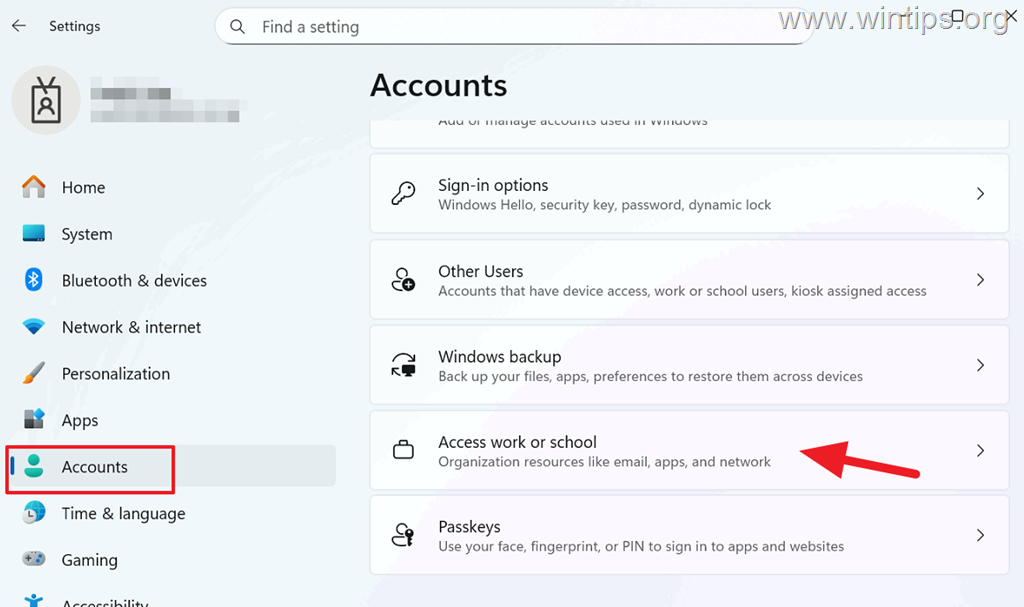
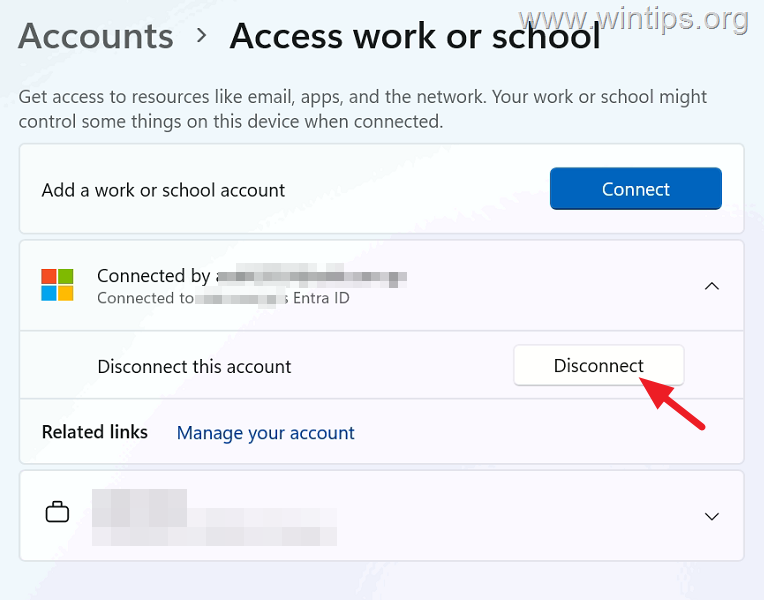
2. Click on your Microsoft account* and then click Disconnect. Then click Yes to disconnect your account from the computer. When done, restart the computer.
* Note: If you are using more than one MS account, disconnect only the one that was showing the login error "657rx.
3. After the restart, open the Office app where you were getting the error "657rx" (e.g., Outlook) and you will be prompted to sign in to your account again.*
* Note: Alternatively, go to Settings > Accounts > Access work or school and click Connect to reconnect your account.
Method 2. Clear your Sign-in Credentials in Credential Manager*
* Note: This method is usually successful when you receive the 657rx sign-in error when trying to connect to Microsoft 365 online resources (e.g., SharePoint) through your web browser.
1. Close all open Microsoft apps and browser windows.
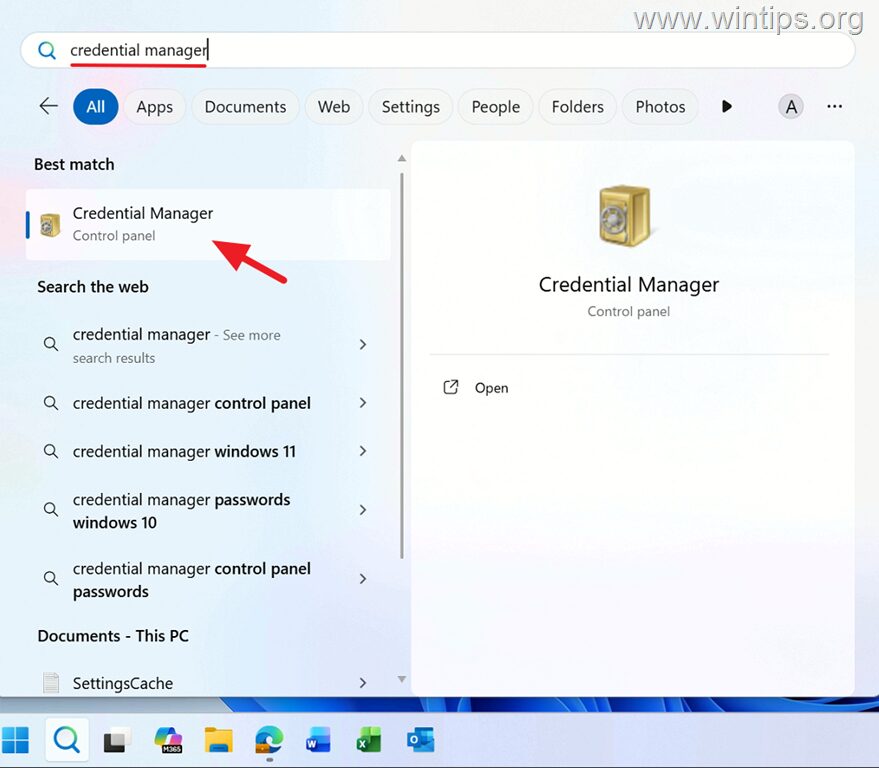
2. In Search type "Credential Manager" & open Credential Manager in Control Panel.
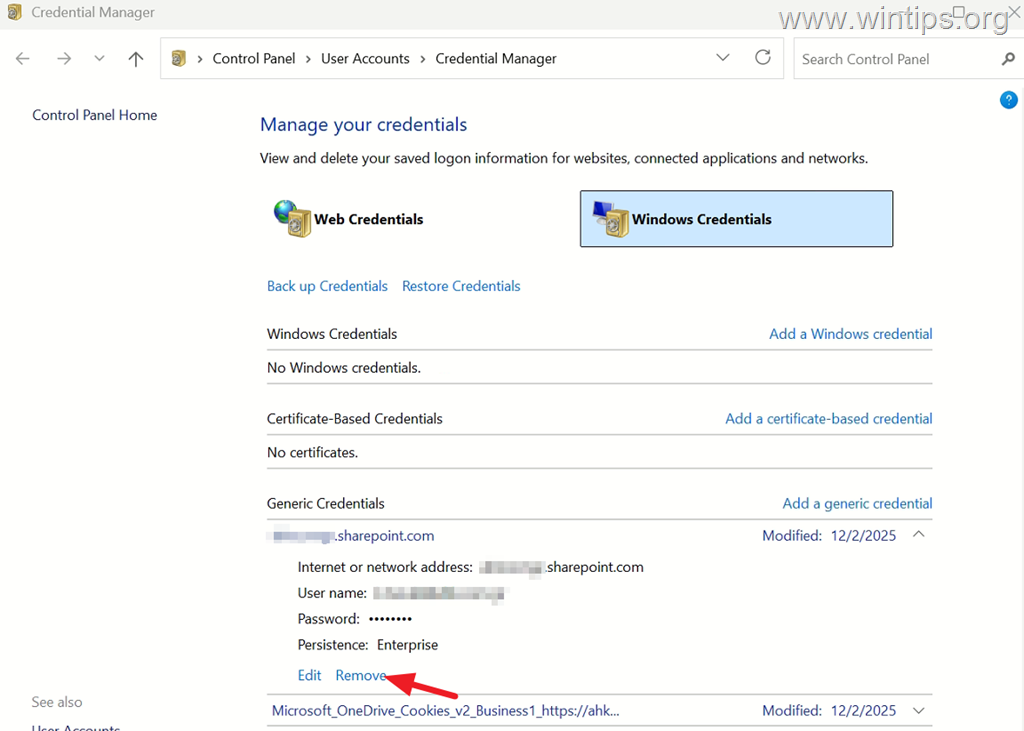
2. Select the Windows Credentials tab, and under General Credentials, expand all entries to see if any of them are related to any Microsoft 365 service (e.g., SharePoint). If so, click Remove to delete the stored credentials.
3. After clearing the stored credentials, try to login again to Microsoft 365 online resources.
Method 3. Clear Outlook Cache
Clearing the Outlook cache can resolve issues related to corrupted cache files that might be causing the error. This action will remove temporary files that Outlook uses to speed up operations, forcing it to recreate them, which can resolve inconsistencies.
1. Close Outlook.
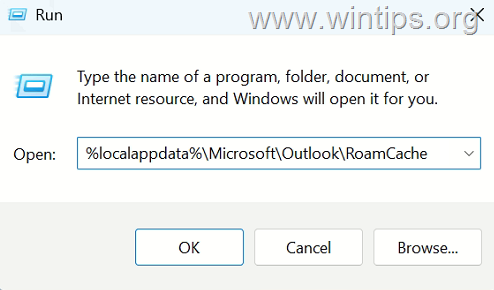
2. Press Windows + R to open the Run dialog box.
3. In the Open: field copy/paste the following and press Enter.
- %localappdata%\Microsoft\Outlook\RoamCache
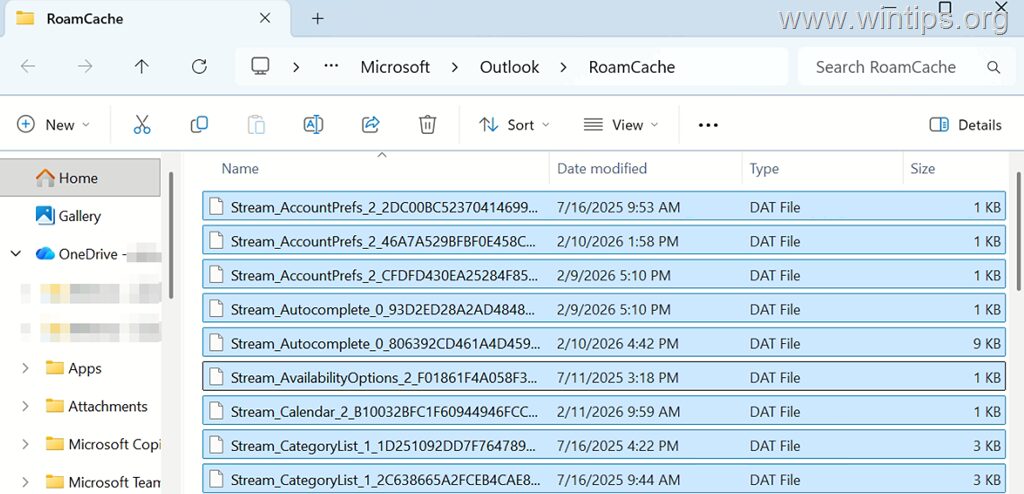
4. Press Ctrl + A to select all files, then press Delete to delete all of them.
5. Open Outlook and check if the problem persists.
Method 4. Remove and Re-add the Email Account in Outlook
Removing and re-adding your email account can resolve the error by refreshing the account settings and ensuring that all configurations are correct. This process will clear any corrupted settings that might be causing the issue.
1. Close Microsoft Outlook.
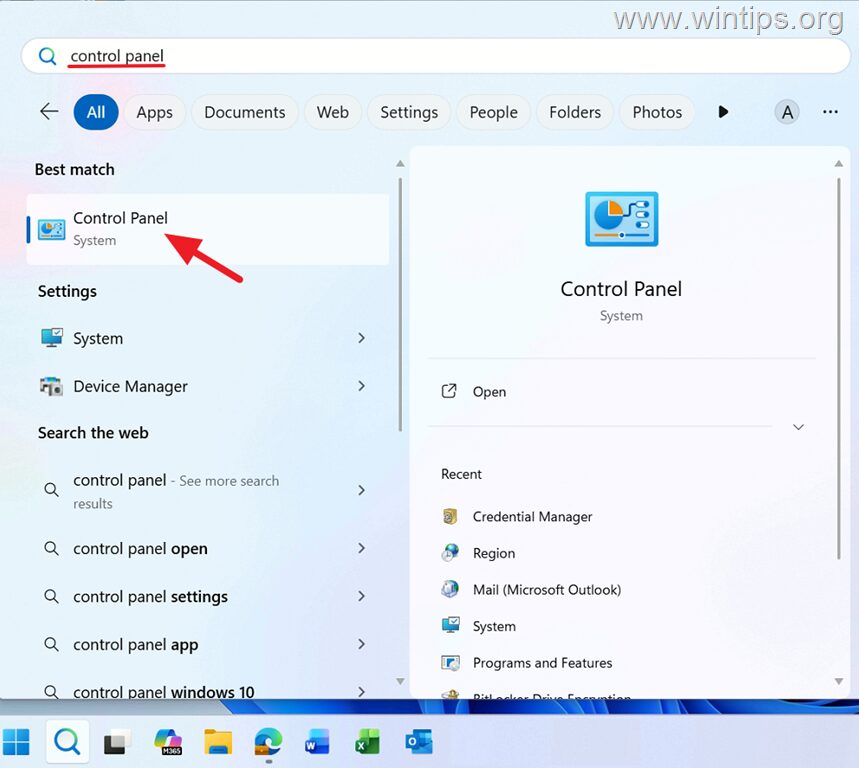
2. In Search type "Control Panel", then open Control Panel from the results.
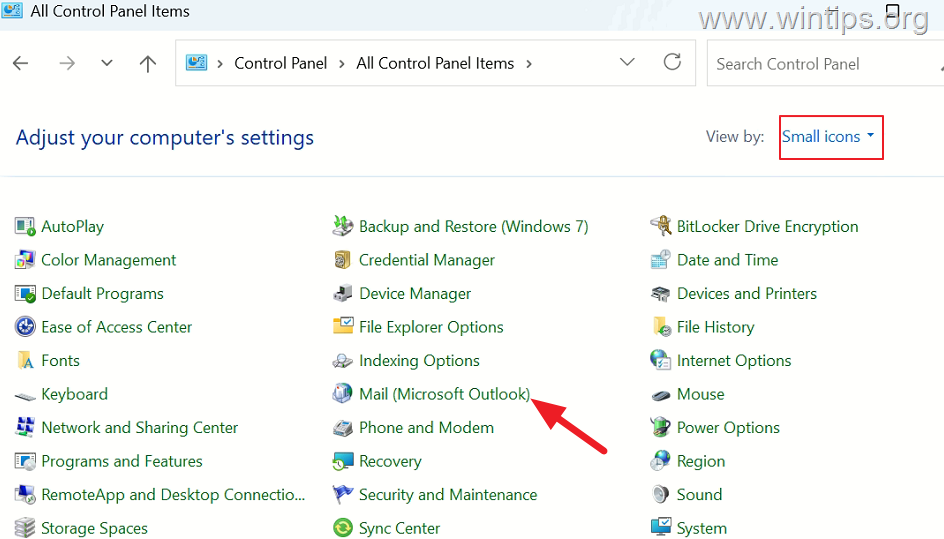
2. In Control Panel, change to View to Small icons and then open the Mail applet.
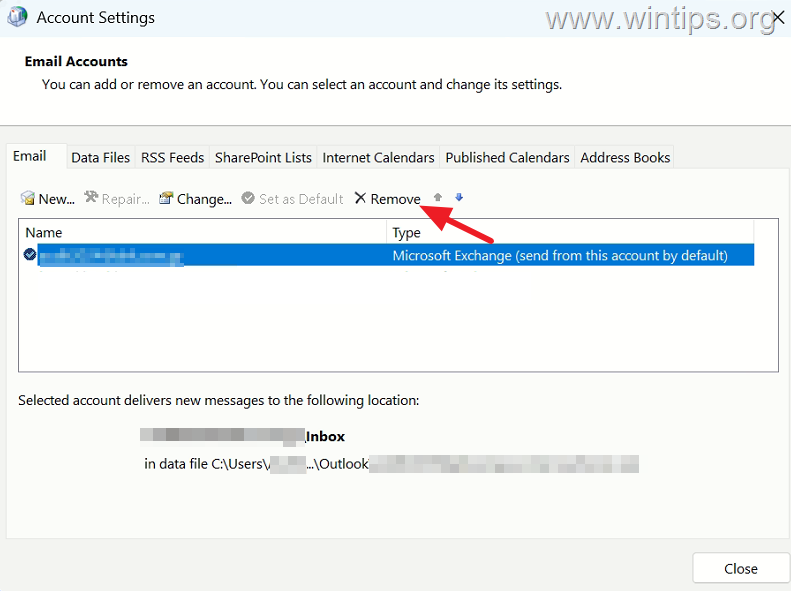
3. Click Email Accounts and then select and remove your Microsoft account.* When done, close Account settings and then close the Mail Setup window.
* Note: If you are using more than one MS account, remove only the one that was showing the error "657rx.
4. Finally, open Outlook and re-add your account.
Additional Method: Update Office Apps
Ensure that your Office applications are up to date. Microsoft frequently releases updates that include bug fixes and improvements that can resolve issues like the 657rx error. To update your Office apps, open any Office application, go to File > Account > Update Options > Update Now.
Summary
The "Something went wrong [657rx]" error in Office apps is typically caused by authentication issues. In most cases, signing out of your work or school account, removing your saved credentials, or signing out and back in within Office apps quickly resolves the issue. Additionally, keeping your Office apps updated can prevent such errors from occurring.
That's it! Let me know if this guide has helped you by leaving your comment about your experience. Please like and share this guide to help others.
Frequently Asked Questions
What is the error "Something went wrong [657rx]" in Microsoft 365 applications?
The error "Something went wrong [657rx]" typically occurs during the sign-in process in Microsoft 365 applications like Outlook, Word, Teams, or when accessing services like SharePoint. It is often accompanied by the message "The credential is invalid. Unexpected sub status (6008)" and "Code: 2148073494." This error usually arises after a password change or due to an expired or corrupted login session.
How can I fix the error 657rx in Outlook or other Office applications?
First, reboot your computer and log out of all Microsoft 365 apps. Then, sign back into your account. If the issue continues, try clearing your browser cache if you're accessing services via a web browser, or disconnect and reconnect your Microsoft work or school account in Windows settings.
What should I do if I'm seeing the 657rx error while accessing Microsoft 365 resources in a browser?
If you encounter the 657rx error in a browser, try using a different browser to see if the issue persists. Alternatively, clear the browser's cache and cookies by pressing Ctrl + Shift + Del and selecting 'Clear now.' It's recommended to use Microsoft EDGE to avoid sign-in issues.
How can disconnecting and reconnecting my Microsoft account help resolve the 657rx error?
Disconnecting and reconnecting your Microsoft account from Windows refreshes the authentication tokens associated with your account, which can resolve issues related to outdated or corrupted credentials.
Still having trouble fixing this issue?
💬 Get WinTips Remote Support →

- How to Fix SecurityHealthSystray.exe – Bad Image Error (0xc000012f) on Windows 11. - October 26, 2026
- FIX: Windows Hello for Business PIN error 'Your credentials could not be verified' with 'status: 0xc000005e substatus: 0x0' or 'status: 0xc0000bb, substatus: 0x0'. - October 20, 2026
- FIX: This Device Is Already Set Up in Another Organization in Company Portal or During Intune Enrollment - October 13, 2026