How to Fix High CPU Usage in Windows 11 When Idle.
If your Windows 11 computer is exhibiting 95-100% CPU usage even when the system is idle, continue reading below to learn how you can easily fix the problem. High CPU usage during idle times can lead to overheating, reduced performance, and increased power consumption.
Normally, when a computer is idle, CPU usage should remain at very low levels between 1% and 5-10%, depending on the programs running in the background (startup). If you notice a significant deviation from these percentages, it is essential to investigate and resolve the underlying issue.
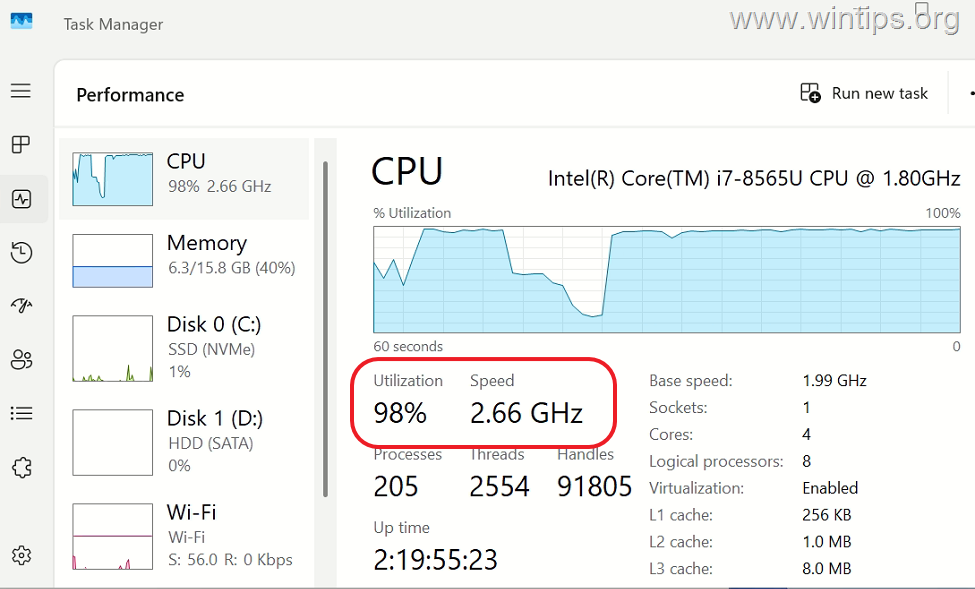
However, if you have optimized Windows 11 for better performance and you see that your CPU usage is constantly high, then the problem is usually due to an invalid CPU power setting that makes ALL of its cores run at full speed even when they don't need to. This can be particularly problematic as it prevents the CPU from entering a low-power state, thereby consuming unnecessary energy and reducing the lifespan of your hardware.
More specifically, this setting is named "IDLEDISABLE" and depending on its value, it allows the CPU to go to idle or not. This setting is crucial as it directly affects the CPU's ability to manage power efficiently.
- IDLEDISABLE = 0 > Idle state is allowed
- IDLEDISABLE = 1 > Idle state is prohibited and CPU runs at 100%
* Note: The "IDLEDISABLE" value is usually changed to "1" by some games for maximum performance. However, in some cases, the value remains even after exiting the game instead of being reset to "0", which causes the problem of high CPU usage even when the processor is not being used. This can lead to unnecessary power consumption and potential thermal issues.
How to Resolve Windows 11 High CPU Usage in Idle Mode.
To fix the problem of CPU usage up to 100% when Windows 11 is idle, follow the instructions below:
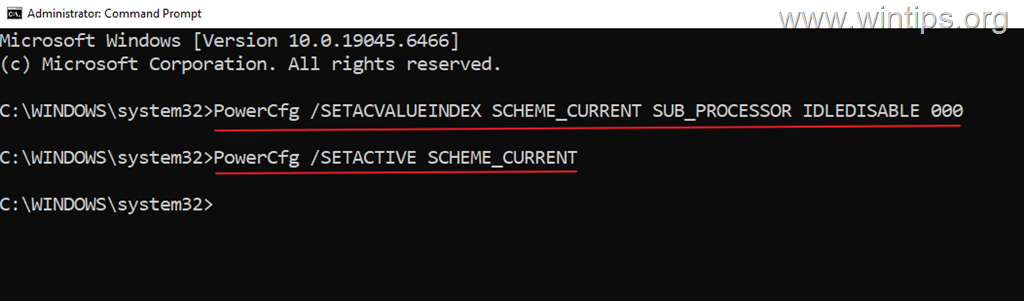
1. Open Command Prompt as Administrator
2. Issue the following command and press Enter:
PowerCfg /SETACVALUEINDEX SCHEME_CURRENT SUB_PROCESSOR IDLEDISABLE 000
This command sets the IDLEDISABLE value to 0, allowing the CPU to enter an idle state, thereby reducing unnecessary power usage and improving overall system efficiency.
3. Then issue this command:
PowerCfg /SETACTIVE SCHEME_CURRENT
This command activates the current power scheme with the new settings, ensuring that the changes take effect immediately.
4. Now, open Task Manager and you will see that the CPU usage is now normal! This change should reflect immediately, showing a significant drop in CPU usage during idle times.
That's it! Let me know if this guide has helped you by leaving your comment about your experience. Please like and share this guide to help others.
Additional Solutions
In addition to adjusting the IDLEDISABLE setting, consider the following methods to further optimize your system:
- Update Drivers: Ensure all your drivers, especially the chipset and CPU drivers, are up to date. Visit the manufacturer's official website for the latest versions.
- Check for Malware: Run a comprehensive malware scan using Windows Defender or a trusted third-party antivirus software to ensure malicious software is not causing high CPU usage.
- Disable Startup Programs: Open
Task Manager, navigate to theStartuptab, and disable unnecessary programs that may be running in the background. - Speed Up Windows 11: A Comprehensive Guide for Optimal Performance
Summary
To resolve high CPU usage on Windows 11 when idle, adjust the IDLEDISABLE setting using Command Prompt to allow the CPU to enter idle states. Additionally, ensure your drivers are updated, perform regular malware scans, and manage startup programs effectively. These steps will help maintain optimal CPU performance and extend the lifespan of your system.
Frequently Asked Questions
Why is my CPU usage at 100% even when my Windows 11 computer is idle?
If your Windows 11 computer shows 100% CPU usage while idle, it may be due to an invalid CPU power setting, particularly the 'IDLEDISABLE' setting forcing your CPU to run at full speed unnecessarily, which prevents entry into a low-power state.
What is the 'IDLEDISABLE' setting and how does it affect CPU performance?
The 'IDLEDISABLE' setting determines whether a CPU can enter an idle state. When set to 0, the CPU can idle, conserving power. If set to 1, idle states are prohibited, causing the CPU to run at maximum capacity, leading to energy waste and thermal issues.
How can I fix high CPU usage due to the 'IDLEDISABLE' setting on Windows 11?
To fix this, open Command Prompt as Administrator and run the command: 'PowerCfg /SETACVALUEINDEX SCHEME_CURRENT SUB_PROCESSOR IDLEDISABLE 000', followed by 'PowerCfg /SETACTIVE SCHEME_CURRENT'. This allows the CPU to enter idle states and reduces unnecessary power use.
What additional steps can I take to optimize my Windows 11 PC's CPU performance?
In addition to adjusting the 'IDLEDISABLE' setting, ensure your drivers are updated, run malware scans, and manage startup programs via Task Manager to maintain optimal CPU performance on Windows 11.