How to Effectively Remove or Disable Microsoft Copilot on Windows 11.
In this guide, you'll learn how to hide or completely remove Microsoft Copilot on Windows 11.
As Microsoft has integrated AI into Windows 11 through Copilot, many users are looking for ways to protect their privacy and system resources. Whether due to privacy concerns or increased resource consumption (such as background RAM usage), removing Copilot has become a priority for many users in 2026.
How to Hide, Remove, or Disable* Copilot on Windows 11
While Microsoft makes it easy to hide the Copilot icon, completely disabling Copilot is no longer possible, and the only way to get rid of it is to uninstall it from your system.
* Note: In previous versions of Windows 11, users could disable Copilot either through the Windows Registry or through the Group Policy Editor. However, currently, there is no reliable way to disable Copilot.
1. How to Remove Copilot Icon from Taskbar, System Tray & Microsoft Edge
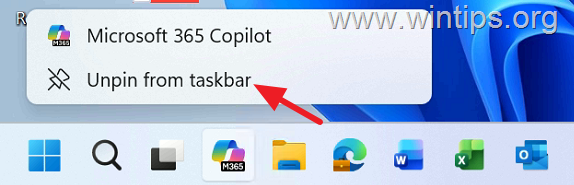
- To remove the Copilot icon from the Taskbar, right-click on the Copilot icon and select Unpin from taskbar. This action will immediately remove the icon, freeing up space and reducing visual clutter on your taskbar.
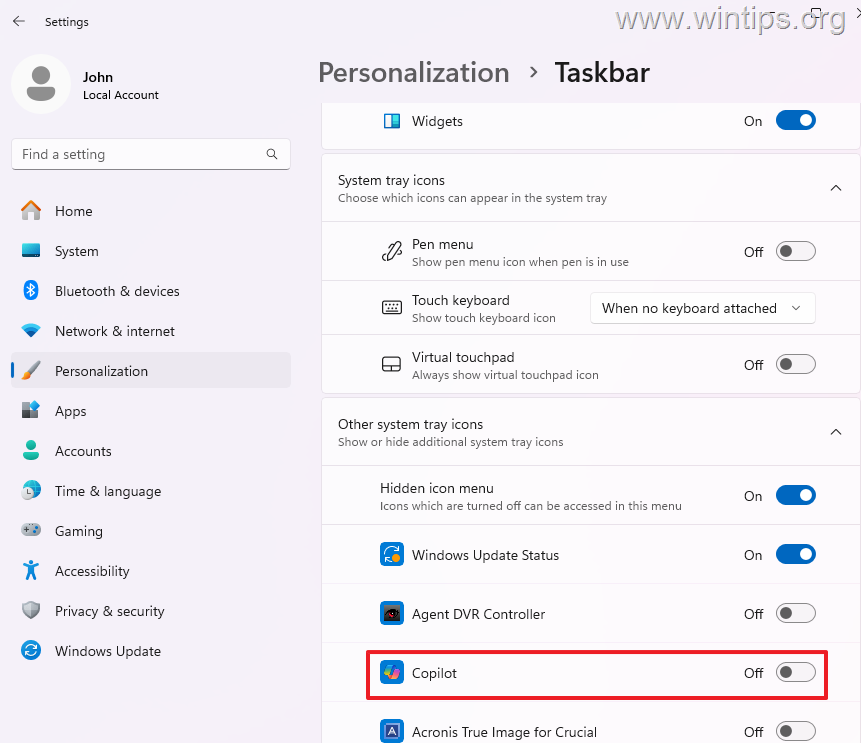
- To remove Copilot from the system tray icons, go to Settings > Personalization > Taskbar > Other System tray icons and set the Copilot switch to OFF. This prevents Copilot from running in the background, potentially saving system resources.
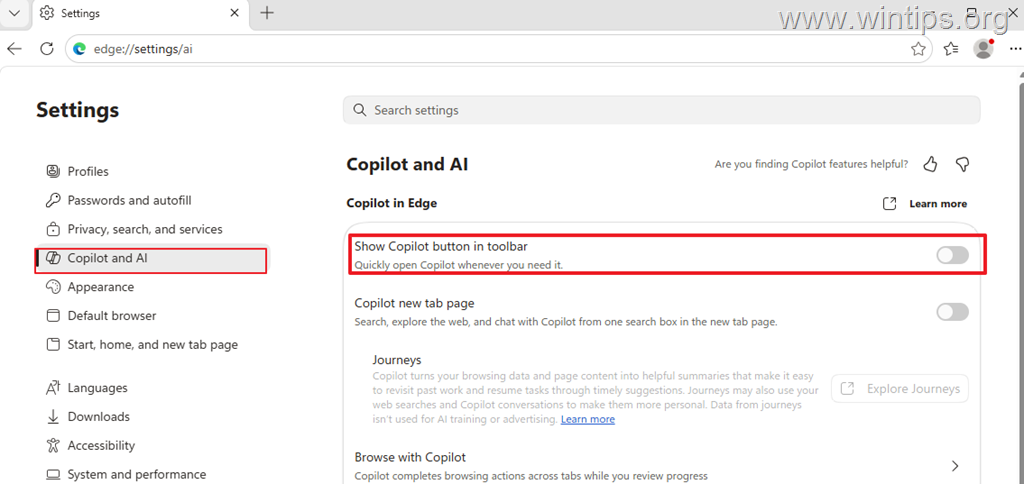
- To remove (hide) the Copilot button from the Edge sidebar:
- From the Edge Menu (three dots), select Settings and then Copilot and AI.
- Turn off the "Show Copilot button in Taskbar". This will disable the quick access to Copilot from the Edge browser, enhancing user privacy.
2. How to Uninstall Microsoft Copilot from Windows 11
If you want to completely remove Copilot from your system, do the following:
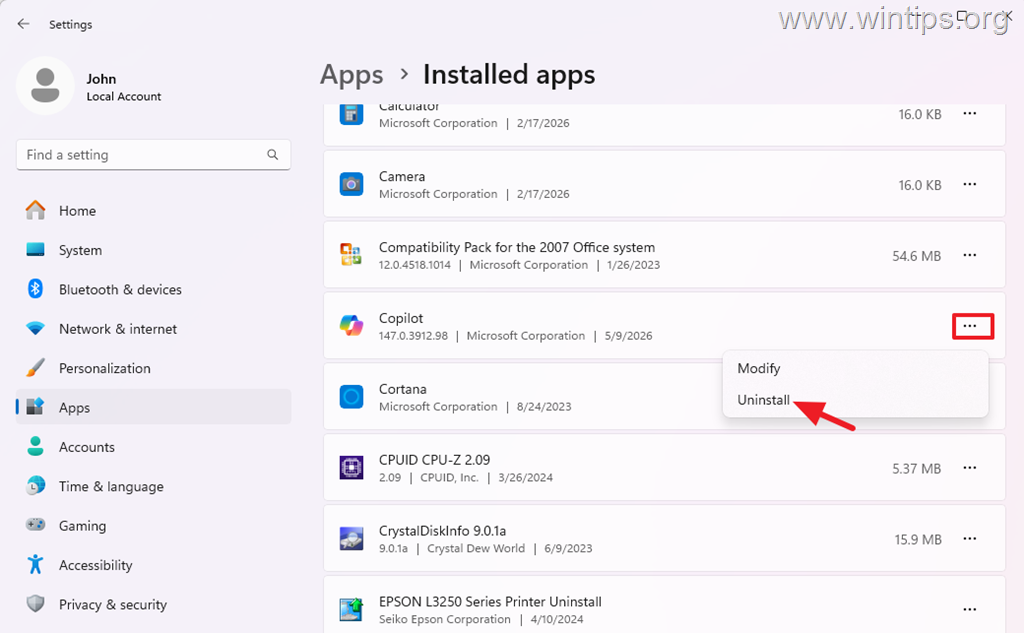
1. Go to Settings > Apps > Installed Apps
2. Click on the 3-dots menu next to Microsoft Copilot and select Uninstall. This will remove the application from your system, freeing up disk space and stopping any background processes related to Copilot.
* Note: If you change your mind in the future and want to reinstall Copilot on your system, you can download and install it from the Microsoft Store.
3. How to Remove Copilot from PowerShell
Another way to remove Microsoft Copilot on Windows 11 is by using PowerShell. To do this:
1. Open PowerShell as Administrator.
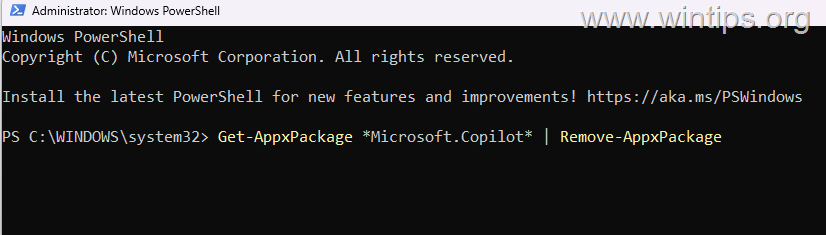
A. Run the command below to remove Copilot from the current user only:
Get-AppxPackage *Microsoft.Copilot* | Remove-AppxPackage
This command will uninstall the Copilot app for the current user, ensuring that it does not consume resources or pose privacy concerns for that user.
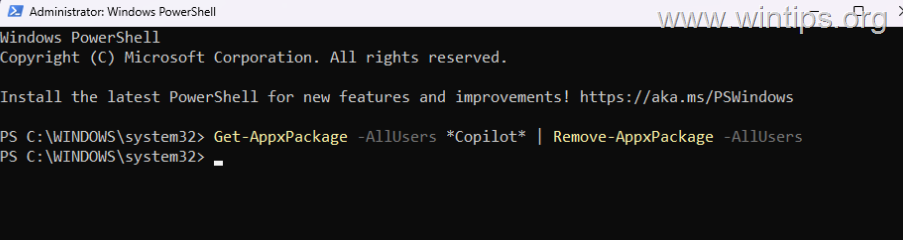
B. Issue the command below to remove Microsoft Copilot from all users:
Get-AppxPackage -AllUsers *Copilot* | Remove-AppxPackage -AllUsers
This command ensures that Copilot is uninstalled for all user accounts on the device, effectively removing it from the entire system.
Additionally, issue this command to prevent Windows from reinstalling Copilot for new users:*
Get-AppxProvisionedPackage -Online | Where-Object {$_.PackageName -like "*Copilot*"} | Remove-AppxProvisionedPackage -Online
* This command removes the provisioned package, ensuring that Copilot is not automatically installed for new user profiles created on the system.

4. How to Disable Using Group Policy in Windows 11 Pro & Enterprise*
* Attention: Unfortunately, this method does not work anymore!
If you're running Windows 11 Pro or Enterprise editions, you can disable Copilot using the Local Group Policy Editor:
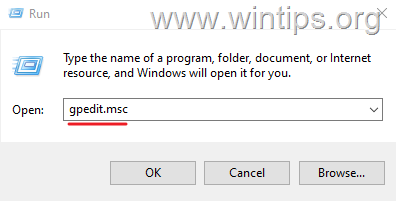
1. Press the Windows + R keys, type "gpedit.msc" in the 'Run' box, and press Enter to open the registry editor.
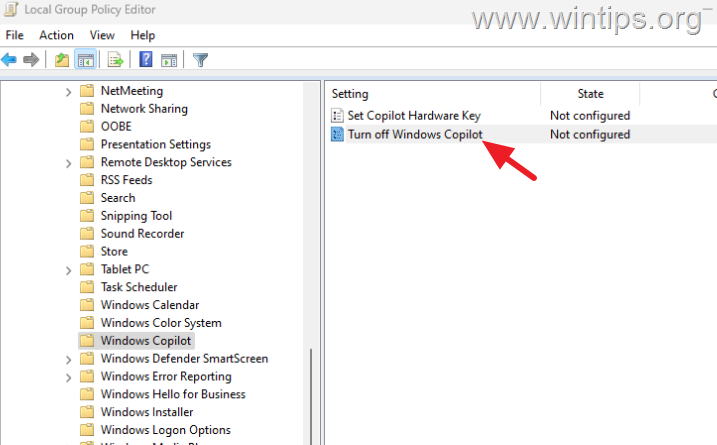
2. In Local Group Policy Editor, navigate to the following location:
User Configuration > Administrative Templates > Windows Components > Windows Copilot
3. In the right-hand pane, double-click on Turn off Windows Copilot.
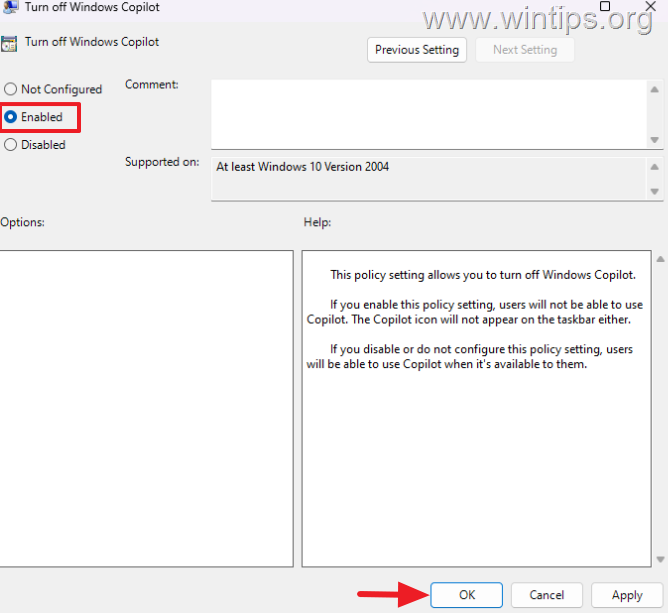
4. Select Enabled and click OK. This setting was intended to disable Copilot, but it is no longer effective due to updates in Windows 11.
5. Run the 'gpupdate /force' command or restart your computer for the changes to take effect.
5. How to Completely Disable Copilot through Registry in Windows 11 Home*
* Attention: Unfortunately, this method does not work anymore!
If you're running Windows 11 Home edition, you can disable Copilot using the Windows Registry:
1. Press the Windows + R keys, type "regedit" in the 'Run' box, and press Enter to open the registry editor.

2. In Registry Editor, navigate to this path from the left:
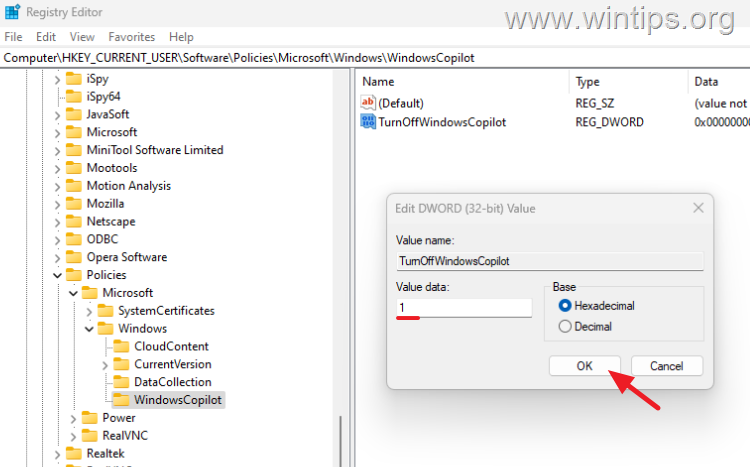
HKEY_CURRENT_USER\Software\Policies\Microsoft\Windows
3. Right-click the Windows folder and select New > Key
3a. Name the new key: WindowsCopilot.
4a. Now, right-click on the WindowsCopilot key and select New > DWORD (32-bit) Value.
4b. Name the new value: TurnOffWindowsCopilot
4c. Now open the TurnOffWindowsCopilot DWORD, set its value to 1, and click OK. This was intended to disable Copilot, but it no longer functions as expected due to updates.
5. Restart your computer for the changes to take effect.
Summary:
Windows 11 includes Copilot as part of Microsoft's growing AI integration strategy, but many users prefer to disable or remove it for privacy, performance, or usability reasons. While simply hiding the Copilot icon is easy via the taskbar settings, disabling it completely is now impossible, and the only way to get rid of it is to uninstall it either from installed apps or using commands in PowerShell. Additionally, using Task Scheduler to disable related tasks can prevent it from running automatically.
That's it! Let me know if this guide has helped you by leaving your comment about your experience. Please like and share this guide to help others.
Frequently Asked Questions
How can I remove the Microsoft Copilot icon from the taskbar on Windows 11?
To remove the Copilot icon from the taskbar, right-click on the Copilot icon and select 'Unpin from taskbar'.
Is it possible to completely disable Microsoft Copilot on Windows 11?
Unfortunately, completely disabling Copilot is no longer possible. The only way to remove it is to uninstall it from your system.
Where can I uninstall Microsoft Copilot from Windows 11?
To uninstall Microsoft Copilot, navigate to Settings > Apps > Installed Apps, click the three-dots menu next to Microsoft Copilot, and select 'Uninstall.'
Can I use PowerShell to remove Microsoft Copilot from my Windows 11 system?
Yes, you can use PowerShell to remove Microsoft Copilot by running the command 'Get-AppxPackage *Microsoft.Copilot* | Remove-AppxPackage' for the current user or 'Get-AppxPackage -AllUsers *Copilot* | Remove-AppxPackage -AllUsers' to remove it for all users.


- Apps and Games Crash After KB5124010 Due to AC-3 Audio: How to Fix - October 5, 2026
- How to Fix Windows 11 Update Error 0x80073712 - October 5, 2026
- How to Install Windows 11 26H2 on Unsupported Hardware - October 2, 2026