Fix Game Crashes and Unexpected PC Restarts on Windows 11.
If a game started crashing, freezing, displaying EXCEPTION_ACCESS_VIOLATION, or causing your PC to restart unexpectedly after installing Windows 11 KB5121003, your computer may be affected by a known compatibility issue involving the inpoutx64 driver.
Microsoft initially investigated the problem after reports appeared following KB5121003 and later Windows updates. However, Microsoft has now confirmed that KB5121003 Update itself is not the cause. The problem is associated with certain RGB-capable peripherals or internal components that install drivers or software components with names similar to inpoutx64.
Microsoft has started blocking the problematic driver automatically on targeted affected computers. If the problem continues, you can check whether inpoutx64 is installed and use Microsoft's Registry workaround to prevent the driver from loading.
How to Fix Game Crashes or Other Gaming Issues on Windows 11 After Installing KB5121003.*
IMPORTANT: KB5121003 is a Windows security update. Do not uninstall it as it is not the cause of the problem.
Step 1. Check Whether Your PC Is Affected.
This issue applies to Windows 11 versions 24H2 and 25H2. Games identified in reports include:
- ARC Raiders
- MARVEL Tōkon: Fighting Souls
- THE FINALS
Microsoft says an affected game may:
- Stop responding.
- Close unexpectedly.
- Display
EXCEPTION_ACCESS_VIOLATION. - Cause Windows to restart without warning.
The list of games is not necessarily complete, and Microsoft has not published a list of specific RGB devices or manufacturers affected by the problem.
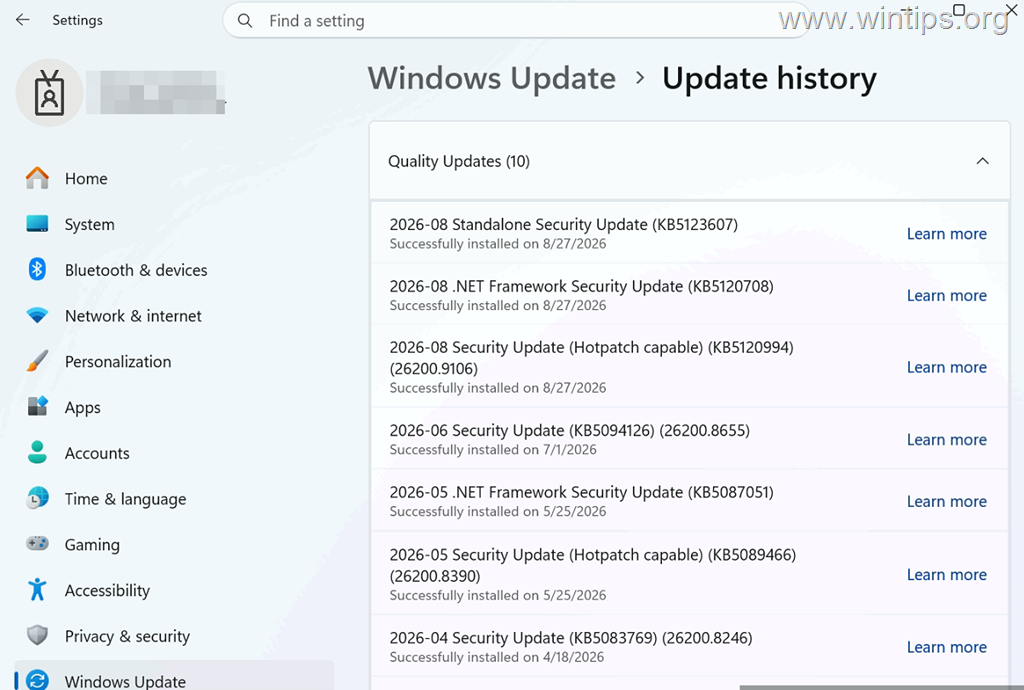
If the problem started after the August 11, 2026 security update, you can also check whether KB5121003 is installed. To do that:
- Open Settings > Windows Update > Update history.
- Under Quality Updates, look for KB5121003.
Step 2. Check Whether inpoutx64.sys driver Is Installed
The next step is to determine whether the inpoutx64 driver associated with the compatibility problem exists on your computer.
1. Right-click Start and select Terminal (Admin) or Windows PowerShell (Admin).
2. Type the following command and press Enter:
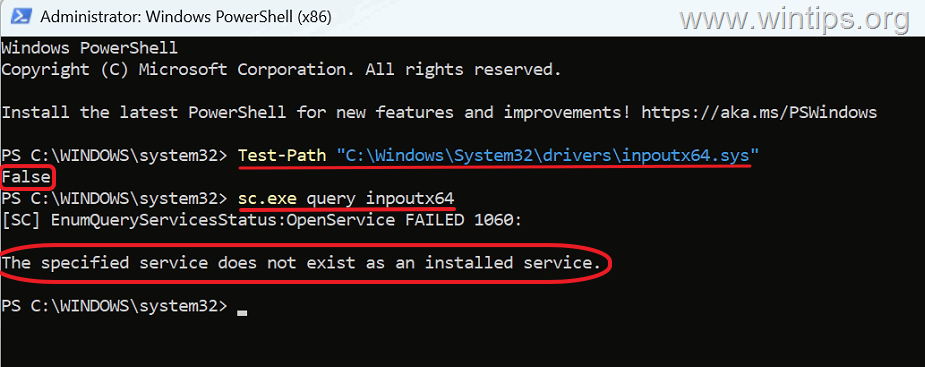
Test-Path "C:\Windows\System32\drivers\inpoutx64.sys"
If PowerShell returns "True", the inpoutx64.sys file exists on the computer.
3. Since finding the file does not by itself prove that inpoutx64 is causing your game to crash, also check if the corresponding driver service is present by typing:
sc.exe query inpoutx64
4. Based on the results, do the following:
- If the inpoutx64 driver and its service are present, proceed to the next step and disable the
inpoutx64driver service from starting. Then, restart Windows and check whether the problem is resolved. - If neither the inputx64 driver nor its service is present, as shown in the screenshot below, stop here, as your gaming problem is caused by something else (e.g. the graphics card driver), or try uninstalling the KB5121003 update and check if that fixes the problem.
Step 3. Fix the Problem by Disabling inpoutx64
After verifying that the inpoutx64 driver and its service exist, apply the following official Microsoft solution to prevent the inpoutx64 driver/service from loading by changing the its registry startup value to 4.
To disable the inpoutx64.sys driver service:
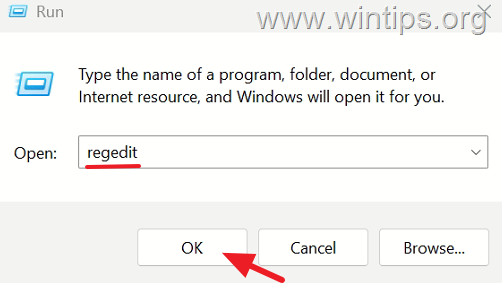
1. Press Windows + R to open the Run command box.
2. Type: regedit and click OK.
3. Navigate to:
HKEY_LOCAL_MACHINE\SYSTEM\CurrentControlSet\Services\inpoutx64
* Note: If the "inpoutx64" key does not exist, do not create it.
WARNING: Incorrect Registry changes can cause Windows or installed software to stop working correctly. Before changing anything, note the current value of Start REG_DWORD value, or right-click the inpoutx64 key and select Export to save a backup. (You will need this value if you later decide to restore the driver).
4. At the right-pane, double-click the Start value.
5. Change Value data to: 4 and click OK
6. Close Registry Editor and restart the computer.
7. After restarting, launch the game that previously crashed and check whether it now runs normally.
Note: Disabling inpoutx64 may affect RGB functionality or software that depends on the driver. Microsoft states that its ongoing investigation has not indicated unintended behavior from the change, but keeping the original Registry value allows you to restore the previous configuration if necessary.
How to Verify That the Problem Is Fixed
After doing the above change in registry and restarting the computer:
- Launch the game that previously crashed.
- Repeat the action that normally caused the game to freeze, close, or restart the computer.
- Confirm that the game no longer crashes or displays
EXCEPTION_ACCESS_VIOLATION. - Verify that Windows no longer restarts unexpectedly while running the affected game.
Also check your RGB hardware or control software to make sure any functionality you need still works after disabling the driver. If the game now works normally, you're done here. If the issue persists, try to update your RGB control software.
Should You Uninstall KB5121003?
No, not as the primary solution.
Some users reported that uninstalling KB5121003 temporarily stopped their crashes. However, Microsoft has confirmed that the problem is associated with certain RGB-capable peripherals or internal components that install drivers or software components with file names similar to inpoutx64. Uninstall the update only as your last solution.
Microsoft's current solution targets the problematic driver instead, so disabling inpoutx64 is preferable to uninstalling the security update when your PC matches the documented issue.
You should also avoid deleting inpoutx64.sys or its driver service. Earlier community workarounds recommended removing them, but Microsoft's Registry method is less invasive and reversible.
What to Do If the Game Still Crashes
If inpoutx64 is not installed, or the game continues to crash after disabling it and restarting Windows, then check if uninstalling the KB5121003 update fixes the issue. In that situation, restore the original Registry value if the above workaround made no difference and continue troubleshooting the game or computer for another cause.
Conclusion
If your games started crashing or your Windows 11 PC started restarting unexpectedly after installing KB5121003, first check if your symptoms match Microsoft's documented inpoutx64 compatibility issue. Microsoft has linked the errors to the RGB-related driver, such as inpoutx64.
If inpoutx64 is present, use the official Microsoft registry change solution above to disable the inpoutx64 driver, restart Windows, and try the affected game again. Avoid uninstalling KB5121003 when the supported solution listed above resolves the issue.
Frequently Asked Questions
What issues may occur after installing Windows 11 KB5121003?
After installing Windows 11 KB5121003, a game might crash, freeze, display EXCEPTION_ACCESS_VIOLATION, or cause your PC to restart unexpectedly. This is linked to a compatibility issue with the inpoutx64 driver.
Is Windows Update KB5121003 the cause of the game crashes?
No, KB5121003 is not the cause of the crashes. The problem is associated with certain RGB-capable peripherals and the inpoutx64 driver.
How can I check if the inpoutx64 driver is causing problems on my PC?
Open Terminal (Admin) or Windows PowerShell (Admin) and run the command 'Test-Path "C:\Windows\System32\drivers\inpoutx64.sys"'. If it returns 'True', also check the service with 'sc.exe query inpoutx64' to confirm if they are present.
What should I do if the inpoutx64.sys file is present on my computer?
If both the inpoutx64 driver and service are present, disable the driver by changing its Start Registry value to 4 using regedit. Be careful to note or back up any changes.
Still having trouble fixing this issue?
💬 Get WinTips Remote Support →

- FIX: Windows Hello for Business PIN error 'Your credentials could not be verified' with 'status: 0xc000005e substatus: 0x0' or 'status: 0xc0000bb, substatus: 0x0'. - October 20, 2026
- FIX: This Device Is Already Set Up in Another Organization in Company Portal or During Intune Enrollment - October 13, 2026
- Windows Update Uninstall Failed with Error 0x800F0825: How to Fix - October 7, 2026