Remote Desktop (RDP/RDS) Stops Working After September 2026 Windows Update: How to Fix
If Remote Desktop (RDP) connections started hanging or failing after installing the September 2026 Windows security updates, or your Remote Desktop Services (RDS) server becomes unresponsive after running normally for a while, you may be affected by a known issue confirmed by Microsoft.
The problem affects multiple Windows and Windows Server versions and can prevent users from connecting, signing in, disconnecting, or logging off from Remote Desktop sessions.
UPDATE (September 15, 2026): Microsoft has released out-of-band (OOB) updates to resolve the Remote Desktop Services issue caused by the September 2026 Windows security updates. For Windows 11 versions 24H2 and 25H2, install KB5129195. Microsoft has also released separate resolving updates for other affected Windows and Windows Server versions. See the instructions in Method-1 below.
Symptoms of the September 2026 Remote Desktop Issue
Microsoft has confirmed that the September 8, 2026 security updates can cause Remote Desktop Services to become unstable.
According to Microsoft, affected systems may experience one or more of the following symptoms:
- New Remote Desktop connections fail after several minutes.
- Users experience problems signing in to RDP/RDS sessions.
- The server hangs at "Please wait for the Remote Desktop Configuration."
- File Explorer, Microsoft Management Console (MMC), or RDS Licensing Diagnoser becomes unresponsive.
- The Windows Update page may also stop responding and continuously display a loading indicator.
In addition, Citrix and affected administrators have reported the following indicators on systems experiencing this issue:
- Existing RDS sessions may fail to disconnect or log off properly.
- Event ID 20498 appears in the TerminalServices-RemoteConnectionManager log.
- Winlogon Event ID 6005 may appear during session disconnects.
- Remote Desktop Services (
TermService) may become stuck in a STOP_PENDING state.
Microsoft has resolved the issue with out-of-band (OOB) updates released on September 14, 2026
This guide explains how to identify whether you're affected, install Microsoft's resolving update, and temporarily restore Remote Desktop access if you cannot install the fix immediately.
How to Fix Remote Desktop Issues After the September 2026 Windows Updates
If Remote Desktop worked normally before installing the applicable September update and stopped working afterward, follow the instructions below.
Step 1. Check If You're Affected
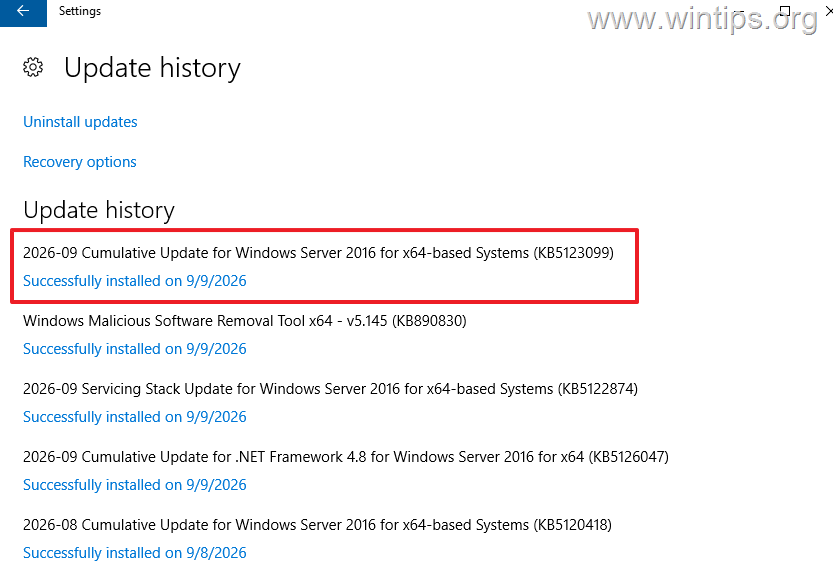
1. On Windows 11 and recent Windows Server versions, open Settings > Windows Update > Update history and verify that the applicable September 2026 security update is installed. On older Windows Server versions, open Control Panel > Programs and Features > View installed updates.
| Windows version | Update |
| Windows 11 26H1 | KB5124012 |
| Windows 11 24H2 / 25H2 | KB5124008 |
| Windows 11 23H2 | KB5122880 |
| Windows 10 21H2 / 22H2 | KB5122878 |
| Windows Server 2025 | KB5122871 |
| Windows Server 2022 | KB5122882 |
| Windows Server 2019 / Windows 10 LTSC 2019 | KB5122876 |
| Windows Server 2016 / Windows 10 LTSC 2016 | KB5123099 |
| Windows Server 2012 R2 | KB5123066 |
| Windows Server 2012 | KB5123065 |
2. Open Event Viewer and navigate to:
- Applications and Services Logs > Microsoft > Windows > TerminalServices-RemoteConnectionManager
- Check for Event ID 20498, which indicates that Remote Desktop Services took too long to complete a client connection.
3. Open Command Prompt as Administrator and run the following command to check the status of Remote Desktop Services:
sc query TermService
4. On some affected systems, TermService may become stuck in a STOP_PENDING state.
If the September update is installed and your symptoms match those described above, use the following methods.
Method 1. Install Microsoft's Out-of-Band Update
On September 14, 2026, Microsoft released emergency out-of-band (OOB) updates to resolve the Remote Desktop Services issue caused by the September 2026 Windows security updates.
Therefore, before trying any of the temporary workarounds below, install the OOB update applicable to your Windows version. To install the resolving update:
1. Open Settings > Windows Update and click Check for updates. Download and install all updates available.*
* Note: If the update isn't offered through Windows Update, download the applicable update from the Microsoft Update Catalog and install it manually. To do that, Open the Microsoft Update Catalog, search for the KB number applicable to your Windows version, and download the update that matches your system architecture.
| Windows version | Resolving update |
| Windows 11 26H1 | KB5129194 |
| Windows 11 24H2 / 25H2 | KB5129195 |
| Windows 11 23H2 | KB5129242 |
| Windows 10 22H2 | KB5129236 |
| Windows Server 2025 | KB5129235 |
| Windows Server 2022 | KB5129237 |
| Windows Server 2019 | KB5129238 |
| Windows Server 2016 | KB5129239 |
| Windows Server 2012 R2 | KB5129243 |
| Windows Server 2012 | KB5129244 |
2. Restart the computer or server after the update is installed.
3. After restarting, verify that:
- Users can establish new Remote Desktop connections.
- Users can sign in normally.
- RDP/RDS sessions can disconnect and log off normally.
- Remote Desktop Services remain responsive.
If Remote Desktop Services continue to experience problems after installing the resolving update, verify that the correct OOB update is installed and then continue with the troubleshooting methods below.
Method 2. Apply Microsoft's Current Mitigation
If you cannot install the resolving out-of-band update immediately, you can use Microsoft's temporary mitigation to restore Remote Desktop access.
- For Virtual Machines: If an affected virtual machine becomes inaccessible through RDP, Microsoft recommends stopping (deallocating) and restarting the VM to temporarily restore connectivity.
- For managed Windows and Windows Server systems: Microsoft advises administrators who require an immediate workaround to contact Microsoft Support for Business.
Citrix has also published links to Microsoft-provided Known Issue Rollback (KIR) Group Policy packages for several affected Windows and Windows Server versions. The KIR can be deployed to enterprise-managed devices to roll back the problematic Windows change without uninstalling the entire September security update.
Note: Stopping and restarting an affected VM is only a temporary recovery method and the RDS problem may return. The Microsoft KIR is a separate mitigation designed to disable the problematic change until you can install the applicable out-of-band update..
Method 3. Restart Remote Desktop Services
If you can still manage the affected server locally, through the VM console, or another remote-management method, you can try restarting Remote Desktop Services before rebooting the entire server. This is not an official Microsoft workaround for the September 2026 issue, but it may temporarily restore RDP access while TermService is still responsive.
Warning: Restarting Remote Desktop Services can disconnect active Remote Desktop sessions.
1. Open PowerShell as Administrator and run the following command:
Restart-Service TermService -Force
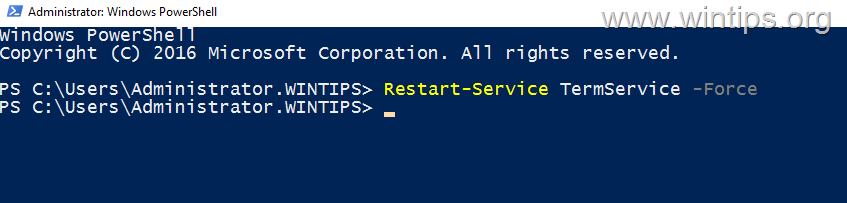
2. After restarting the service, check whether users can connect through Remote Desktop again. If the service cannot restart or remains stuck in STOP_PENDING, restart the VM or server instead.
This is only a temporary recovery method and doesn't remove the underlying September update issue.
Method 4. Temporarily Uninstall the September 2026 Security Update
If RDS remains unusable after following the above methods, multiple affected administrators have reported that removing the applicable September security update restored Remote Desktop functionality.
However, use this only as a last resort.
Warning: The September 2026 updates contain important security fixes. Uninstalling the affected update removes those protections. Consider this option only when the RDS outage has a serious business impact and no safer mitigation is immediately available. Install Microsoft's resolving update as soon as it becomes available.
If the affected cumulative update cannot be removed from Windows Update > Update history > Uninstall updates, Microsoft recommends using DISM to remove the LCU package.
1. Open Command Prompt as Administrator and run:
DISM /Online /Get-Packages /Format:Table
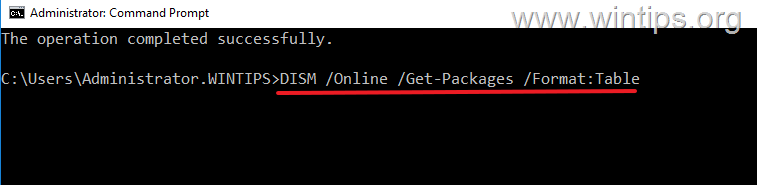
2. Identify the LCU package that corresponds to the affected September 2026 cumulative update. Verify the package against the Windows version, OS build, and installation date before removing it.
For example, on Windows Server 2016 with KB5123099 (OS Build 14393.9512) installed, the corresponding package may appear as:
Package_for_RollupFix~31bf3856ad364e35~amd64~~14393.9512.1.27
Important: Package names vary between Windows versions and updates. Do not remove a package based only on its installation date, and do not remove the Servicing Stack Update (SSU). Make sure that you have identified the LCU package corresponding to the affected September update.

3. After identifying the correct LCU package, run the following command, replacing <LCU-Package-Name> with its complete Package Identity:
DISM /Online /Remove-Package /PackageName:<LCU-Package-Name>
For example, on the Windows Server 2016 system described above:
DISM /Online /Remove-Package /PackageName:Package_for_RollupFix~31bf3856ad364e35~amd64~~14393.9512.1.27
Note: Do not copy the example package name unless it exactly matches the LCU package installed on your system.
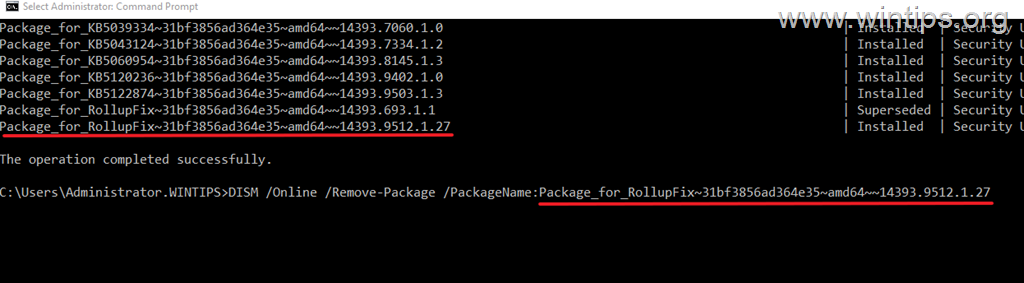
4. Restart the computer when DISM completes the removal.
5. After restarting, verify that users can establish, disconnect, and log off from Remote Desktop sessions normally.
Summary
If Remote Desktop or Remote Desktop Services stopped working after the September 2026 Windows updates, first verify that the affected security update is installed and check for symptoms such as failed connections, stuck sessions, Event 20498, or TermService becoming unresponsive.
Microsoft has resolved the issue with out-of-band updates released on September 14, 2026. Therefore, the recommended solution is to install the resolving update applicable to your Windows version. If you cannot install the OOB update immediately, Microsoft's temporary mitigation, restarting the affected VM or Remote Desktop Services, may help restore RDP access.
Uninstall the September security update only as a last resort because doing so also removes important security fixes.
That's it! Which method worked for you?
Let me know if this guide has helped you by leaving your comment about your experience. Please like and share this guide to help others.
Frequently Asked Questions
What issues were introduced with the September 2026 Windows security updates regarding Remote Desktop Services?
The updates caused Remote Desktop Services to become unstable, leading to issues such as failed RDP connections, problems signing in, unresponsive server configuration screens, and inability to disconnect or log off sessions properly.
How can I verify if I'm affected by the Remote Desktop issues from the September 2026 updates?
You should check your system for specific update versions and look for Event ID 20498 in the Event Viewer under the TerminalServices-RemoteConnectionManager log. Additionally, use Command Prompt to check if Remote Desktop Services is stuck in a STOP_PENDING state.
What steps should I take if my system is affected by the Remote Desktop issue caused by the September 2026 updates?
First, confirm the updates causing the issues are installed. Then, check for related logs and service states. If confirmed, you should install Microsoft's Out-of-Band update released on September 14, 2026, to resolve the issue.
Which specific updates should be installed to address the Remote Desktop issue in Windows 11 and Windows Server versions?
For Windows 11 versions 24H2 and 25H2, install update KB5129195. Separate resolving updates are also available for other affected Windows and Server versions.
Still having trouble fixing this issue?
💬 Get WinTips Remote Support →

- How to Fix SecurityHealthSystray.exe – Bad Image Error (0xc000012f) on Windows 11. - October 26, 2026
- FIX: Windows Hello for Business PIN error 'Your credentials could not be verified' with 'status: 0xc000005e substatus: 0x0' or 'status: 0xc0000bb, substatus: 0x0'. - October 20, 2026
- FIX: This Device Is Already Set Up in Another Organization in Company Portal or During Intune Enrollment - October 13, 2026