How to Disable Passkey Prompts and Delay Enforcement in Microsoft 365
If your Microsoft 365 users suddenly started receiving prompts to create a passkey during sign-in, this is likely related to Microsoft's automatic passkey rollout that started on September 1, 2026.
As part of this change, Microsoft automatically brings users who are enabled for SMS or voice authentication into scope for passkeys and the Microsoft Entra Registration Campaign. As a result, eligible users may be prompted to register a passkey after completing MFA.
Currently, these registration prompts aren't necessarily mandatory. Depending on your Registration Campaign configuration, users can select Skip for now (or Not now) and postpone registration.
If your organization isn't ready to migrate yet, in this guide you'll learn how you can disable the create passkey prompts, exclude selected users or groups, or temporarily opt out of Microsoft's automatic passkey rollout as described below.
IMPORTANT: Disabling the Registration Campaign stops the current registration prompts, but it doesn't permanently exempt users from Microsoft's retirement of Microsoft-provided SMS and voice authentication. Microsoft's temporary rollout opt-out also doesn't change the applicable enforcement deadline.
Note: Microsoft is rolling out an updated Registration Campaign experience through the end of September 2026. Therefore, some settings or options shown below may look slightly different in your tenant.
How to Disable Passkey Prompts or Delay the Automatic Rollout
Which Method Should You Use?
You don't need to follow all the methods below. Choose the method that matches what you want to accomplish:
- Use Method 1 if you simply want to stop passkey registration prompts for all users.
- Use Method 2 if you want to continue the Registration Campaign for most users but stop the passkey prompts for specific users or groups.
- Use Method 3 if your organization isn't ready to use passkeys and you want to temporarily opt the entire organization out of Microsoft's automatic passkey enablement.
Method 1. Disable Passkey Registration Prompts Completely
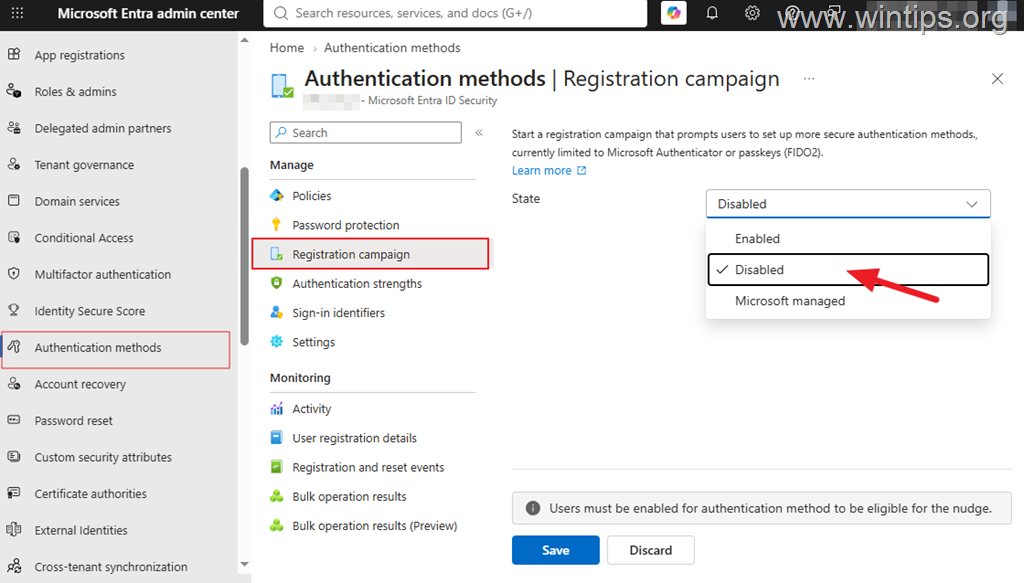
The easiest way to stop the Registration Campaign passkey prompts for all users is to disable the Registration Campaign.
1. Sign in to the Microsoft Entra admin center and navigate to:
- Entra ID > Authentication methods > Registration campaign
2. Change the State from Microsoft Managed to Disabled and click Save if you want all users in your organization to no longer receive passkey registration prompts
IMPORTANT: Disabling the Registration Campaign only disables the campaign and its registration nudges. It isn't the same as opting your tenant out of Microsoft's automatic passkey migration, and it doesn't bypass Microsoft's future enforcement for users who remain in scope.
Method 2. Exclude Selected Users/Groups From Passkey Registration Prompts.
If you want to keep the sign-up campaign active for most users but temporarily stop passkey sign-up prompts for specific users, you can exclude those users from the campaign.
1. Identify the users you want to exclude from the Registration Campaign. If necessary, create a group containing those users.
Note: To identify users who may be affected by Microsoft's automatic passkey migration, see the Check Which Users May Be Enabled for SMS or Voice section below.
2. Then navigate to:
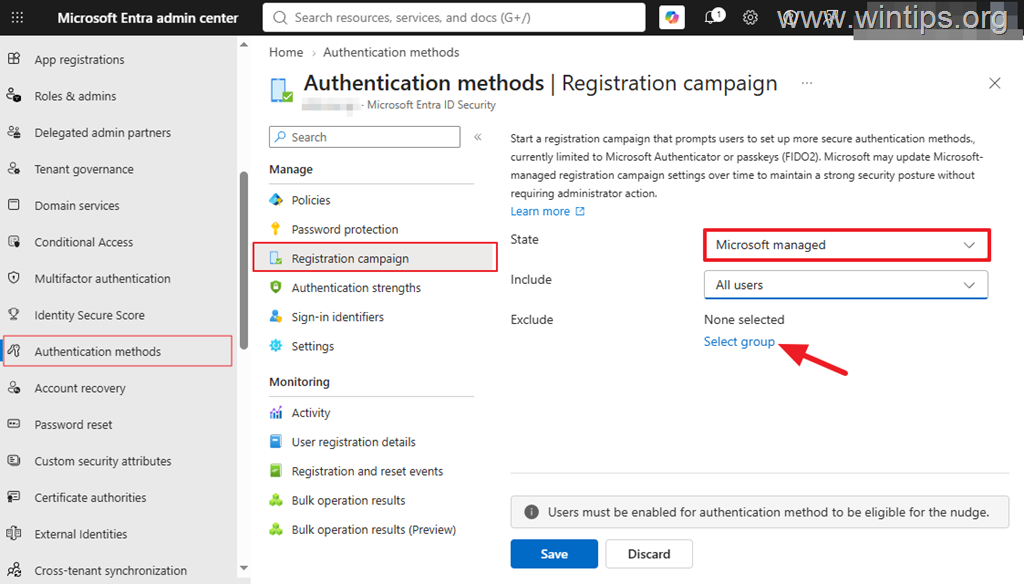
- Entra ID > Authentication methods > Registration campaign
3. Leave the State set to Microsoft Managed and Exclude the specific group from the Registration Campaign passkey prompts. When done, click Save.
4. The excluded users should no longer receive passkey registration prompts generated by the Registration Campaign.
Note: Excluding users from the Registration Campaign only suppresses the campaign prompt. It doesn't permanently exempt those users from Microsoft's applicable SMS/voice retirement and enforcement timeline.
Method 3. Temporarily Opt Out of Microsoft's Automatic Passkey Rollout
Microsoft provides an official temporary opt-out for organizations that aren't ready for the automatic passkey migration.
After enabling the temporary opt-out, your tenant is temporarily excluded from Microsoft's automatic passkey enablement and Registration Campaign rollout.
Important: This is a temporary rollout opt-out. It doesn't postpone or change Microsoft's applicable enforcement date.
Check Which Users May Be Enabled for SMS or Voice
Microsoft's automatic passkey migration targets users who are enabled for Microsoft-provided SMS or voice authentication. Before enabling the tenant-wide opt-out, you can check which users have phone authentication methods registered.
1. Sign in to the Microsoft Entra admin center and navigate to:
- Entra ID > Authentication methods > Activity
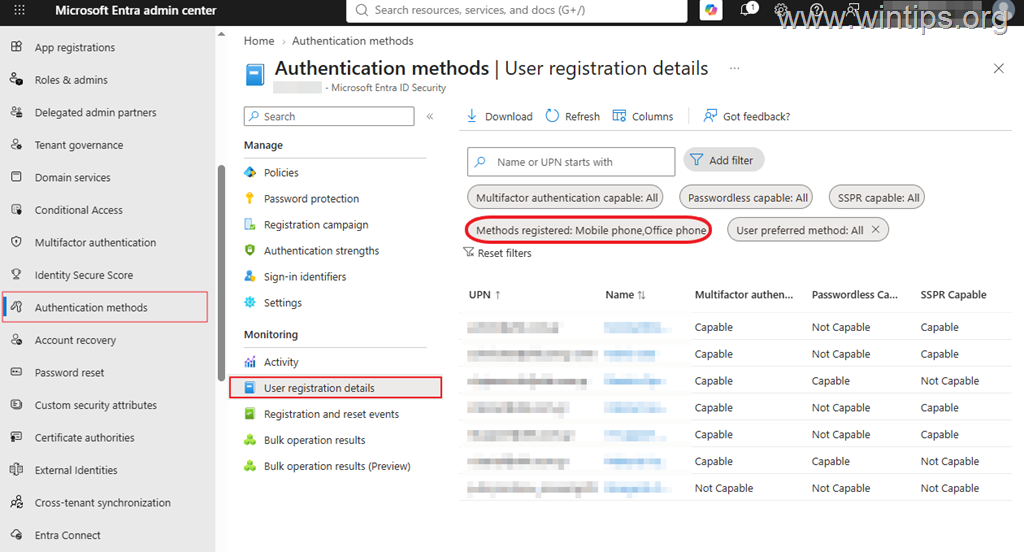
2. Open the Registration tab to display User registration details.
3. Set the Methods registered filter to Mobile phone and Office phone, and then click Apply.
4. The report now displays users who have these phone authentication methods registered.
Note: Having a Mobile phone or Office phone listed in this report doesn't necessarily mean that the user is currently enabled for Microsoft-provided SMS or voice authentication. A mobile phone can be used for SMS or voice depending on your tenant settings, while an office phone can be used for voice.
For a more accurate assessment, Microsoft provides a PowerShell script that identifies users who are enabled for SMS or voice authentication. You can use Microsoft's script before applying the temporary opt-out to determine which users in your organization are actually in scope for the automatic passkey migration.
Step 1. Connect to Microsoft Graph
1. Install Microsoft Graph if the Microsoft Graph PowerShell SDK isn't already installed.
2. Open PowerShell as Administrator and connect to Microsoft Graph with the following permission:
Connect-MgGraph -Scopes "Policy.ReadWrite.AuthenticationMethod"
3. When prompted, sign in with an account that has the Authentication Policy Administrator or Global Administrator role.
4. Review and accept the requested Microsoft Graph permission if prompted.
Step 2. Create the Temporary Opt-Out Configuration
1. Run the following command to create the request body that enables Microsoft's temporary passkey migration opt-out:
$body = @{
    optOutSettings = @{
        passkeyDynamicMigration = $true
    }
} | ConvertTo-Json -Depth 5
Important: Although the setting is named
passkeyDynamicMigration, setting it to$truemeans that your tenant is opting out of Microsoft's automatic passkey migration during the temporary opt-out period.
Step 3. Enable the Temporary Opt-Out
1. Run the following command to apply the temporary opt-out to your tenant's Authentication Methods Policy:
Invoke-MgGraphRequest `
    -Method PATCH `
    -Uri "https://graph.microsoft.com/beta/policies/authenticationMethodsPolicy" `
    -Body $body `
    -ContentType "application/json"
2. If the command completes without an error, proceed to the next step to verify that the temporary opt-out was applied successfully.
Step 4. Verify the Temporary Opt-Out
1. Run the following command to retrieve the current Authentication Methods Policy:
$response = Invoke-MgGraphRequest `
    -Method GET `
    -Uri "https://graph.microsoft.com/beta/policies/authenticationMethodsPolicy"
2. Then, run the following command to display the current opt-out settings:
$response["optOutSettings"]
3. If the temporary opt-out is enabled, you should see:
passkeyDynamicMigration : True
If passkeyDynamicMigration is set to True, the temporary opt-out has been applied successfully. Your tenant is temporarily excluded from Microsoft's automatic passkey enablement and Registration Campaign rollout.
Important: The temporary opt-out doesn't change the applicable SMS and voice retirement or enforcement date. When the applicable retirement date is reached, Microsoft's enforcement requirements apply regardless of this setting.
Prepare Users Before the Enforcement Deadline
Keep in mind that disabling the Registration Campaign or enabling the temporary opt-out doesn't change Microsoft's SMS and voice retirement timeline.
For most affected internal users who rely on Microsoft-provided SMS or voice authentication, enforcement begins on February 1, 2027. Microsoft currently documents a later July 1, 2027 date for Global Administrators and external users.
If an affected user's only available MFA method is Microsoft-provided SMS or voice when the applicable deadline is reached, the user may be required to register a passkey during sign-in before continuing.
Therefore, use the additional time provided by the temporary opt-out to move affected users to an appropriate authentication method before their applicable deadline.
Note: Organizations that need to continue using SMS or voice can evaluate a customer-managed telecom provider through the Microsoft Security Store.
Summary
If you only want to stop the current passkey registration prompts, disable the Microsoft Entra Registration Campaign or exclude selected users and groups.
If you need more time before Microsoft automatically enables passkeys and rolls out the Registration Campaign, use Microsoft's temporary Graph opt-out by setting: "passkeyDynamicMigration": true
Remember that neither option permanently bypasses Microsoft's enforcement timeline. Use the additional time to prepare affected users and move them to an appropriate authentication method before their applicable retirement date.
That's it! Which method worked for you?
Let me know if this guide has helped you by leaving your comment about your experience. Please like and share this guide to help others.
Frequently Asked Questions
Why are my Microsoft 365 users getting passkey creation prompts during sign-in?
Your users are likely seeing these prompts because of Microsoft's automatic passkey rollout, which started on September 1, 2026. This rollout affects users enabled for SMS or voice authentication, prompting them to register a passkey after MFA.
Are the passkey registration prompts mandatory for Microsoft 365 users?
Currently, the registration prompts are not mandatory. Based on your Registration Campaign configuration, users can choose to skip or postpone registration.
How can I stop passkey registration prompts for all users in my organization?
You can disable the Registration Campaign to stop prompts for all users by navigating to Entra ID > Authentication methods > Registration campaign in the Microsoft Entra admin center, changing the State from Microsoft Managed to Disabled, and clicking Save.
What should I do if I want to stop passkey prompts only for specific users?
You can create a group of users who should be excluded and then modify the Registration Campaign settings to exclude that specific group, which will stop the prompts for those users.


- How to Disable Passkey Prompts and Delay Enforcement in Microsoft 365 - September 24, 2026
- Remote Desktop (RDP/RDS) Stops Working After September 2026 Windows Update: How to Fix - September 15, 2026
- Windows 11 KB5124008 Causes No Sound or USB Audio Code 10: How to Fix - September 14, 2026