How to Install Windows 11 26H2 on Unsupported Hardware
In this guide, you'll find the most reliable methods to install Windows 11 26H2 on unsupported hardware, whether you want to upgrade your existing installation or perform a clean install.
Windows 11 26H2 can be installed on many PCs that don't meet Microsoft's official Windows 11 hardware requirements, but the best method depends on which version of Windows you're currently running and why the PC is considered unsupported.
If your unsupported PC already runs Windows 11 24H2 or 25H2, upgrading to 26H2 may be possible through the small KB5121794 enablement package. For other unsupported PCs, you can perform an in-place upgrade using the Product Server compatibility workaround. A clean installation with Rufus is another option when broader Setup requirements need to be bypassed.
How to Install Windows 11 26H2 on an Unsupported PC
IMPORTANT: Microsoft doesn't recommend or support installing Windows 11 on devices that don't meet the minimum system requirements. Unsupported PCs may experience compatibility problems and aren't guaranteed to receive updates, including security updates. The methods below can bypass some Windows Setup requirements, but they don't make the PC officially supported.
Before You Install Windows 11 26H2 on a PC with Unsupported Hardware for Windows 11:
- Back up your important files.
- Check Microsoft's Windows 11 26H2 Release Health page for current known issues.
Also, keep in mind that bypassing the Windows Setup requirements doesn't mean Windows 11 26H2 can run on every old computer.
Very old processors may lack CPU instructions required by the Windows 11 24H2/25H2/26H2 codebase. These are actual hardware limitations and can't be fixed simply by bypassing a compatibility check.
Method 1. Upgrade Windows 11 24H2/25H2 to 26H2 with KB5121794
If your unsupported PC is already running Windows 11 24H2 or 25H2, this is the easiest method to try first because it doesn't require reinstalling Windows, creating installation media, or running a Windows Setup bypass.
Windows 11 24H2, 25H2, and 26H2 share the same core operating system and system files. The KB5121794 enablement package activates the Windows 11 26H2 features that are already present on a fully updated 24H2/25H2 installation.
The same enablement package has also been successfully used on unsupported Windows 11 24H2/25H2 PCs without removing installed applications, personal files, or settings.
Important: Microsoft doesn't officially support Windows 11 on hardware that doesn't meet the minimum system requirements. Installing KB5121794 doesn't make an unsupported PC officially supported or guarantee future Windows updates.
Note: This method doesn't apply to Windows 10, Windows 11 23H2, or earlier Windows versions. If you own one these versions, continue to next method.
Step 1. Install the Latest Windows Updates
Before installing the enablement package, make sure that the PC is running Windows 11 24H2 or 25H2 and has KB5124010 or a later cumulative update installed.
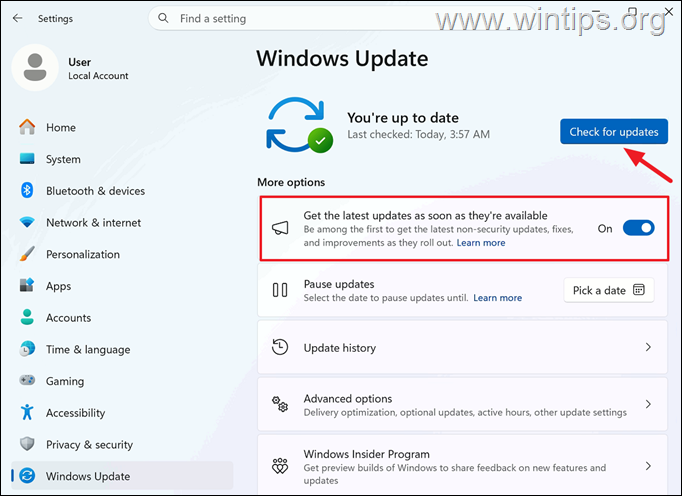
1. Go to Start > Settings > Windows Update.
2. Turn on Get the latest updates as soon as they're available.
3. Click Check for updates and then install all available updates, if any.
Note: If Windows 11, version 26H2 appears in Windows Update, click Download & install to upgrade directly. If 26H2 isn't offered, continue to Step 2 below to install the enablement package manually.
Step 2. Download KB5121794 from Microsoft
Download the appropriate KB5121794 enablement package for your PC directly from Microsoft's update download servers:
- For x64 PCs (Intel/AMD): Download KB5121794 x64 from Microsoft server
- For ARM64 PCs: Download KB5121794 ARM64 from Microsoft Server
Note: Microsoft doesn't currently list KB5121794 as a downloadable package in Microsoft Update Catalog search. The links above point directly to Microsoft's update delivery servers.
Step 3. Install the Windows 11 26H2 Enablement Package
1. Double-click the downloaded KB5121794 .msu file.
2. When prompted, click Yes to start the installation.
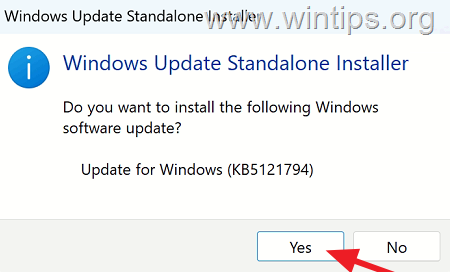
3. Wait for the update to install.
4. Restart the computer when prompted.
5. After the computer restarts, continue to the verification section below to confirm that Windows 11 26H2 was installed successfully.
6. If KB5121794 doesn't install, or your unsupported PC isn't already running Windows 11 24H2 or 25H2, continue with the next method.
Method 2. Upgrade to Windows 11 26H2 with the 'Product Server' command
The 'Product Server' method can be used to perform an in-place upgrade to Windows 11 26H2 while bypassing some of the normal Windows 11 compatibility checks.
The advantage of this method is that you can perform the upgrade from within Windows and, when Windows Setup allows it, keep your personal files, installed applications, and settings.
This workaround has been confirmed to work with Windows 11 26H2, but its success still depends on the underlying hardware and the existing Windows installation.
Note: This method is particularly useful when upgrading from Windows 10 or an earlier Windows 11 version that cannot be upgraded to 26H2 through the KB5121794 enablement package.
Step 1. Download the Windows 11 26H2 ISO
1. Download the official Windows 11 26H2 ISO from Microsoft's Download Windows 11 page.
- For x64 devices,* navigate to Microsoft's official Download Windows 11 page.
- For Arm Devices, navigate to Microsoft's official Download Windows 11 for Arm-based PCs
2. Under Download Windows 11 Disk Image (ISO), select the available Windows 11 ISO, then choose your language and download the ISO file.
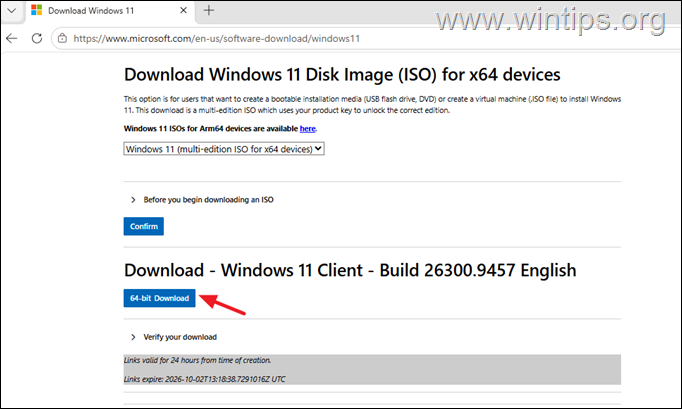
3. When the ISO download is complete, continue to next step.
Step 2. Install Windows 11 26H2 from the ISO file.
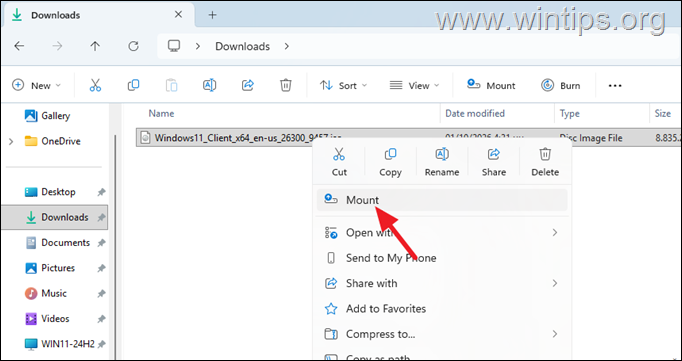
1. Right-click the ISO file and select Mount. Then click Open to mount the file in File Explorer.
2. In the new window that opens, with the contents of the mounted ISO file, right-click at an empty space and click Open in Terminal.
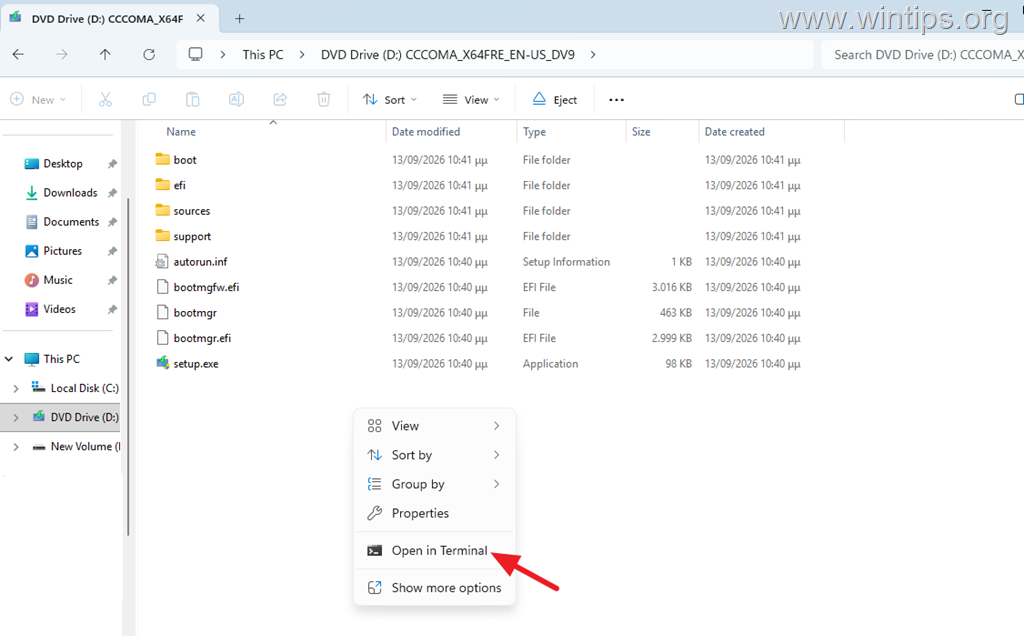
3. In Terminal (Windows PowerShell) window, type the following command and press Enter:
.\setup.exe /product server
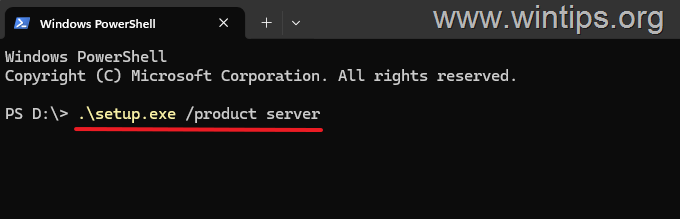
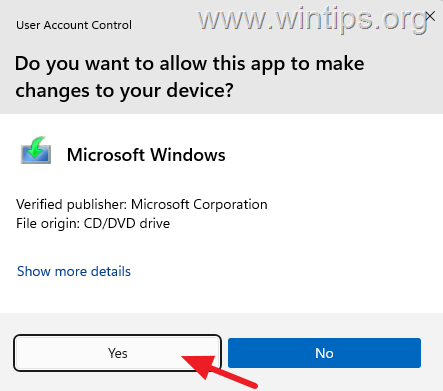
4. In UAC window, choose Yes.
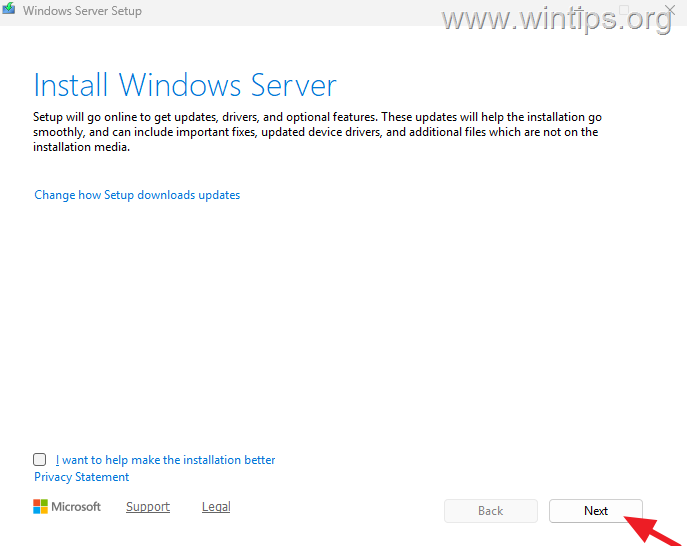
5. After a few seconds you see the "Install Windows Server" screen.*
* Note: You may see references to Windows Server in some Setup screens when using this command. This doesn't mean that Windows Server will be installed. The installation image (ISO file) you're using remains Windows 11 26H2.
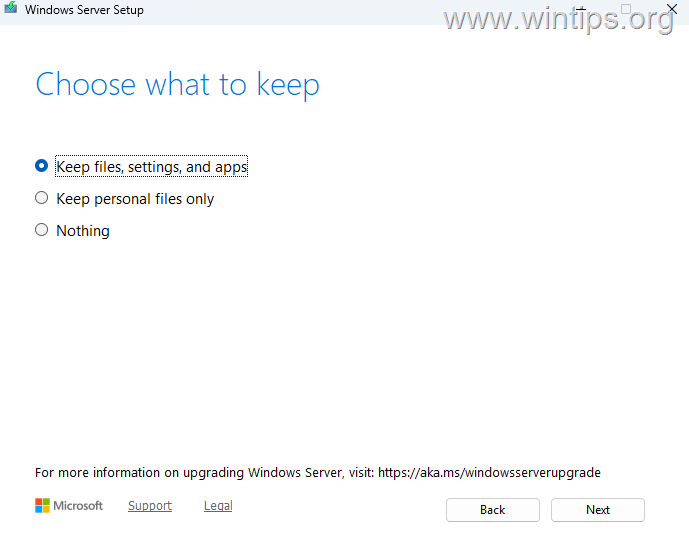
6. Then accept the license terms and at the next screen, choose Keep files, settings, and apps and click Next.
Important: If Keep personal files and apps isn't available, don't continue if you need to preserve your installed applications and data.
7. Wait for the installer to check for updates and when it finishes click Install.
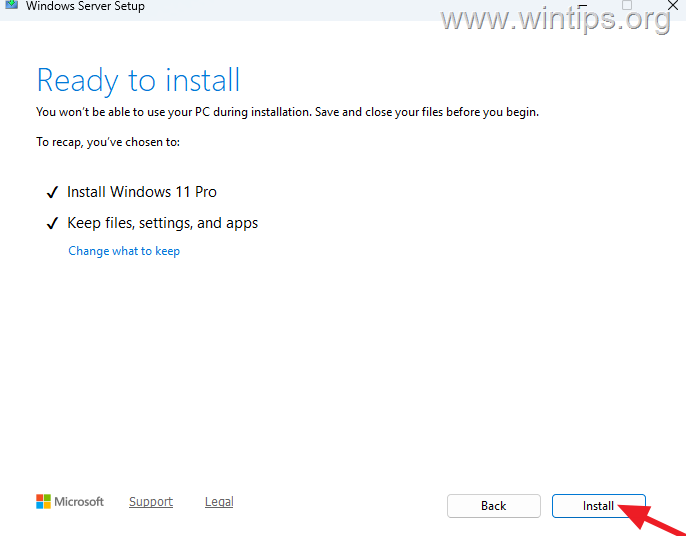
8. The Windows 11 26H2 upgrade will start, despite the fact that it says "Installing Windows Server". Sit back and wait for the installation to complete without interrupting it. The computer will restart several times during the installation.

9. Once the installation is complete, your system will enter Windows with all files and settings intact.
10. Continue to the verification section below to confirm that Windows 11 26H2 was installed successfully.
11. Finally, go to Start -> Settings > Windows Update, check for available updates and install them and you're done!
Method 3. Clean Install Windows 11 26H2 with Rufus
If the previous upgrade methods aren't suitable and the PC fails additional requirements such as TPM 2.0, Secure Boot, or RAM checks, you can use Rufus to create Windows 11 26H2 installation media that removes these Setup requirements.
Unlike the previous methods, however, this procedure is intended for a clean installation.
WARNING: A clean installation can erase your existing Windows installation, applications, settings, and personal files. Back up all important files to an external storage media before continuing.
Step 1. Download the Windows 11 26H2 ISO
If you haven't done so already, download the official Windows 11 26H2 ISO from Microsoft by following the instructions in Step 1 of Method 2 above.
Step 2. Create Windows 11 26H2 Bootable USB Installation Media
1. Download the latest version of Rufus USB Creator Utility.
2. Plug an EMPTY USB disk on your PC (at least 8GB), and remove all other connected USB drives.
Important: Rufus will erase the contents of the USB drive.
3. Run the Rufus utility, click SELECT, and then choose the "Windows.iso" file you downloaded in Step-1 above. When finished, click the START button.
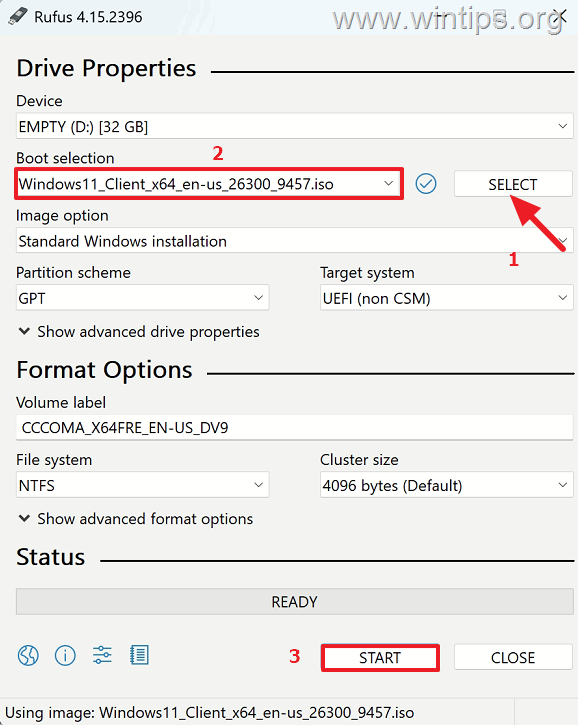
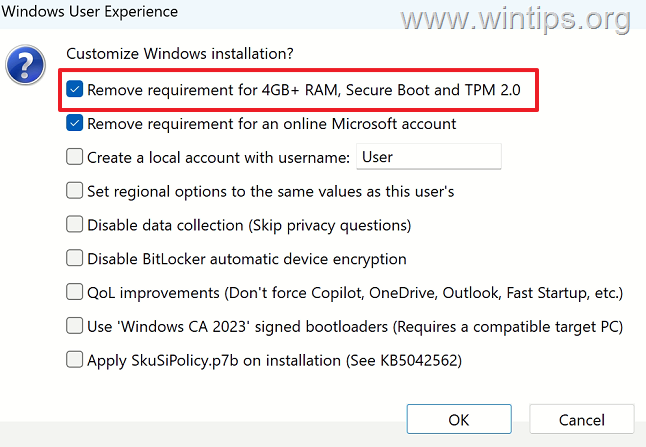
4. In the 'Windows User Experience' options, keep the Remove requirement for 4GB+ RAM, Secure Boot, and TPM 2.0 options selected.
* Note: Optionally, check or uncheck any of the additional options, depending on which settings you want applied to the Windows 11 USB installation media that will be created.
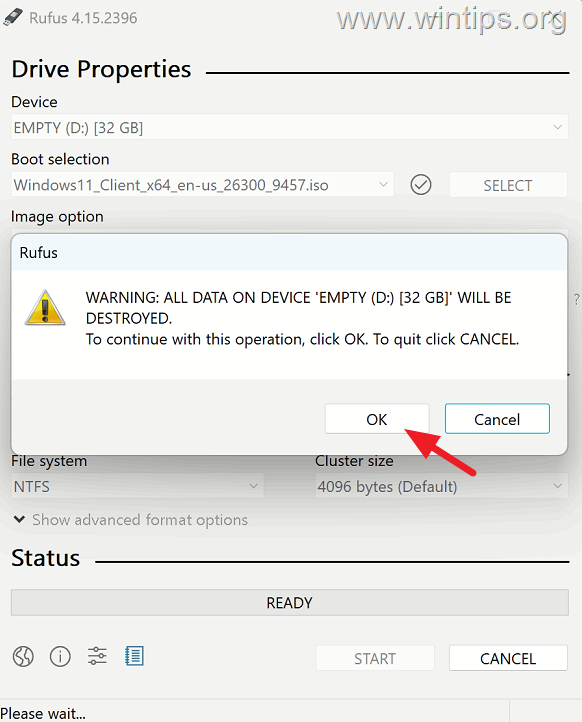
5. Now, carefully read the warning message informing you that all files on the USB drive will be erased. If you agree, click OK to continue.
Important: All files stored on the USB drive will be permanently deleted during this process.
6. Wait for the process to complete and when the USB is "READY", click CLOSE to close the RUFUS utility.
7. After the USB installation media is created, proceed to next step.
Step 3. Clean Install Windows 11 26H2
1. Restart the unsupported PC and boot from the Windows 11 USB drive created by Rufus.
Note: You may need to open your computer's boot menu or change the boot order in UEFI/BIOS.
2. When Windows Setup starts, select your language and keyboard settings.
3. Continue with the Windows 11 installation.*
Important: When selecting the installation destination, make sure you choose the correct disk and partition.
* Note: See the full installation instructions here.
How to Verify That Windows 11 26H2 Is Installed
To verify that Windows 11 26H2 was installed successfully:
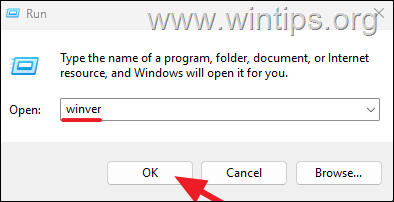
1. Press Windows + R to open the Run dialog box.
2. Type: winver and press Enter.
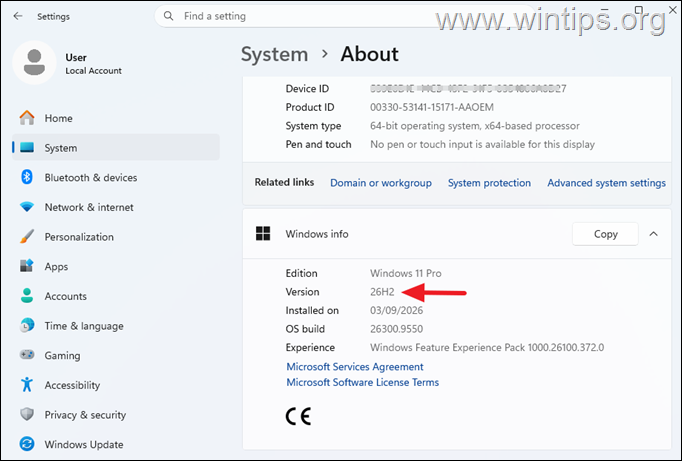
3. The About Windows dialog should display: Version 26H2
![image_thumb[20]](https://www.wintips.org/wp-content/uploads/2026/10/image_thumb20.png "image_thumb[20]")
Alternatively, you can go to Settings > System > About and look under Windows info. The Version should report 26H2.
Can Windows 11 26H2 Run on Any Unsupported PC?
No, because certain processors are considered unsupported and are not included in Microsoft's list of supported processors.
Additionally, starting with Windows 11 24H2, the operating system relies on newer CPU instructions, including POPCNT/SSE4.x instructions. Very old processors that lack required instructions may be unable to boot Windows 11 26H2, regardless of the installation bypass used.
Therefore, none of the methods above guarantees that Windows 11 26H2 will run on every old PC.
Will Windows 11 26H2 Receive Updates on an Unsupported PC?
Possibly, but there's no guarantee. Many unsupported Windows 11 PCs currently continue to receive cumulative and security updates.
However, Microsoft states that PCs that don't meet the Windows 11 minimum system requirements aren't guaranteed to receive updates, including security updates.
Summary
The best way to install Windows 11 26H2 on an unsupported PC depends mainly on your current Windows version and which hardware requirements the PC fails.
If the PC already runs Windows 11 24H2 or 25H2, check whether you can upgrade through KB5121794 first. Because 24H2, 25H2, and 26H2 share the same servicing foundation, this is the least disruptive route when available.
For other unsupported systems, the Product Server method provides a practical way to perform an in-place upgrade while preserving files and applications.
Finally, use Rufus when you need a broader Setup-requirement bypass and are prepared to perform a clean installation.
Whichever method you use, remember that bypassing Windows 11 hardware checks doesn't make the PC officially supported, and Microsoft doesn't guarantee future updates or compatibility on unsupported hardware.
Frequently Asked Questions
How do I upgrade an unsupported PC from Windows 11 24H2 or 25H2 to 26H2?
If your unsupported PC is already running Windows 11 24H2 or 25H2, you can upgrade to 26H2 using the KB5121794 enablement package. First, ensure all latest updates are installed. Then, download the appropriate KB5121794 package for either x64 or ARM64 systems from Microsoft's servers and install it.
What should I do before attempting to install Windows 11 26H2 on unsupported hardware?
Before attempting to install Windows 11 26H2 on unsupported hardware, back up important files and check Microsoft's Windows 11 26H2 Release Health page for any known issues. It's also important to recognize that bypassing setup requirements doesn't guarantee compatibility on all old hardware.
Can I install Windows 11 26H2 on a PC currently running Windows 10 or earlier versions?
For PCs running Windows 10 or earlier Windows versions, the method described using KB5121794 won't apply. You should explore in-place upgrades using compatibility workarounds or consider a clean installation with tools like Rufus.
What are the risks of installing Windows 11 on unsupported hardware?
Installing Windows 11 on unsupported hardware may lead to compatibility problems and these devices aren't guaranteed to receive updates, including security updates. Microsoft does not officially support Windows 11 on hardware that doesn't meet the minimum system requirements.


- How to Install Windows 11 26H2 on Unsupported Hardware - October 2, 2026
- How to Install Windows 11 version 26H2 - October 2, 2026
- How to Enroll an Entra Registered Device in Intune MDM - October 1, 2026