How to Install Windows 11 version 26H2
Windows 11 26H2, also known as the Windows 11 2026 Update, is now generally available for compatible Windows 11 devices.
Microsoft is rolling out Windows 11 26H2 gradually, so the update may not appear immediately on every eligible computer. For PCs already running Windows 11 24H2 or 25H2, the upgrade is relatively small because Microsoft delivers 26H2 through an enablement package that activates features already included in recent Windows updates.
What's New in Windows 11 26H2?
Windows 11 26H2 includes several improvements that Microsoft has been gradually introducing through Windows updates.
The Start menu includes improvements such as a scrollable All apps section, category and grid views, adjustable sizing, and more control over its Pinned, Recent, and All sections.
File Explorer also includes improvements to performance and usability, additional archive-format support, and other enhancements, while Windows Search provides improved search results, better handling of partial app names and typos, and clearer identification of apps, settings, files, and web results.
For security and administration, Windows 11 26H2 includes improvements such as Administrator Protection, which can provide just-in-time administrative privileges, and Sysmon built into Windows.
Note: Because Windows 11 uses continuous feature delivery, some features associated with 26H2 may already be available on fully updated Windows 11 24H2 or 25H2 computers. Upgrading to 26H2 doesn't necessarily introduce every feature for the first time.
This guide explains how to safely download and install Windows 11 26H2 on supported PCs using Microsoft's official installation methods. If your PC doesn't meet the Windows 11 hardware requirements, see this guide instead: How to Install Windows 11 26H2 on Unsupported Hardware
How to Download and Install Windows 11 26H2
Method 1. Install KB5121794 Enablement Package through Windows Update
Windows Update is the recommended and easiest method for upgrading an eligible Windows 11 24H2 or 25H2 computer to version 26H2.
More specifically, on eligible Windows 11 24H2 and 25H2 computers, Windows Update automatically installs the KB5121794 enablement package which activates the Windows 11 v26H2 features.
* Info: Many of the 26H2 features are already present on fully updated 24H2/25H2 computers but remain inactive. KB5121794 acts as a small enablement package that activates the 26H2 functionality and changes the Windows version to 26H2.
According to Microsoft's current KB5121794 documentation, the enablement package applies to Windows 11 24H2 and 25H2 and requires KB5124010 or a later cumulative update. One restart is required.
Important: Before upgrading, check Microsoft's current Windows 11 26H2 Release Health page for known issues that may affect your computer.
To upgrade to Windows 11 26H2, using the enablement package:
1. Go to Start > Settings > Windows Update.
2. Turn on Get the latest updates as soon as they're available.
3. Click Check for updates.
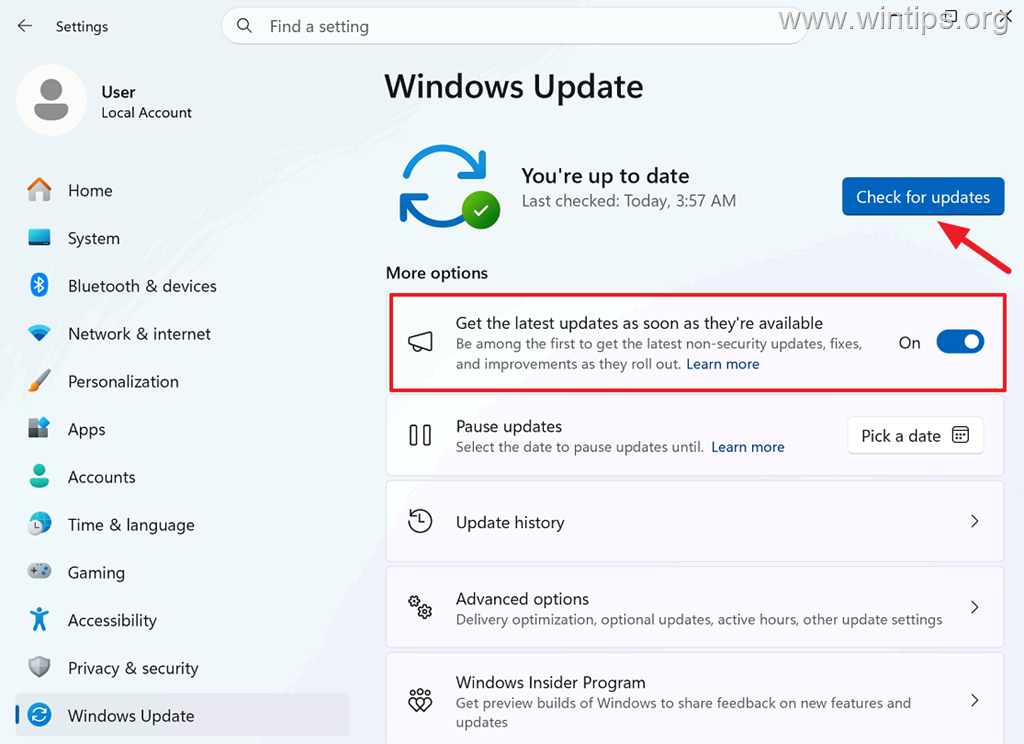
4. If Windows 11, version 26H2 appears, click Download & install. *
* Note: If Windows Update doesn't offer 26H2, the phased rollout may not have reached your computer yet, or Microsoft may be preventing the upgrade because of a known compatibility issue.
However, if your PC is running Windows 11 24H2 or 25H2 with KB5124010 or a later cumulative update installed, and no known compatibility issue applies to your device, you can manually download and install the KB5121794 enablement package from the Microsoft update delivery servers below. Microsoft doesn't currently list KB5121794 as a downloadable package in Microsoft Update Catalog search.
- For x64 PCs (Intel/AMD): Download KB5121794 x64 from Microsoft server
- For ARM64 PCs: Download KB5121794 ARM64 from Microsoft Server
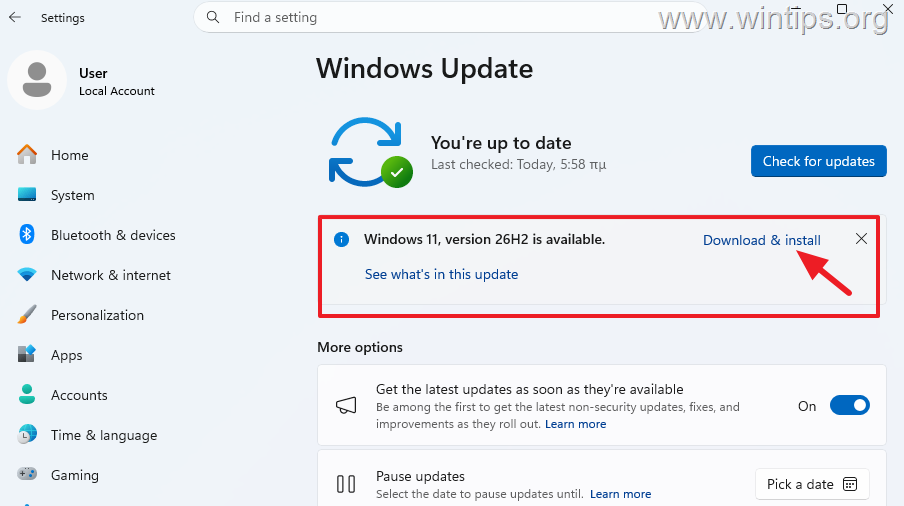
5. Wait for Windows to download and install the update.
6. When prompted, click Restart now to restart your computer to complete the installation.
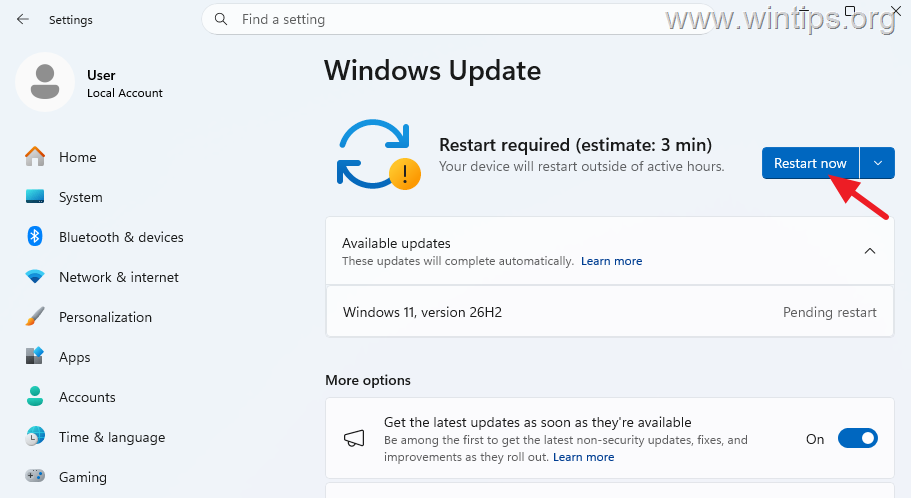
7. After the computer restarts, continue to the verification section below to confirm that Windows 11 26H2 was installed successfully.
Method 2. Install Windows 11 26H2 using the Windows 11 Installation Assistant
The current Windows 11 Installation Assistant supports Windows 11 26H2 and can upgrade the computer you're currently using.
However, for a Windows 11 24H2/25H2 PC, I recommend checking Windows Update first because the enablement-package upgrade is smaller and simpler.
* Note: The Installation Assistant is available for x64 PCs only and doesn't run on Arm-based computers.
1. Open Microsoft's official Download Windows 11 page.
2. Click Download Now under the Windows 11 Installation assistant section.
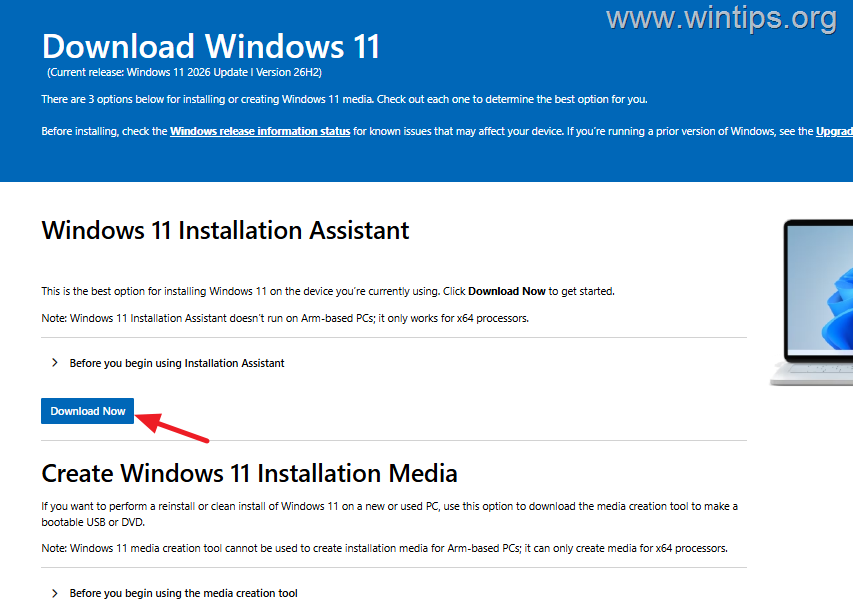
3. Then, open the downloaded file (Windows11InstallationAssistant.exe.) to start the upgrade.*
* Note: If you receive the message "This device is already running the latest version of Windows 11", then 26H2 is not available for your device yet.
4. Once the installation is complete, continue to the verification section below to confirm that Windows 11 26H2 was installed successfully.
Method 3. Download the Windows 11 26H2 ISO and Upgrade Manually
Microsoft also provides the official Windows 11 26H2 ISO file, which you can use to perform an in-place upgrade to Windows 11 26H2 while retaining your personal files and applications.
Important: Before upgrading, back up your important files to an external storage media and check Microsoft's current Windows 11 26H2 Release Health page for known issues that may affect your computer.
1. To download the official Windows 11 26H2 ISO file:
- For x64 devices,* navigate to Microsoft's official Download Windows 11 page.
- For Arm Devices, navigate to Microsoft's official Download Windows 11 for Arm-based PCs
2. Under Download Windows 11 Disk Image (ISO), select the available Windows 11 ISO, then choose your language and download the ISO file.
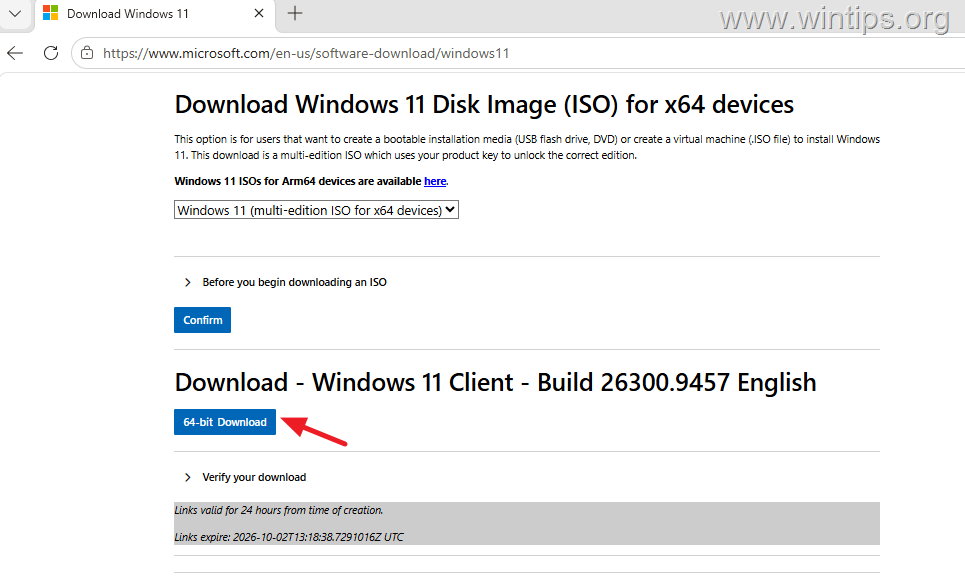
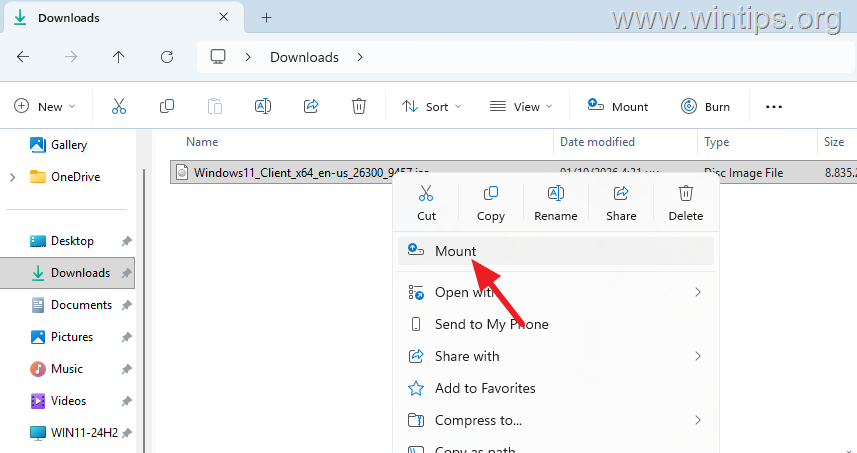
3. When the ISO download is complete, right-click the ISO file and select Mount.
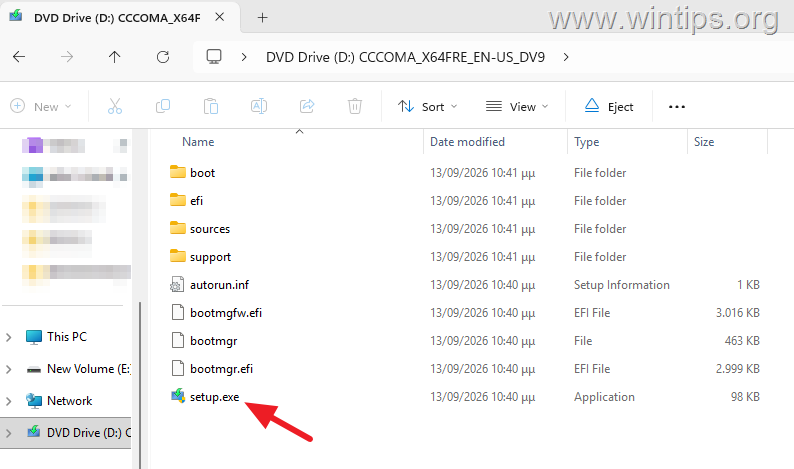
4. Open the mounted virtual drive and double-click: setup.exe
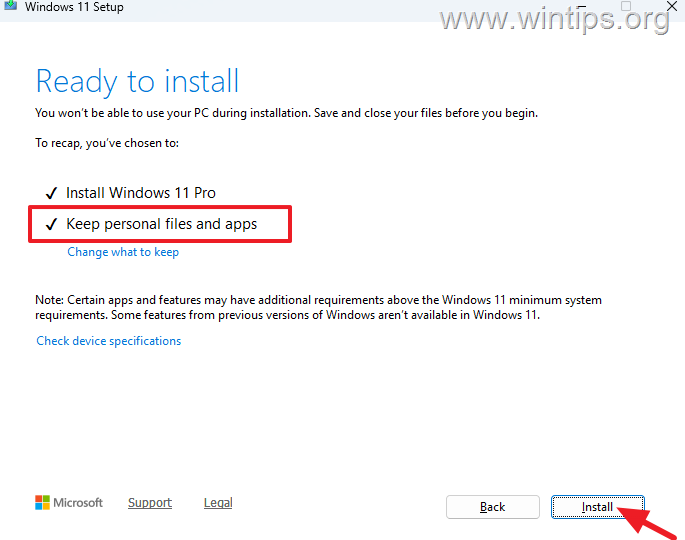
5. Follow the instructions in Windows Setup and when you reach the Ready to install screen, verify that Keep personal files and apps is selected and click Install.
6. The upgrade will begin, and Windows will restart several times during the process. Wait until the upgrade is complete and the computer boots into Windows.
7. Finally, continue to the verification section below to confirm that Windows 11 26H2 was installed successfully.
Method 4. Clean Install Windows 11 26H2.
If you want to perform a clean installation of Windows 11 26H2, on your computer:
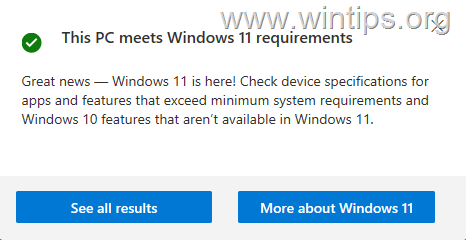
1. First of all download, install and run Microsoft's PC Health Check utility to verify that your PC is eligible to run Windows 11.
Note: After opening the PC Health utility click on the Check Now button and if your computer is able to run Windows 11, you should see the following screen.
2. On Microsoft’s official Download Windows 11 page, under Create Windows 11 Installation Media, click Download now. Then run the Media Creation Tool to create a bootable Windows 11 installation USB drive. Alternatively, if you have already downloaded the Windows 11 26H2 ISO file, you can use Rufus to create a bootable USB drive.
3. Back up your important files to an external storage media.
4. Check Microsoft's current Windows 11 26H2 Release Health page for known issues that may affect your computer.
5. Boot from the Windows USB media you created to start the installation of Windows 11.*
* Note: See the full installation instructions here.
How to Verify That Windows 11 26H2 Is Installed
To verify that Windows 11 26H2 was installed successfully:
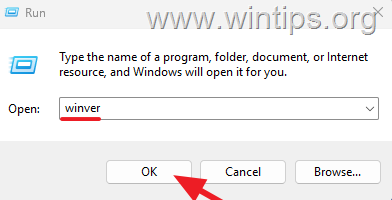
1. Press Windows + R to open the Run dialog box.
2. Type: winver and press Enter.
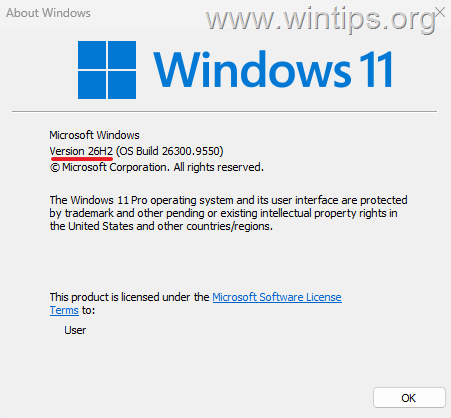
3. The About Windows dialog should display: Version 26H2
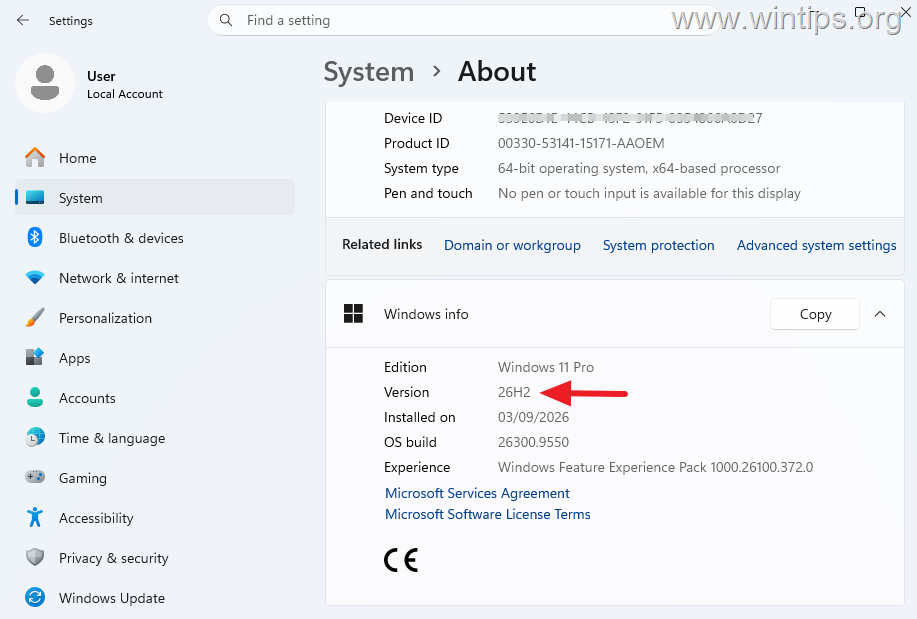
Alternatively, you can go to Settings > System > About and look under Windows info. The Version should report 26H2.
What to do if Windows 11 26H2 cause problems
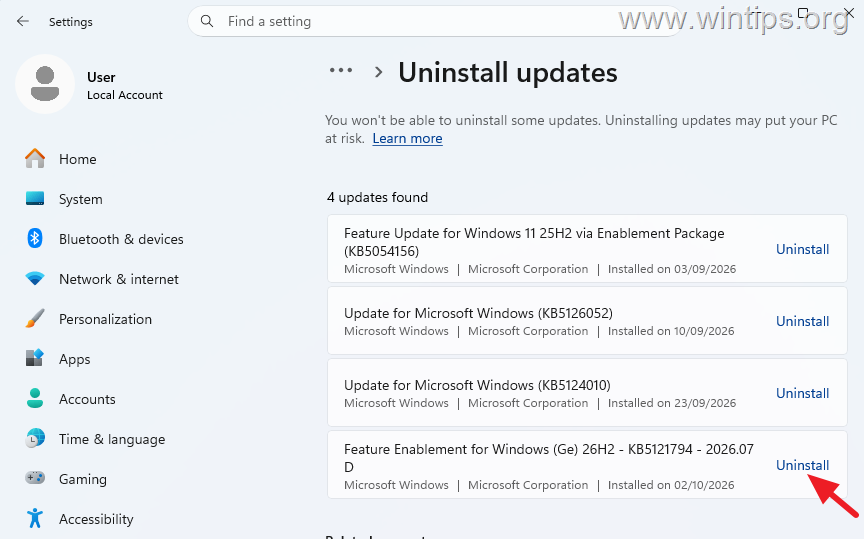
If you upgraded from Windows 11 24H2 or 25H2 to 26H2 through the KB5121794 enablement package and experience problems, you may be able to return to the previous Windows version by uninstalling the enablement package.*
* Note: If you upgraded to Windows 11 26H2 using the Installation Assistant or an ISO instead, go to Settings > System > Recovery and check whether the Go back option is available.
1. Navigate to Settings > Windows Update, and click Update history.
2. Scroll down to Related Settings, and select Uninstall updates.
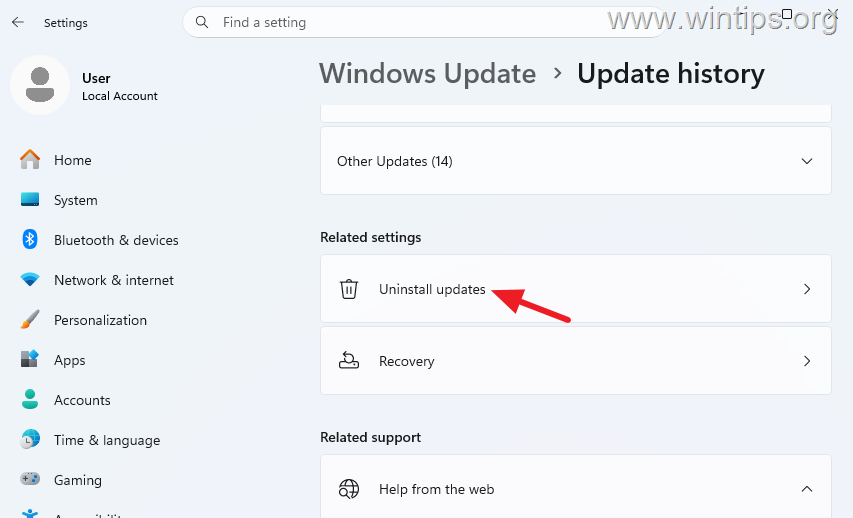
3. Locate the Feature enablement for Windows 26H2 KB5121794 package, and click Uninstall. Then click Uninstall again to confirm.
4. Restart your computer when prompted.
Summary
The easiest way to install Windows 11 26H2 is through Settings > Windows Update. Eligible Windows 11 24H2 and 25H2 computers receive 26H2 through the small KB5121794 enablement package, which requires only one restart.
If you need an alternative installation method, download the official Windows 11 26H2 ISO from Microsoft, mount it, and run setup.exe from within Windows to perform an in-place upgrade while keeping your files and applications.
Microsoft also provides the Windows 11 Installation Assistant and Media Creation Tool, but Windows Update should remain the first choice for supported 24H2/25H2 computers.
After upgrading, run winver or open Settings > System > About to verify that Version 26H2 is installed.
That's it! Let me know if this guide has helped you by leaving your comment about your experience. Please like and share this guide to help others.
Frequently Asked Questions
What is Windows 11 26H2?
Windows 11 26H2, also known as the Windows 11 2026 Update, is a new version of the Windows operating system that includes several improvements and features. It is being gradually rolled out to compatible Windows 11 devices.
How can I upgrade to Windows 11 26H2?
You can upgrade to Windows 11 26H2 through Windows Update by installing the KB5121794 enablement package. This is the recommended method for eligible Windows 11 24H2 or 25H2 computers. Alternatively, you can use the Windows 11 Installation Assistant.
What improvements does Windows 11 26H2 include?
Windows 11 26H2 offers enhancements such as a scrollable Start menu, improved performance and usability in File Explorer, better Windows Search results, and security features like Administrator Protection and Sysmon.
Why might my computer not receive the Windows 11 26H2 update immediately?
The Windows 11 26H2 update is being rolled out gradually. If you don't see it, it could be due to the phased rollout not reaching your computer yet, or a known compatibility issue identified by Microsoft.


- How to Install Windows 11 26H2 on Unsupported Hardware - October 2, 2026
- How to Install Windows 11 version 26H2 - October 2, 2026
- How to Enroll an Entra Registered Device in Intune MDM - October 1, 2026