
FIX: Cannot Remove Keyboard Language in Windows 10
Many users have reported the annoying issue that they cannot remove a Keyboard language in Windows 10, because the unwanted language doesn't appear in "Preferred languages" list. The problem with the unwanted language that cannot be removed in Windows 10, usually occurs after installing a third-party software, or after updating Windows, or due an invalid 'System Locale' setting.

If you cannot remove a keyboard language in Windows 10, continue reading below. to learn how to solve the problem.
FIX: Unable to Remove a Keyboard Language/Layout in Windows 10.
Method 1. Change the System Locale.
The first step, to remove a keyboard language that cannot be removed from language settings in Windows 10, is to change the 'System Locale' setting to your language.
1. From Language options, open the Administrative language settings.

2. At Administrative tab, click Change system locale.

3. At 'Region settings', change the language for non-Unicode programs to your language. (e.g. English (United States) and click OK.

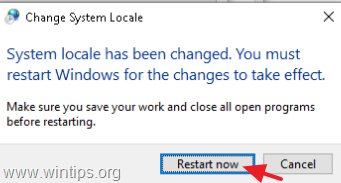
4. When prompted, click Restart now to apply the change.
Method 2. Remove the Unwanted Language from Registry.
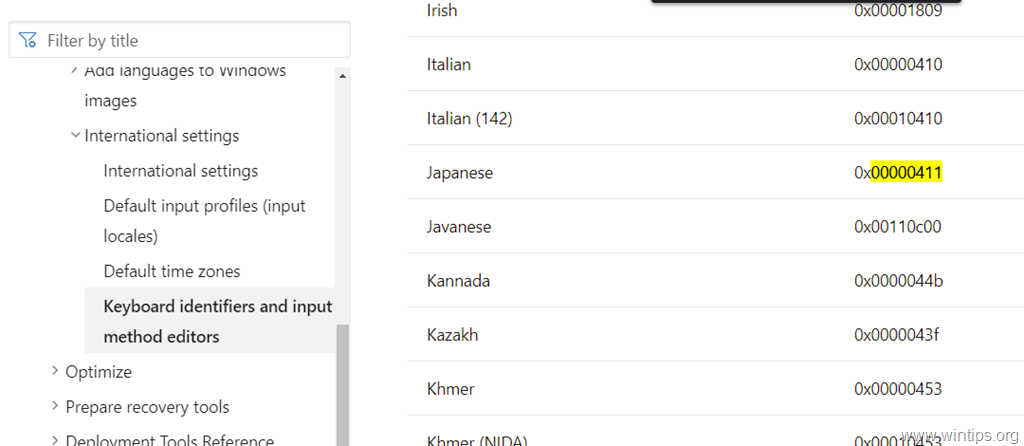
1. Navigate to this Microsoft's Page and find out the Keyboard identifier (in hexadecimal number), of the language that you want to remove. *
* Example: If you want to remove the Japanese language the keyboard identifier is "00000411"
2. Then, open registry editor and remove the unwanted language from these two (2) registry locations:
-
HKEY_CURRENT_USER\Keyboard Layout\Preload
-
HKEY_USERS\.DEFAULT\Keyboard Layout\Preload

3. Close Registry Editor and restart your PC. The unwanted language should be gone!
Method 3. Reset Language Settings.
1. Open PowerShell as Administrator and find out the "Language Tag" of the Windows Display language you're using, with this command:
- Get-WinUserLanguageList
e.g. At this example, where the Windows display language is "English (United States)", the Language Tag is "en-US"

2. Now replace the LanguageTag value on the below command with the LanguageTag you found above and press Enter, to reset the language settings.*
- Set-WinUserLanguageList LanguageTag -Force
e.g. in this example the command will be:
- Set-WinUserLanguageList en-US -Force

3. Close PowerShell. The unwanted language should be gone! *
* Note: Since this process removes all the other languages you have added to your computer, go ahead and re-add any other language you want.
That's it! Which method worked for you?
Let me know if this guide has helped you by leaving your comment about your experience. Please like and share this guide to help others.


- Always On VPN Stuck on Connecting After KB5124008 Update: How to Fix - September 24, 2026
- How to Disable Passkey Prompts and Delay Enforcement in Microsoft 365 - September 24, 2026
- Remote Desktop (RDP/RDS) Stops Working After September 2026 Windows Update: How to Fix - September 15, 2026




July 26, 2023 @ 10:28 am
worked. thanks a lot.
July 20, 2023 @ 8:28 pm
Power shell worked perfectly !
April 11, 2022 @ 8:25 am
I LOVE YOU