
FIX: Cannot Uninstall Bluetooth Device on Windows 10, 8 or 7 OS.
If you cannot uninstall a Bluetooth device or if you want to re-pair a Bluetooth Device that is not detected from Windows, then read this tutorial to resolve the problem. On a Windows 10, 8 or 7 based computer the following issue may appear: An already paired Bluetooth device is not working because Windows cannot find it, and the Bluetooth device cannot be removed from Windows device manager in order to re-pair it.
How to FIX: Cannot Remove or re-Pair Bluetooth Device.
Step 1. Disconnect from Internet.
This is a very important step: Before, you continue to the next step, disconnect from Internet by turning off the Wi-Fi or by pulling out the Ethernet Cable.
Step 2. Uninstall the Bluetooth Device from Device and Printers in Control Panel.
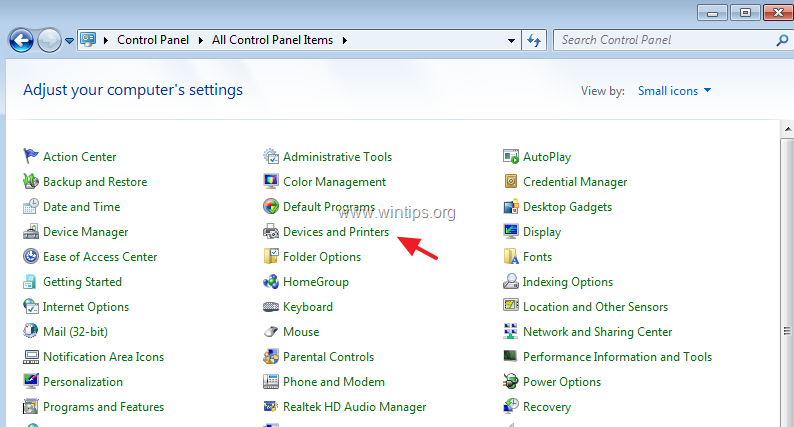
1. Navigate to Windows Control Panel and click Device and Printers.
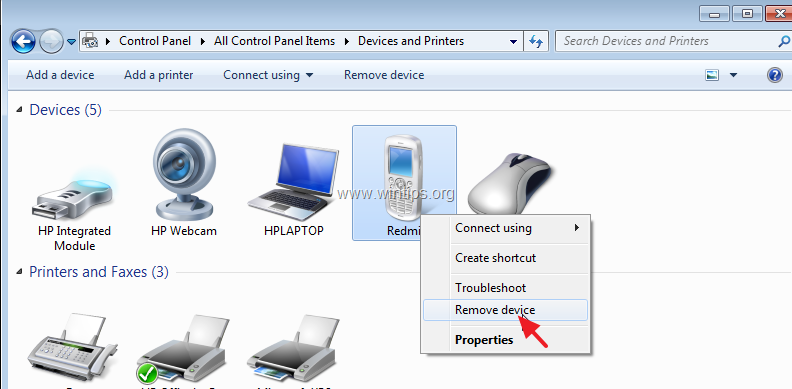
2. Right-click at the Bluetooth device that you want to uninstall and select Remove Device.
Step 3. Uninstall the Bluetooth Enumerators & All HID's from Device Manager.
1. Simultaneously press the Windows  + R keys to open run command box.
2. In run command box, type: devmgmt.msc and press Enter to open Device Manager.

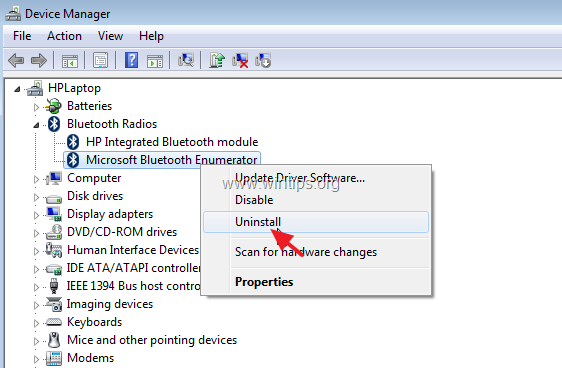
3. Expand the Bluetooth Radios.
4. Right-click at Microsoft Bluetooth Enumerator and click Uninstall.
5. Perform the same steps and uninstall any other Enumerator device if listed.
6. Then expand the Human Interface Devices.
7. Right-click at every HID listed device and select Uninstall.

Step 4. Restart your computer.
Step 5. Re-connect to the Internet.
Step 6. Re-Pair the Bluetooth device.
Finally, go to Windows Control Panel > Device and Printers and click Add device to pair your Bluetooth device. After pairing, the Bluetooth device should be working, without problem.
That's it! Let me know if this guide has helped you by leaving your comment about your experience. Please like and share this guide to help others.


- Remote Desktop (RDP/RDS) Stops Working After September 2026 Windows Update: How to Fix - September 15, 2026
- Windows 11 KB5124008 Causes No Sound or USB Audio Code 10: How to Fix - September 14, 2026
- Copilot Missing or Grayed Out in Outlook: How to Fix - September 10, 2026



