
FIX: MFC120U.DLL Was Not Found (Solved)
This tutorial contains instructions to fix the "MFC120U.dll was not found" or "MSVCP120.dll was not found" error(s) when you try to run an application in Windows 10, 8 or 7 OS. (e.g. "ThrottleStop.exe – System Error: The code execution cannot proceed because mfc120u.dll was not found. Reinstalling the program may fix this problem".)

How to FIX: MFC120U.dll or MSVCP120.dll is Missing/Not Found.
If you are getting the error "mfc120u.dll was not found" or "MSVCP120.dll is missing", then you have to install the "Visual C++ Redistributable Packages for Visual Studio 2013". To do that:
1. Navigate to the below link and click Download.
2. At the next screen check both the vcredist_x64.exe & vcredist_x86.exe checkboxes and click Next.
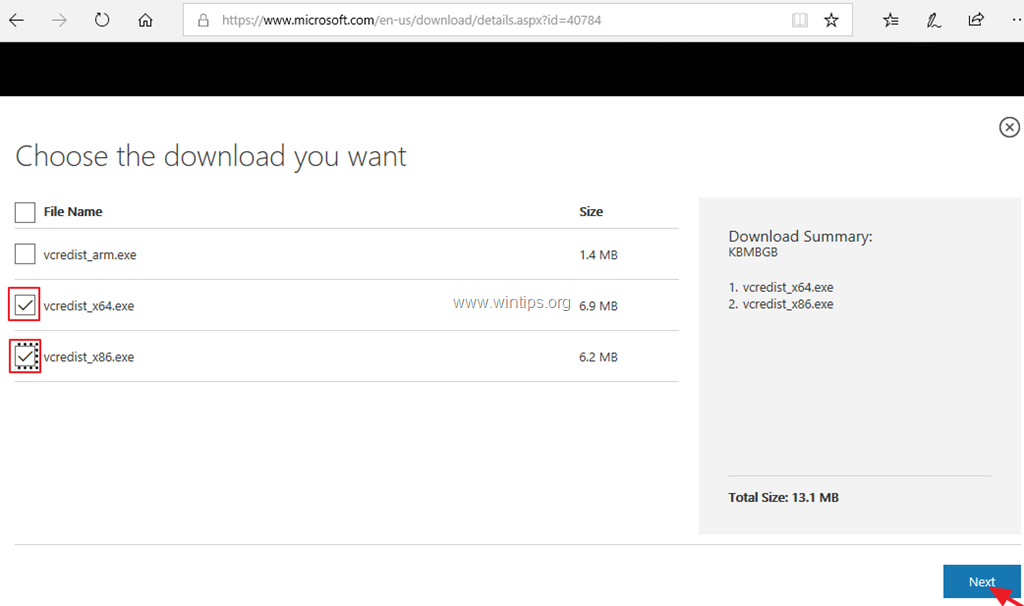
3. Save the two (2) files on your computer.
4. When the download is completed…
a. Install both the downloaded files ("vcredist_x86.exe" & "vcredist_x64.exe"), if you own an 64-bit version of Windows, or
b. Install only the"vcredist_x86.exe" if you own a 32-bit Windows version.

5. When the installation is completed, run your program. The "MFC120U.dll Was Not Found" or "MSVCP120.dll was not found" error(s) should be resolved.
That's it! Let me know if this guide has helped you by leaving your comment about your experience. Please like and share this guide to help others.


- Fix New Outlook and Teams Not Opening After KB5121003 on ARM PCs - September 3, 2026
- Windows 11 KB5120998 Breaks Mouse Cursor and Wallpaper Personalization (FIX) - September 1, 2026
- Microsoft Defender Antivirus Is Turned Off Even Though It Is Running – How to Verify Your Protection - August 31, 2026

September 24, 2019 @ 8:12 pm
Why not include a link to the updated files?
https://support.microsoft.com/en-us/help/4032938/update-for-visual-c-2013-redistributable-package