How to Fix "You Don't Currently Have Permission to Access This Folder" Error on Windows,
If you try to open a folder or an external drive on your PC and receive the error "You Don't currently have permission to access this folder" continue reading below to learn how to resolve the problem.
The error "You do not currently have permission to access this folder" usually occurs on folders owned by the Windows 'SYSTEM' or 'TrustedInstaller' accounts, or on folders that were previously shared on the network with different permissions. In other cases, the issue is caused by the HP Client Security Manager program blocking access to a connected external USB storage device.
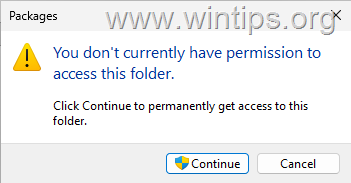
In this guide, you’ll learn several proven ways to fix the “You Don’t Currently Have Permission to Access This Folder” error in Windows 11 and Windows 10.
How to Grant Full Permissions to a Folder, File, or Drive (Windows 11/10)
To assign yourself full rights on a folder or file, you can use one of the methods below:
* TIP: Before proceeding with the methods below, check if you can access the folder with the restricted permissions in Safe Mode.
- Modify File or Folder Permissions in Windows.
- Modify Folder Permissions from Command Prompt.
- Allow Drive Access on HP Client Security Manager (For HP Laptops ONLY).
Method 1. How to Modify the Permissions on the Drive or Folder in Windows
The first common method to resolve the problem "You Don't have permission to access this folder" is to assign yourself full permissions on the folder/file or drive in Windows.
1. Right-click on the drive/folder that you cannot access its contents and click Properties.
2. On the Security tab, click Advanced.
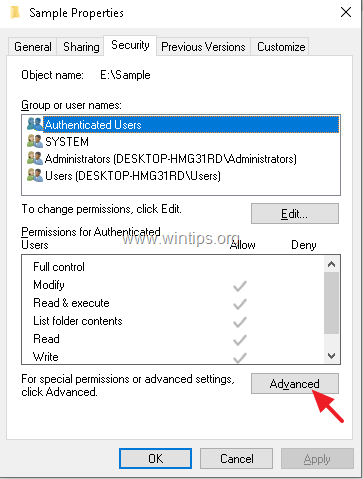
3. Click Change Owner.
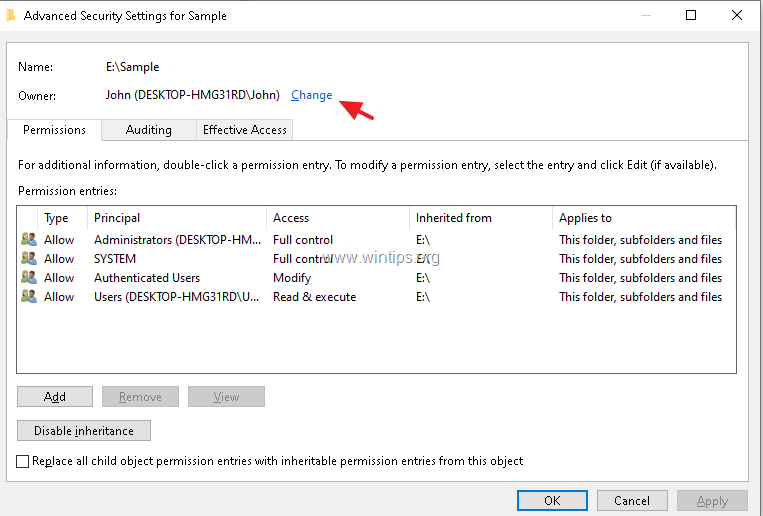
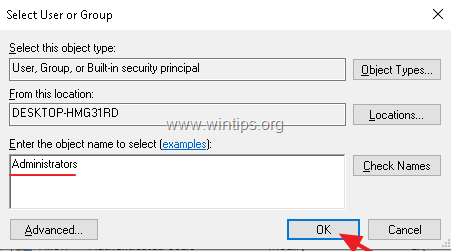
4. Type 'Administrators' (or your account name) and click OK.
5. Now check the Replace owner on subcontainers and objects option and click Apply. This setting ensures that all subfolders and files within the folder inherit the new ownership, providing you with comprehensive control over the entire directory structure.

6. Click OK at the information message and then click OK twice to close the Security properties.

7. Now reopen the Advanced Security Settings of the file/folder (by following steps 1 & 2 above).
8. Click Change Permissions.

9. Finally, select the Replace all child object permission entries with inheritable permissions from this object checkbox and click OK. This action ensures that all files and subfolders inherit the permissions from the parent folder, aligning access rights throughout the directory.
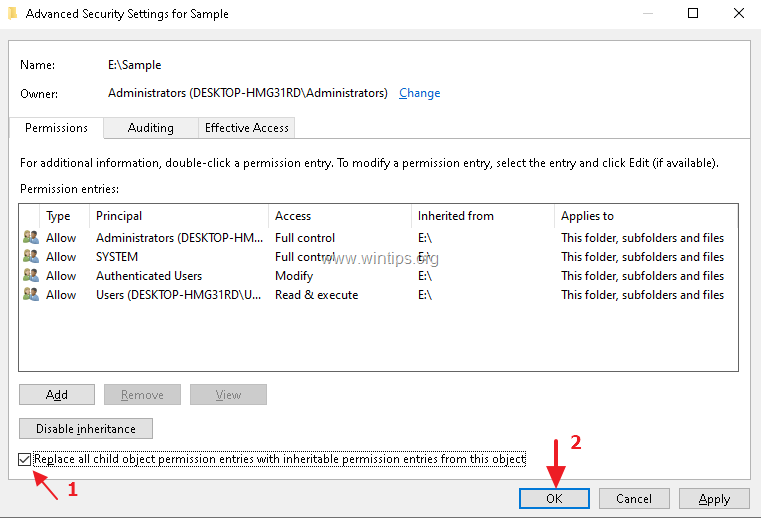
10. Close the security properties window and try to access the file/folder. The problem should be solved.
Method 2. How to Modify the Permissions of a Folder in Command Prompt
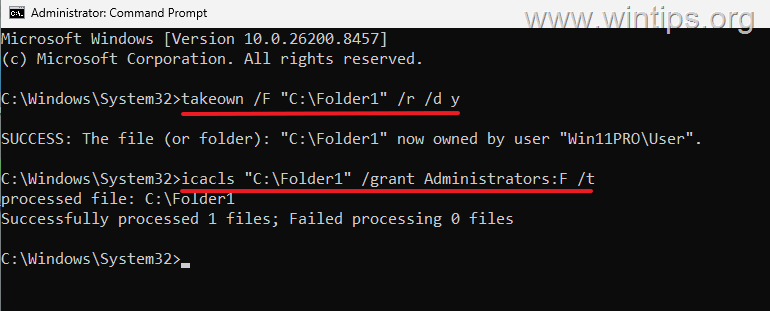
To assign yourself full access permissions to a folder using the command prompt:
1. Open Command Prompt as Administrator.
2. Issue the below command to take ownership of the folder:
takeown /F "Full_Path_Folder_Name" /r /d y
Example: Let's say that you want to take ownership of "C:\Folder1". In this case, the command will be:
takeown /F "C:\Folder1" /r /d y
3. Then give the below command to take full control permissions at the folder:
icacls "Full_Path_Folder_Name" /grant Administrators:F /t
Example: To grant full permissions on "C:\Folder1", the command will be:
icacls "C:\Folder1" /grant Administrators:F /t
Using these commands, you are effectively overriding any permission restrictions, allowing the system administrators full control over the specified directory and its contents.
Method 3. Allow Full Access on Drive on HP Client Security Manager *
* Note: This method applies only to HP laptops that have the HP Client Security Manager installed.
1. Launch the HP Client Security Manager and navigate to Device Security.
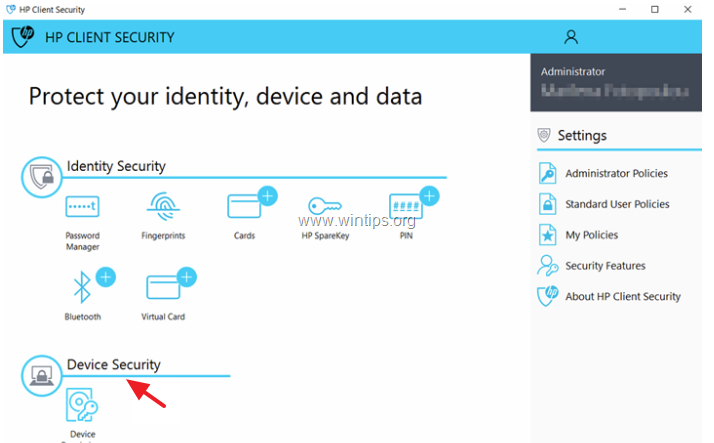
2. At Device Permissions, select Allow – Full Access to Removable storage devices.

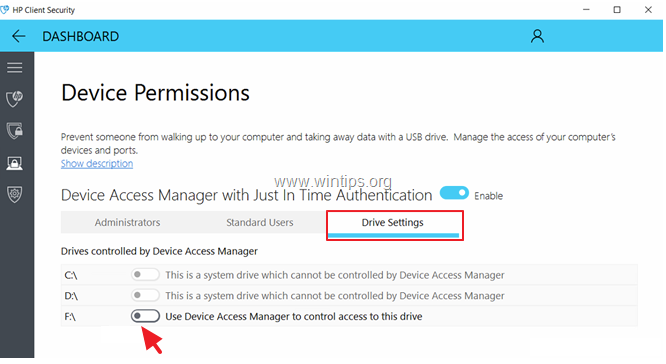
3. Finally, if you want to disable the protection on the specific drive, navigate to the Drive Settings tab and set the Device Access Manager protection to OFF. This setting will remove any restrictions imposed by the security manager, allowing full interaction with the drive.
Summary
In summary, if you encounter the error "You Don't currently have permission to access this folder," you can resolve it by modifying permissions through Windows settings, using the Command Prompt, or -if you own an HP Laptop" adjusting settings in the HP Client Security Manager. Each method provides a different approach to managing permissions, ensuring you regain access to your files and folders.
Frequently Asked Questions
What causes the 'You Don't currently have permission to access this folder' error?
This error usually occurs when folders are owned by the Windows 'SYSTEM' or 'TrustedInstaller' accounts, were shared on a network with different permissions, or due to the HP Client Security Manager blocking access to a connected external USB storage device.
How can I modify folder permissions using Windows settings?
To modify permissions, right-click on the folder, select 'Properties', go to the 'Security' tab, click 'Advanced', change the owner to 'Administrators' (or your account name), and apply the changes to subcontainers and objects to ensure comprehensive control.
How do I take ownership of a folder using Command Prompt?
Open Command Prompt as Administrator and use 'takeown /F "Full_Path_Folder_Name" /r /d y' to take ownership. Follow with 'icacls "Full_Path_Folder_Name" /grant Administrators:F /t' to grant full control permissions to the folder.
What is the method for allowing full access on an HP device?
If using an HP laptop with HP Client Security Manager, open the manager, navigate to 'Device Security', select 'Allow - Full Access' for removable storage devices, and adjust settings under 'Drive Settings' to manage access.


- Windows Update Uninstall Failed with Error 0x800F0825: How to Fix - October 7, 2026
- Apps and Games Crash After KB5124010 Due to AC-3 Audio: How to Fix - October 5, 2026
- How to Fix Windows 11 Update Error 0x80073712 - October 5, 2026