
How to Enable Telnet Client in Windows 10.
As you may have already discovered, in Windows 10, the Telnet command, "is not recognized as an internal or external command, operable program or batch file". This is happening, because the Telnet client, which is a very useful tool for administrators to verify and test the network connectivity, is disabled by default in Windows 10.

In this tutorial you 'll find all the available ways to enable the 'Telnet' command in Windows 10 in order to resolve the error "telnet is not recognized as an internal or external command, operable program or batch file".
How to Turn On Telnet Client in Windows 10.
Method 1. Enable Telnet Client from Programs & Features.
Method 2. Enable Telnet Client from Command Prompt.
Method 3. Enable Telnet client from PowerShell or Command Prompt using DISM.
Method 1. How to Enable Telnet Client from Programs & Features.
1. Open Programs and features in Control Panel.
2. Click Turn Windows features on or off, on the left.

3. Select the Telnet Client and click OK.
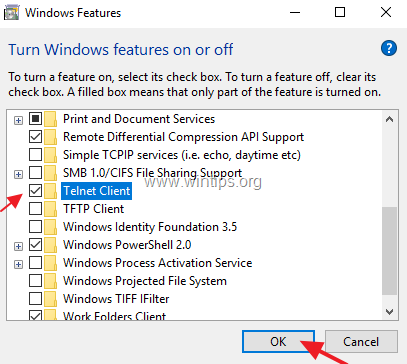
4. Let Windows to install the required files for the Telnet client.
5. When the installation in completed, click Close, any you're done!

Method 2. How to Install Telnet Client from Command Prompt in Windows 10.
To enable the Telnet client from command prompt in Windows 10:
1. Open Command Prompt as Administrator. To do that:
1. At the search box type: command prompt or cmd
2. Right-click at Command Prompt result and select Run As Administrator.

2. In command prompt, paste the below command and press Enter.
- pkgmgr /iu:”TelnetClient”

Method 3. How Add Telnet Client feature from PowerShell in Windows 10.
1. Open PowerShell (or Command Prompt) as Administrator. To open PowerShell as administrator:
1. At the search box type: powershell
2. Right click on Windows PowerShell on the results and select Run as administrator.

3. In PowerShell, give the following command to enable the Telnet client:
-
dism /online /Enable-Feature /FeatureName:TelnetClient

That’s it! Let me know if this guide has helped you by leaving your comment about your experience. Please like and share this guide to help others.
Still having trouble fixing this issue?
💬 Get WinTips Remote Support →

- KB5127648 Fails to Install (0x800f0845) or Causes Windows 11 to Loop in Recovery Mode (0xc000000d): How to Fix - November 4, 2026
- How to Set Microsoft Edge as the Default Browser on iOS Devices Using Intune. - November 2, 2026
- How to Fix SecurityHealthSystray.exe – Bad Image Error (0xc000012f) on Windows 11. - October 26, 2026

January 8, 2025 @ 7:28 am
thank very much, there are also many useful powershell commands for packages management, and installing, updating etc… i have forgotten them…
April 11, 2022 @ 1:24 pm
Thanks!