
How to Rotate & Save Video in Windows Movie Maker
Have your ever captured a video with your cellphone or your video camera and you discovered that your video is rotated when you try to play it on your computer or your TV? In this tutorial you can find the easiest way to rotate your video in your desired angle and then to save it in order to watch it in any media device you like.
How to rotate and save videos (Movies).
Step 1. Download & Install Windows Live Essentials – Windows Movie Maker
1. Download and install Microsoft Windows Live Essentials from here: http://windows.microsoft.com/en-us/windows-live/essentials *
* Windows 8 users, get Windows Movie Maker from here: http://windows.microsoft.com/en-us/windows/get-movie-maker-download (The link also contains the Windows Movie Maker download links for all Windows versions).
2. Press the “Download Now” button
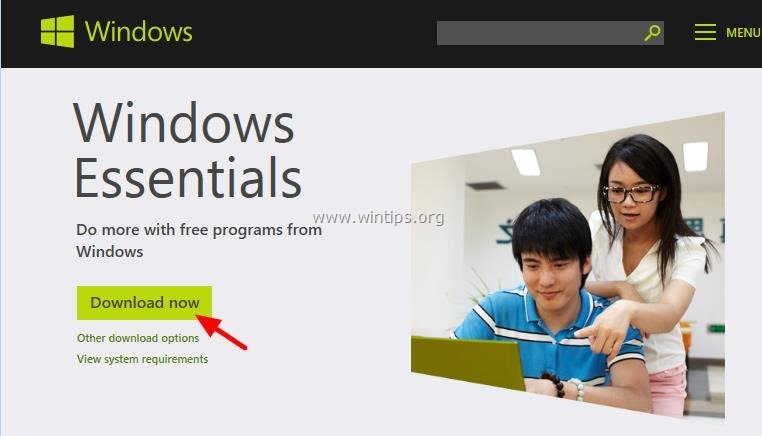
3. Choose “Run” to immediately run the “wlsetup-web.exe” program.

(press “Yes” at “User Account Control” warning message if asked).

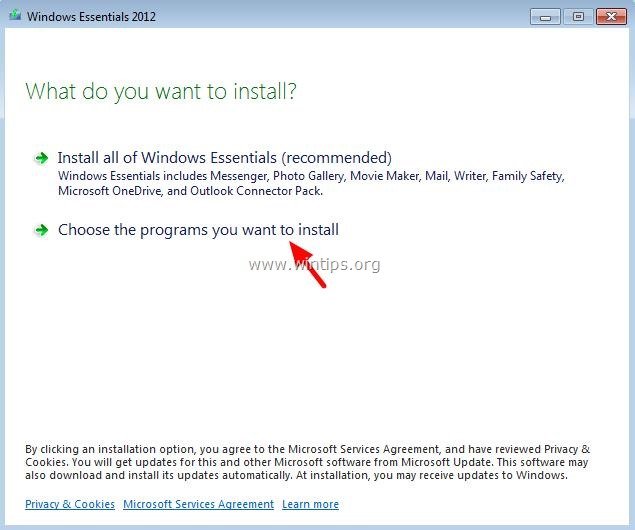
4. Press the “Choose the programs you want to install” option.
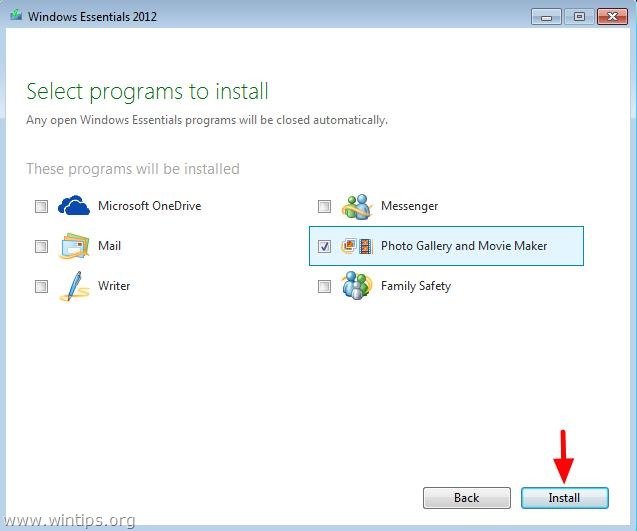
5. Uncheck all other offering programs except the “Photo Gallery and Movie Maker” and press the “Install” button.
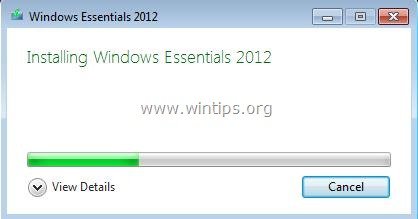
6. Now wait until the “Windows Essentials 2012” installation is completed.
Step 2. Rotate your Video with Movie Maker
1. Go to “Start” > “Programs” and click to open “Movie Maker”.

2. In “Movie Maker” main program, press the “Add Videos and Photos” icon.

3. Now browse to your disk, select the video that you want to rotate (e.g. “MOVIE”) and press “Open”.

4. Let the “Movie Maker” to load your video and then simply press the “Rotate Right” or the “Rotate Left” button to rotate your video in the direction that you want.
![rotate-video-movie-maker[3]](https://www.wintips.org/wp-content/uploads/2014/02/rotate-video-movie-maker3.jpg "rotate-video-movie-maker[3]")
Now it's time to save your video in the right angle in order to watch it in any media player program or device you like.
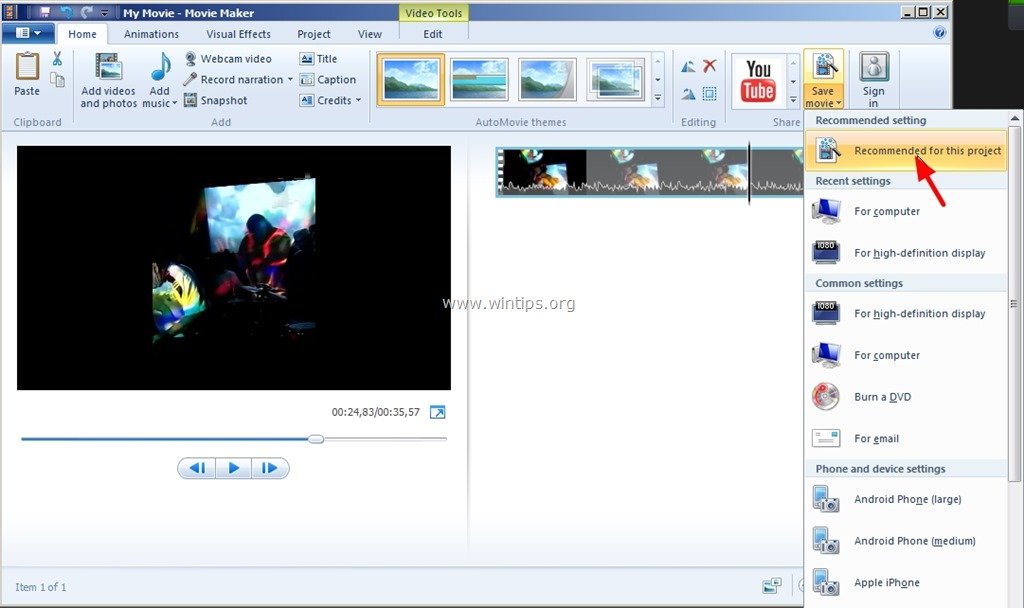
5. To save your video, just press the “Save Movie” button on the top right and from the drop-down menu, choose the “Recommended for this project” option.
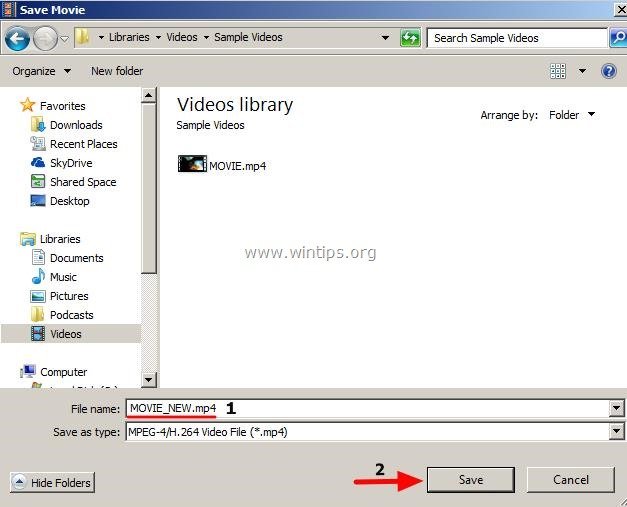
6. Give a new filename for your video (e.g “MOVIE_NEW”) and press the “Save” button.
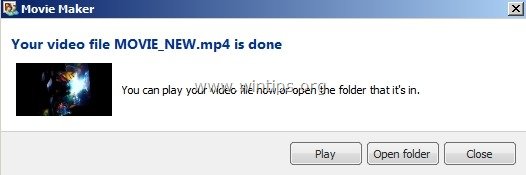
7. Wait until Movie Maker saves your video.

That’s it.
Navigate to the location where you saved your video (e.g “MOVIE_NEW”) and from now on you will be able to play it in any media player program or device you prefer at the right angle.
Related article: How to rotate and save a video using VLC media player


- How to Install Windows 11 26H2 on Unsupported Hardware - October 2, 2026
- How to Install Windows 11 version 26H2 - October 2, 2026
- How to Enroll an Entra Registered Device in Intune MDM - October 1, 2026

November 9, 2016 @ 11:33 pm
Oh my god! thank you i was first vlog and i look side ways till i found this. Thank You!
July 11, 2016 @ 5:58 am
Muchas gracias por ayudarme a corregir un video que había sido grabado "cabeza abajo".
May 12, 2016 @ 5:21 pm
Thank you for the detailed instructions. This really helps solve my problem and totally made my day!