
Boot straight to Desktop and bypass Metro in Windows 8
If you like Windows 8 to boot straight to desktop and bypass the Metro Apps environment, just follow the easy steps bellow to do that.
Step: Create a new schedule task to boot directly to the Desktop.
(Watch this tutorial in YouTube).
How to create a new scheduled task in Windows 8.
1. Right-click at the screen’s bottom-left corner and from the pop-up menu, choose “Computer Management“.

2. When “Computer Management” comes up, choose “Task Scheduler” on the left and then click “Create Basic Task” on the right.

3. In the first screen of Basic Task Wizard, type a name for that task: e.g. Show Desktop, and choose “Next”.

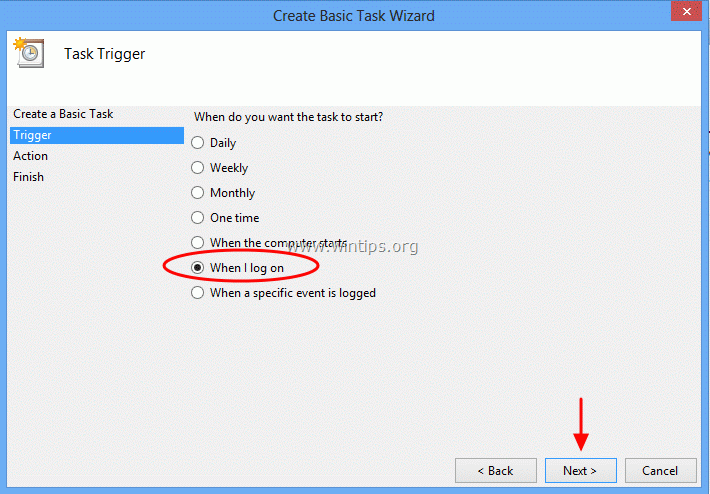
4. For Task Trigger, choose “When I log on” and then press “Next”
5. For action, chose “Start a program” and press “Next”.

6. In Program/script box, type explorer.exe and press “Next”.

7. Press “Finish” and close all open windows.

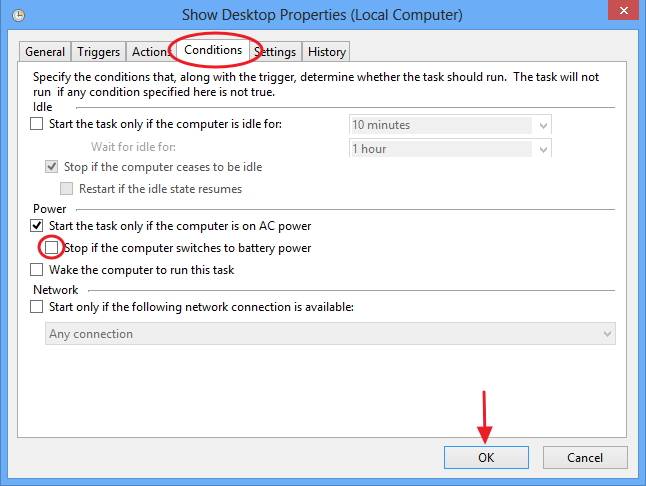
Notice: If you own a laptop computer then double click to open the newly created task and
go to "Conditions" tab and uncheck the "Stop if the computer switches to battery power" option.
From now on, the next time you log on, Windows will open straight to your desktop.
*If you like this post please leave your comment.


- How to Resolve Error "Something Went Wrong 657rx" in Outlook or Microsoft 365 Apps. - June 10, 2026
- How to Sync Outlook.com and Outlook 365 Contacts to Your iPhone Contacts App - June 8, 2026
- How to Securely Allow SMTP AUTH Only from a Specific IP Address in Microsoft 365 with a CA Policy. - June 4, 2026

back pain stretches
March 23, 2013 @ 4:18 pm
Woah! I'm really enjoying the template/theme of this site. It's simple, yet effective. A lot of times it's hard to get that "perfect balance" between user friendliness and visual appearance. I must say that you've done a amazing job with this. Ad…