
Remove Delta search & Delta search Toolbar adware and hijacker
"Delta search” is a new browser adware and virus program that changes you browser's start page and search settings. The "Delta search” emulates the Google Search engine and performs browsing redirects.
The program is bundled inside other software installation programs. Remove “Delta-Search” as soon as possible from your computer by using the steps below:
* Click here to see a detailed video on how to remove delta search.
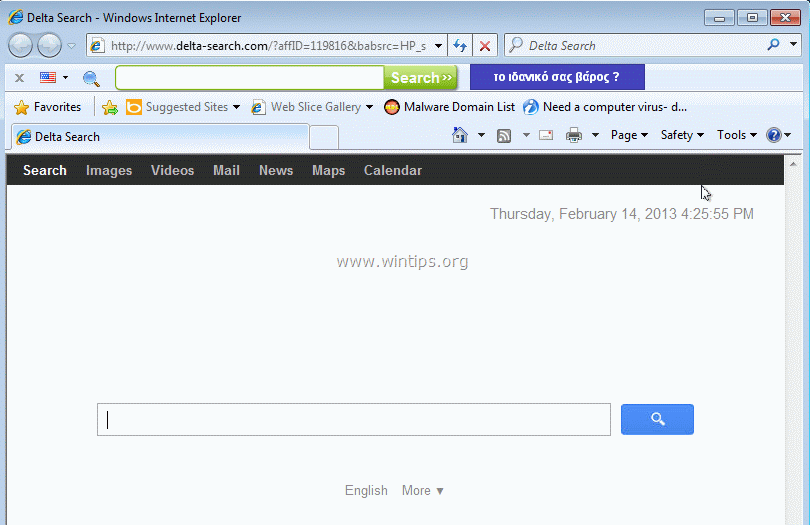
How to remove Delta search settings & Delta search toolbar from your computer
Step 1. Uninstall “Delta search” from your Control panel.
1. To do this, go to Start > Control Panel.
{Start > Settings > Control Panel. (Windows XP)}

2. Double click to open “Add or Remove Programs” if you have Windows XP or
“Programs and Features” if you have Windows 8, 7 or Vista).
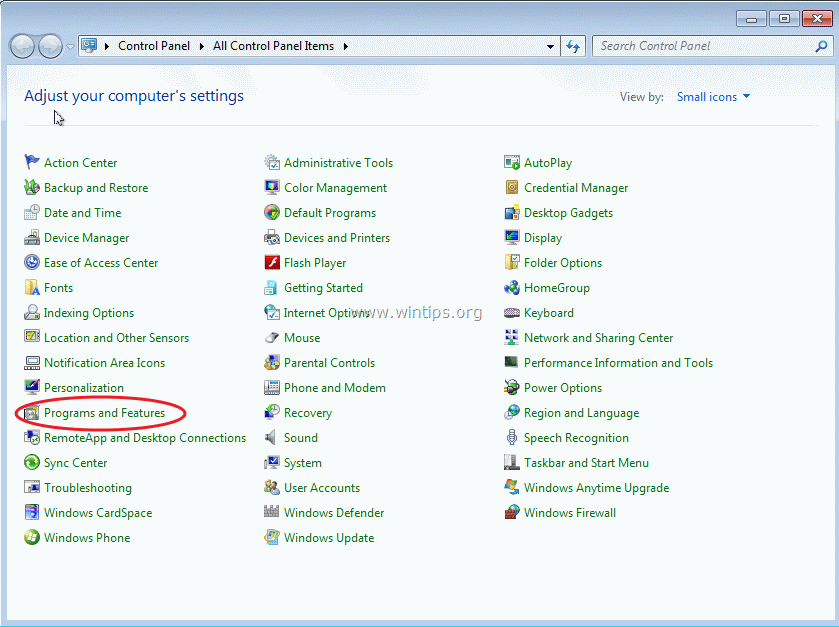
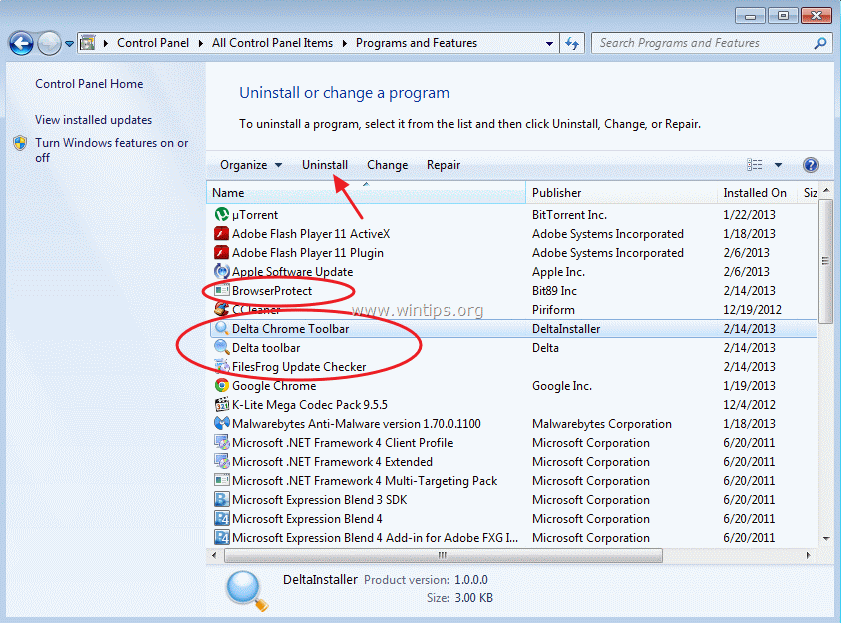
3. In the program list, find and remove/Uninstall these applications:
a. BrowserProtect
b. Delta Chrome Toolbar
c. Delta Toolbar
d. Browser Defender (if exists)
e. FilesFrog Update Checker (if exists).
f. YouFileDownloader (if exists)
g. Goforfiles (if exists)

Step 2. Remove malicious programs from scheduled tasks.
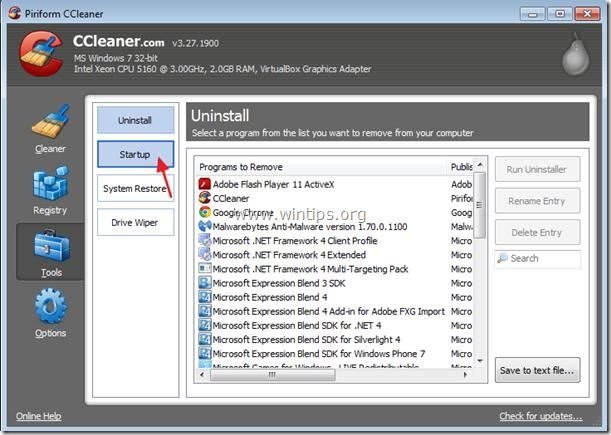
1. Download and run CCleaner.
2. At “CCleaner” main window choose "Tools" on the left pane.

3. In "Tools" section, choose "Startup".
4. Choose "Scheduled Tasks” tab and then select and delete the following malicious entries, if exist:
a. GoforFilesUpdate
b. YouFile DownloaderUpdate
Yes Task GoforFilesUpdate C:\Program Files\GoforFiles\GFFUpdater.exe
Yes Task YourFile DownloaderUpdate C:\Program Files\YourFileDownloader\YourFileUpdater.exe

5. Close “CCleaner” and continue to the next step
Step 3: Clean your computer using “RogueKiller”.
1. Download and save “RogueKiller” utility to your desktop.
Notice*: Download version x86 or X64 according to your operating system’s version. To find your operating system’s version, “Right Click” on your computer icon, choose "Properties" and look at “System Type” section.
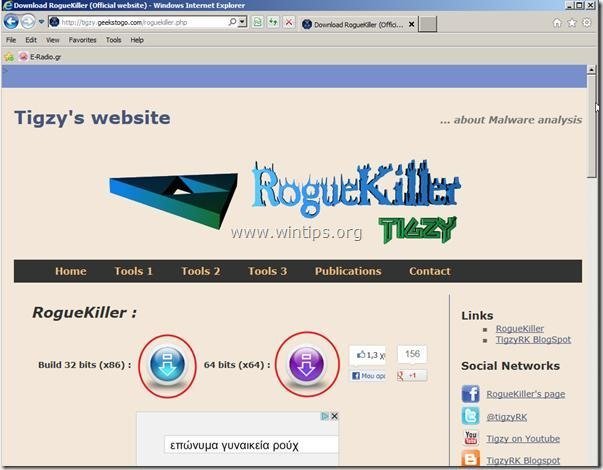
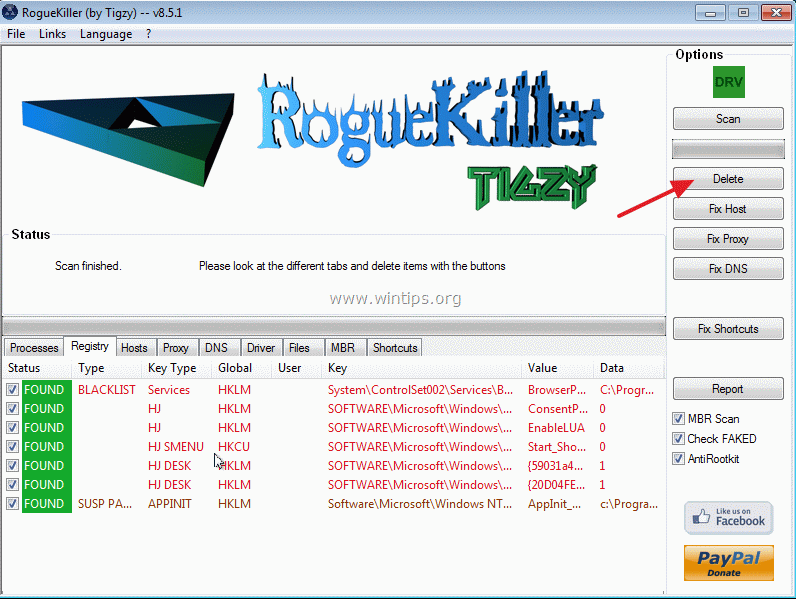
2. Find ”RogueKiller” on your desktop and double click to run it. When prescan is completed, press "Scan" button to perform a full scan.

3. When full scan is completed, press “Delete” to remove all malicious items.
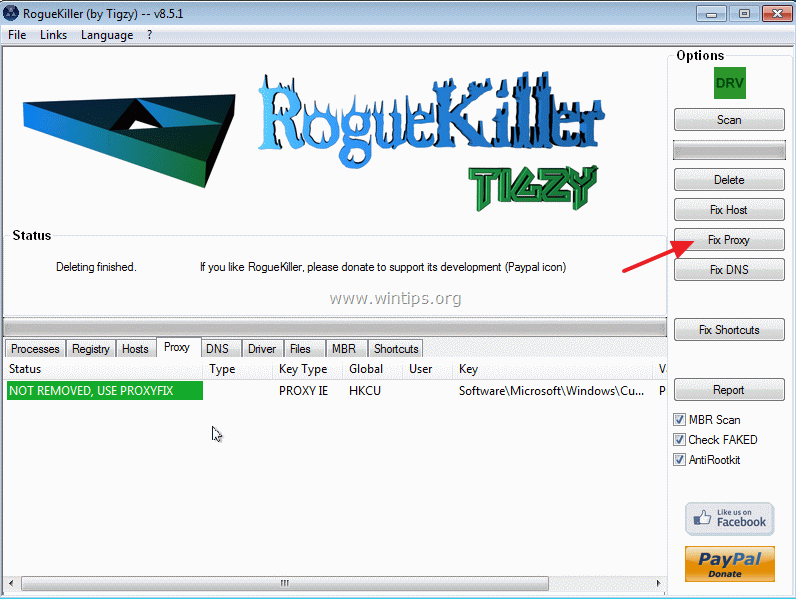
4. When removal of malicious threats is completed, press the “Fix Proxy” button to fix proxy entries.
5. Restart your computer.
Step 4: Clean your computer using “AdwCleaner”.
1. Download and save “AdwCleaner” utility to your desktop.

2. Close all open programs and Double Click to open ”AdwCleaner” from your desktop.
3. Press “Delete”.

4. Press “OK” at “AdwCleaner – Information” window and press “OK” again to restart your computer.

5. When your computer restarts close “AdwCleaner” information (readme) window.
6. Now check if your browser settings are restored to its original. If yes, bypass the next step and proceed to Step 6.
Step 5. Remove "Delta Search and Delta search toolbar” from your internet browser application.
Internet Explorer, Google Chrome, Mozilla Firefox
How to remove "Delta Search and Delta search toolbar” from Internet Explorer and restore browser settings.
1. Open Internet Explorer and then open “Internet Options”.
To do this from IE’s file menu, choose “Tools” > “Internet Options”.
Notice*: In the latest versions of IE press the “Gear” icon  on the top right.

2. Click the “Advanced” tab.

3. Choose “Reset”.

4. Check (to enable) the “Delete personal settings” box and choose “Reset”.

5. After the resetting action is completed, press “Close” and then choose “OK” to exit Internet Explorer options.

6. Restart your browser and proceed to Step 6.
How to remove "Delta Search and Delta search toolbar” from Google Chrome Explorer and restore browser settings.
1. Open Google Chrome and go to chrome menu and choose “Settings”.

2. Find the “On startup” section and choose “Set Pages”.

3. Delete the “Delta Search” from startup pages by pressing the “X” symbol on the right.

4. Set your preferred startup page (e.g. http://www.google.com) and press “OK”.

5. Go to “Search” section and choose “Manage search engines”.
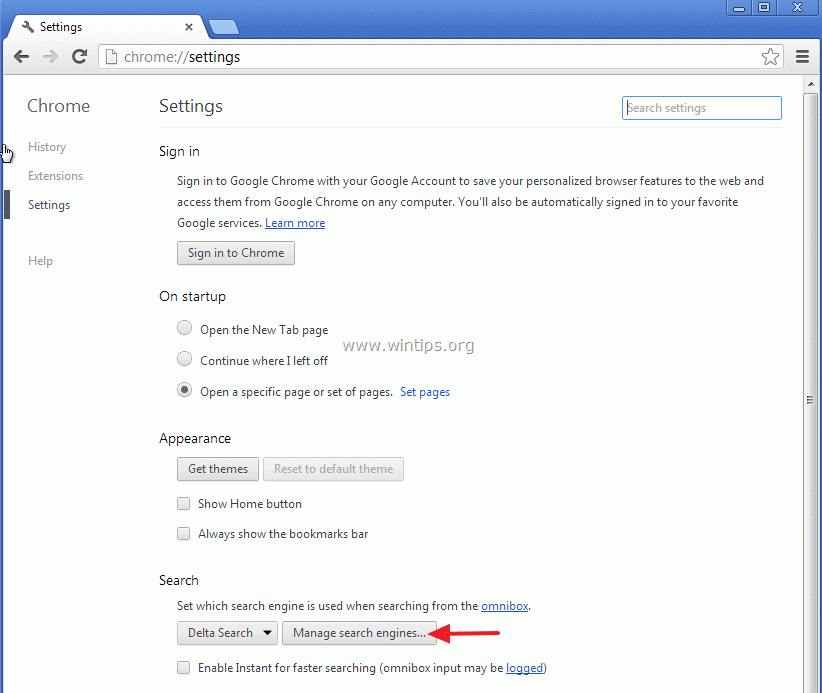
6. Choose your preferred default search engine (e.g. Google search) and press “Make default”.

7. Then choose the “Delta Search” search engine and remove it by pressing the “X” symbol at the right. Choose “OK” to close “Search engines” window.

8. Restart your browser and proceed to Step 6.
Mozilla Firefox
How to remove "Delta Search and Delta search toolbar” from Mozilla Firefox and restore browser settings.
1. From Firefox menu, go to “Help” > “Troubleshooting Information”.

2. In “Troubleshooting Information” window, press “Reset Firefox” button to reset Firefox to its default state.
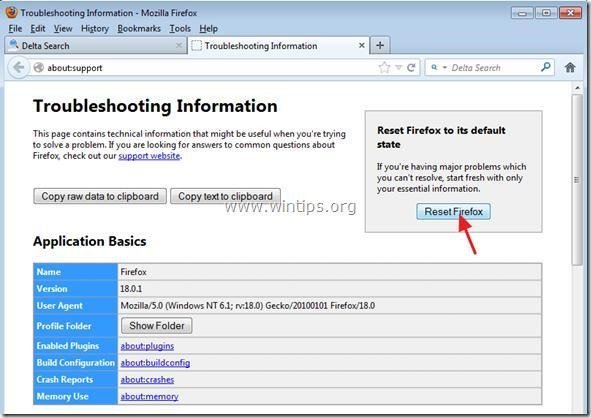 3. Press “Reset Firefox: again.

4. After the resetting job is completed, the Firefox restarts.
5. Close all Firefox windows and proceed to the next Step.
Step 6. Clean your computer from malicious threats.
Download and install MalwareBytes Antimalware Free program to clean your computer from malicious threats remaining on your computer.*
*If you don’t know how to install and use “MalwareBytes Anti-Malware“, read these instructions.
Advice: To ensure your computer is clean and safe, perform a Malwarebytes’ Anti-Malware full scan in windows “Safe mode“.*
*To get into Windows Safe mode, press the “F8” key as your computer is booting up, before the appearance of the Windows logo. When the “Windows Advanced Options Menu” appears on your screen, use your keyboard arrows keys to move to the Safe Mode option and then press “ENTER“.
Step 7. Clean unwanted files and entries.
Use “CCleaner” program and proceed to clean your system from temporary internet files and invalid registry entries.*
*If you don’t how to install and use “CCleaner”, read these instructions.
Step 8. Restart your computer for changes to take effect and perform a full scan with your antivirus program.


- How to Add a Shared Calendar in Outlook for Web (OWA) - May 20, 2026
- How to Stop Windows 11 from Downgrading GPU Drivers. - May 18, 2026
- How to Update Third-Party Apps via Intune using WinGet AutoUpdate for Intune. - May 14, 2026

March 1, 2014 @ 3:53 am
i thought i'll have a hard time. but it was easy and true. thank you very much. i rarely comment in blogs but this time i will coz it really did help me. thank you very much again.
September 28, 2013 @ 3:34 pm
I cant find any delta related programs in control panel neither in program files. I did the other steps but it keeps coming back. Pls suggest.
September 29, 2013 @ 10:05 am
Hello Divya, try this:
1. Download and run Junkware Removal Tool from here: http://thisisudax.org/downloads/JRT.exe . Wait for JRT to scan and clean your system.
2. Restart your computer and run AdwCleaner again.
Good luck
September 21, 2013 @ 7:38 pm
This site, and this particular problem deserve a much higher profile on the web,..An absolute gem of a work around.
September 12, 2013 @ 10:39 am
thanks i searched for 2 days but it did………
August 25, 2013 @ 4:40 pm
Many thanks
August 9, 2013 @ 1:20 am
Niggaaaaa You R DA BEST XDDDDDDDDDDDDDDDD
July 18, 2013 @ 8:34 am
Fabulous tips and directions! Got rid of DELTA scum!
June 21, 2013 @ 3:44 am
Delta chrome tool bar won't uninstall, what can i do? Should I continue the next step
June 21, 2013 @ 7:17 am
Yes, continue to next step.
May 29, 2013 @ 8:10 pm
really very nice article with clear cut information. i have deleted all things relevant to delta search but yet to download anti malware. you didn't mention which among this anti malware is best to use nu. so, i took the 1st one u mentioned as the best and have downloaded it, yet to test it. thank you for your service.
May 28, 2013 @ 6:08 pm
Thank you so much! I've been having this problem all week!
May 25, 2013 @ 1:48 pm
Omg thank you so so much! I panicked when Delta Search suddenly appeared on my computer. I don't know how it got there, but it's finally gone! Thank you so much :)
May 24, 2013 @ 11:46 am
wow, this is awesome! thanks very much!
May 6, 2013 @ 1:29 am
i just got a problem that I don't even find the Delta-search or any software that you show on the control panel…so is mean i cant unistall it…and will be the problem that i stuck at here…and not gonna get it back again…PLS!! help me with this….
May 7, 2013 @ 5:32 pm
Hello Sagayuri,
In control panel find and remove any software belongs to "DELTA" Publisher. If you cannot find any "DELTA" software in your control panel, then continue with the remaining steps of this article. At the end of the removal steps, delete manually the folders "Delta Search" & "Delta Search Toolbar" under Program Files (C:\Program Files\Delta Search & C:\Program Files\Delta Search Toolbar)
May 8, 2013 @ 1:08 pm
But is doesn't work
April 29, 2013 @ 7:40 am
I am greatful and prayful for you. God will give your all the happiness in your life aamin you have helped me thank you sir
acne
April 29, 2013 @ 6:40 am
I like this web weblog a lot, saved to fav. "To hold a pen is to be at war." by Francois Marie Arouet Voltaire….
April 25, 2013 @ 3:42 am
I am eternally grateful for the instructions that you guys provided. The delta search engine has been getting on my nerves because my browsing slows down. The procedures here are very detailed. I have bookmarked your website. Bless you all :)
April 19, 2013 @ 3:24 pm
Thanks a lot from The Czech Republic, it really works!!!
April 18, 2013 @ 4:31 pm
great thanks to the detailed description for the removal of delta search thanks a lot
April 18, 2013 @ 3:53 am
thanx a lot finaly i got rid of itttt
April 18, 2013 @ 1:48 am
Thanks !!!!!! No words !!!!
April 7, 2013 @ 7:30 am
Thank you for the amazing instructions, you saved my day
April 4, 2013 @ 6:15 pm
Dík za návod . Funguje ! vázne mi pomohol
April 3, 2013 @ 1:12 am
Hello, thanks for the guide, i have a problem when i try to run the adwcleaner i get a msg that windows protected my pc and doesnt allow me to run the program.. what can i do?
April 3, 2013 @ 10:53 am
Welcome Mil. If you are using Windows 8 OS:
1. Go to Windows 'Control panel'.
2. Open 'Action center'.
3. Expand "Security" using the drop down arrow.
4. Find 'Windows Smart screen' and click on "Change settings" option.
5. Select the last option: "Don't do anything (turn off Windows Smart Screen" and press "OK"
6. Try to run 'AdwCleaner' now.
7. After you complete "Delta Search" removal process, you must turn on "Smart Screen" again.
Inform me if these instructions helped you.
March 30, 2013 @ 4:45 pm
Thank you very much. It helps a lot. Thanks again.
March 30, 2013 @ 3:46 pm
Thanks. Very usefull.
That's mi experience:
In step 1- In remove/Unistall these applications i can't found any of these files. They didn't exist
In step 2 – I clean my computer with an clean-up software (I tried two) and they said that i havn't any addware or something.
Later, i removed Delta-Search in the toolbar in Google Chrome, and in home page.
My question is:
I didn't find the files in remove/Unistall, the program who clean the pc detecting the malwares say that i don't have any problem, and i removed the toolbar in Google Chrome, i am safe now?
March 30, 2013 @ 7:42 pm
You are welcome. To be sure you must perform all steps.
March 29, 2013 @ 5:44 pm
This article was extremely helpfull! Its very user friendly and it helped me get red of more then i asked for! Thank u very much for this!!!
March 25, 2013 @ 4:14 am
Thank you very much sir, with love from the philippines =)
March 22, 2013 @ 5:04 pm
Thank you so much, you are genius.
March 22, 2013 @ 7:11 am
YES YES YES…So long Delta…you bunch of losers..well done man..definately works
March 20, 2013 @ 4:48 pm
ohh,man thank you so much….. I was so angry because of these "useful" search engines
good work, thank you again;)
March 17, 2013 @ 1:36 pm
Excellent, saved me a lot of time, thanks
March 17, 2013 @ 2:45 am
Thank you for this information…it worked for me…and it was very well written and easy to follow. Thank you.
March 15, 2013 @ 1:52 pm
Thanks man.
I was really pissed off.
Good luck you, Constantinos, and your beautiful country.
March 12, 2013 @ 11:43 pm
Brilliant info for getting rid of this NASTY ITEM.
Many thanks
March 11, 2013 @ 11:15 pm
I had IE, Firefox and Chrome on my computer and managed to uninstall Delta from my Control Panel and IE but couldn't do it from Firefox or Chrome, so I just uninstalled both of them. Does this mean that I'm free of Delta now or not? How can I be sure?
March 12, 2013 @ 9:58 am
Hello Bea. Because of your comment added another step (Step 3) to ensure "Delta Search" removal: Download "AdwCleaner" and check your computer for possible "Delta Search" entries remaining on your computer. Thanks for mentioning the error.
March 10, 2013 @ 11:22 pm
Thank you for such good and thorough instructions.
March 9, 2013 @ 8:10 pm
Thanks so much from the bottom of my heart. I was getting frustrated by this delta search. My yahoo got hacked still trying to sort (my contacts are getting spam emails thinking it's me), I've reset my password & reported it to yahoo, please do you have any advice?
March 9, 2013 @ 9:00 am
quá hay! cảm ơn bạn rất rất nhiều
March 7, 2013 @ 11:34 pm
ah here lads – you're amazing!! thank you so much!! love you!!!
March 7, 2013 @ 5:37 pm
Do you in anyway to remove delta search from firefox without resetting it?
March 9, 2013 @ 9:01 pm
Resetting Firefox is the safest way for the proper removal of Delta-search. If you want to try and remove Delta search without resetting Firefox then:
1. Open Mozilla Firefox and in the main menu, go to "Tools" > "Options".
2.At the "General" tab, go to "Home Page" settings and delete the Delta search from the homepage and type your preferred home page.
3.Close this window and from the main menu, choose "Tools" > "Add-ons"
4.At the "Add-ons" window, choose the "Extensions" options on the left and then remove any extension that belongs to "Delta search".
Good luck.
March 6, 2013 @ 9:05 pm
This is brilliant. Keep up the good work. How much does it cost?
March 6, 2013 @ 4:25 pm
Thanks for the graphics and the tips. It worked and please keep it up.
March 6, 2013 @ 12:55 am
Excellent………………Amazing tips!!!!./ Thank you so much…
March 5, 2013 @ 1:04 pm
Removing this Delta Search became nice and simple :) thanks
March 5, 2013 @ 11:19 am
Brilliant Advice – Rogue Killer removed it – where others failed (Spybot)
March 5, 2013 @ 2:16 am
Thanks very much for this advice… Really detailed and user friendly
March 4, 2013 @ 4:06 am
Very good work. These new ad-aware programs are a pain and detailed steps shown to remove them
February 26, 2013 @ 11:29 pm
I'd like to thank you from the bottom of my heart for this detailed post. I finally got rid of this delta crap. Very detailed instructions that even I could understand! Thanks.