
How to add or remove programs in Windows 8, 7, Vista, XP and server versions.
This guide shows how to install or uninstall programs in Windows operating systems. The reason to write a special article to do this, is that Microsoft changes the design appearance between different versions of Windows and confuses users.
Windows 8, Server 2012.
How to Add or remove (Uninstall) programs on Windows 8 and Windows Server 2012:
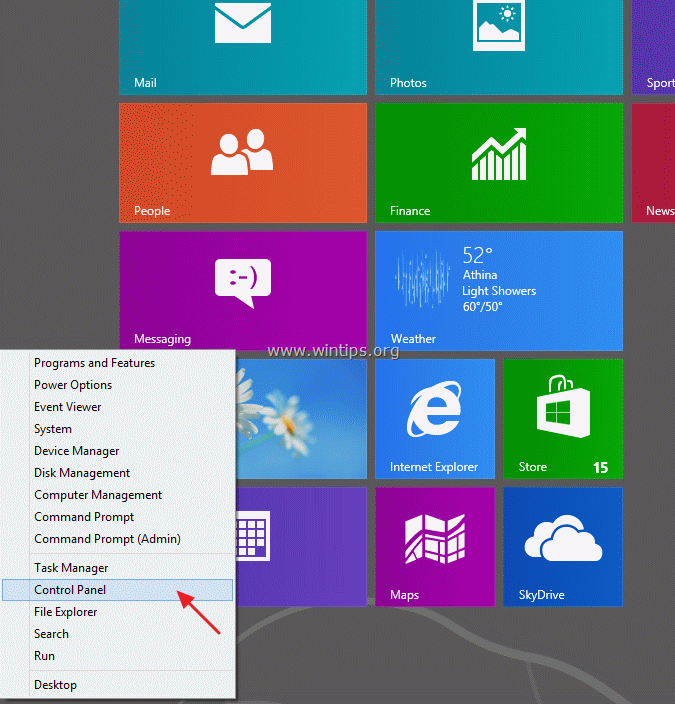
1. Right-click at the screen’s bottom-left corner and from the pop-up menu choose “Control Panel“.
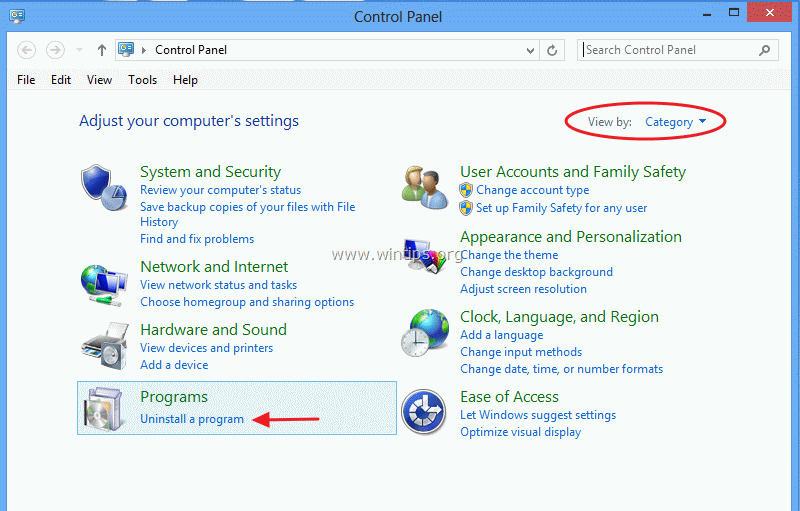
2a. If your view is by: Category, open “Uninstall a program” under “Programs” group.
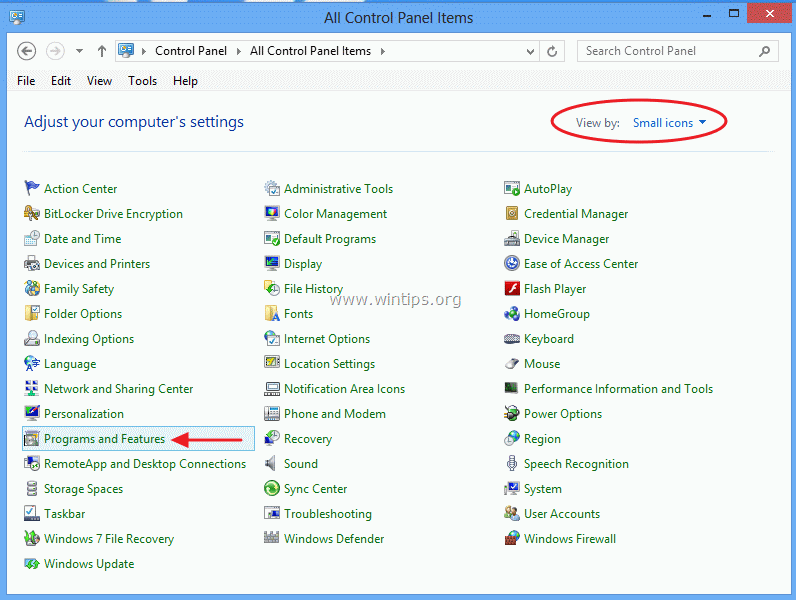
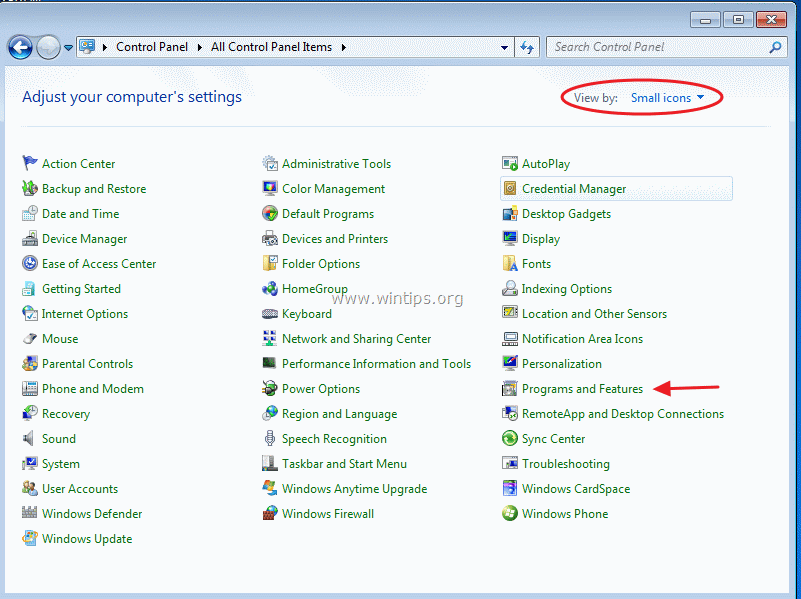
2b. If your view is by: Small Icons, open “Programs and Features” option.
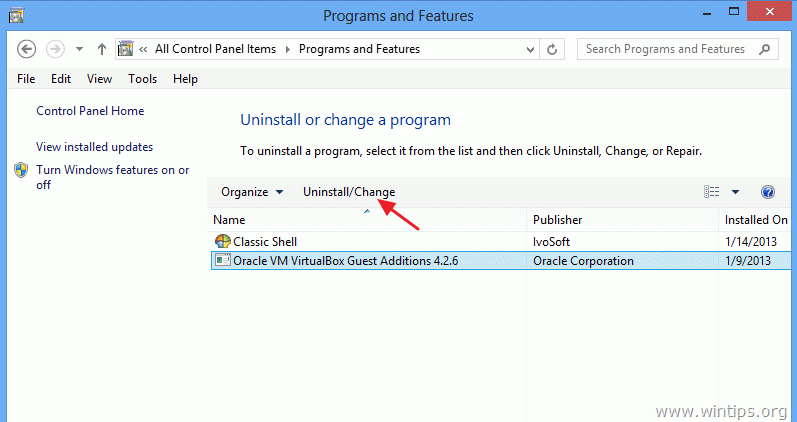
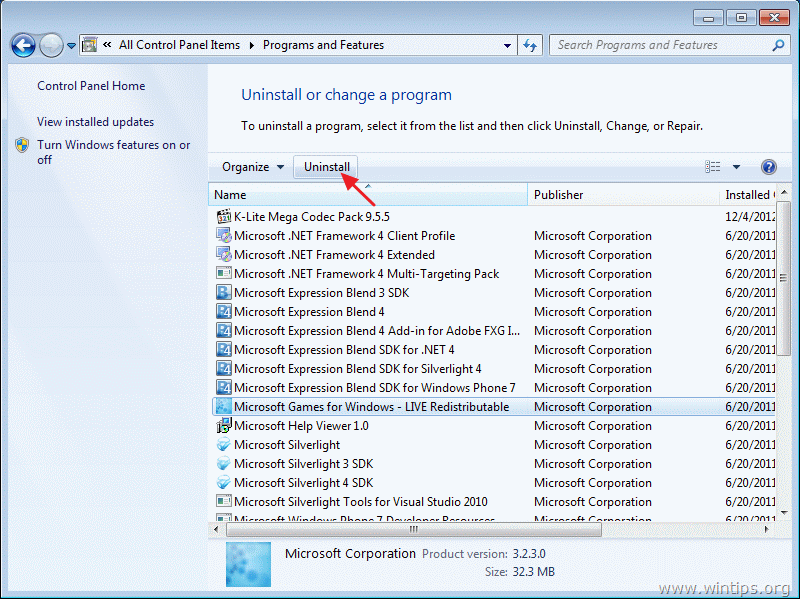
3.Select the program or application you want to be removed and choose “Uninstall/Change”.
Windows Vista, 7, Server 2008.
How to Add or remove (Uninstall) programs on Windows 7 and Windows Vista:
1. Go to Start > Control Panel.

2a. If your view is by: Category, open “Uninstall a program” under “Programs” group.
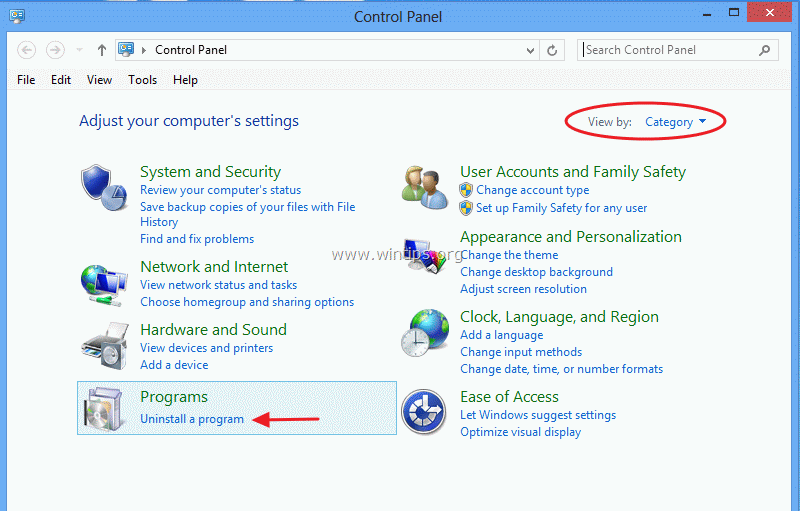
2b. If your view is by: Small Icons, open “Programs and Features” option.
3. Select the program or application you want to be removed and choose “Uninstall”.
Windows XP, 2000.
How to Add or remove (Uninstall) programs on Windows XP and Windows 2000:
From Start Menu From Classic Start Menu
1. Go to: Start > Control Panel 1. Go to: Start > Settings > Control Panel


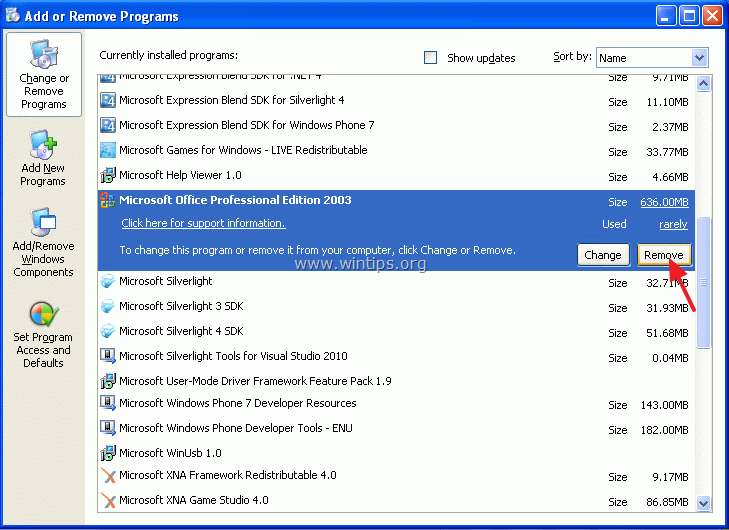
2. Double click to open “Add or Remove Programs”.

3. Select the program or application you want to be removed and choose “Remove”.
Still having trouble fixing this issue?
💬 Get WinTips Remote Support →

- How to Fix SecurityHealthSystray.exe – Bad Image Error (0xc000012f) on Windows 11. - October 26, 2026
- FIX: Windows Hello for Business PIN error 'Your credentials could not be verified' with 'status: 0xc000005e substatus: 0x0' or 'status: 0xc0000bb, substatus: 0x0'. - October 20, 2026
- FIX: This Device Is Already Set Up in Another Organization in Company Portal or During Intune Enrollment - October 13, 2026


March 25, 2013 @ 10:15 am
Thanks a lot
Ten+ tips to keep your computer fast and healthy.
February 22, 2013 @ 11:35 am
[…] Read this article to learn How to add or remove programs in Windows 8, 7, Vista, XP and server versions. […]