
How to Fix Copy and Paste Not Working in Excel, Word or Other Office Apps
If Copy and Paste is not working in Excel or other Microsoft Office applications, or if the Ctrl+C and Ctrl+V keyboard shortcuts suddenly stopped working, this guide provides step-by-step instructions to resolve the problem.
Copy and paste problems in Excel can be caused by a faulty add-in, a specific workbook, an Office update, or a corrupted Microsoft Office installation. In other cases, Copy and Paste works normally in Excel, but the keyboard shortcuts (Ctrl+C and Ctrl+V) do not work, or the problem affects the Windows clipboard itself.
IMPORTANT: Did the Problem Start Immediately After an Office Update?
If Copy and Paste stopped working immediately after an Office update, first check whether Microsoft has acknowledged a known issue and whether a newer Office update is available.
For example, there are recent reports of Ctrl+C and Ctrl+V not working properly in Excel after installing the September 2026 Office updates, including Office LTSC 2021 Version 2108 (Build 14334.20906). Microsoft is currently investigating the issue and has not yet published an official fix or workaround.
If the problem started immediately after updating to Build 14334.20906 and no newer update is available, you can consider temporarily rolling back Office LTSC 2021 to the previous Version 2108 (Build 14334.20848):
1. Open Command Prompt as Administrator and run:
"C:\Program Files\Common Files\Microsoft Shared\ClickToRun\OfficeC2RClient.exe" /update user updatetoversion=16.0.14334.20848
Important: Rolling back Office removes security and reliability fixes included in the newer build. Use this workaround only if the problem started immediately after the Office update, and update Office again when Microsoft releases a build that resolves the problem.
How to Fix Ctrl+C, Ctrl+V Not Working in Excel, Word, or Other Office Apps
Note: The instructions in this guide focus primarily on Excel. Some methods, such as updating or repairing Microsoft Office, can also help when Copy and Paste isn't working in Word or other Office applications. Where a method applies only to Excel or Word, this is noted in the instructions.
Before You Start: Check Where Copy/Paste Is Not Working
Before applying any fixes, use the quick checks below to identify where the problem occurs.
Step 1. Test Ctrl+C and Ctrl+V in Notepad.
1. Open Notepad, type some text, and try to copy and paste it using Ctrl+C and Ctrl+V.
- If Ctrl+C and Ctrl+V work in Notepad, proceed to the next step.
- If Ctrl+C and Ctrl+V do not work in Notepad or other Windows applications either, skip to the If Copy and Paste Doesn't Work Anywhere in Windows section below.
Step 2. Test Copy/Paste and Ctrl+C and Ctrl+V in Excel
1. If the problem occurs only in Excel, try copying and pasting using each of the following methods:
- Press Ctrl+C and Ctrl+V.
- Use the Copy and Paste buttons on the Home tab.
- Right-click the selected cells, and then select Copy or Paste.
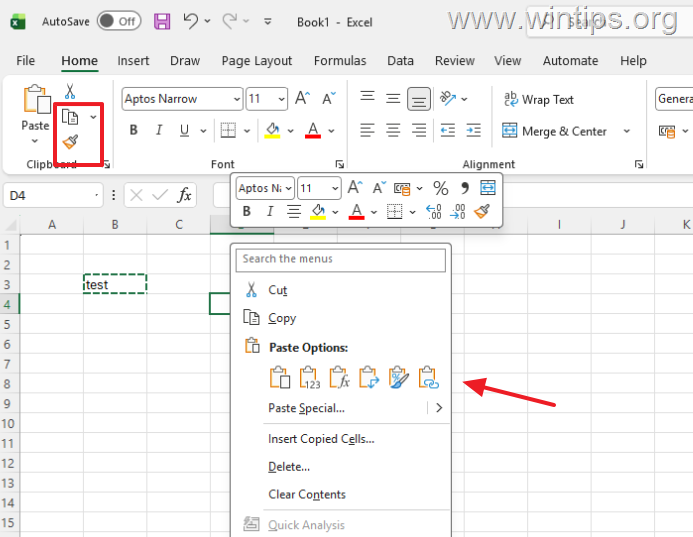
2. Depending on the results, do the following:
- If Copy and Paste does not work with any of the methods above, proceed to the next step.
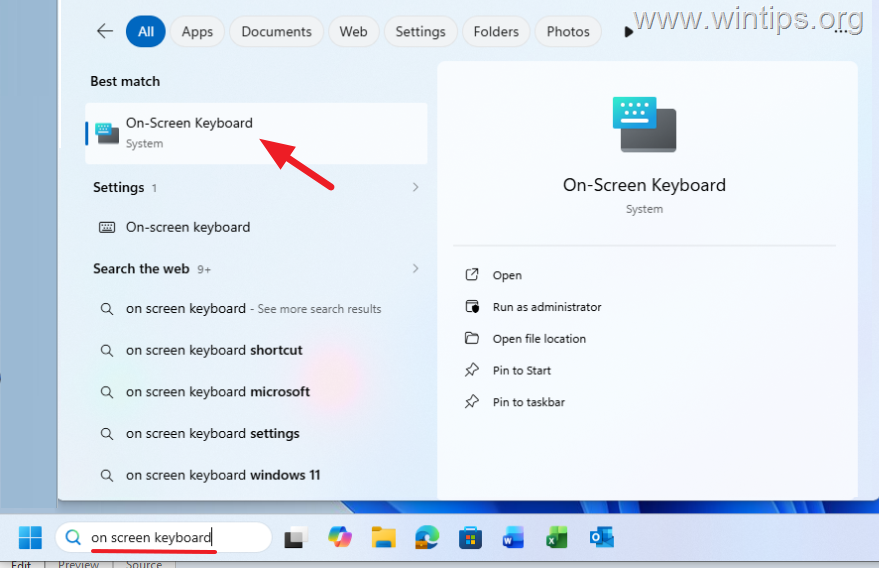
- If Copy and Paste works from the Home tab or the right-click menu, but Ctrl+C and Ctrl+V don't work, first test the shortcuts with another keyboard or the Windows On-Screen Keyboard*. If the shortcuts work outside Excel but not in Excel, continue to Method 1 to test Excel in Safe Mode.
* Note: To open the On-Screen Keyboard, type On-Screen Keyboard in Windows Search, and then select On-Screen Keyboard from the results.
Step 3. Test Copy/Paste and Ctrl+C and Ctrl+V in a New Workbook
1. Create a new blank Excel workbook, and then test Copy and Paste again.
- If Copy and Paste works in the new workbook, the problem is probably related to the original workbook rather than Excel itself. Check whether the worksheet is protected, multiple worksheets are grouped, or the copied range is incompatible with the selected destination. You can also clear the Excel Clipboard* and test again.
- If Copy and Paste does not work in the new workbook either, proceed to the methods below.
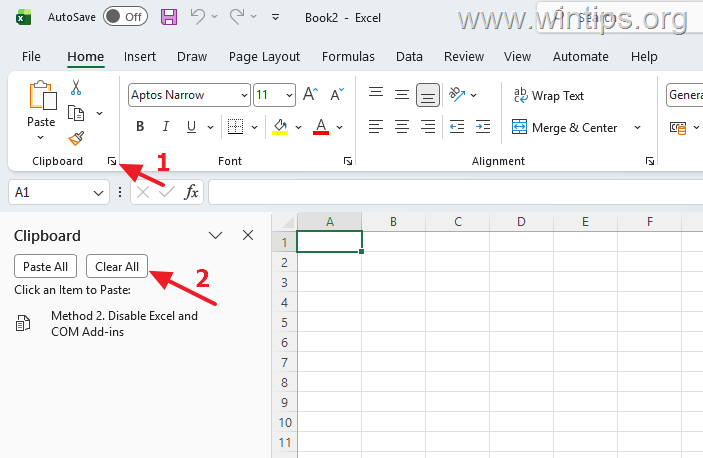
* Note: To clear the Excel clipboard:
1. Open Excel and select the Home tab.
2. In the Clipboard group, click the small dialog launcher in the lower-right corner.
3. In the Clipboard pane, click Clear All.
Method 1. Start Excel in Safe Mode
One of the best ways to determine whether an add-in or another component loaded by Excel is causing the Copy/Paste issue is to start Excel in Safe Mode.
1. Close Excel.
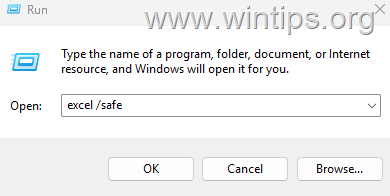
2. Press Windows + R to open the Run dialog.
3. Type excel /safe and click OK.
4. Open a workbook and test whether Copy and Paste works. Then, depending on the result:
- If Copy and Paste work normally in Safe Mode, an Excel add-in, COM add-in, startup file, or another customization loaded during normal Excel startup is probably causing the problem. In this case, continue to Method 2 to disable Add-ins.
- If Copy and Paste still don't work in Safe Mode, skip to Method 3.
Method 2. Disable Excel and COM Add-ins
If Copy and Paste work in Excel Safe Mode, disable the installed add-ins to identify the one causing the problem.
1. Open Excel normally.
2. Go to File > Options > Add-ins.
3. At the bottom of the window, select COM Add-ins from the Manage menu and click Go.
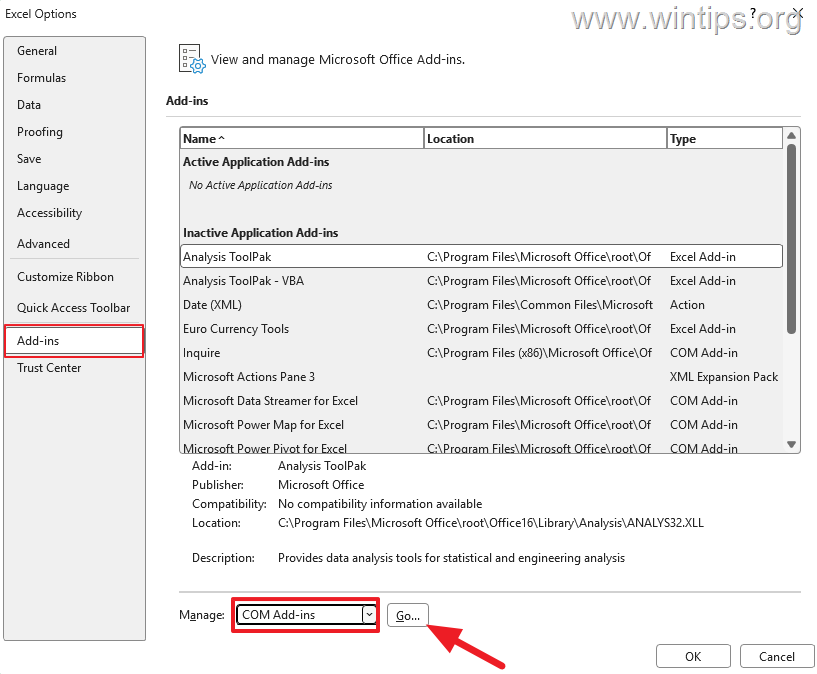
4. Clear the checkboxes for all enabled COM add-ins and click OK.
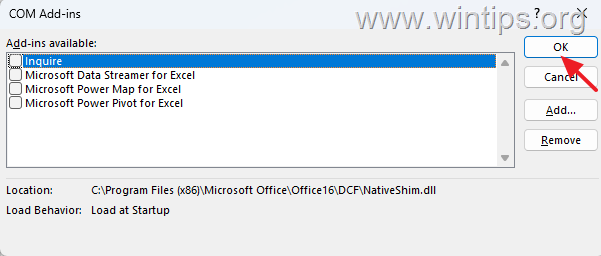
5. Restart Excel and test Copy and Paste.
6. If the problem is fixed, enable the add-ins again one at a time, restarting Excel and testing Copy and Paste after each one. When the problem returns, the last add-in you enabled is likely causing the issue.
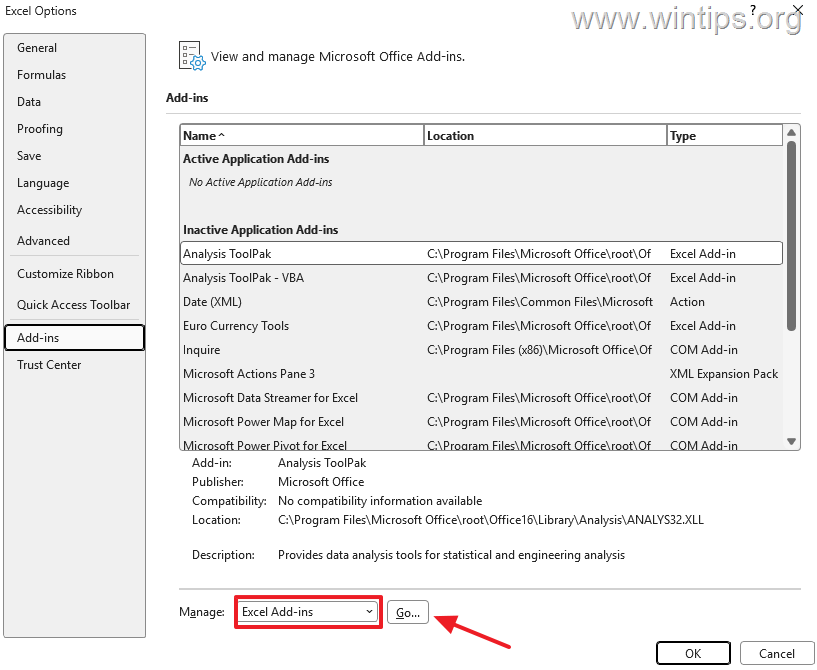
7. If disabling the COM add-ins doesn't help, return to File > Options > Add-ins, select Excel Add-ins under Manage, click Go, and repeat the same procedure.
Note: Disabling an add-in may temporarily disable functionality that you need. If so, once you identify the problematic add-in, update it or contact its developer to report the problem.
Method 3. Check the Keyboard Shortcuts in Microsoft Word
Unlike Excel, Microsoft Word allows you to view and customize the keyboard shortcuts assigned to commands.
Note: This method applies only to Microsoft Word.
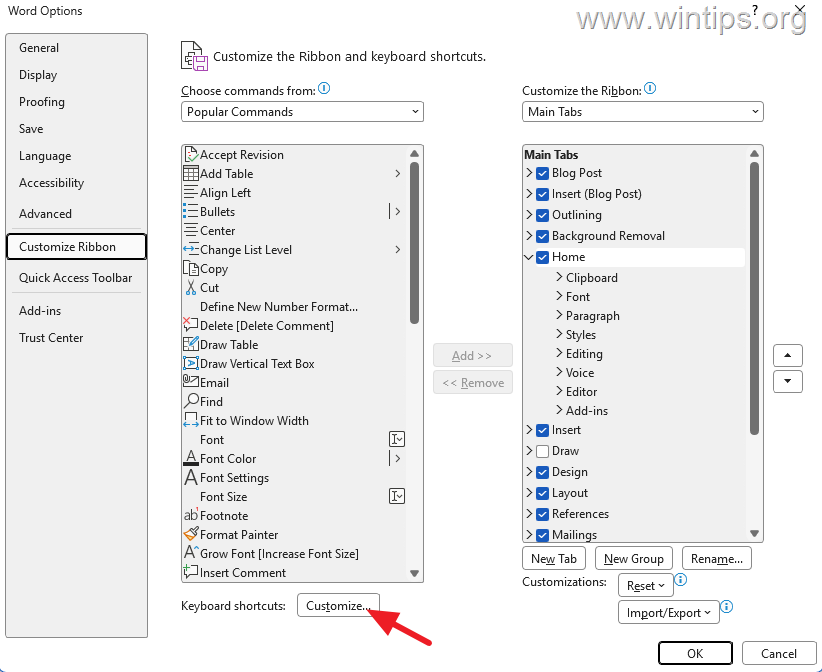
1. Go to File > Options > Customize Ribbon, and then click Customize next to Keyboard shortcuts.
2. Under Categories, select Home Tab, and under Commands, select EditCopy.
3. Under Current keys, verify that the following keyboard shortcuts are listed:
- Ctrl+C
- Ctrl+Insert
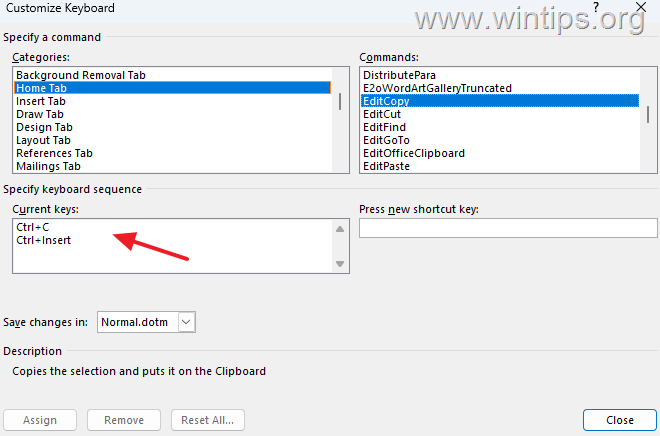
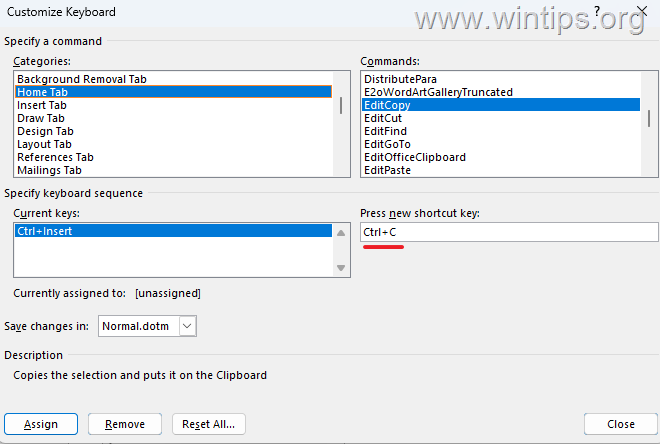
4. If a shortcut is missing, click inside the Press new shortcut key box, press the corresponding keyboard shortcut (for example, Ctrl+C), and then click Assign.
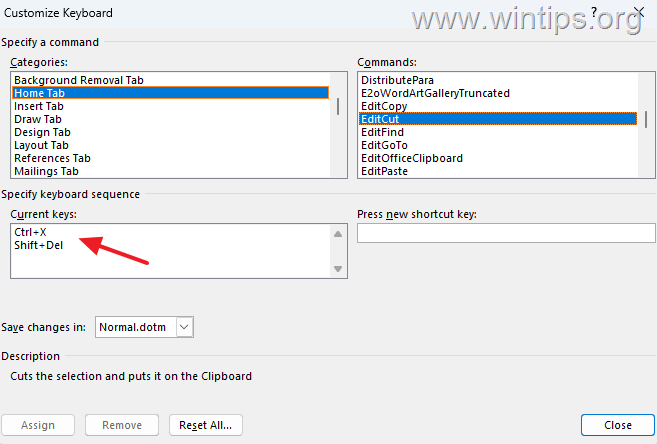
5. Under Commands, select EditCut, and verify that the following shortcuts appear under Current keys:
- Ctrl+X
- Shift+Delete
If a shortcut is missing, click inside the Press new shortcut key box, press the corresponding missing shortcut (e.g., Ctrl+X), and then click Assign.
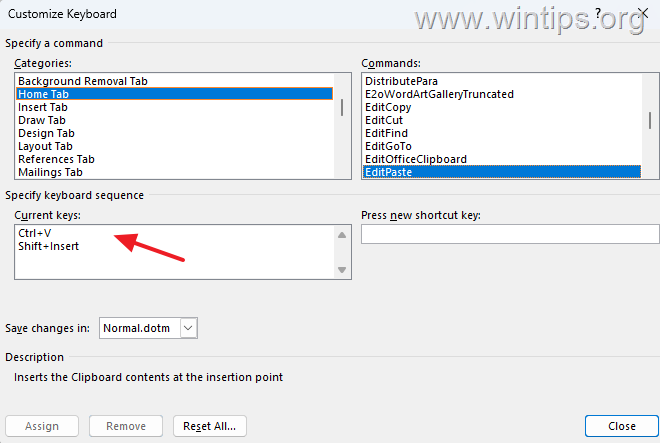
6. Select EditPaste, and verify that the following shortcuts appear under Current keys:
- Ctrl+V
- Shift+Insert
If a shortcut is missing, click inside the Press new shortcut key box, press the corresponding missing shortcut (e.g., Ctrl+V), and then click Assign.
7. When finished, click Close, and then click OK to save the changes. Restart Microsoft Word and check whether the keyboard shortcuts work.
Method 4. Update Microsoft Office
Microsoft regularly releases Office updates that include bug fixes and reliability improvements. Therefore, if you're not affected by a currently reported update issue, install the latest available Office updates.
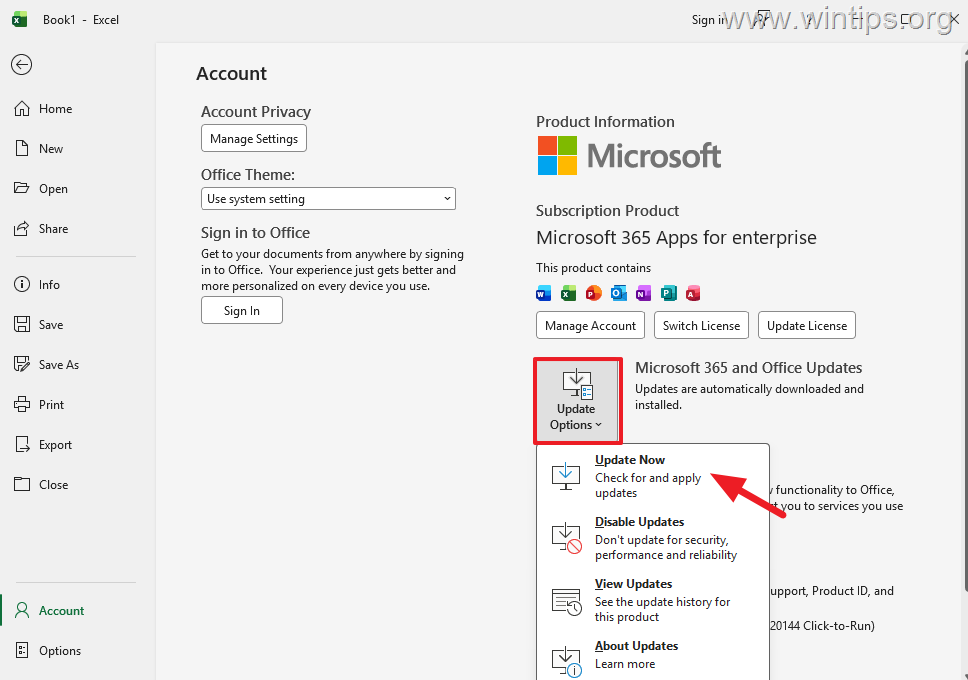
1. Open Excel and go to File > Office Account.
2. Click Update Options > Update Now.
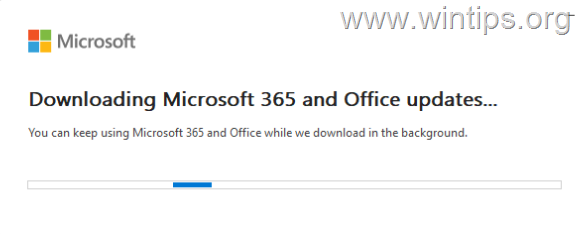
3. Allow Office to download and install any available updates.
4. Restart Excel and test Copy and Paste again.
Method 5. Repair Microsoft Office
If Copy and Paste still don't work in Excel, repair the Microsoft Office installation.
1. Close all Microsoft Office applications.
2. Go to Start > Settings > Apps > Installed apps.
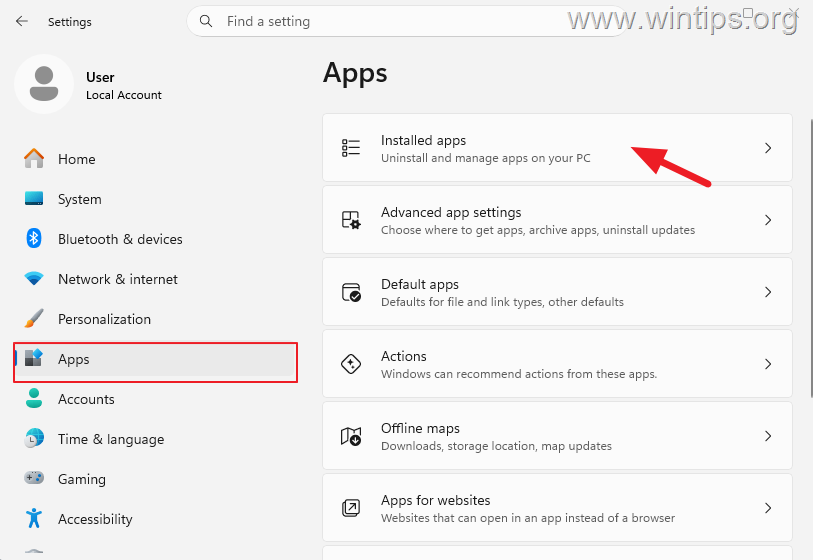
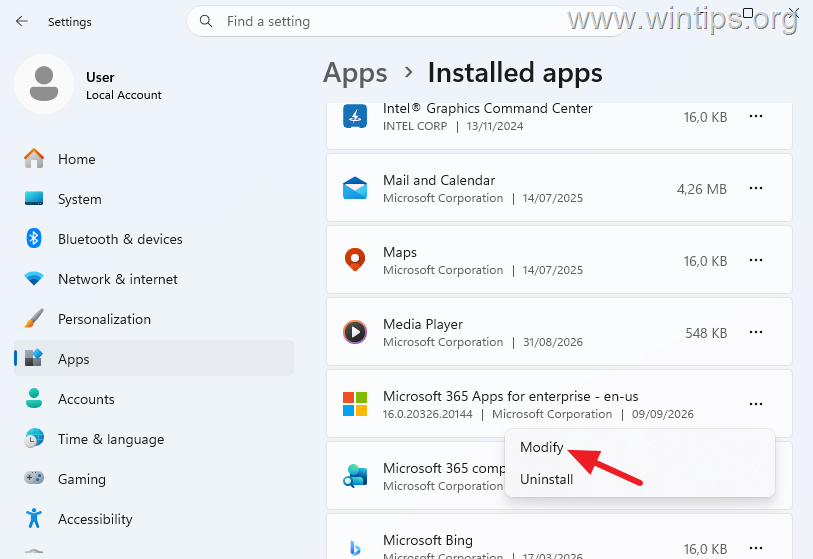
3. Locate Microsoft 365 or your installed version of Microsoft Office.
4. Click the three dots (…) next to it and select Modify.
5. Select Quick Repair, and then click Repair.
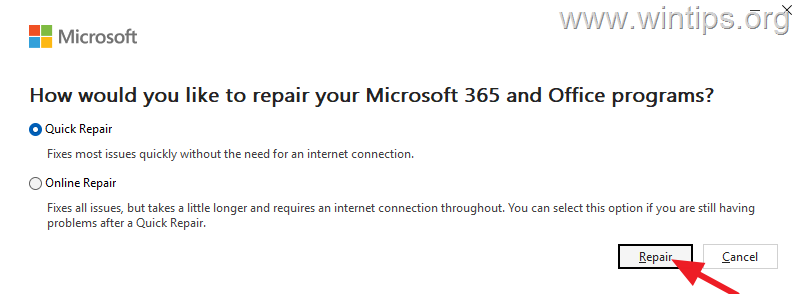
6. When the repair is complete, open Excel and test Copy and Paste. If the problem persists, repeat the procedure but this time select Online Repair.
Note: Online Repair is more comprehensive than Quick Repair and may take longer to complete.
If Copy and Paste Don't Work Anywhere in Windows
1. Restart Windows and test Copy and Paste again.
2.Clear the Windows clipboard. Press Windows key + V, click the three dots (…) menu next to any clipboard item, and select Clear all.
3. Scan for malware if you notice other unusual system behavior: To accomplish this task, follow the steps in this Quick Malware Scan and Removal Guide, and then check copy/paste again.
4. Repair Windows system files if other Windows features are also malfunctioning. To do that:
1. Open Command Prompt as Administrator.
2. In the command prompt window, type the following command and press Enter:
DISM /Online /Cleanup-Image /RestoreHealth
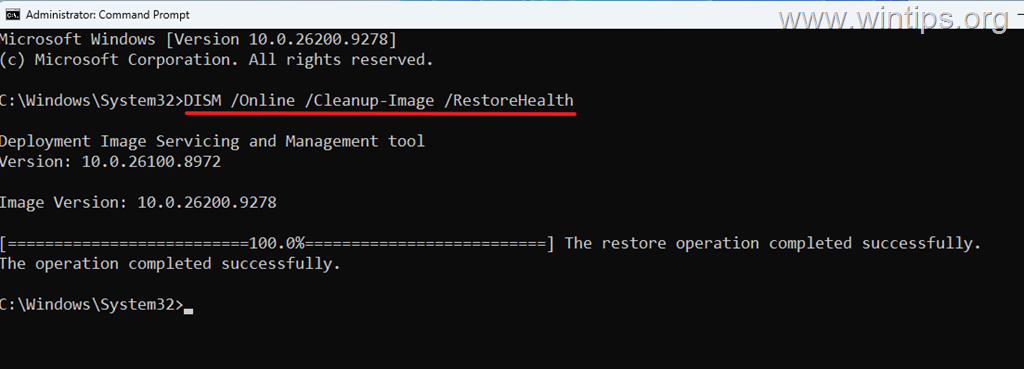
3. Wait while DISM scans and repairs the Windows component store.
4. Next, run the following command:
sfc /scannow
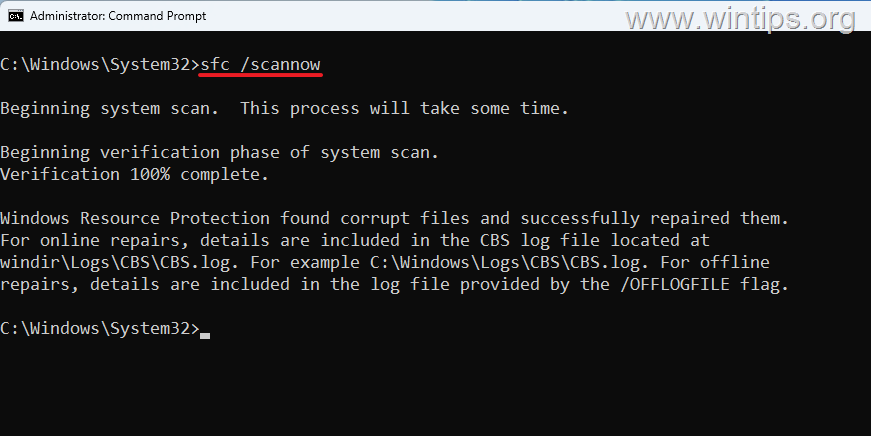
5. When the scan is complete, restart your computer and check whether Copy and Paste is working again.
5. If the problem persists throughout Windows, a background application or service may also be interfering with clipboard operations. In that case, perform a Windows clean boot to determine whether third-party software is responsible.
If Copy and Paste Is Not Working over Remote Desktop
If Copy and Paste work normally on the local computer but fail when copying between your computer and a Remote Desktop session, follow the instructions in this article: FIX: Copy Paste Not Working in Remote Desktop Connection.
Summary
If Copy and Paste or the Ctrl+C and Ctrl+V shortcuts are not working in Excel, first determine whether the problem affects only Excel, a specific workbook, or Windows in general.
For Excel-specific problems, start Excel in Safe Mode to check for problematic add-ins, then update or repair Microsoft Office if necessary. If Copy and Paste also fail in other Windows applications, clear the Windows Clipboard and investigate Windows or third-party software instead.
That's it! Which method worked for you?
Let me know if this guide has helped you by leaving your comment about your experience. Please like and share this guide to help others.
Frequently Asked Questions
Why might Copy and Paste not work in Excel?
Copy and paste problems in Excel can be caused by a faulty add-in, a specific workbook, an Office update, or a corrupted Microsoft Office installation. Sometimes the issue affects the Windows clipboard itself.
What should I do if Copy and Paste stopped working after an Office update?
First, check if Microsoft has acknowledged a known issue and if a newer update is available. If not, consider rolling back the update temporarily following the given instructions, but be aware that this might remove security and reliability fixes.
How can I check if the issue is with Excel or Windows when Copy and Paste doesn't work?
Test Ctrl+C and Ctrl+V in Notepad. If they work in Notepad, the issue might be specific to Excel. If they don't work in Notepad either, refer to the section for broader Windows clipboard issues.
What should I do if Copy and Paste works using buttons but not with keyboard shortcuts in Excel?
Test the Ctrl+C and Ctrl+V shortcuts with another keyboard or use the Windows On-Screen Keyboard. If the shortcuts work outside Excel, try starting Excel in Safe Mode to check for faulty add-ins.
Still having trouble fixing this issue?
💬 Get WinTips Remote Support →

- KB5127648 Fails to Install (0x800f0845) or Causes Windows 11 to Loop in Recovery Mode (0xc000000d): How to Fix - November 4, 2026
- How to Set Microsoft Edge as the Default Browser on iOS Devices Using Intune. - November 2, 2026
- How to Fix SecurityHealthSystray.exe – Bad Image Error (0xc000012f) on Windows 11. - October 26, 2026

November 18, 2024 @ 5:52 am
شكرا مذهل
April 13, 2024 @ 9:07 pm
its so crazy bro thanks a lot
April 15, 2023 @ 3:02 pm
good , working, thanks.
August 9, 2019 @ 3:52 pm
thank you so much!!!
March 15, 2019 @ 5:27 am
BRAVO!! thank you so much! I was looking for a solution to this problem for a long time now! I have ms word 2016. I have never made a donation before to a site but I will make one now because you deserve it. Thanks again!
September 2, 2018 @ 10:26 pm
i am facing the same problem …. and i did all that and didn't work
and when i Restart my laptop it works jest fine
February 7, 2017 @ 5:03 pm
Here's what worked for me:
Open Word, click on the "office button" in the upper left hand corner of the screen
Click on Word Options at the bottom of the drop down menu
Click on Advanced in the list of options
Scroll down to Cut, Copy and Paste
At the bottom of the list within Cut, Copy and Paste, Click on Settings
Choose Microsoft Word 2002 – 2007 (Mine had been set at "Custom" and that seems to have been the cause of the problem.)
Click OK, then click on OK again to exit back to your original document
February 4, 2017 @ 10:36 am
THANK YOU VERY MUCH!