
Take screenshots in Oracle VM Virtualbox from your Windows host
If you have perform installations of other operating systems, using Sun VM Virtualbox and you want to capture the screen of your guest operating system and using "PrintScreen" or "Alt + PrintScreen" does nothing, use the solution below to solve this problem.
For this article I have setup a Vbox Environment (Version 4.1.20) in my Windows 7 host operating system to install Windows XP as the guest operating system and I had also installed the "Guest Additions".
Then I notice that when I try to choose the guest OS, my keyboard and mouse automatically captured by the guest OS.
When this happens you can see a "green down arrow" at the right bottom of your guest’s OS window, that indicates your keyboard and mouse has captured by guest OS.
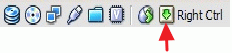
1. So we need to un-capture keyboard and mouse by pressing Right Ctrl key once, and the "green down arrow" becomes as "black down arrow".

2. When this done, you can use your shortcuts keys "PrintScreen" to capture the entire screen or press "Alt + PrintScreen" simultaneously to capture the active* VirtualBox guest OS window.
Notice*: First you must choose the VirtualBox guest OS window, then un-capture keyboard and mouse by pressing "Right Ctrl" key once and use your shortcuts keys to capture.
Still having trouble? Try WinTips Remote Support →


- Windows Update Uninstall Failed with Error 0x800F0825: How to Fix - October 7, 2026
- Apps and Games Crash After KB5124010 Due to AC-3 Audio: How to Fix - October 5, 2026
- How to Fix Windows 11 Update Error 0x80073712 - October 5, 2026

March 5, 2015 @ 4:39 pm
thanks you