
FIX: 0x80070035 – Network path was not found (Solved)
The error code 0x80070035 "Network path was not found" when trying to access a network computer with shared files, can be caused by a number of reasons, so in this guide you will find several methods to resolve the issue.

This tutorial contains step-by-step instructions to resolve the "network path no found error 0x80070035" in Windows 10.
"Windows cannot access \\computer
Check the spelling of the name. Otherwise, there might be a problem with your network. To try to identify and resolve network problems click Diagnose.
Error Code: 0x80070035
The Network path was not found"
How to FIX: Network path not found – Error Code 0x80070035 on Windows 10.*
* Important: If you face this error in Windows 11 24H2 version, follow the instructions in this updated article: FIX: Windows 11 24H2 Cannot Access Network Shares (0x80070035).
In order to resolve error "0x80070035: The Network path was not found" on Windows 10:*
Step 1. Make sure that you type the name of the network computer correctly.
Step 2. Ensure that both computers (your local and the network one), are connected on the same network.
Step 3. If you use the same account name to sign in to Windows on both computers, make sure that you also have the same password on the account on both computers. Additionally, if you have not set a password for the user who will have access to the shared files, proceed and specify one, because Windows 10 doesn't allow the shared files to be accessed from users without a password.
Step 4. Verify that you have specified correctly the file sharing settings (shares, permissions) on the network computer with the shares, by following the instructions on this article: How to Share Folders & Files in Windows 10.
Method 1. Access the Network Computer using its IP Address instead of its Name.
Step 1. Find the IP Address of the Network Computer with the Shares.
On the computer with the shares, find its IP address by following the instructions below:
1. Go to Start  > Settings
  > Network & Internet.
2. Select from the left pane the active Network connection (Ethernet or Wi-Fi), and click on the connection on the right.
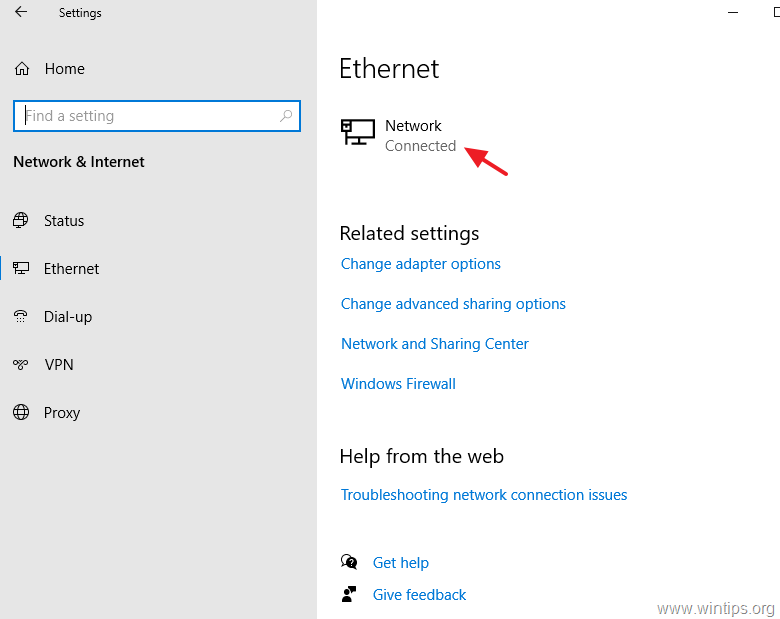
3. In Network properties, scroll down and note the IPv4 address of the computer.

Step 2. Access the Network computer using its IP Address.
On the local computer, from where you want to access the shared folder:
1. Simultaneously press the Windows  + R keys to open run command box.
2. Type \\IPv4 Address of the network computer and press Enter. e.g. In this example, the IPv4 address is 10.0.2.15, so we have to type: \\10.0.2.15
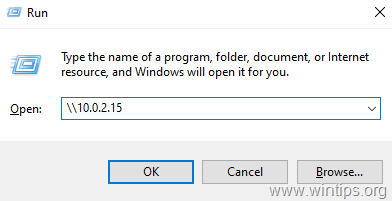
3. If you sill receive the error "Network path was not found", continue to Method 2 below.
Method 2. Change the Sharing Settings on both Computers.
Step 1. Check that the Network type (Private or Public), is the same on both PCs.
1. Go to Start > Settings  > Network & Internet.
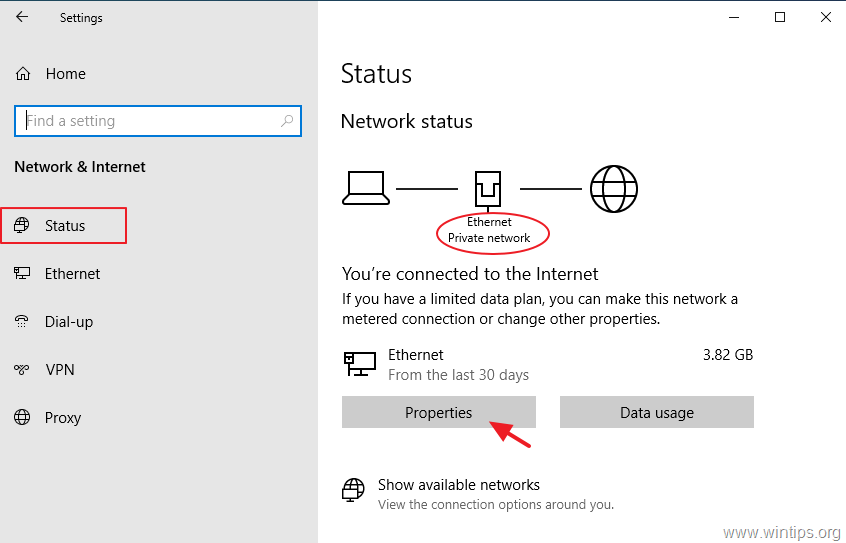
2. Click Status on the left and notice if the Network profile on both computers is the same (e.g. Private). *
* Note: If the network profile is not the same, click the Properties button and change it accordingly.
Step 2. Allow the Network Discovery and File Sharing.
1. Select from the left pane the active Network connection (Ethernet or Wi-Fi) and click Change advanced sharing options.
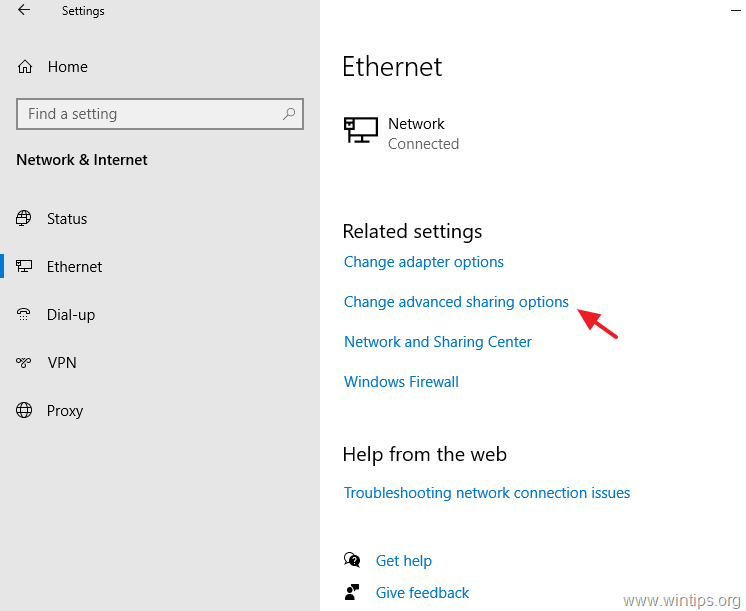
2. According the Network profile you have (Private or Public), expand its settings and…
a. Turn on network discovery on both PC's.
b. Turn on file and printer sharing on the PC with the shares.
c. Click Save changes.
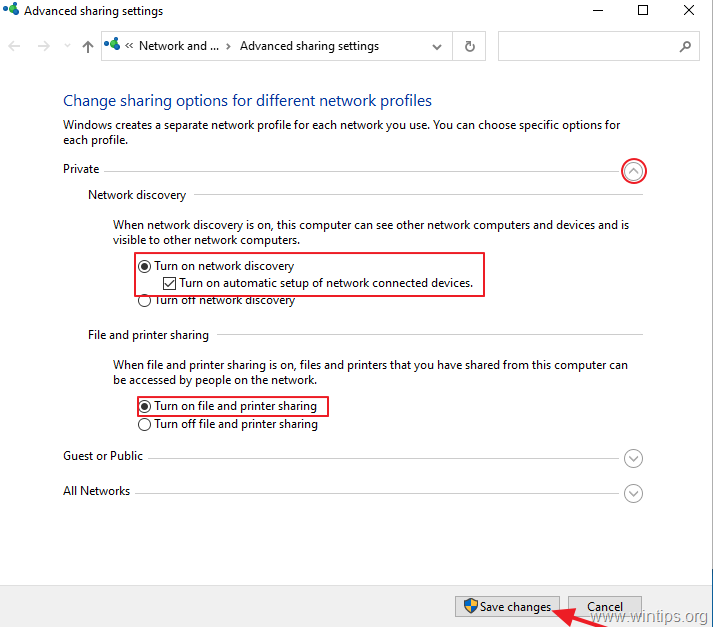
3. When done, restart both computers and then try to access the shares on the Network computer and if the problem persists, continue to the next method.
Method 3. Change the Startup Type of the Required Network Services to Automatic.
1. Simultaneously press the Windows + R keys to open run command box.
2. In run command box, type: services.msc and press Enter.
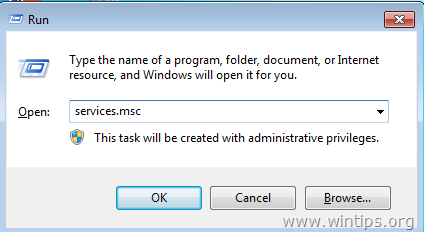
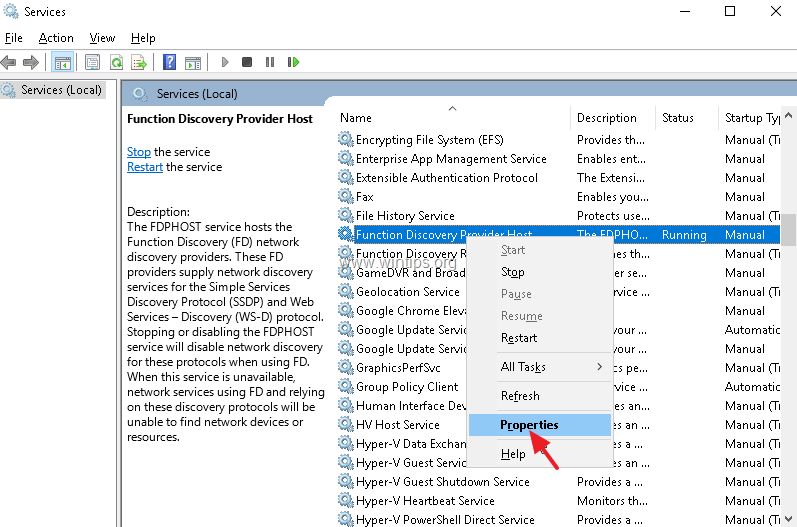
3. In Services panel, check that the following four (4) services are Running: *
-
- Function Discovery Provider Host (fdPHost)
- Function Discovery Resource Publication (FDResPub)
- SSDP Discovery
- UPnP Device Host
Note: If one of the above services is not running:
a. Right click on the service and click Properties.
b. Change the Startup type to Automatic and click OK.
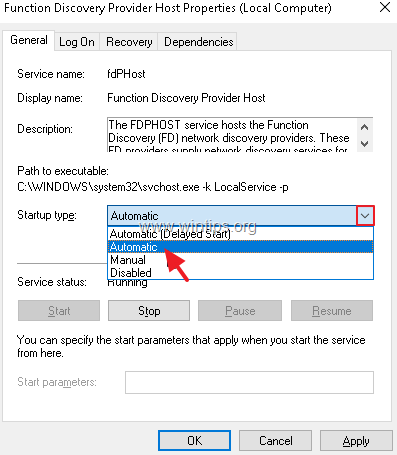
4. Reboot the computer.
Method 4. Turn On the SMB 1.0/CIFS File Sharing Support.
On the Windows 10 machine (with the shared folders):
1. Navigate to Control Panel and open Programs and Features.

2. Click Turn Windows features on or off.

3. Check the SMB 1.0/CIFS File Sharing Support feature and click OK.

4. Restart the computer.
5. After restart, check if you can access the shared folder from the clients. *
* Additional help: If you are still unable to connect to the shared folder, try the following:
A. Temporarily disable the Antivirus and the Firewall protection on the PC with the shared folders and then try to access the shared folder from the client machine.
B. Install all available Windows updates, or uninstall the most recently installed update if the problem occurred after you installed an update.
C. If you face this error in Windows 11 version 24H2, follow the instructions in this updated article: FIX: Windows 11 24H2 Cannot Access Network Shares (0x80070035).
That's it! Which method worked for you?
Let me know if this guide has helped you by leaving your comment about your experience. Please like and share this guide to help others.


- Windows Update Uninstall Failed with Error 0x800F0825: How to Fix - October 7, 2026
- Apps and Games Crash After KB5124010 Due to AC-3 Audio: How to Fix - October 5, 2026
- How to Fix Windows 11 Update Error 0x80073712 - October 5, 2026



May 28, 2025 @ 3:27 am
TYSM Solution #2 Works!!!!!!!!
February 14, 2025 @ 9:05 am
Okay, had this same error message and issue – After driving myself crazy, I finally, as an act of desperation, created a new user account using my name and removed the user account and profile I was using named "admin".
Removed all references to that user in the shares, in the NTFS security and deleted the account and profile. Rebooted the machine, waited for it to settle, and tried it again – it worked. My reasoning (if you would like it that, I know I would) was Windows was having an issue with the username of admin.
Might have been just a matter of luck and things just managed to fix themselves, or a stroke of great insight and genius. – I know which one I choose, but I may be very lonely in that opinion :-)
May 30, 2024 @ 1:10 am
worked like a charm… excellent instructions… thanks
February 2, 2024 @ 11:52 pm
The tip that finally helped me was tip #3, the SMB-tip. For some reason they were all turned off so I could not open the shares on my NAS. I didn't even see them, let alone connect.
But I'm a happy puppy (again).
August 6, 2025 @ 11:46 pm
The SMB tip (I think you're referring to point #4) should be taken with caution: Microsoft deprecated this feature in 2014, because it's very insecure ("SMBv1 has significant security vulnerabilities, and we strongly encourage you not to use it", see https://learn.microsoft.com/en-us/windows-server/storage/file-server/troubleshoot/detect-enable-and-disable-smbv1-v2-v3?tabs=server)
March 8, 2023 @ 8:14 pm
I FINALLY found a solution that works in my case. I got this error when trying to use two Readyshare NAS drives connected to a Netgear router, which had suddenly stopped working. The solution turned out to be simple:
1) Open routerlogin.net and log into the router that the NAS drives are connected to.
2) Click ReadyShare
3) Choose the drive, click Edit, and set access to All — No Password. Then click Apply
4) Map your network drive.
5) Repeat step 3, but change access back Admin. (You may need to leave the drive open or create a folder without a password if the drive serves as a media server.)
Do this for however many Readyshare NAS drives you have.