
FIX: Windows 11 24H2 Cannot Access Network Shares (0x80070035).
If after installing Windows 11 24H2 you cannot access the shared files and printers on other network PCs with error "0x80070035: Network path not found", then in this guide you'll learn how to fix the problem.
Symptom: After upgrading Windows 11 to version 24H2, shares cannot be accessed with error code 0x80070035 "The network path not found", while all other computers running Windows 11 v23H2 or Windows 10 can access the Shares without issue.

Cause: Windows 11 24H2 has increased the level of security and by default no longer allows the access to shared files without providing credentials. This means that insecure connections are not allowed by default, and you can no longer access the shares on another computer unless you have a user account and password on that computer.
How to FIX: "0x80070035: Network path not found", when trying to access shares on other computers from Windows 11 24H2.
As you can understand from the cause of the problem, the recommended method to solve the above issue is to create different accounts and passwords on the computer with the shares for each user on the network who will access the shares.
If you do not want to create credentials on the PC with the shared items, follow the instructions below to allow the non-secure connections.*
* Suggestion: Before proceeding with the methods below, check if you can access the computer with the shared folder(s) through direct access. To do this, type in the explorer's address bar "\\", and then the Name or the Static IP address of the computer with the shared folders.
For example: If the computer with the shared items, is named "PC1" and has the IP address "192.168.1.25":
1. Type in File Explorer's address bar (or in the 'Run" command box), one of the following and hit Enter.
- \\PC1
- \\192.168.1.25
2. If prompted, type a username and password on that PC to access its shares. Then if you can "see" the shared folder(s), right-click on it and select Map Network Drive to easy access the shared folder at anytime from File Explorer.
Method 1. Allow Insecure Logins via Group Policy (Windows 10/11 PRO)*.
The first method to solve the above problem is to allow users to be able to access the shared folders without requiring credentials. To do this, go ahead and make the following changes to Group Policy, both on the computer with the shares and on Windows 11 v24H2 computer.
* Note: This method requires Windows 11/10 Pro Editions. For Windows 11/10 Home Editions, see methods 2 & 3 below.
Step 1. Allow insecure guest logons via Group Policy.
1a. Press Windows  + R keys to load the Run dialog box.
1b. Type gpedit.msc and press Enter, to open the Group Policy Editor.
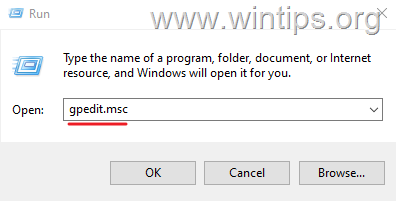
2. In Local Group Policy Editor navigate to the following location:
- Computer Configuration\Administrative Templates\Network\Lanman Workstation
3a. On the right, open the Enable insecure guest logons policy.

3b. Set the policy to Enabled and click Apply > OK.

4. Close the Group Policy Editor and restart the computer.
5. After making the above changes on both the Windows 11 24H2 computer and the computer with the shared files, check if you can now access the shared files from the Windows 11 24H2 computer. If not, proceed to step-2.
Step 2. Disable "Digitally sign communications" via Group Policy.
Proceed and make the following changes to Group Policy, both on the Windows 11 24H2 computer and the computer(s) with the shares.
1. Open the Group Policy Editor and navigate to this location:
-
Computer Configuration\Windows Settings\Security Settings\Local Policies\Security Options
2. At the right pane, make sure that the following two (2) policies are Disabled. If so skip to next step.*
-
Microsoft Network Client: Digitally sign communications (always)
-
Microsoft Network Client: Digitally sign communications (if server agrees)

* Note: If one or both of the above policies is Enabled the open it set it to Disabled and click Apply > OK. Then restart the computer(s) and check if the problem is fixed.

Method 2. Allow Insecure Guest Logins in Registry.
If you don't own a PRO edition of Windows 11/10, then you can allow the insecure guest logons by modifying registry. To do this:
1. Open Command Prompt as Administrator and issue the following three (3) commands:
-
reg add HKLM\SYSTEM\CurrentControlSet\Services\LanmanWorkstation\Parameters\ /f /v RequireSecuritySignature /t REG_DWORD /d 0
-
reg add HKLM\SOFTWARE\Policies\Microsoft\Windows\LanmanWorkstation /f /v AllowInsecureGuestAuth /t REG_DWORD /d 1
-
reg add HKLM\SOFTWARE\WOW6432Node\Policies\Microsoft\Windows\LanmanWorkstation /f /v AllowInsecureGuestAuth /t REG_DWORD /d 1

2. Restart the computer, and check if you can access the shares now.*
* Note: If you still cannot the shares, and you want to remove the added registry values, issue the following commands in Command Prompt (Admin):
-
reg delete HKLM\SYSTEM\CurrentControlSet\Services\LanmanWorkstation\Parameters\ /f /v RequireSecuritySignature
-
reg delete HKLM\SOFTWARE\Policies\Microsoft\Windows\LanmanWorkstation /f /v AllowInsecureGuestAuth
-
reg delete HKLM\SOFTWARE\WOW6432Node\Policies\Microsoft\Windows\LanmanWorkstation /f /v AllowInsecureGuestAuth
Method 3. Allow Insecure Connections from PowerShell.
The final method to fix the error "Network path not found – 0x80070035" in Windows 11 24H2, is to allow the insecure guest logons, using PowerShell.*
* Note: Run the below PowerShell commands on both the computer with the shares and on Windows 11 v24H2 computer.
1. Open PowerShell as Administrator and give the following three (3) commands:
-
Set-SmbClientConfiguration -EnableInsecureGuestLogons $true -Force
-
Set-SmbClientConfiguration -RequireSecuritySignature $false -Force
-
Set-SmbServerConfiguration -RequireSecuritySignature $false -Force

That's it! Which method worked for you?
Let me know if this guide has helped you by leaving your comment about your experience. Please like and share this guide to help others.
Frequently Asked Questions
What is the error code '0x80070035' in Windows 11 24H2?
The error code '0x80070035' refers to 'Network path not found' after upgrading to Windows 11 24H2, where the system cannot access shared files and printers on other network PCs due to increased security measures.
Why can't I access shared files on my network after upgrading to Windows 11 24H2?
After upgrading to Windows 11 24H2, access to shared files and printers is restricted because the system now requires credentials for secure access, and insecure connections are not allowed by default.
How can I fix the '0x80070035' error to access shared files in Windows 11 24H2?
To fix this error, you can either create user accounts with passwords on the computer hosting the shares or adjust your Group Policy settings to allow insecure connections. This involves enabling 'insecure guest logons' and disabling digitally signed communication requirements on both the sharing computer and the Windows 11 24H2 system.
Can Windows 11 Home edition users resolve the shared access issue via Group Policy?
No, the Group Policy method is intended for Windows 10/11 Pro editions. Windows 11/10 Home edition users may need alternative methods, such as creating accounts on the shared resource computer or applying different network settings modifications.


- Remote Desktop (RDP/RDS) Stops Working After September 2026 Windows Update: How to Fix - September 15, 2026
- Windows 11 KB5124008 Causes No Sound or USB Audio Code 10: How to Fix - September 14, 2026
- Copilot Missing or Grayed Out in Outlook: How to Fix - September 10, 2026




July 31, 2026 @ 4:33 pm
yep, method 2 worked. thank god for that, was doing my head in. I'd tried everything else.
was a win11 update last year that killed access even though my other machines continued to access the shared folders fine.
July 16, 2026 @ 8:31 am
Thanks A Lot
July 5, 2026 @ 3:16 pm
All else failed except for the powershell commands – I had almost given up on MS again!
Cheers to you
June 4, 2026 @ 3:28 pm
Thank you, your awesome DUDE OF KEWLNESS haha. Saved me from a stumping headache. Had similar issues on 3 other computers that I eventually solved. Your guide is just so much more complete and user-friendly.
February 28, 2026 @ 5:04 pm
This donation was cheaper than the Tylenol I've already bought trying to solve this problem, great help!
February 20, 2026 @ 4:00 am
THANK YOU SO MUCHH
i don't know why google just recommend this page last night (i've been googling this error since last year)
all method works (as our little office has 1 pro and 3 home editions)
February 19, 2026 @ 3:24 pm
I almost lost my job. Powershell save it
February 5, 2026 @ 5:54 pm
yaklaşık 300 sayfa gezdik en iyi çözüm noktası teşekkürler
February 1, 2026 @ 1:00 am
Number 2 fixed it for me. I have 2 win7 desktops, 1 win10 laptop and a new win11 Home 25H2.
Everything could see and access the win11 home – the win11 home could see but not access everything else. Method 2 solved it instantly.
Thank you so much – this had been an issue for months for me!
January 11, 2026 @ 7:34 pm
Method two fixed it for me (windows 11 home)
And I only had to do it on the client. Ty very much!!!!
January 7, 2026 @ 9:10 am
coolll, Thats work on win 11 242H Home Single to win 10
December 23, 2025 @ 7:15 pm
After hours trying other "fixes", Method 1, Step 2 worked for me on new HP laptop Win 11 Pro. Great!
December 4, 2025 @ 1:19 pm
La opcion de Powershell funciono muchisimas gracias
November 27, 2025 @ 3:53 pm
The powershell method worked for me
November 26, 2025 @ 7:44 pm
The powershell commands worked well. Now I just have to do the same on our laptops. Thanks.
November 13, 2025 @ 2:05 pm
After upgrading from 'Home' to 'Pro' version of Win 11 I couldn't connect on my local network to 2 other machines, but could to my NAS. I changed the Group Policy to allow 'insecure logins' as you suggested in Method 1 and it worked a treat.👍
Many thanks!!
November 11, 2025 @ 6:20 pm
This worked for me with a new Windows 11 Pro installation. Could not connect to a Windows 10 shared folder with permissions to Everyone. Read many articles and none of them worked. Give this a try :-)
October 26, 2025 @ 4:27 pm
Did all of the above solutions and it worked flawlessly for about 3 days. Then after waking up one morning – without any changes – it stopped working. Some machines can see the affected machines and the affected machines can see other shares but two Win 11 24H2 machines stopped seeing each other when they once worked. This is horrible and has essentially made the home network unusable in an attempt by MS to force everyone onto the OneDrive spy network.
Considering rolling them back to 23H2 while I still have the chance…
November 15, 2025 @ 5:41 am
same for me – it worked for a few hours, then stopped working Frustrating!
October 25, 2025 @ 3:17 am
I have a win 11 home 24H2 machine that was unable to access network shares with the above error message. I used the powershell commands you provided and it fixed the problem. Thanks so much! Now I see 25H2 is out, will I have the same problem if I install this update?
October 11, 2025 @ 11:01 pm
Thank you, your fix worked like a charm for Win 11 Home 25H2.
October 8, 2025 @ 9:10 pm
hice hasta el punto 3 y funciona perfectamente, muchas gracias!!
October 2, 2025 @ 10:29 am
What did the trick: Settings > Network & internet > Advanced network settings > Advanced sharing settings > All networks : set Password-protected sharing to Off (on client and server).
September 25, 2025 @ 7:04 pm
Good afternoon, after an update that occurred in Windows 10 Pro, I am facing the problem above: I was unable to access without a user through a print server or stations with Windows 7. The station with Windows 7 remains connected normally to the one with Windows 10, but the one with Windows 10, even in the domain, is not having access.
September 26, 2025 @ 9:26 am
Uninstall the latest update. This is causing the problem.
September 25, 2025 @ 9:15 am
This solution (Step 3) worked. Thank you very much!
September 23, 2025 @ 11:11 pm
Thank you so much! The first method worked as charm!
Ευχαριστώ πολύ φίλε :)
September 1, 2025 @ 12:26 pm
This was really helpful.
August 24, 2025 @ 7:35 pm
I just wanted to thank you for this. I was stumped for hours trying to set up a shared drive. Credentials would not work even after setting up both PCs with the same users. It is crazy that something as simple as network file sharing is so completely broken in Windows 11.
August 15, 2025 @ 4:45 pm
Yes! I had the exact same problem as Thankful. Support team for the new Windows Pro pc was totally useless. A bit scary for someone who's never used Powershell, but one would think Microsoft would have made this easy to fix or, better yet, automatically fix it.
One suggestion, you need to accept Google Pay. A year and a half ago my Paypal account was hacked (24 character password) and I never got all the money back from the fake purchases.
July 23, 2025 @ 9:44 am
Thanks a lot. After searching online for hours found the solution what i needed the last method work with Win11 Pro PCs to communicate each other.
July 20, 2025 @ 2:43 pm
Simply brilliant.
Thank you so much for your amazing tutorial. Microsoft always complicating our lives by the way, any tutorial on how to disable automatic updates and the stupid antivirus and auto scans?
Thaks again.
July 16, 2025 @ 5:52 pm
Thanks very much for these solutions. I was scratching my head trying to figure out why something that had worked flawlessly under Win 10 suddenly stopped working after upgrading my clients to Win 11.
I tested the both the gpedit (Method 1) and powershell (Method 3) methods on a Win Pro 11 24H2 client and both successfully allowed access to my Samba standalone server share running on FreeBSD 14.3 RELEASE. Enabling guest logons and disabling digitally signed communications were both required for it to work.
Note that simply enabling SMB 1.0/CIFS support in Windows 11 did not work.
July 13, 2025 @ 5:02 pm
gpedit.msc worked for me, thank you so much Author
June 8, 2025 @ 5:49 am
Method 1 worked for my Win 11 situation consisting of a Dell laptop connecting to a Western Digital PR4100 NAS on my private network. Since it worked before the infamous OS update I only needed to make a change on the laptop. Thanks for the help!
June 7, 2025 @ 10:24 am
Thanks the methods work instantly.
June 3, 2025 @ 11:33 am
I was having trouble connecting to my VPN for more than half a day, but your method solved the problem perfectly. Thank you so much.
May 30, 2025 @ 4:26 am
I recently purchased a new laptop for my wife. It came with Windows 11 pro version 23H2. I set it up and got it connected to other PCs on my home (private) network with no problems. Then after MS forced an update to version 24H2 the new laptop would no longer connect. I spent many hours over 5 days searching and applying various methods to correct the problem. Thankfully I came across this post and made the changes described in Method 3. Problem solved!!!
May 13, 2025 @ 11:21 am
Method 3 worked for me.
I've have been trying for hours to get this to work.
Thanks for your help.
May 1, 2025 @ 12:28 pm
Method 3 worked instantly. Took longer to pluck up courage to delve into Powershell than make the changes.
I can now see and edit my music files on my NAS.
Microsoft have a lot to answer for…..
Thx
April 25, 2025 @ 5:31 am
Method #3 worked for me on my windows 10 enterprise LTSC, thanks buddy.
April 5, 2025 @ 11:55 pm
After trying numerous options (that I've successfully used on other computers in the same network environment) I was just about ready to give up. Came across this article and the provided info was invaluable. I'm referring to Step 1 and disabling the "Microsoft Network Client: Digitally sign communications", both options. Whew! Persistence paid off. Thanks so much.
April 5, 2025 @ 2:50 pm
Thanks for this guide. I've tried everything I could think of to get my network shares working again with no luck until I ran across your website. Solution #1 worked immediately for me even without restarting my pc. So tired of every windows update disabling network sharing and costing days worth of time trying to get it working again. With this new security change I never would have gotten it working without your guide.
April 4, 2025 @ 4:04 am
Thank you SO much – for about a YEAR I have only been able to access my Pro PC through my Home PC and not the other way around after an update (I'm guessing). This worked after step one.
Can't thank you enough!
April 2, 2025 @ 5:00 am
Server 2016 Domain Controller + Server 2016 Fileserver
AAD Joined hosts are experiencing this issue.
On workstation running:
as system
Set-SmbClientConfiguration -EnableInsecureGuestLogons $true -Force
Set-SmbClientConfiguration -RequireSecuritySignature $false -Force
Restart-Service -Name "LanmanWorkstation" -Force
as logged in user
New-PSDrive -Name "Z" -PSProvider "FileSystem" -Root "\\server.example\Path to\SharedFolder" -Persist
Drive connects and works, but does not persist after reboot. We get the disconnected mapped drive icon, and path can't be found error when trying it.
Work around at moment is, disconnect drive, restart lanmanWorkstation service, re-map the drive.
any ideas?
April 2, 2025 @ 9:01 am
Hello. Did you run the commands in both computer with the shares and in workstations? If so, follow the steps in method-1 to allow Insecure Logins via Group Policy on both the 2016 domain controller and the 2016 file server.
April 9, 2025 @ 5:05 am
Hey, yeah
Only using:
`Set-SmbClientConfiguration -EnableInsecureGuestLogons $true -Force`
`Set-SmbClientConfiguration -RequireSecuritySignature $false -Force`
Strange enough – Enabling SMB1 on the 24H2 workstation in this scenario has solved the issue as a workaround. Drive mapping will persist and reconnect after reboots without any intervention.
Not ideal by any means, becuaes it reduces the security posture of the workstation.
Once we've got the server OSes upgraded to something more recent and we can enforce SMB3 only and signing, we'll test again with the out of box / 24H2 default settings for SMB so we're not compromising on security.
November 4, 2025 @ 9:13 pm
Can you Please tell me How to Make and Save Your Fix as a Registry PSI File.
I had several goes at it but sadly can't figure how to save and exit the script.
Or could I just be that Lucky and Some kind person could give a Link to an Already Made Suitable Scipt
March 31, 2025 @ 12:24 pm
excellent
1k times better than microsoft support
thank you
March 21, 2025 @ 9:37 pm
Thanks a lot, i spend like 9 hours finding a solution.
March 18, 2025 @ 10:30 am
the third one! thank you so much!
Τα σπας αδελφε!
March 4, 2025 @ 10:23 am
Thanks of lot!
Method 2 helps me to see the common server folders
March 3, 2025 @ 2:49 pm
El método 3 funcionó para mi, concretamente:
Set-SmbClientConfiguration -EnableInsecureGuestLogons $true -Force
Al actualizar a 24H2 se había puesto en "False" y fue necesario volver a establecerlo a "True"
March 2, 2025 @ 10:26 pm
Thanks,
w11 pro step 1.
w11 home 1+2 step solution.
Also, you have a very useful blog that is a resource for those who are interested, congratulations.
February 27, 2025 @ 5:52 pm
unfortunately for me none of the above solutions worked. have spent counless hours trying to resolve – but none of the solutions work for me. Running windows 11 home edition
February 26, 2025 @ 5:51 am
Thanks most helpful – method 3
February 23, 2025 @ 3:46 am
Method 2 worked for me, after many and various failed attempts at other peoples "solutions". Thank you!
February 21, 2025 @ 3:07 am
Method 3 worked for me! Thanks
February 18, 2025 @ 1:17 pm
This worked for me on a fresh Win 11 Pro 24h2 install.
THANK YOU!!!
February 18, 2025 @ 3:26 am
Thank you SO much for this. Thought I was going crazy for it suddenly stop working.
I hate windows updates.
Bless you.
February 13, 2025 @ 11:30 pm
Hi. It worked with method 3 from PowerShell, however, is it safe?
Also, crazy that network share is mapped just fine from This PC, but would show error when trying to expand Network.:
February 13, 2025 @ 11:29 pm
THANKS! I'm running WIN11 PRO so Method 1 didn't do it. I skipped Method 2 as it only applies to WIN Home and went right to Method 3. VOILA! Back to normal! Appreciate this post!
February 9, 2025 @ 7:26 pm
I bought a Mac and trashed my Dell laptops. Issue solved immediately. No more worrying about unable to connect to a MS network. Best decision I've ever made.
January 15, 2025 @ 8:33 pm
I tried many hours to connect MyCloud Home under Windows 11 to my home network, without success, but with your Methode 2 it worked nicely.
Thanks for your good solution
Wolfgang
January 15, 2025 @ 5:40 pm
This made my day. Finally, someone could show me the reason shared folders don't show up.
Thank you very much.
January 11, 2025 @ 2:59 am
#3 worked! Yay, finally. Thanks.
January 10, 2025 @ 8:19 pm
3rd time is the charm! Method 3 worked for me on a Lenovo Yoga Slim 7x Arm64 laptop.
January 10, 2025 @ 1:23 pm
Damn! It works. Salamat po!
January 10, 2025 @ 2:08 am
Step 3 worked. Thank you
January 9, 2025 @ 1:35 am
Thank you !!!!!!! After trying 20 different methods from several pages and videos , Method 3 work right away
January 8, 2025 @ 10:00 pm
None of the above seemed to work for me. The machine is a recently Windows 11 Pro 24h2 installation on a Dell machine. I have a Western Digital removable hard drive we use for daily removable backups of our network. any of our 23h2 Windows workstations can address this easily enough, but not the new 24h2 workstation.
January 6, 2025 @ 6:09 pm
Konstantinos, thank you for easily solving this issue.
I wanted to make a donation but there doesn't seem to be a link.
Can you provide one?
Again thanks!
db-
January 5, 2025 @ 9:54 pm
Method Two was the answer for me – thankfully while I still had some hair left on my head!!! New Windows 11 HOME computer with 24H2 update. Good old Microsoft……
December 31, 2024 @ 10:09 pm
Method 1 Step 1 did the trick for me. Win 11 Pro, trying to re-access a USB Drive connected to my router from PC.
December 22, 2024 @ 6:12 pm
Thank you so very much for this great Christmas present .
After performing Method 1: Steps 1&2 on all my Windows 11 Home and Windows 11 Pro computers they are now able to send and receive Seasons Greetings from each other over my network.
Merry Christmas and a Happy New Year to you and your family.
December 15, 2024 @ 6:11 pm
Thank you!
Having just replaced a Win10 Home PC with a new one running Win11 Home it never occurred to me that the problem I was having was of very recent vintage, and given that I now have a mixed Win 10/Win11 environment I worked through everything in your other Win10 & Win11 articles before finding this one. Method 2 worked for me. Excellent. I'm not averse to editing the registry, but I commend you on supplying the updates – and the wherewithal to reverse them.
Ironic that MS having suggested I upgrade my PC to Win11 some time ago, which I declined, it is now is telling me I have to wait, so I have to remain in a mixed environment.
Wintips will be my first port of call in future!
December 14, 2024 @ 7:47 am
Thanks!!!
Got new PC and the initial setup process installed Windows 11 Pro 24H2.
Tried to access HDD on Mesh Router main node and got Network Credentials error. Same issue with USB thumbdrive on Mesh Router node 2.
– Searched for possible solutions – got multiple recommendations to change network setting via Control Panel – nothing worked.
– Initial search did not find this article.
– Contacted new computer support – their solution also recommended network setting changes via Control Panel.
– All failed.
After 4 days, older PC automatically updated by Microsoft to Windows 11 Pro 24H2. Suddenly could not access USB data on the router nodes.
Searched web again and found this article. Method 1 steps 1 through 4 resolved issue. Easy and fast fix.
Cannot thank you enough.
December 9, 2024 @ 9:36 pm
Method 1 worked perfectly for me! Thank you so much
December 9, 2024 @ 3:49 pm
Method 1 worked for me. Spent two days after installing 24H2 trying to be able to access a disk attached to my router, which worked until the install of 24H2. Now I can do backups again. Now on to figure out what else MS has messed up with 24H2. :-(
December 9, 2024 @ 3:47 pm
Dude, you're a genius. After wasting a day, reading hundreds of web pages with useless instructions, method 3 worked instantly.
December 7, 2024 @ 8:56 pm
I was so annoyed, (actually p***** off), with Microsoft screwing up Windows networking on my home network AGAIN that I rolled back to the prior version.
I may try method 3 when I cool down enough.
December 7, 2024 @ 5:01 am
wow..! Method 3 work for me… I have been looking for a solution to this problem for more than 2 weeks, thank you so much
December 6, 2024 @ 8:40 am
Thanks for identifying the problem!
Have a home network including two computers with win11 (24h2 current) as well as a third with win10.
I have same user name (Microsoft account) on all computers. I can get the Win11s to access the Win10 but not the other way around (so issue you noted above sounds like culprit).
I get the windows error code 0x80070035
I am only user on computer (and administrator). Same login and password (use PIN for login). I tried both method 2 and 3 and kept getting access denied errors? Curious can this be changed directly in REGEDIT?
Sure be nice if they would patch a fix for at least home users with multiple computers.
Is there anything to do with the windows credentials
November 30, 2024 @ 11:34 pm
I just updated a PC & a laptop to Win11 24H2 & I searched over a period of 2 days before finding this solution!
Thanks for the help.
November 25, 2024 @ 12:15 am
I spent a lot of time troubleshooting this issue for a client that uses a Peer Server for shares and have no passwords assigned for access. I then came across your solution and tried the first options with no success.
Finally, this option worked and have now applied it on 2 workgroup PC's.
1. Run PowerShell as Administrator and paste in these commands
Set-SmbClientConfiguration -EnableInsecureGuestLogons $true -Force
Set-SmbClientConfiguration -RequireSecuritySignature $false -Force
Set-SmbServerConfiguration -RequireSecuritySignature $false -Force
2. Press Enter
3. Reboot computer
BOOM!!!
The second PC only needed this option to fix it.
Thank you so much. You are a lifesaver.
November 23, 2024 @ 1:50 pm
Brilliant. Thank you so much. I wasted 5 hours trying to sort this issue before finding your solution and it worked immediately.
January 21, 2025 @ 9:19 am
Hi Stephen,
Method 2 worked for me but before applying that method I enabled SMB v1 on the windows 11 machine. have you tried that ?
November 6, 2024 @ 9:06 pm
None of the methods listed have corrected the issue for connecting to Azure file shares
November 7, 2024 @ 6:47 pm
Take a look in this answer for Azure file shares: https://learn.microsoft.com/en-nz/answers/questions/2102498/windows-11-24h2-azure-file-share-broken
January 6, 2025 @ 6:54 am
number 1 fixed it for me
my only concern now is security on the network