
FIX: Secure Boot Unsupported or Unavailable (Solved)
If you try to install Windows 11 and you can't because Secure Boot is Unsupported or Not Available, continue reading below. Microsoft, starting with Windows 8, supports a new security feature called Secure Boot. Secure boot is available on almost all modern computers and is built into the UEFI (Unified Extensible Firmware Interface), to prevent malware from taking over the computer during the boot process.
Windows 7, Vista and XP used to operate in Legacy boot mode (also known as "CSM" Mode), which uses the Master Boot Record (MBR) Partition table.
Windows 8, 8.1 & 10 are designed to operate also in UEFI boot mode, which uses the GUID Partition Table (GPT), in order to take advantage of the advanced features offered by the UEFI, such as the "Secure Boot" security feature.
Microsoft has made secure boot a prerequisite for users who want to upgrade to Windows 11. So, if you get the error "Secure boot is not supported" or "Secure boot is not available", then one of the following is probably happening:
-
- Your computer is set to UEFI boot mode but Secure Boot is OFF (Disabled).
- Your computer is set to Legacy boot mode, which does not support either Secure Boot or GPT partition style.
- Your computer is not UEFI & Secure Boot capable.
In this tutorial you'll find step-by-step instructions to fix the following problems when you try to install Windows 11:
- Secure Boot is unsupported
- Secure Boot is not available
- Secure Boot is Off
- Related article: How to Install Windows 11 without TPM on Unsupported CPUs.
How to FIX: Secure Boot Unsupported or Off (Disabled) & Cannot Install Windows 11.
Step 1. Check the state of Secure Boot & BIOS Mode.
To know if Secure Boot is On, OFF or Unsupported on your device, follow the instructions below:
1. Press Windows  + R keys to open the run command box.
2. Type msinfo32 and click OK to open System Information.
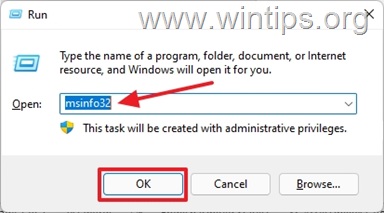
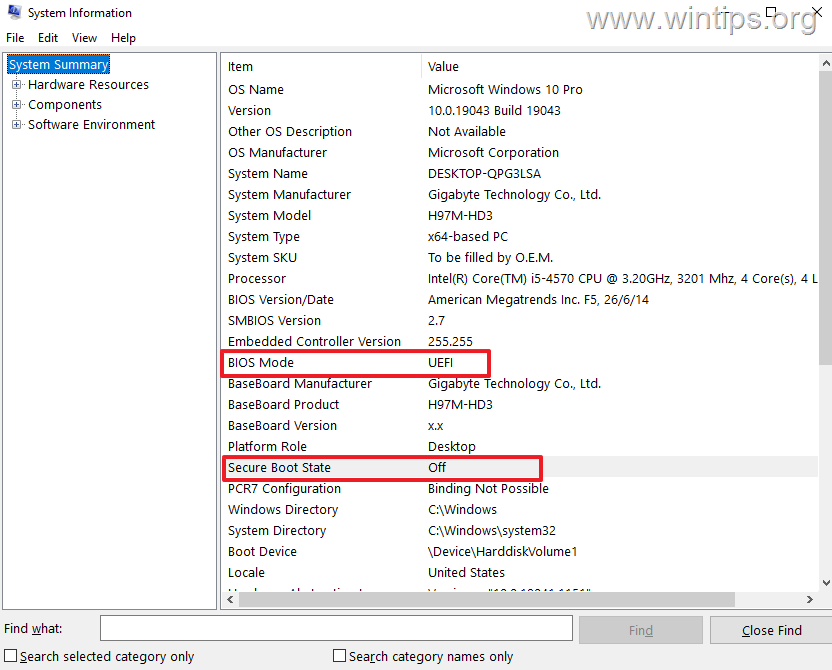
3. On the System Information page, check the BIOS Mode and the Secure Boot Status.
4. Now according your case, proceed as follows:
- CASE A: If the BIOS Mode is UEFI & the Security Boot State is Off, means that your PC boot mode is set to UEFI, but the Secure Boot feature is disabled on your system. At this case skip to Part-1, to enable Secure Boot in BIOS/UEFI firmware settings.
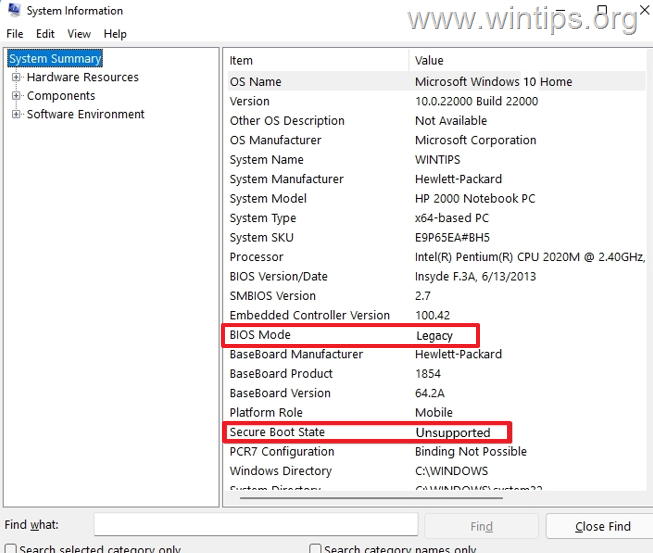
- CASE B: If the BIOS mode is Legacy and the Secure Boot State is Unsupported or Unavailable, go to step-2 below because it means one of the following: *
-
- Your computer supports UEFI boot mode, but it is disabled because it is running in Legacy Boot mode, which does not support Secure Boot and GPT, or…
- …your computer does not support UEFI boot mode, and therefore does not support secure boot (and TPM 2.0, which is required for Windows 11 installation).
Step 2. Find Out if your Computer Supports UEFI.
At this point and before continuing further, you must ensure that your device supports UEFI & Secure Boot by doing one the following:
-
Navigate to the support website of your computer or motherboard manufacturer and check the specifications to see if it supports UEFI boot mode. If yes, proceed to Part-2.
-
Check if the UEFI boot mode is available in BIOS/UEFI settings. To do that:
-
-
Shutdown your PC.
-
Power On your PC and immediately press the DEL or F2, F10, F12 keys to get into the BIOS/UEFI Firmware Settings. (For more specific details on how to get into BIOS settings, visit your computer’s/motherboard's manufacturer support website).
-
In the BIOS settings, check in Boot Options if you can enable the UEFI boot mode or if you can disable the Legacy support. If you can, then your computer supports UEFI. At this case exit from BIOS settings without saving and proceed to Part-2. If you cannot, then your computer/motherboard does not support UEFI and needs to be replaced. *
-
* Note: The safest way to check if your device supports UEFI is from the manufacturer's website. Especially for users who want to upgrade their system to Windows 11 the computer must support also TPM version 2.0.
Part 1. Enable Secure Boot in BIOS/UEFI.
If your computer is running in UEFI boot mode but Secure boot is disabled/OFF (Case A), proceed and activate Secure Boot in BIOS/UEFI settings, by using one of following methods:
Method 1: Change Secure Boot State in UEFI/BIOS Settings.
1. As soon as you turn ON the PC, press the DEL or F2, F10, F12 keys to get into the BIOS/UEFI Firmware Settings. (For more specific details on how to get into BIOS settings, visit your computer’s manufacturer support website).
2. Go to Security Options or to Boot Options & Change the Secure Boot to Enabled. *
* Note: If you want to install/upgrade to Windows 11, you must enable also the TPM in BIOS Settings. The TPM can be called (depending on the manufacturer) as: Intel Platform Trusted Module, Intel TPM, Intel Platform Trust Technology, Intel PTT, Security Device, Security Device Support, TPM State, AMD fTPM switch, AMD PSP fTPM.
3. Save and Exit from BIOS settings.
Method 2. Activate Secure Boot in UEFI Firmware settings from Windows RE.
To second way to get into the BIOS/UEFI settings, is by using the Windows Recovery Environment (WinRE) options:
1. Hold down the Shift key and from the Power icon  select Restart to boot your system in Windows Recovery Environment (WinRE).

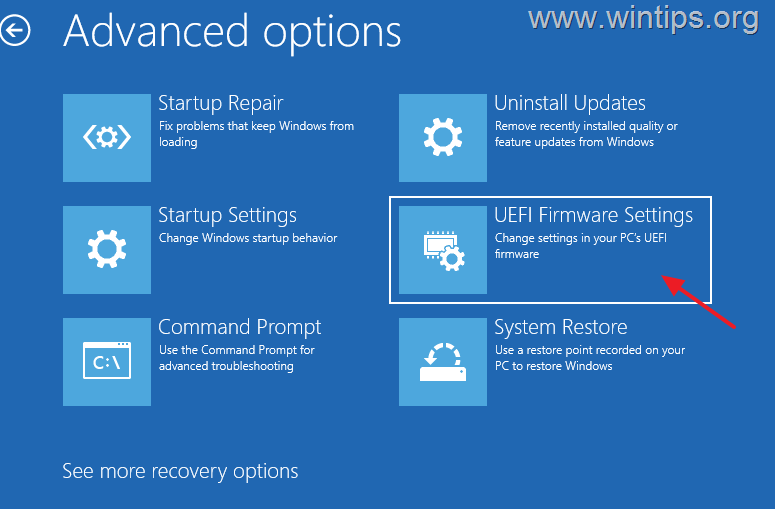
2. Then select Troubleshoot -> Advanced options -> UEFI Firmware Settings and select Restart.
3. Navigate to the System Configuration tab, select Boot Options.

4. In Boot options, Change Secure Boot and select Enabled. *
* Note: If you can't find the Secure Boot option here, go to the manufacturer's support website for guidance. (The BIOS/UEFI firmware settings varies among difference computer manufacturers)

5. Save and Exit from BIOS Settings.
6. Restart the PC and open System Information (msinfo.exe), to verify that Secure Boot is On now.
Part 2. Convert DISK to GPT & Enable UEFI and Secure Boot.
As mentioned at the beginning of this article, secure boot is only supported on modern computers where the boot mode of the computer is set to UEFI and the partition table is GPT.
So, if your computer's boot mode is set to Legacy and the partition table is MBR (Case B), then to enable secure boot, you must first convert the partition schema from MBR to GPT, and then switch from Legacy boot mode to UEFI boot mode.*
* Warning: Before you continue to the steps below, backup your data, to avoid data loss if something goes wrong, and ensure that your device supports UEFI (see step-2 above).
Step 1. Ensure that the current Partition Style is MBR.
Before you convert the partition scheme, first ensure that the partition style on your main disk is MBR and NOT GPT.
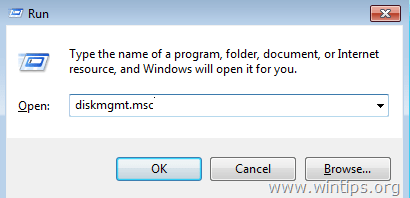
1. Press the Windows  + R keys to load the Run dialog box.
2. Type diskmgmt.msc and press Enter.
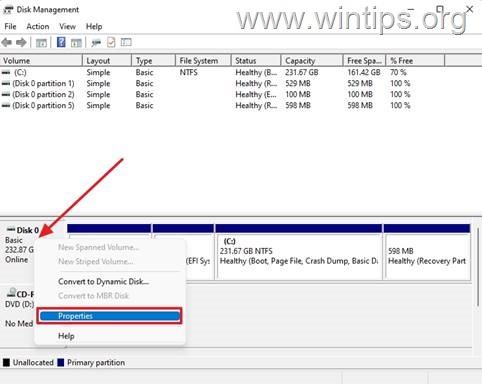
3. Right-click the drive with Windows OS and select Properties.
4. Select the Volumes tab.
5. Now look at the "Partition style" and make sure it is Master Boot Record (MBR). *
* Note: If the Partition style states GUID Partition Table (GPT), you don’t need to proceed to further. Just follow the instructions on Part-1 above to enable the Secure Boot in BIOS.
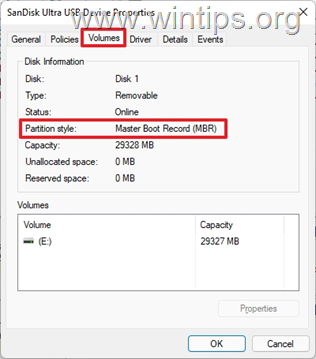
6. Once you confirm that the partition style is "MBR", proceed to step-2 below to convert the partition style to GPT.
Step 2. Convert MBR partition style to GPT.
Windows Creator Update (1703) or later allows you to convert the partition scheme without losing data. Microsoft designed the MBR2GPT.exe tool for easy conversion and data retention. However, it is safer to convert the partition scheme when Windows is Offline (not running). To do that:
1. Hold down the Shift key and from the Power icon  select Restart to boot your system in Windows Recovery Environment (WinRE).

2. Then go to Troubleshoot -> Advanced options -> Command Prompt. (If asked choose an administrator account and type its password to proceed).
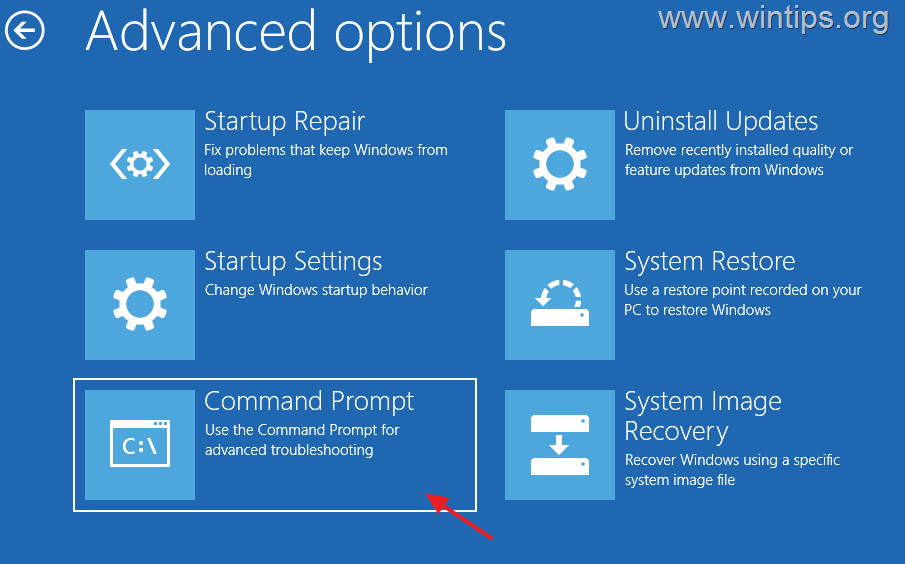
3. Type the command below to convert the disk from MBR to GPT and hit Enter:
- mbr2gpt /convert
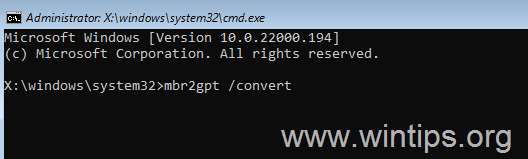
4. When the process completes, close command prompt and shut down the PC.
5. Proceed to step-3 below.
Step 3. Enable UEFI and Secure Boot in BIOS/UEFI firmware settings.
After converting the partition style from MBR to GPT, the computer will not be able to boot normally until the PC boot mode is changed from Legacy to UEFI. So, proceed as follows before booting to Windows.
1. As soon as you turn ON the PC, press the DEL or F2, F10, F12 keys to get into the BIOS/UEFI Firmware Settings. (For more specific details on how to get into BIOS settings, visit your computer’s manufacturer support website).
2. Navigate to the System Configuration tab and select Boot Options.
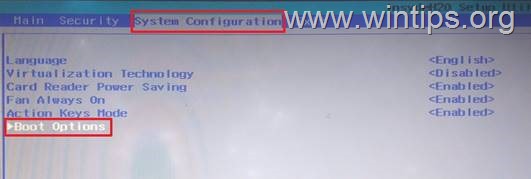
3. In Boot options, apply the follow actions:
a. Set the Legacy Support to UEFI or Disabled (This will automatically enable UEFI)
b. Change the Secure Boot to Enabled. *
* Note: If you can't find the Secure Boot option here, go to the manufacturer's support website for guidance. (The BIOS/UEFI firmware settings varies among difference computer manufacturers)

4. Save and Exit from BIOS Settings.
5. Boot to Windows and check in System Information to be sure that secure boot is ON. You will also notice that BIOS Mode is UEFI.

6. At this point you can proceed to upgrade your device to Windows 11, if that was the goal you wanted to achieve with these changes.
That's it! Let me know if this guide has helped you by leaving your comment about your experience. Please like and share this guide to help others.


- Remote Desktop (RDP/RDS) Stops Working After September 2026 Windows Update: How to Fix - September 15, 2026
- Windows 11 KB5124008 Causes No Sound or USB Audio Code 10: How to Fix - September 14, 2026
- Copilot Missing or Grayed Out in Outlook: How to Fix - September 10, 2026





January 7, 2026 @ 10:57 pm
Thanks for this great guide to finally work out how to get the secure boot working properly!
December 7, 2025 @ 12:13 am
I have been struggling with this and asus and you've just solved it for me thank you so much!!! love your clear easy instruction!!
June 3, 2025 @ 8:41 am
Excellent guide.. worked perfectly. Thank you.
May 24, 2025 @ 4:15 pm
Brilliant guide. Been stuck on this issue for some time. Gave up on updating to Windows 11 a few times and now finally the problem is sorted! Much appreciated!
November 26, 2024 @ 7:07 pm
Not able to convert from MBR to GPT in the command prompt. The following message is displayed:
MBR2GPT: Attempting to convert disk 0
MBR2GPT: Retrieving layout of disk
MBR2GPT: Validating layout, disk sector size is: 512 bytes
Disk layout validation failed for disk 0
Is there a way around this obstacle. Any help will be greatly appreciated.
November 27, 2024 @ 9:49 am
Read this thread to fix the problem: https://techcommunity.microsoft.com/discussions/windows10space/mbr2gpt-disk-layout-validation-failed/175166
November 14, 2024 @ 8:56 am
I have been struggling with this for years. This was the first article that explained it clearly. All i had to do was convert the MBR to GPT! now i can get windows 11! I was considering buying a new motherboard becuase i thought it was the MOBO!
April 13, 2024 @ 9:18 pm
Very well written. Clear instructions. Couldn't have done it without you!
December 3, 2023 @ 1:19 am
This was very useful! Thank you
August 29, 2023 @ 4:20 am
Secure boot has 4 requirements for Compatibility with windows 11. Many PC users are neglecting one aspect that Microsoft and the tech community do not talk about. You can implement all requirements and still realize that your PC is not booting or you cannot even access the bios to revert things back and give up on windows 11.
The problem, as I had to deal with it is hardware incompatibility, particularly your graphic card that refuse to accept secure boot. The culprit was the Sapphire Radeon R9-290, not the R9-290X. I own both. the later works just fine.
May 25, 2023 @ 6:42 am
Beautiful!! Clear, concise, effective. Now my new (to me) ASUS X99 WS-E/10G is out of legacy mode and Secure boot is on. Thank you for your informative post.
August 24, 2022 @ 7:29 pm
Excellent guide. Thank You.
July 14, 2022 @ 7:41 am
Amazing help!! Very detailed and useful.
Thank you!
June 4, 2022 @ 5:51 pm
Thank you for this, it helped.
May 30, 2022 @ 9:40 am
Interesting.
My ASUS X570/Windows 11 computer shows in msinfo Secureboot:Off and in msinfo32 Secureboot:On