
FIX: Outlook Cannot display the folder. Out of memory or system resources.
This guide contains step-by-step instructions to troubleshoot the Microsoft Outlook error "Cannot display the folder. Out of memory or system resources. Close some windows or programs and try again".
The "folder cannot be displayed" error message in Outlook can occur for a number of reasons, affecting users' ability to open and view their emails or the contents of a certain folder in Microsoft Outlook. Here are some of the main causes of this error:
- Oversized PST or OST file (>50GB).
- Corrupted PST or OST file.
- Not enough free memory

How to fix: Outlook Out of Memory or System resources to Display folder.
- Increase Outlook data file limit.
- Repair Outlook data file.
- Reset Outlook navigation pane.
- Increase available memory for Outlook.
- Repair or Reinstall Microsoft Office.
Method 1. Increase the maximum allowed size of the Outlook data file.
In all versions of Microsoft Outlook there is a size limit of 50GB in the Outlook data file (PST or OST).
This practically means that if the Outlook data file exceeds the 50 GB limit, Outlook will not be able to store or send new emails or will display the messages "Outlook mailbox is full" or "Cannot display the folder. Out of memory or system resources".
To bypass this problems, proceed and increase the maximum allowed file size of the Outlook PST/OST file, through Registry as described below:
Step 1. Check the Size of the Outlook Data File.
The most common when Outlook not opening, is a corrupted Outlook data file (.PST or .OST). So, proceed to scan and repair the Outlook data file errors by following the instructions below:
1. Type "control panel" in the Search and then open the Control Panel app.

2. Navigate to Control panel, set View by to Small icons, then open Mail (Microsoft Outlook).

3. At Mail Setup window click Data Files…
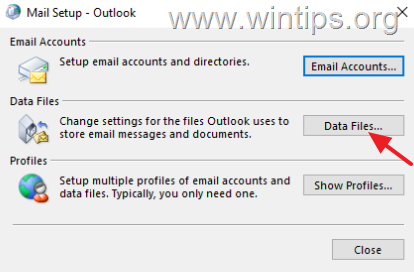
4. At Data files tab, notice the name of the Outlook data file (e.g. "Outlook.PST" or "yourusername@company.com.ost"), and click Open File Location to open its storage location on the disk.

5. Then right-click on the Outlook data file select Properties and see if its size exceeds 50 GB. If so, proceed to step-2 to increase the maximum size limit. If not, skip to Method-2 below.
Step 2. Increase Outlook PST/OST file size limit.
1. Close Outlook.
2. Open Registry editor. To do that:
1. Simultaneously press the Windows
+ R keys to open run command box.
2. In run command box, type: regedit and press Enter.

3. In Registry Editor navigate to the following location, according your Outlook version:*
- Outlook 2019, 2016: HKEY_CURRENT_USER\Software\Microsoft\Office\16.0\Outlook\PST
- Outlook 2013: HKEY_CURRENT_USER\Software\Microsoft\Office\15.0\Outlook\PST
- Outlook 2010: HKEY_CURRENT_USER\Software\Microsoft\Office\14.0\Outlook\PST
- Outlook 2007: HKEY_CURRENT_USER\Software\Microsoft\Office\12.0\Outlook\PST
* Note: If the "PST" key doesn't exist under the Outlook key, you have to create it manually. To do that:
a. Right-click on the Outlook key and from the menu that appears, choose: New > Key.
b. Give at the new key the name: PST and press Enter.

4a. Select the PST key on the left and then, right-click at an empty space on the right pane and select New > DWORD (32-bit) Value

4b. Give at the new value the name:
- MaxLargeFileSize
5. Repeat the steps 4a & 4b, and create a second DWORD value with name:
- WarnLargeFileSize
6. Now, double click at MaxLargeFileSize value, choose Decimal and in the value data type the new file size in Megabytes (MB). Click Ok when done. *
* Note: To calculate the new size in MB keep in mind that 1GB = 1024MB. *
For Example: If you want to increase the size limit of the Outlook data file from 50GB to 70GB (70 x 1024), type "71680" in the Value data box.
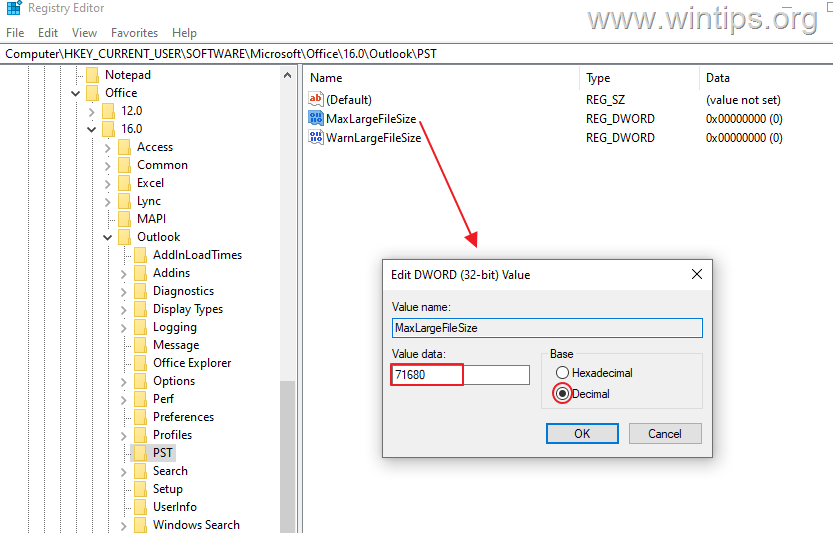
7. Then double click at WarnLargeFileSize value, choose Decimal and in the value data, type the new warning file size in Megabytes (MB), considering that the warning file size must be 95% of the MaxLargeFileSize value you specified above.
For example: If the value of MaxLargeFileSize is 71680, then the WarnLargeFileSize value must be: 71680 x 95% = "68096"

8. Close Registry Editor.
9. Open Outlook and and check if the problem persists.
Method 2. Repair or Recreate the Outlook Data File.
If the Outlook PST/OST data file is corrupted then you might get the error "Cannot display the folder. Out of memory or system resources" in Microsoft Outlook. To deal with this problem proceed and repair or rebuild the Outlook data file, according your account type (POP3, IMAP, Exchange, O365, etc.)
1. Close Microsoft Outlook.
2. Follow the instructions in Step-1 above to find out the file location of the Outlook data file (PST or OST). Then proceed as follows, according the account type:
Α. If you have an Exchange, Office 365, Gmail or Outlook.com email account:
-
- Delete or rename the Outlook .OST file (eg from "yourusername@company.com.ost" to "yourusername@company.com.ost.BAK").
- Then open Outlook and wait for Outlook to re-download all your emails from the mail server and rebuild the .OST file.
- When this done, check if the problem persists and if so, skip to next method.
B. If you own a POP3 or IMAP email account: Continue below to repair the corrupted PST file using the Inbox Repair Tool (SCANPST.EXE).
3. Open File Explorer and depending on your installed version of Office & Windows, navigate to the location listed below to find and open the SCANPST.EXE tool:
Office 365, Office 2019 & Outlook 2016 Click to Run versions:
- C:\Program Files\Microsoft Office\root\office16\
Outlook 2019, 2016 (32-bit) & Windows (32-bit):
- C:\Program Files\Microsoft Office\root\Office16\
Outlook 2019, 2016 (32-bit) & Windows (64-bit):
- C:\Program Files (x86)\Microsoft Office\root\Office16\
Outlook 2019, 2016 (64bit) & Windows (64bit):
C:\Program Files\Microsoft Office\root\Office16\
Outlook 2013 (32bit) & Windows (32bit):
- C:\Program Files\Microsoft Office\Office15
Outlook 2013 (32bit) & Windows (64bit):
- C:\Program Files (x86)\Microsoft Office\Office15
Outlook 2013 (64bit) & Windows (64bit):
- C:\Program Files\Microsoft Office\Office15
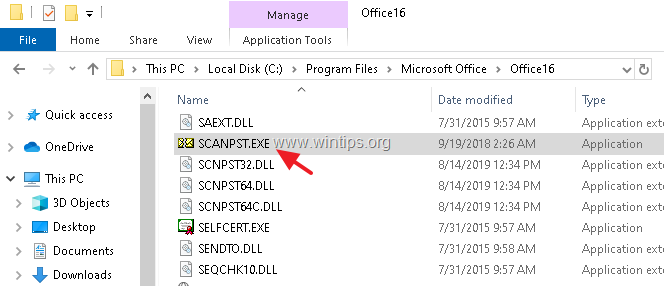
5. At 'Microsoft Outlook Inbox Repair tool', click Browse and select the Outlook .PST (or .OST) file from the location you noticed above. (If you don't see the outlook data file in the location you noticed, enable hidden files).
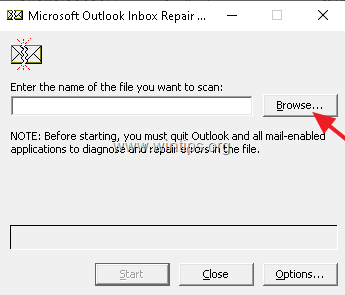
6. Finally, click the Start button to start the repairing process.

7. Now wait the repair process to complete. *
* Note: At the final repair phase, you will be asked if you want to create a backup. Click Yes if you have enough free space on the disk, otherwise click No.
8. When the repair process is completed, close the Inbox Repair Tool utility.
9. Launch Outlook and check if the problem persists.
Method 3. Reset Outlook Navigation Pane.
The navigation pane is the left pane in Outlook where you can find all Outlook E-mail folders and your Calendar, Contacts, Tasks, etc. If the navigation pane's settings become corrupted, then Outlook is unable to display the contents of a folder. To fix the issue:
1. Close Outlook.
2. Simultaneously press the Windows  + R keys to open run command box.
3. Type the below command to reset the Outlook navigation pane and press Enter:
- outlook.exe /resetnavpane

4. Check if the problem persists.
Method 4. Increase the available memory for Outlook.
As you can understand from the error message, the mentioned issue occurs because there are not enough memory resources to display the folder. This can be due to various reasons, such as customizations on the Outlook program, add-ins, or due to a large number of folders and messages.
So, another method to overcome this issue, is to increase the available memory for Outlook through Registry. (Source)
1. Close Outlook.
2. Open Registry editor. To do that:
1. Simultaneously press the Windows
2. In run command box, type: regedit and press Enter.

3. In Registry Editor navigate to the following location:
HKEY_LOCAL_MACHINE\SOFTWARE\Microsoft\Windows Messaging Subsystem
4a. Right-click on the Windows Messaging Subsystem key and select New > DWORD (32-bit) Value.

4b. Rename the "New Value#1" to "SharedMemMaxSize"
4c. Open the newly created DWORD and type "300000" in the value data box.

5a. Now right-click on the Windows Messaging Subsystem key on the left pane and select New > Key

5b. Rename the "New key#1" to "Applications"
5c. Then right-click on Applications key and select New > Key again.
5d. Rename the "New key#1" to "Outlook"
6a. Then, right-click on Outlook key and select New > DWORD (32-bit) Value.
6b. Rename the "New Value#1" to "SharedMemMaxSize"
6c. Finally, open the SharedMemMaxSize DWORD, type "300000" in the Value data box and click OK.

8. Close Registry Editor.
9. Open Outlook and and check if the problem persists.
Method 5: Repair or Reinstall Microsoft Office.
If none of the above methods helped to resolve the above issue, try repair or reinstall MS OFFICE.
1. Simultaneously press the Windows + R keys to open run command box.
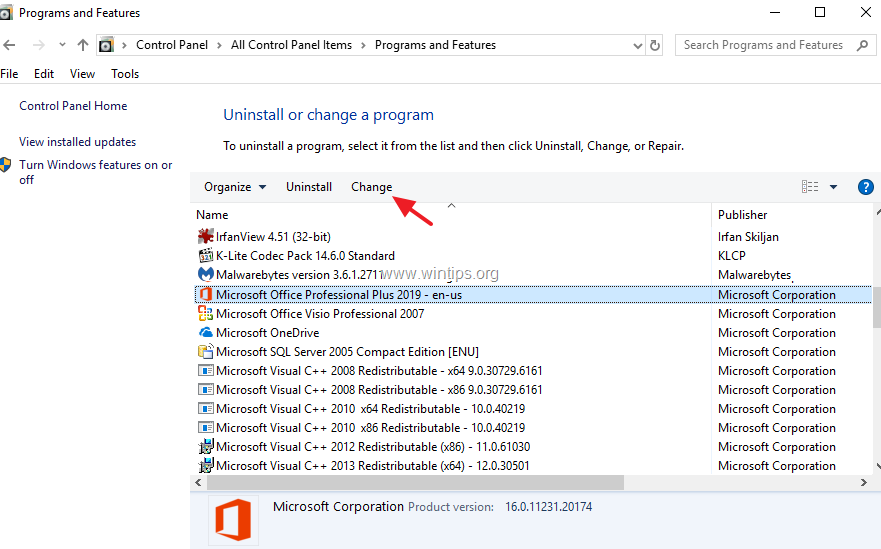
2. In run command box, type: appwiz.cpl and press Enter.

3. In Programs and features, select the Office version you have installed, and click Change.
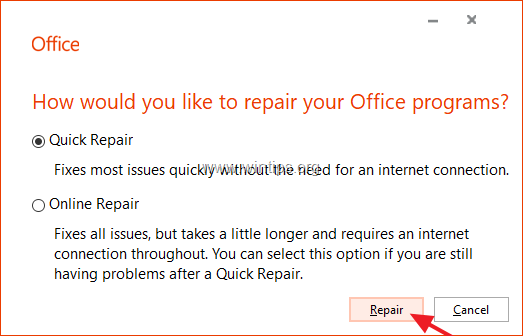
4. Leave the Quick Repair option selected and click Repair.
*Note: Quick Repair scans, and replaces damaged files with new ones. The process is fast and does not require an internet connection, while Online Repair requires an internet connection and it takes longer to complete. If Quick Repair cannot fix the problem try Online Repair.
5. After repairing Office, open Outlook and check if the issue persists. If yes, proceed to complete uninstall and reinstall Microsoft Office.
That's it! What worked for you?
Let me know if this guide has helped you by leaving your comment about your experience. Please like and share this guide to help others.
Frequently Asked Questions
What is the 'Cannot display the folder' error in Microsoft Outlook?
This error message in Outlook can occur due to oversized or corrupted data files, or insufficient system memory, preventing users from opening and viewing their emails or folder contents.
How can I increase the maximum allowed size of Outlook data files?
You can increase the size limit through the Registry Editor. Navigate to the relevant PST sub-key based on your Outlook version and create/modify 'MaxLargeFileSize' and 'WarnLargeFileSize' DWORD values to adjust the file size limits.
What steps should I take if my Outlook data file exceeds 50GB?
If the file exceeds 50GB, you should increase the size limit by accessing the Registry Editor and modifying values for 'MaxLargeFileSize' and 'WarnLargeFileSize' under the PST registry key.
How do I check the size of my Outlook data file?
Open the Control Panel, select Mail (Microsoft Outlook), go to Data Files, and then click Open File Location. Right-click the file, select Properties, and check the size to see if it exceeds 50GB.


- Remote Desktop (RDP/RDS) Stops Working After September 2026 Windows Update: How to Fix - September 15, 2026
- Windows 11 KB5124008 Causes No Sound or USB Audio Code 10: How to Fix - September 14, 2026
- Copilot Missing or Grayed Out in Outlook: How to Fix - September 10, 2026



