How to Sync Outlook.com and Outlook 365 Contacts to Your iPhone Contacts App
If you want to sync all Outlook.com contacts or Outlook 365 contacts (Microsoft 365) to the native Contacts app on your iPhone device, then this guide is for you.
Scenario: You want the Outlook Contacts of your personal or corporate Microsoft account to be synced to your iPhone Contacts. Saving Outlook contacts to your iOS device gives you flexibility because you'll always have your contact list on your iPhone up-to-date, just like on your computer, even if you're offline.
How to Synchronize Outlook Contacts to iPhone Contact List
* Note: If you're an Administrator of a Microsoft 365 tenant and want the Microsoft 365 Outlook contacts of any account on the tenant to be automatically synced and stored in the native Contacts app on their managed iPhone device, see this article: How to Automatically Sync M365 Outlook Contacts to Managed iOS devices with Exchange Active Sync.
How to Sync Outlook.com Contacts of Your Personal Microsoft Account to iPhone
To sync the Outlook contacts from your personal Microsoft account to iOS contacts:
1. On the iPhone, go to Settings > Apps > Contacts
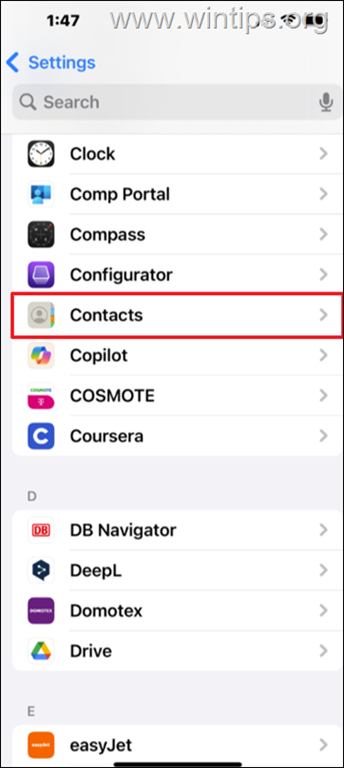
2. Tap on Contacts accounts
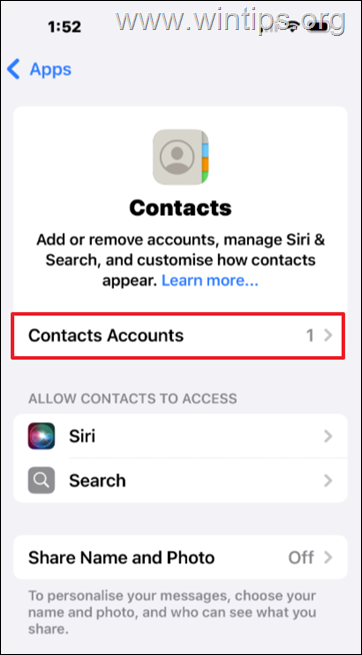
3. Tap Add Account
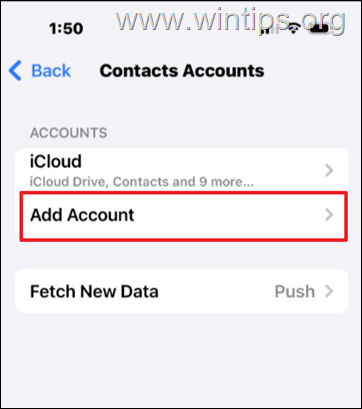
4. Tap Outlook.com
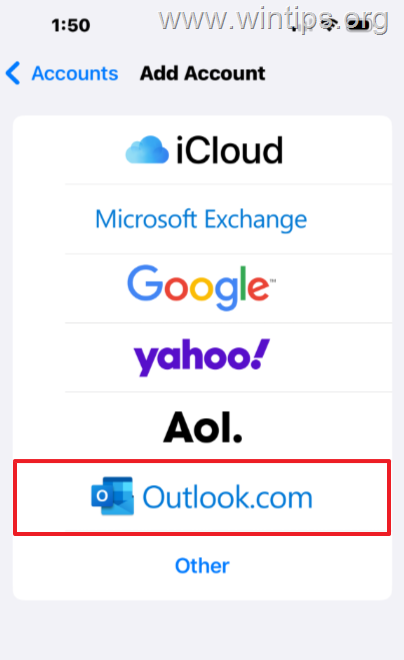
5. Enter your Microsoft Account credentials and sign in.
6. At the last step, ensure that the Contacts toggle is turned ON and click Save.
7. Now open the Contacts app on your iPhone and you should see all your Outlook contacts there.
How to Sync Outlook 365 Contacts of Your Microsoft 365 Work or School Account to iPhone Contact List
To sync the Outlook Contacts of a Microsoft 365 account to iPhone Contacts app:
1. On the iPhone, go to Settings > Apps > Contacts > Contacts accounts > Add account.
2. Tap Microsoft Exchange
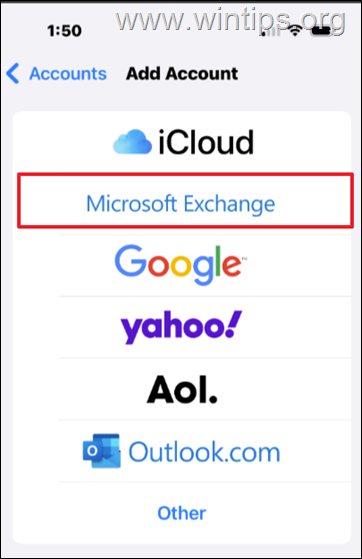
3. Type your Microsoft 365 account credentials & tap Next to sign in.
4. At the last step, ensure that the Contacts toggle is turned ON and click Save.
5. Now open the Contacts app on your iPhone and you should see all your Outlook 365 contacts there.
Additional Methods for Syncing Outlook Contacts
Besides the above methods, you can also use the Outlook app for iOS to sync contacts. Simply download the Outlook app from the App Store, log in with your account, and enable contact sync in the app settings. This method ensures that your contacts are always updated in real-time.
Another approach is to use iCloud to sync contacts. Export your Outlook contacts to a .vcf file and import them to iCloud, which will then sync with your iPhone. This method is useful if you prefer not to connect your Outlook account directly to your iPhone.
Summary
Syncing your Outlook.com or Outlook 365 contacts to your iPhone is a straightforward process that ensures your contact list is always up-to-date. Whether using the native iOS settings, the Outlook app, or iCloud, you have multiple options to keep your contacts synchronized across devices. Choose the method that best suits your needs and enjoy seamless contact management.
That's it! Let me know if this guide has helped you by leaving your comment about your experience. Please like and share this guide to help others.
Frequently Asked Questions
How can I sync my Outlook.com contacts with my iPhone?
To sync your Outlook.com contacts with your iPhone, go to Settings > Apps > Contacts > Contacts accounts > Add Account. Select Outlook.com, enter your Microsoft Account credentials, ensure the Contacts toggle is ON, and click Save. Open the Contacts app to view your synced contacts.
What's the process for syncing Microsoft 365 Outlook contacts to an iPhone?
To sync Outlook contacts from a Microsoft 365 account, navigate to Settings > Apps > Contacts > Contacts accounts > Add account on your iPhone. Select Microsoft Exchange, enter your Microsoft 365 credentials, and ensure the Contacts toggle is ON. Open the Contacts app to see your Outlook 365 contacts.
Are there alternative methods to sync Outlook contacts with an iPhone?
Yes, you can use the Outlook app for iOS to sync contacts by downloading the app from the App Store, logging in, and enabling contact sync in the app settings. Alternatively, export contacts as a .vcf file and import them to iCloud for syncing.
What are the benefits of syncing Outlook contacts to my iPhone?
Syncing your Outlook contacts ensures your contact list is always up-to-date on your iPhone, providing flexibility and accessibility whether you're online or offline.
Still having trouble fixing this issue?
💬 Get WinTips Remote Support →

- How to Fix SecurityHealthSystray.exe – Bad Image Error (0xc000012f) on Windows 11. - October 26, 2026
- FIX: Windows Hello for Business PIN error 'Your credentials could not be verified' with 'status: 0xc000005e substatus: 0x0' or 'status: 0xc0000bb, substatus: 0x0'. - October 20, 2026
- FIX: This Device Is Already Set Up in Another Organization in Company Portal or During Intune Enrollment - October 13, 2026