How to Configure Windows Hello for Business Cloud Trust in a Hybrid Environment.
In this comprehensive guide, you’ll learn how to configure Windows Hello for Business with Cloud Kerberos Trust for a hybrid setup.
Windows Hello for Business (WHfB) with Cloud Kerberos Trust, often referred to as Cloud Trust, is a modern, passwordless authentication solution that enables seamless Single Sign-On (SSO) across hybrid identity environments. This solution allows users to authenticate to on-premises Active Directory resources using their Windows Hello for Business PIN or biometrics, without needing to enter their password.
Cloud Kerberos Trust provides a simpler alternative to older Windows Hello for Business deployment models, such as Key Trust and Certificate Trust. It eliminates the need for an internal Public Key Infrastructure (PKI) required by Certificate Trust and avoids the public key synchronization requirements associated with Key Trust. This simplifies deployment and authentication while reducing complexity and potential points of failure in hybrid environments.
How Cloud Kerberos Trust Works
- The user signs in to a Microsoft Entra hybrid joined Windows device using Windows Hello for Business, such as a PIN or biometric gesture (fingerprint).
- As part of the Microsoft Entra authentication process, the device obtains a Primary Refresh Token (PRT).
- Microsoft Entra ID uses the Azure AD Kerberos server object associated with the user's on-premises Active Directory domain to issue a partial Kerberos Ticket Granting Ticket (TGT). This partial TGT contains the user's SID but does not include the full authorization data normally provided by an on-premises Active Directory Domain Controller.
- The partial TGT is returned to the client as part of the authentication process.
- When the client needs to access an on-premises Active Directory resource, it contacts an on-premises Domain Controller and presents the partial TGT.
- The Domain Controller validates the partial TGT and issues a full Kerberos TGT containing the necessary authorization information, including the user's group memberships.
- With a Microsoft Entra Primary Refresh Token (PRT) for cloud authentication and a full Active Directory Kerberos TGT for on-premises authentication, the user can seamlessly access both cloud-based and on-premises resources through Single Sign-On.
How to Set Up & Deploy Cloud Kerberos Trust for Windows Hello for Business in a Hybrid Deployment
Requirements:
- Local Active Directory Users & Devices synchronized with Microsoft Entra Connect Sync (AzureAD Connect) to Microsoft Entra ID
- Windows 10/11 Entra Joined or Hybrid Joined devices.
- Windows Server 2016 Domain or Later.
- Windows Server 2012R2 domain and forest functional level.
- Domain Admin credentials.
- Microsoft 365 Global Admin credentials.
Step 1. Ensure that Domain & Forest Functional Levels is "Windows Server 2012R" or later.
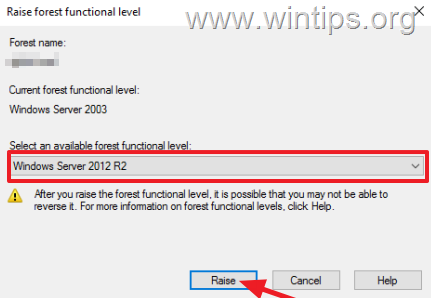
To deploy Cloud Kerberos Trust, the Domain & Forest Functional Levels must be 2012R or later. To verify or upgrade the functional levels, follow these steps:
To Raise (Upgrade) the Domain Functional Level:
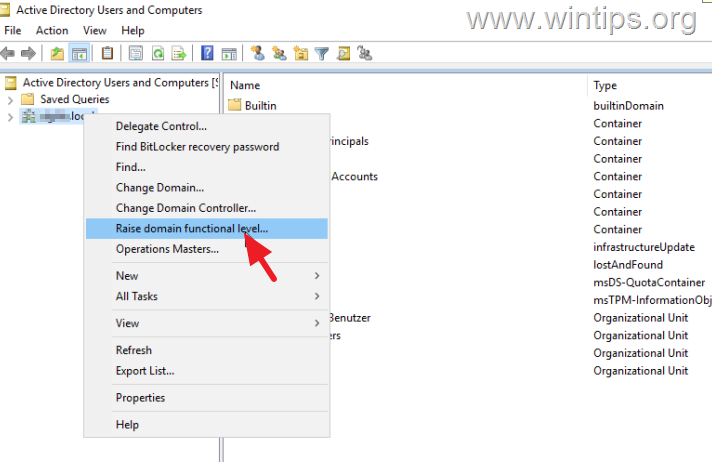
1. Open Active Directory Users and Computers.
2. Right-click on your domain and select Raise domain functional Level
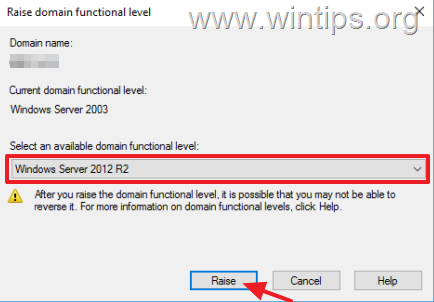
3. Check the current functional level and, if it is earlier than "Windows Server 2012 R2", raise it to that or later.
To Raise (Upgrade) the Forest Functional Level:
1. From Server Manager, open Active Directory Domain and Trusts.
2. Right-click on Active Directory Domain and Trusts and select Raise Forest functional Level
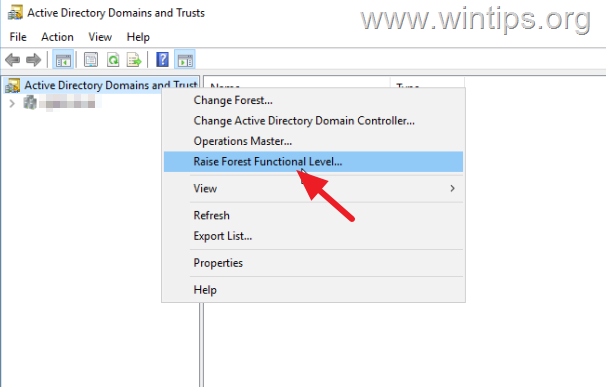
3. Check the current forest functional level and, if it is earlier than "Windows Server 2012 R2", raise it to that or later.
Step 2. Enable Cloud Kerberos Trust Authentication on Local AD*
* Note: The following instructions are based on this Microsoft article:
1. Install the "Azure AD Hybrid Authentication Management Module".
On the Active Domain Controller with the Microsoft Entra Connect service (Azure AD Connect), perform the following:
1. Open a PowerShell as administrator.
2. Copy & paste the below commands to install the AzureADHybridAuthenticationManagement module:
# First, ensure TLS 1.2 for PowerShell gallery access.
[Net.ServicePointManager]::SecurityProtocol = [Net.ServicePointManager]::SecurityProtocol -bor [Net.SecurityProtocolType]::Tls12# Ask for M365 Global Admin account
$svcGA = Read-Host -Prompt "Enter the e-mail address of the M365 Global Admin account"# Install the AzureADHybridAuthenticationManagement PowerShell module.
Install-Module -Name AzureADHybridAuthenticationManagement -AllowClobber
* Note: When prompted, type the email address of the Microsoft 365 Global Admin account and press Enter.
2. Create a New Microsoft Entra Kerberos Server in Active Directory
1. Now copy & paste the following commands to create a new Microsoft Entra Kerberos Server (aka AzureADKerberos server) in Active Directory: *
* Note: When prompted, type the name & password of the local domain administrator account.
# Specify the on-premises Active Directory domain. A new Microsoft Entra ID
# Kerberos Server object will be created in this Active Directory domain.
$domain = $env:USERDNSDOMAIN# Enter a UPN of the M365 Global Admin account
$userPrincipalName = $svcGA# Enter a Domain Administrator username and password.
$domainCred = Get-Credential# Create the new Microsoft Entra ID Kerberos Server object in Active Directory
# and then publish it to Azure Active Directory.
# Open an interactive sign-in prompt with the given username to access the Microsoft Entra ID.
Set-AzureADKerberosServer -Domain $domain -UserPrincipalName $userPrincipalName
3. Verify the Creation and Configuration of the AzureADKerberos Server
Now proceed to verify the Cloud Trust configuration on your Active Directory and then proceed to the next step.
A. To Verify the Creation of "AzureADKerberos" Server:
1. Navigate to Active Directory Users and Computers -> your-domain > Domain Controllers.
2. Here you'll see a new domain controller named "AzureADKerberos".
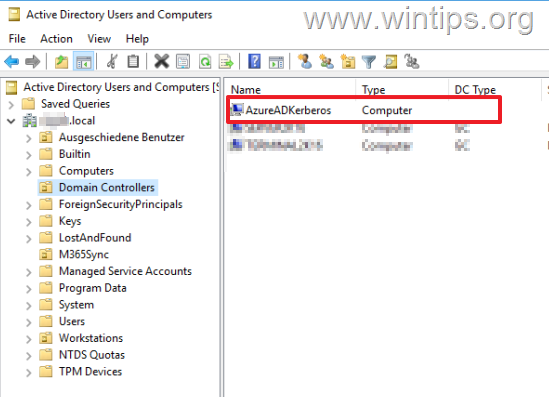
B. To Verify the Configuration of the AzureADKerberos Server:
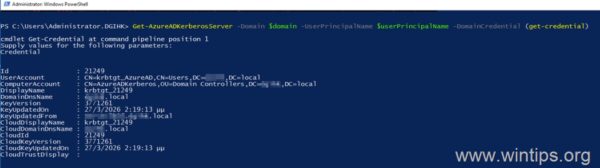
1. Give the following command in PowerShell (Admin):*
Get-AzureADKerberosServer -Domain $domain -UserPrincipalName $userPrincipalName -DomainCredential (get-credential)
* Note: When prompted, type your domain admin credentials and hit OK. Then you'll be asked for the Microsoft 365 admin credentials. Type the email address and password and accept the sign-in in the authenticator app to continue.
2. If everything is OK, you should see that the local values (e.g., ID, DomainDnsName, KeyVersion, etc.) will be identical to the corresponding cloud values (e.g., CloudId, CloudDomainDnsName, CloudKeyVersion, etc.) as in the example below:
Id : 21249
UserAccount : CN=krbtgt_AzureAD,CN=Users,DC=domain,DC=local
ComputerAccount : CN=AzureADKerberos,OU=Domain Controllers,DC=domain,DC=local
DisplayName : krbtgt_21249
DomainDnsName : domain.local
KeyVersion : 3771261
KeyUpdatedOn : 27/3/2026 2:19:13 μμ
KeyUpdatedFrom : server.domain.local
CloudDisplayName : krbtgt_21249
CloudDomainDnsName : domain.local
CloudId : 21249
CloudKeyVersion : 3771261
CloudKeyUpdatedOn : 27/3/2026 2:19:13 μμ
CloudTrustDisplay :
* Where: domain = your Local AD Domain Name & server = the Active Domain Controller where AzureADKerberos is installed on.
Step 3. Create a Policy for Windows Hello Business (WHfB) in Intune
After enabling the Cloud trust authentication on your premises AD, proceed to create a new Policy for Windows Hello for Business with Cloud Trust Enabled.
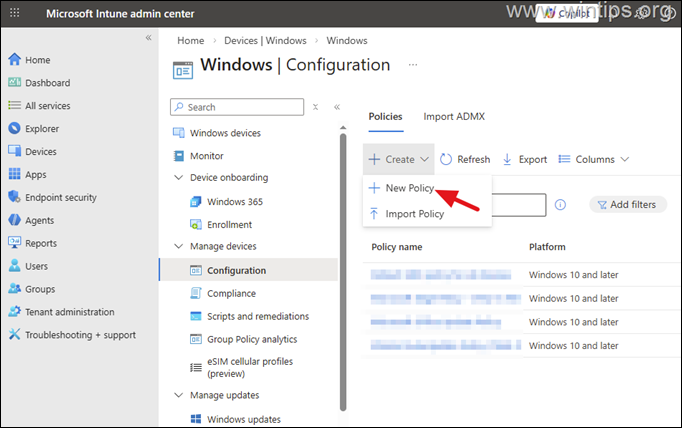
1. Navigate to Intune admin center > Devices > Windows > Configuration and click Create > New Policy.
2. In Create a profile, select:
- Platform: Windows 10 and later
- Profile type: Settings catalog
![image_thumb[12]_thumb](https://www.wintips.org/wp-content/uploads/2026/03/image_thumb12_thumb.png "image_thumb[12]_thumb")
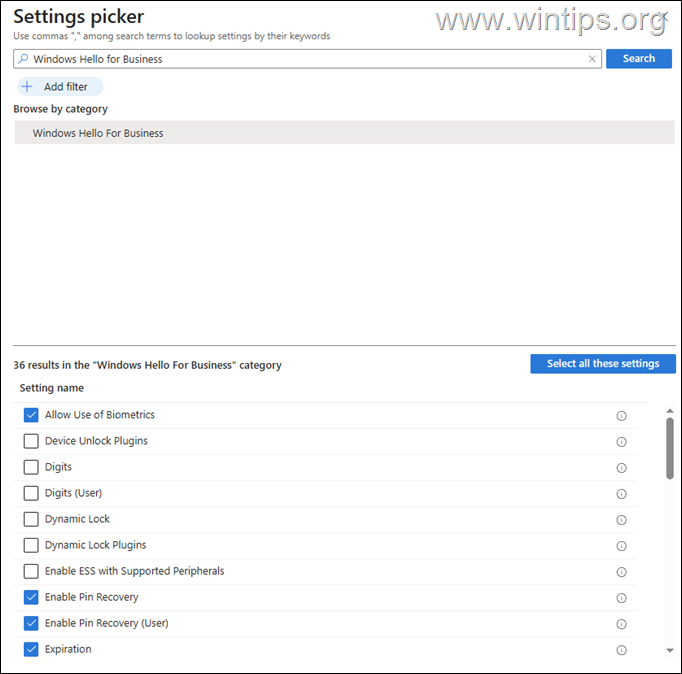
3A. In Configuration settings, click Add Settings and then in Settings picker, do the following:
1. Search for "Windows Hello for Business"
2. Then, under Browse by category, select:
- Windows Hello for Business
3. In the Setting Name section, select at least the following settings, and then close the 'Settings picker' window:
- Use Windows Hello for Business (Device)
- Require Security Device
- Allow use of Biometrics
- Enable PIN Recovery
- Enable PIN Recovery (User)
- Expiration
- Lowercase letters
- PIN History
- Maximum PIN Length
- Special Characters
- Uppercase Letters
- Use Cloud Trust For On Prem Auth
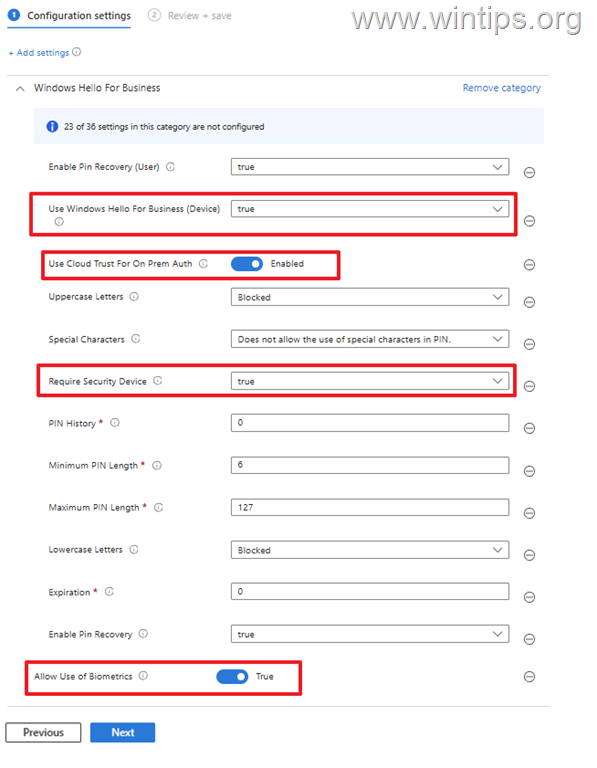
3B. Now set the following settings to "true" and then specify the PIN requirements according to your preferences.
- Allow use of Biometrics: true
- Require Security Device: true
- Use Windows Hello for Business (Device): true
- Use Cloud Trust For On Prem Auth: Enabled
5. In Scope tags, click Next.
6. On the Assignments page, click Add all devices* if you want to assign the new policy to all devices, or click Add groups and select the group with the specific users or devices* you want to assign the policy to. When done, click Next.
* Note: Since this policy applies to hybrid devices that are joined to both the on-premises domain and the Microsoft Entra ID, it is recommended that you create a separate security group with these hybrid devices and apply the policy only to that group.
![image_thumb[4]](https://www.wintips.org/wp-content/uploads/2026/03/image_thumb4.png "image_thumb[4]")
7. Finally, click Create to create and apply the new policy.
![image_thumb[6]](https://www.wintips.org/wp-content/uploads/2026/03/image_thumb6.png "image_thumb[6]")
7. Wait a few moments for the policy to be applied to the devices, periodically checking the progress/status of the implementation, and then continue to the next step.
Step 4: Enroll Users in Windows Hello for Business
1. Ensure that the Intune Windows Hello for Business Policy is applied to devices.
2. Restart the device on which you want the user to set a Windows Hello for Business PIN or/and biometrics.
3. After the user signs in, ask them to select OK to the "Use Windows Hello with your account" prompt.*
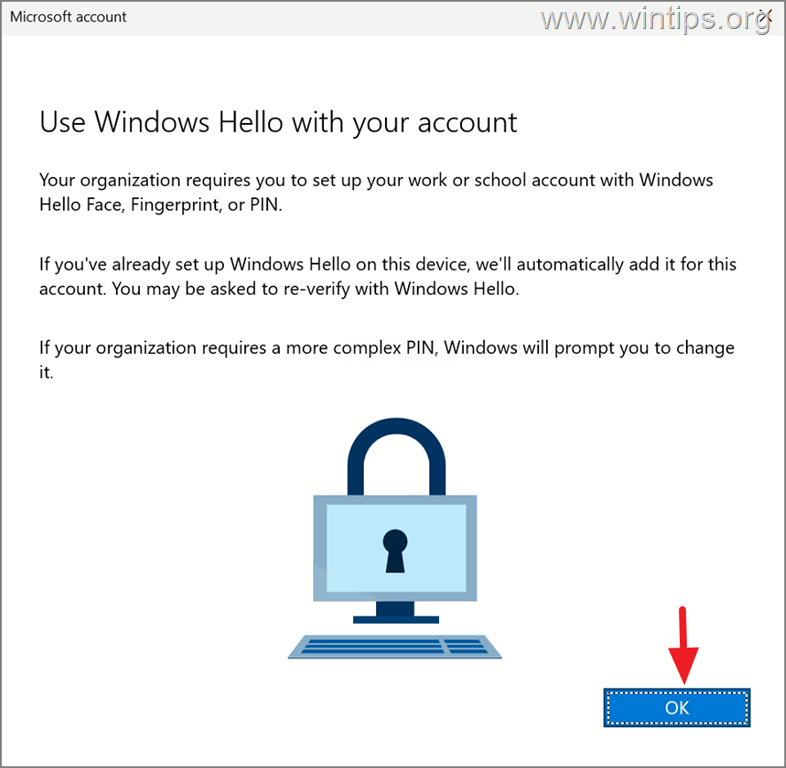
* Note: If this does not happen, ask the user to go to Start > Settings > Accounts > Sign-in options > PIN (Windows Hello) > Setup
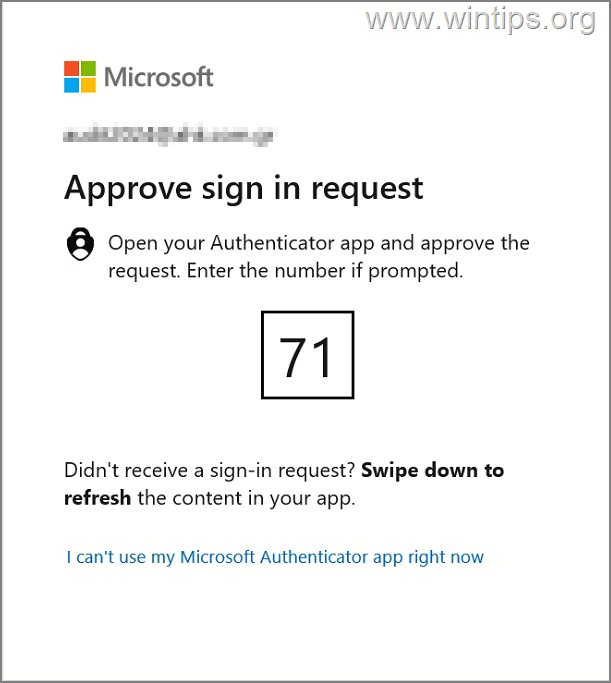
4. Next, ask them to complete the MFA request by entering the number displayed on their screen into the Authenticator app on their phone.
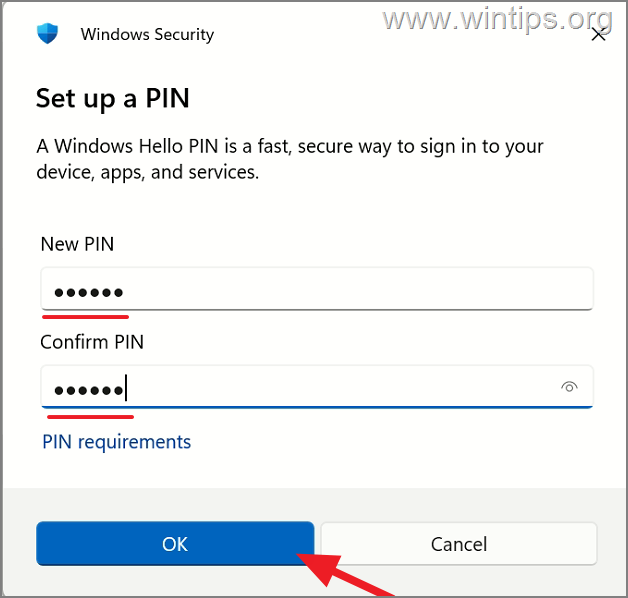
5. After the successful MFA, prompt the user to set and validate a PIN according to the PIN requirements you have specified in the Windows Hello for Business policy and click OK.*
Additional Help & Info:
A. If after setting the PIN the user cannot sign in with the PIN, due to an error "This option is currently unavailable", do the following:
1. When logging in with a PIN for the first time, the device must have connectivity to the domain controller, either locally or via VPN. (After the first time, the user can sign in with PIN without contacting a DC)
2. Ensure that the WHfB policy is applied to the device, and then wait at least 30 minutes for Microsoft Entra Connect (AzureAd Connect) to sync the changes, before trying to login with the PIN again.
3. If the problem persists, proceed and enable the Convenience PIN sign-in* in your local domain policy, run gpupdate/force on both sides (the PDC & the device), and then restart the device and try to login using the PIN:*
- Computer Configuration -> Policies -> Administrative Templates -> System -> Logon
- Turn on Convenience PIN sign-in: Enabled
* Note: This should not normally be necessary, but in some installations, this fixes the problem.
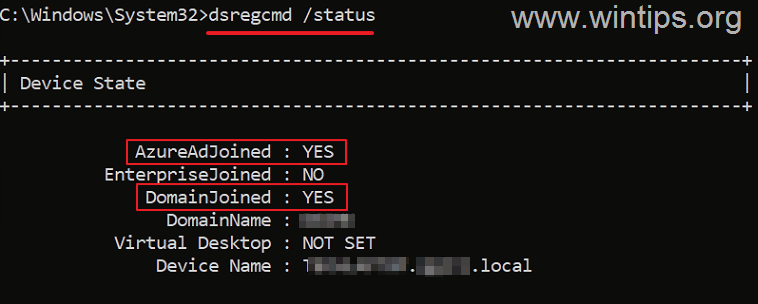
B. For Windows Hello Business with Cloud Trust to work, the device must be hybrid joined in Entra ID and has a Primary Refresh Token (PRT) issued by Microsoft Entra ID. To verify this:
1. Run the below command as administrator:
dsregcmd /status
2. Under Device state, verify that the device is AzureAdJoined & DomainJoined.
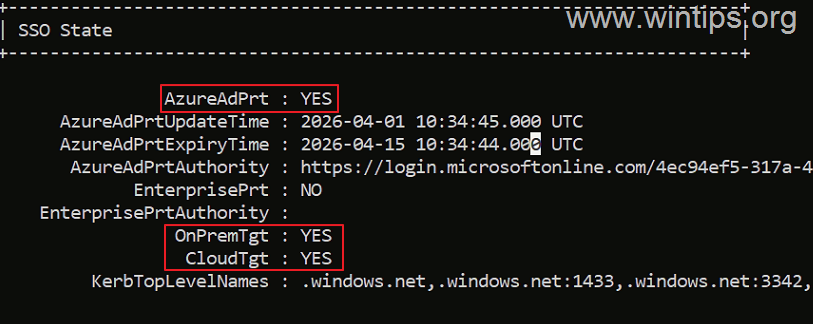
3. Then under the SSO State, ensure that the AzureAdPrt, OnPremTgt & CloudTGT states = YES.
C. The encryption keys for the AzureADKerberos server (aka "Microsoft Entra Kerberos server") should be rotated periodically to maintain security.
Summary
Setting up Windows Hello for Business with Cloud Kerberos Trust in a hybrid environment involves ensuring the correct domain and forest functional levels, enabling Cloud Kerberos Trust on your local Active Directory, and creating a policy in Intune for Windows Hello for Business. Additionally, verifying the setup with PowerShell commands and ensuring proper device enrollment are crucial steps.
That's it! Let me know if this guide has helped you by leaving your comment about your experience. Please like and share this guide to help others.
Frequently Asked Questions
What is Windows Hello for Business with Cloud Kerberos Trust?
Windows Hello for Business with Cloud Kerberos Trust is a modern, passwordless authentication solution that offers seamless Single Sign-On (SSO) across hybrid identity environments, allowing users to authenticate to both cloud-based and on-premises Active Directory resources using a PIN or biometrics.
How does Cloud Kerberos Trust differ from other Windows Hello for Business models?
Cloud Kerberos Trust simplifies deployment compared to other models like Key Trust and Certificate Trust by eliminating the need for an internal PKI and public key synchronization, reducing complexity and potential failure points.
What are the basic requirements for deploying Cloud Kerberos Trust?
To deploy Cloud Kerberos Trust, you need synchronized Local Active Directory Users & Devices with Microsoft Entra ID, Windows 10/11 Entra or Hybrid Joined devices, Windows Server 2016 Domain or later, and appropriate admin credentials.
What steps are involved in setting up Cloud Kerberos Trust?
Setting up Cloud Kerberos Trust involves ensuring the domain and forest functional levels are 'Windows Server 2012 R2' or later, enabling Cloud Kerberos Trust authentication on local AD, and possibly raising the domain and forest functional levels if needed.
Still having trouble fixing this issue?
💬 Get WinTips Remote Support →

- FIX: Windows Hello for Business PIN error 'Your credentials could not be verified' with 'status: 0xc000005e substatus: 0x0' or 'status: 0xc0000bb, substatus: 0x0'. - October 20, 2026
- FIX: This Device Is Already Set Up in Another Organization in Company Portal or During Intune Enrollment - October 13, 2026
- Windows Update Uninstall Failed with Error 0x800F0825: How to Fix - October 7, 2026