Fix Dell Random Shutdowns, Overheating and Intel IPF Errors after installing KB5095093 on Windows 11.
If your Dell computer started shutting down unexpectedly, overheating, draining the battery faster than usual, or showing an error for Intel Innovation Platform Framework Processor Participant driver after installing KB5095093 Windows update, then continue reading below to fix the issue.
Microsoft confirmed that a compatibility problem between the Intel Innovation Platform Framework (Intel IPF) driver and a new Windows USB-C Connection Manager interface introduced in the June 2026 preview update could affect a limited number of Dell computers running Windows 11 versions 24H2 and 25H2. The issue has been resolved by KB5121767,* an out-of-band cumulative update, and all later cumulative updates.
* NOTE: This update, as Microsoft sates, addresses an issue affecting a limited number of devices with an Intel Innovation Platform Framework (Intel IPF) driver that could cause changes in performance, power consumption, or system behavior after installing recent Windows updates
In this guide, you'll learn how to determine whether your Dell PC matches the documented issue, install the correct update, and verify that the problem has been resolved.*
* IMPORTANT: Microsoft recommends KB5121767 only for devices affected by this compatibility issue. If your Dell computer is not experiencing the documented symptoms, no immediate action is required.
How to Check Whether Your Dell PC Is Affected
Before installing the KB5121767 update, confirm that your computer is running Windows 11 version 24H2 or 25H2 and that the symptoms listed below began after you installed the June 23, 2026 preview update KB5095093.
- Device Manager displays a warning for the Intel Innovation Platform Framework Processor Participant.
- The computer experiences one or more of the following symptoms:
-
- Unexpected shutdowns
- Poor performance
- Increased power consumption
- Excessive heat
- Faster battery drain
- Other unusual system behavior
*Note: Microsoft states that only a limited number of Dell devices are affected. The company has not published a complete list of affected models or Intel driver versions.
Step 1. Check Your Windows 11 Version/Build.
The first step to verify that your DELL computer is affected, is to check the installed Windows 11 version and build number.
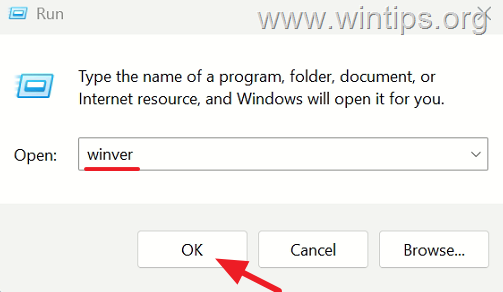
1. Press Windows + R to open the 'Run' command box.
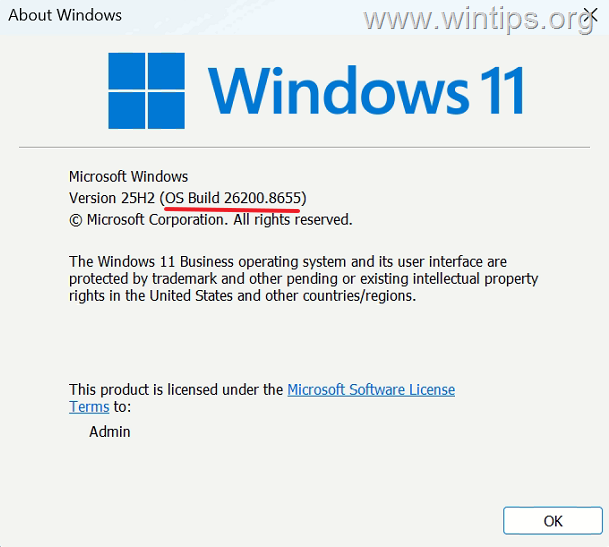
2. Type winver and click OK.
3. Depending on your Windows 11 version (25H2 or 24H2), check whether your device is running one of the following OS builds after installing KB5095093:
- Windows 11 version 25H2: OS Build 26200.8737
- Windows 11 version 24H2: OS Build 26100.8737
4. If your computer is running a different version or OS build, as shown in the screenshot below, this specific issue may not apply to your device.
Step 2. Check for the Intel IPF Warning
The strongest indicator of this issue is a warning beside the Intel IPF device in Device Manager.
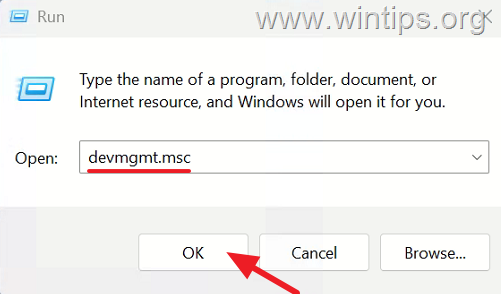
1. Press Windows + R to open the 'Run' command box.
2. Type devmgmt.msc and click OK.
3. Expand System devices.
4. Locate the Intel Innovation Platform Framework Processor Participant. If the issue affects your device, you may see a yellow exclamation mark next to this device.
Step 3. Review Your Installed Windows Updates
Microsoft confirmed that the compatibility issue occurred after installing KB5095093, the Windows 11 preview update released on June 23, 2026.
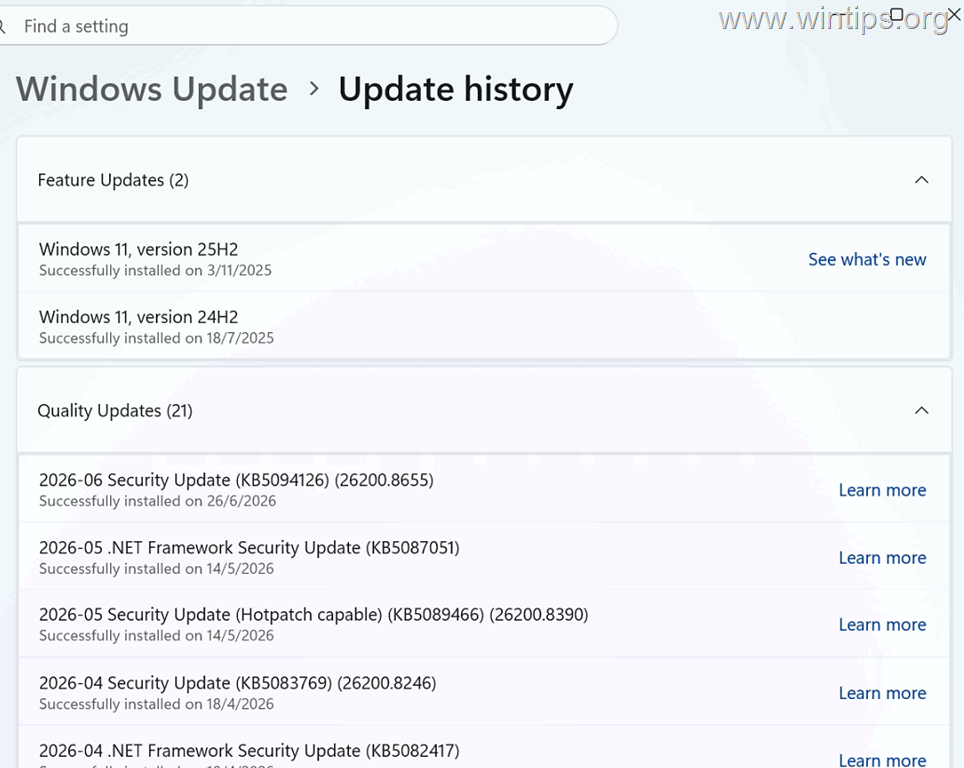
To determine whether this update is installed, review your update history:
1. Open Settings > Windows Update > Update history > Quality Updates, and then look for KB5095093.
Install Windows 11 KB5121767 if your PC is affected.
Once you've confirmed that your Dell computer is affected, install the corrective update KB5121767.*
Notes:
1. If your computer is not affected by this compatibility issue, Microsoft does not recommend installing KB5121767 solely because it is available.
2. Microsoft classifies KB5121767 as an out-of-band cumulative update. Unlike a regular Patch Tuesday release, it was published specifically to resolve this compatibility issue and includes previous security and quality improvements.
To install the KB5121767 update, do one of the following:
Method 1. Install through Windows Update
1. Go to Settings > Windows Update and click Check for updates.
2. If KB5121767 appears, select Download & install.*
3. Restart your computer when prompted.
* Note: Microsoft also states that later cumulative updates include the same fix, so installing a newer cumulative update provides the same resolution.
Method 2. Download and install the update from Microsoft Update Catalog.
1. According to your Windows 11 version, download the two(2) standalone package(s) for the KB5121767 update, form the link below:
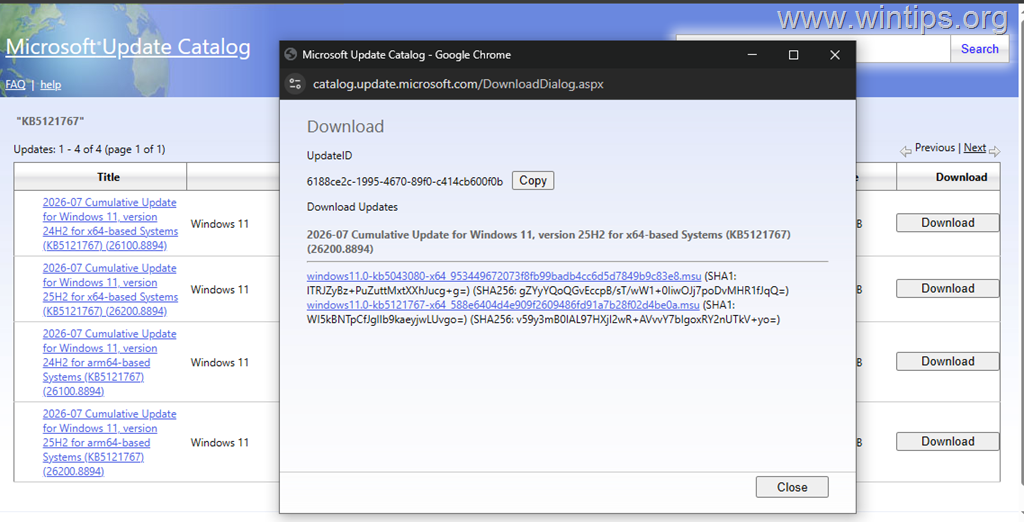
2. Install the msu packages in the following order:
-
- windows11.0-kb5043080-x64_953449672073f8fb99badb4cc6d5d7849b9c83e8.msu
- windows11.0-KB5121767-x64_588e6404d4e909f2609486fd91a7b28f02d4be0a.msu
3. Restart the computer.
Verify that the Issue is Fixed.
After installing the KB5121767 update, proceed to verify that the issue is fixed by doing the following:
1. Open Device Manager.
2. Locate the Intel Innovation Platform Framework Processor Participant and confirm that:
- The yellow warning icon has disappeared.
- Device status reports that the device is working normally.
- No new driver warning is displayed.
Conclusion
KB5121767 is Microsoft’s official fix for a compatibility issue affecting a limited number of Dell computers running Windows 11 versions 24H2 and 25H2.
If your Dell PC began experiencing unexpected shutdowns, poor performance, excessive heat, faster battery drain, or a warning for Intel Innovation Platform Framework Processor Participant, install KB5121767 or a later cumulative update. After the installation, verify that the problems have been resolved and that the Intel IPF warning no longer appears in Device Manager.
Frequently Asked Questions
What problems can a Dell computer face after installing Windows 11 KB5095093?
Affected Dell computers may experience unexpected shutdowns, overheating, increased power consumption, faster battery drain, poor performance, or unusual system behavior.
How can I verify if my Dell PC is affected by this Windows 11 compatibility issue?
First, check if your PC is running Windows 11 versions 24H2 or 25H2. Then, look for a warning in Device Manager about the Intel Innovation Platform Framework Processor Participant, and ensure you've installed the June 23, 2026 update KB5095093.
What is the recommended action if my Dell computer is affected by this issue?
If your device matches the documented issue, install the Windows 11 update KB5121767, an out-of-band cumulative update specifically released to resolve this problem.
Should I install KB5121767 if my computer is not affected?
No, Microsoft does not recommend installing KB5121767 if your computer is not experiencing any of the documented compatibility issues.
Still having trouble fixing this issue?
💬 Get WinTips Remote Support →

- KB5127648 Fails to Install (0x800f0845) or Causes Windows 11 to Loop in Recovery Mode (0xc000000d): How to Fix - November 4, 2026
- How to Set Microsoft Edge as the Default Browser on iOS Devices Using Intune. - November 2, 2026
- How to Fix SecurityHealthSystray.exe – Bad Image Error (0xc000012f) on Windows 11. - October 26, 2026