How to Fix Windows 11 Update Error 0x80073712
If Windows Update fails to install an update on Windows 11 and displays error 0x80073712 with the message “Some update files are missing or have problems,” the Windows component store may be corrupted.
However, error 0x80073712 does not necessarily mean that Windows itself is damaged. It can also occur because of an incomplete update download or a known problem with a specific Microsoft update. For example, Microsoft confirmed that the March 2026 preview update KB5079391 could fail with error 0x80073712 on some devices running Windows 11 versions 24H2 and 25H2. Microsoft later released KB5086672 to resolve the installation problem.
Therefore, before attempting to repair Windows, first identify the update that is failing and check whether Microsoft has documented a known issue or released a newer update that fixes it.
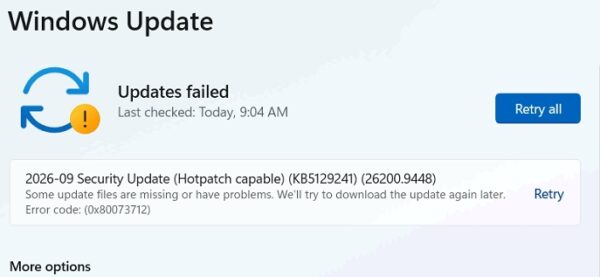
In this guide, you will learn how to identify the possible cause of Windows Update error 0x80073712 and fix it using step-by-step troubleshooting methods.
How to Fix Update Error 0x80073712 on Windows 11
Method 1: Check Microsoft Support for Known Issues
Before changing Windows Update components or repairing Windows, find the KB number of the failing update and check whether Microsoft has documented the problem or provided a solution.
Step 1: Find the KB Number of the Update
1. Go to Start > Settings > Windows Update > Update History.
2. Note the KB number of the failed update (e.g. "KB5122385") in this example.
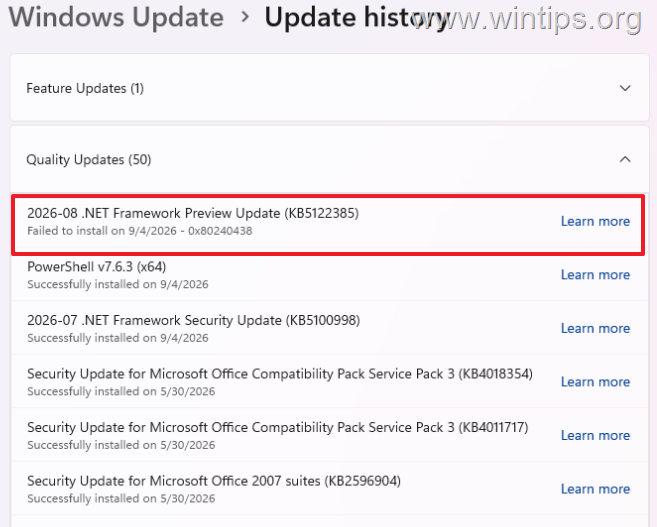
Step 2: Check Whether Microsoft Has Documented the Issue.
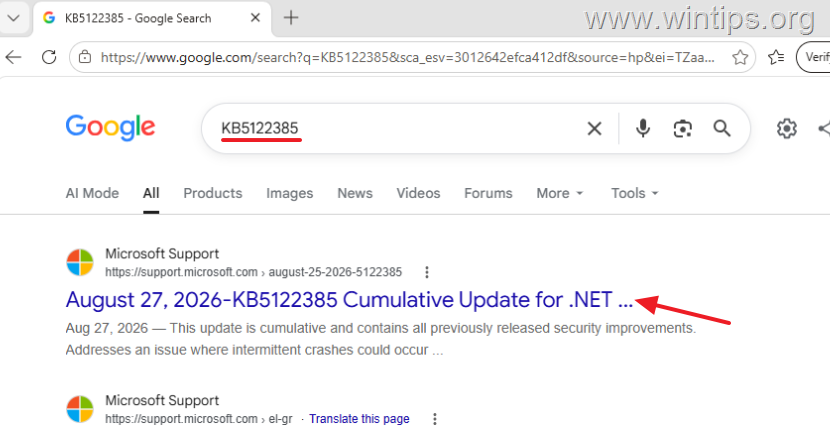
Next, search the web for the KB number of the failed update. Then, check Microsoft’s official support page for any known issues and available fixes.
If Microsoft has acknowledged the error, follow Microsoft's recommended solution before proceeding with the troubleshooting methods below.
Method 2: Run the Windows Update Troubleshooter
Windows 11 includes a built-in Windows Update troubleshooter that can identify and correct some update problems. To run it:
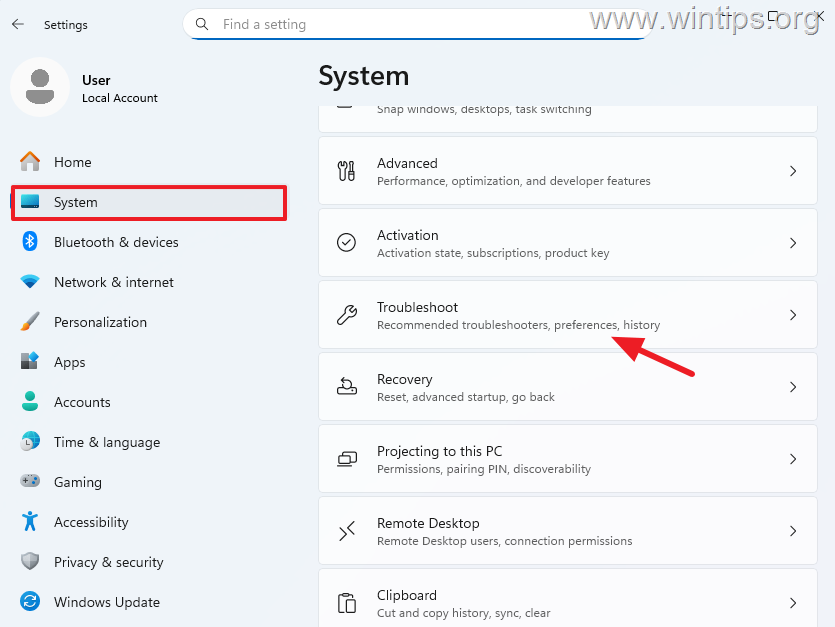
1. Go to Start > Settings.
2. Select System > Troubleshoot.
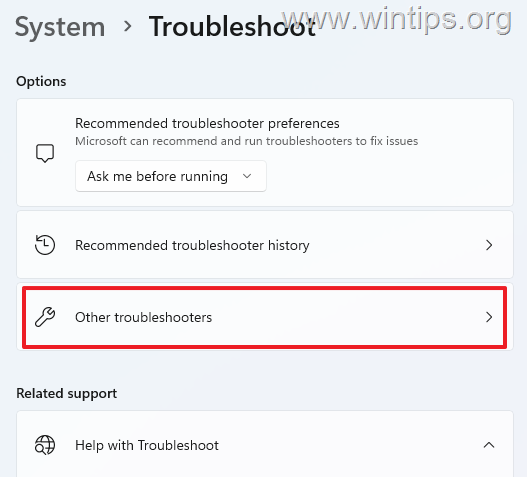
3. Select Other troubleshooters.
4. Find Windows Update and click Run.
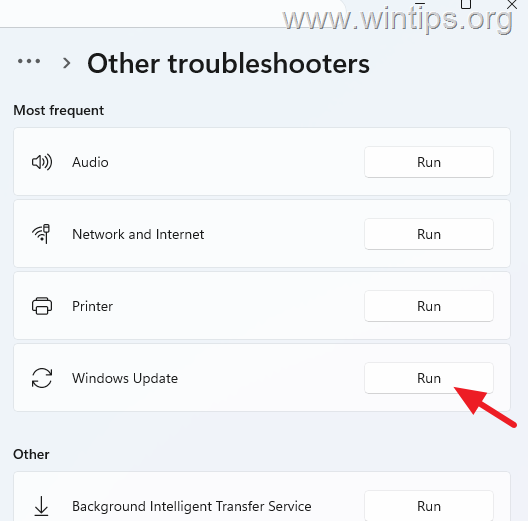
5. The Windows troubleshooter will begin scanning your computer for issues related to updates. If the troubleshooter identifies a problem and recommends a fix, apply it. If you still receive error 0x80073712, continue below.
Method 3: Try Installing the Failed Update Manually
The next method is to manually download and install the failed update.
1. In Windows Update, note the KB number of the failed update. (e.g. "KB5122385" in this example).
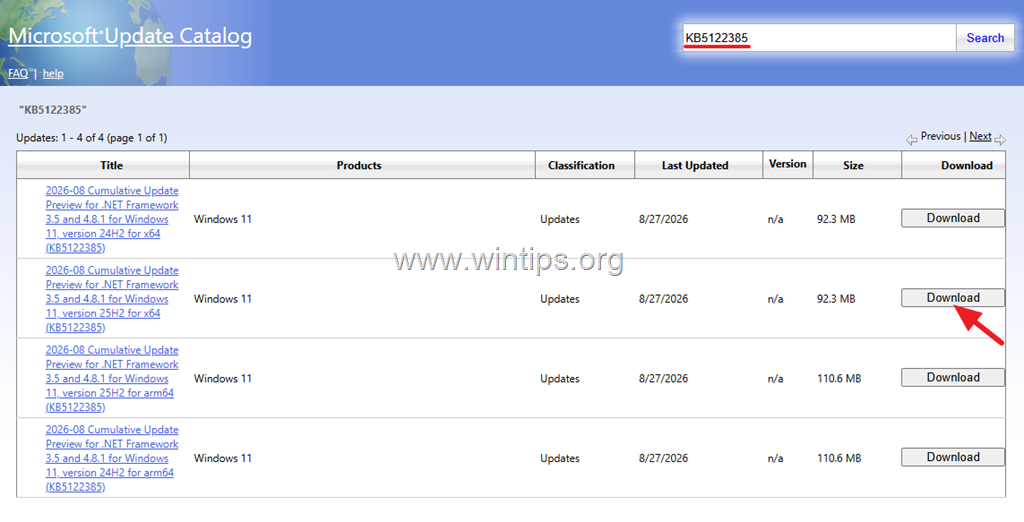
2. Go to the official Microsoft Update Catalog website and search for the KB number of the failed update.
3. From the list of updates, locate the one that corresponds to your Windows version and click on the Download button next to it.
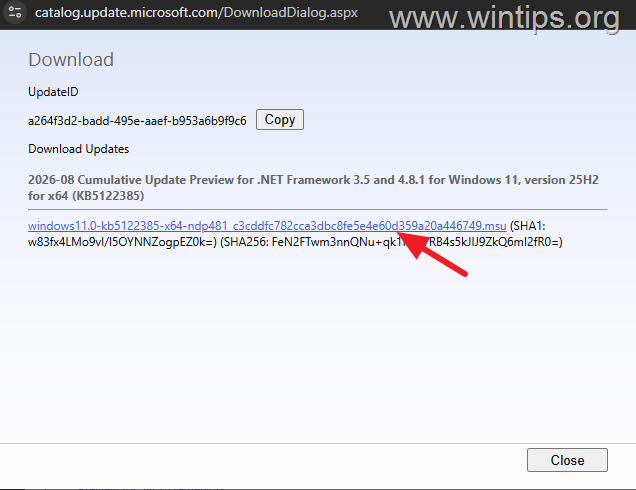
4. In the popup window, click on the link to download the MSU file or files.
5. When the download is completed, double-click the downloaded file(s)* and follow the on-screen instructions to install the update.
* Note: If the download window displays more than one package, read the installation instructions on how to install and in what order to install the downloaded MSU packages.
Method 4: Repair Windows System Files
Because 0x80073712 is commonly associated with Windows component-store problems, the next step is to repair the Windows image with DISM and then check the protected system files with SFC.
1. Open Command Prompt as Administrator.
2. In the command prompt window, type the following command and press Enter:
DISM /Online /Cleanup-Image /RestoreHealth
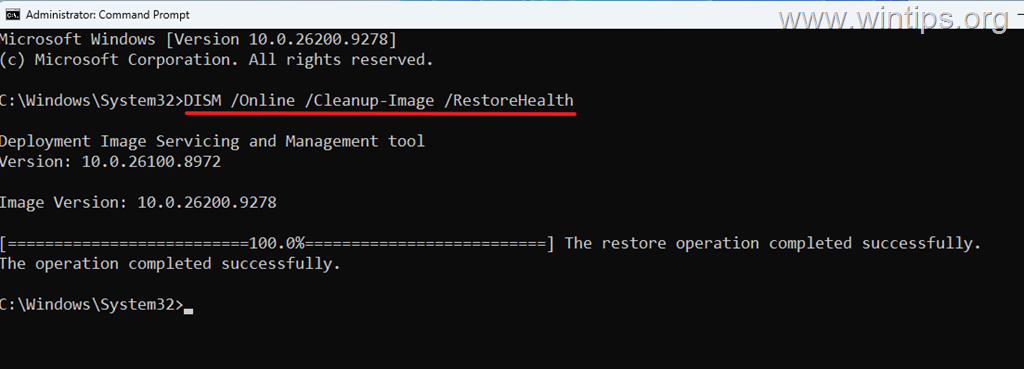
3. Wait while DISM scans and repairs the Windows component store.
4. Next, run the following command:
sfc /scannow
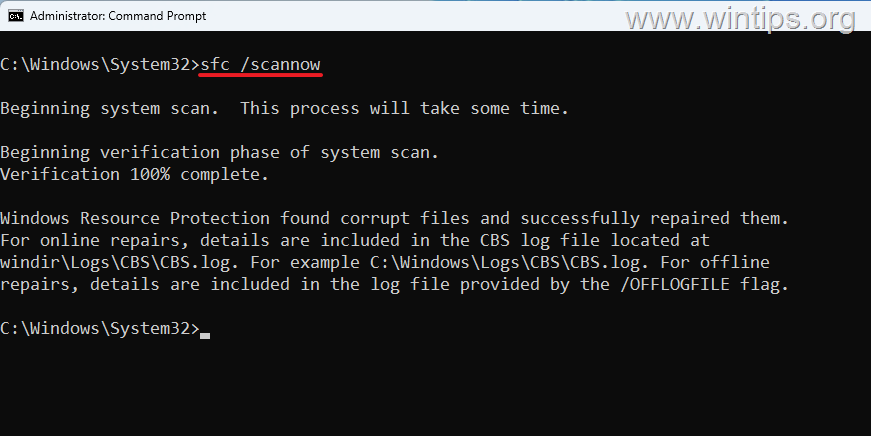
5. When the scan is complete, restart your computer and try installing the update again.
Method 5: Reset Windows Update Components
If Windows Update's download or cache data is damaged or inconsistent, resetting the Windows Update storage folders can allow Windows to download a clean copy of the update.
To reset the Windows Update components:
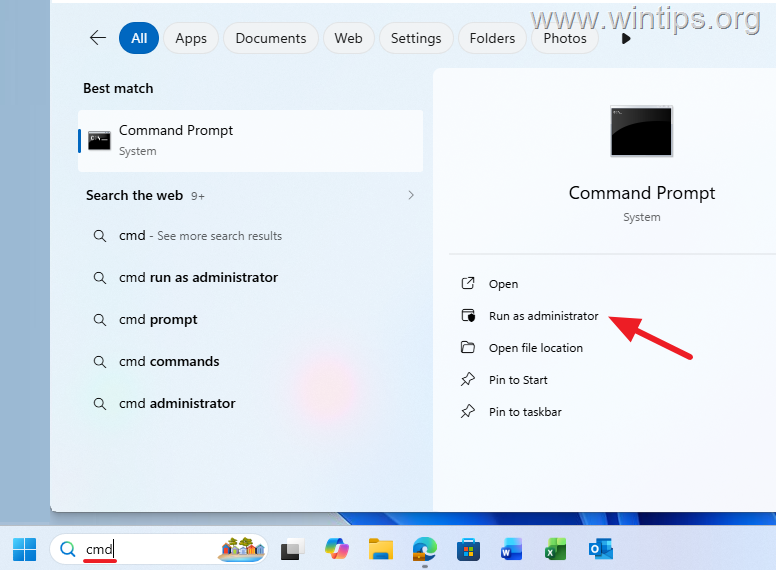
1. Open Command Prompt as Administrator. To do that:
- Type cmd or command prompt in Windows Search.
- Select Run as administrator under Command Prompt.
2. In the Command Prompt window, type the following commands in order (hit Enter after typing each command):*
net stop bitsnet stop wuauservnet stop cryptsvcren %systemroot%\SoftwareDistribution SoftwareDistribution.bakren %systemroot%\System32\catroot2 catroot2.baknet start cryptsvcnet start wuauservnet start bits
* Info: The commands stop the Background Intelligent Transfer Service, Cryptographic Services, and the Windows Update service. They then rename the Windows Update storage folders and restart the services.
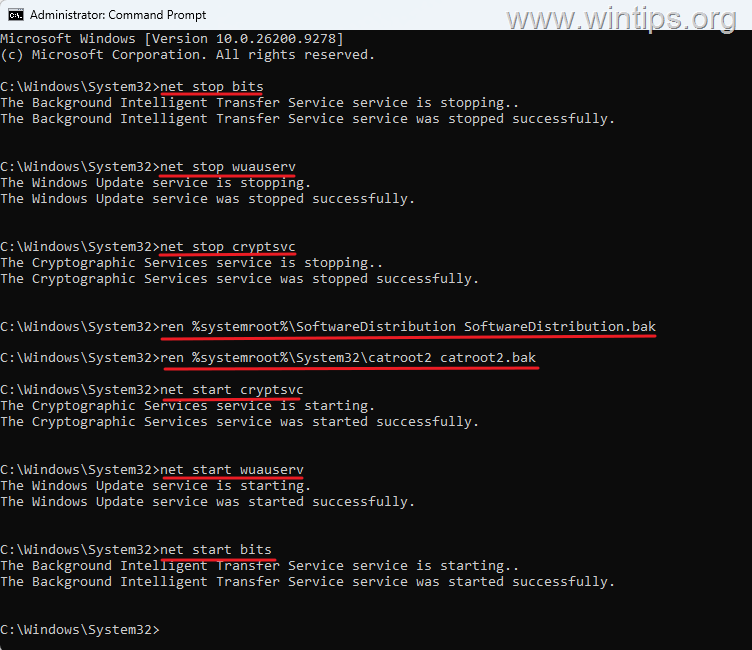
3. After running the commands, restart your computer.
4. Go to Settings > Windows Update and click Check for updates. If the same update still fails with 0x80073712, continue to the next method.
Method 6: Diagnose the Update Failure Using CBS.log or SetupDiag
If error 0x80073712 continues, examine the appropriate diagnostic log according to the type of update that failed:
- For a regular cumulative update, check CBS.log.
- For a Windows 11 feature upgrade, check the SetupDiag results.
These logs can help identify the corrupted package, system component, driver, or upgrade operation responsible for the failure.
A. Check CBS.log for a Failed Cumulative Update
For a failed cumulative update, one of the most useful diagnostic files is: C:\Windows\Logs\CBS\CBS.log
1. Open CBS.log and review the entries recorded around the time the update failed. Because the file may contain errors from previous servicing operations, make sure that you examine entries corresponding to the most recent installation attempt.
2. Use the Find function in Notepad to search for terms such as:
0x80073712ERROR_SXS_COMPONENT_STORE_CORRUPTSTATUS_SXS_COMPONENT_STORE_CORRUPTError CSI
3. Pay particular attention to entries that identify a corrupted or missing package, manifest, or system file. Then search for the exact error message together with the KB number of the failed update. Prioritize solutions published by Microsoft, and avoid downloading individual system files or applying unverified registry and component-store modifications from third-party websites.
B. Check SetupDiag for a Failed Windows Feature Upgrade
If error 0x80073712 occurs while upgrading Windows 11 to a newer version rather than installing a regular cumulative update, use SetupDiag to investigate the failure.
SetupDiag analyzes the Windows Setup logs and can help identify the upgrade phase, operation, and likely cause of the failure. Windows Setup normally runs SetupDiag automatically after an unsuccessful feature upgrade. You can find its results at: C:\Windows\Logs\SetupDiag\SetupDiagResults.xml
Open SetupDiagResults.xml with a web browser or text editor and look for information such as the matched rule, error code, last phase, and last operation.
Note: If the SetupDiagResults.xmlfile does not exist:
1. Download the latest version of SetupDiag from Microsoft.
2. Run SetupDiag.exe from an elevated Command Prompt.
3. When the analysis is complete, open SetupDiagResults.log from the folder in which you ran the tool and review the matched rule, error details, and recommended action.
Method 7: Reinstall Windows Through Windows Update
If none of the above methods fixed the problem, use Windows 11’s built-in Fix problems using Windows Update feature. This repair option reinstalls the current version of Windows to repair system files and components while preserving your apps, personal files, and settings.
To repair Windows through Windows Update:
1. Go to Start > Settings > System > Recovery.
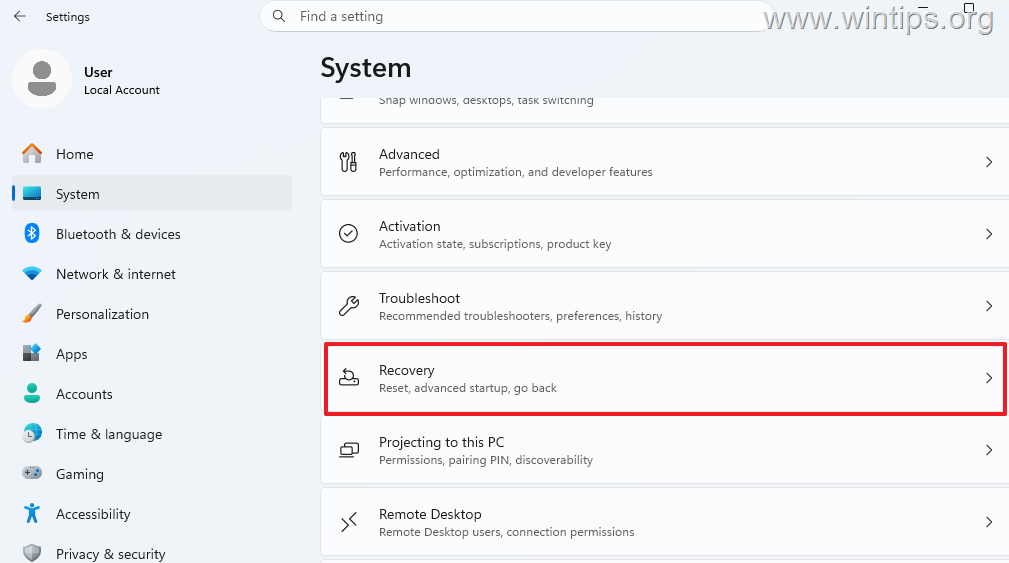
2. Find Fix problems using Windows Update and click Reinstall now.
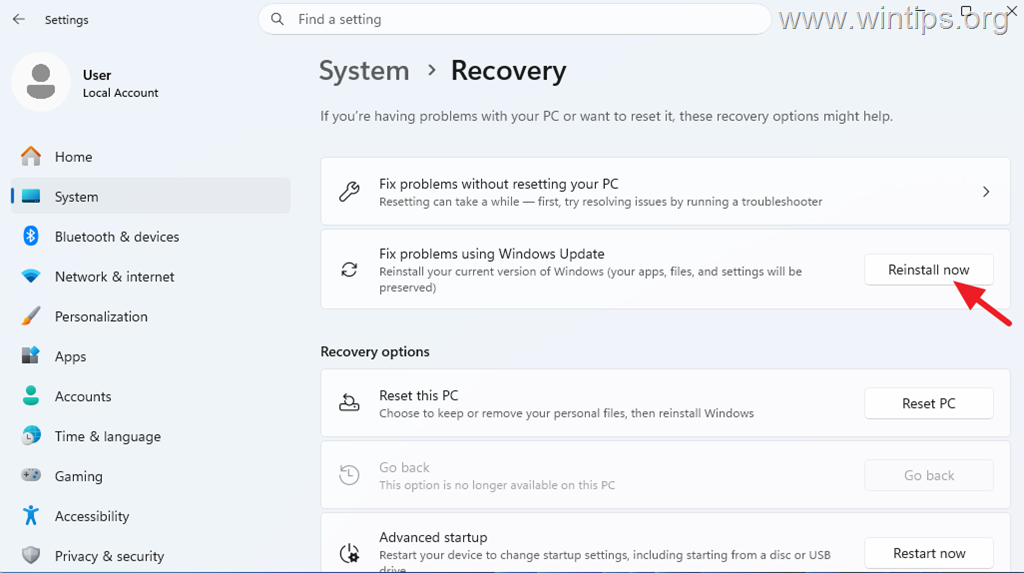
3. Follow the instructions to reinstall the current version of Windows. The process can take some time and the computer will need to restart.
4. When the repair is complete, navigate to Settings > Windows Update and Check for updates to download and install all available updates.
Method 8: Perform an In-Place Repair
If Reinstall now isn't available or doesn't repair the problem, the next option is an in-place Windows 11 repair using Windows installation media.
For this task, read the instructions in this article: How to Repair Windows 11 with an In-Place Upgrade.
Info: An in-place repair reinstalls Windows system components while preserving your applications, files, and settings.
Summary
Windows Update error 0x80073712 usually occurs when files required to install an update are missing or the Windows component store is corrupted. However, the error can also be caused by an incomplete update download or a known issue with a specific Microsoft update. This guide explains how to identify the cause and fix error 0x80073712 by checking for known issues, repairing system files, resetting Windows Update components, analyzing CBS or SetupDiag logs, and reinstalling Windows if necessary.
That's it! Which method worked for you?
Let me know if this guide has helped you by leaving your comment about your experience. Please like and share this guide to help others.
Frequently Asked Questions
What does error 0x80073712 mean on Windows 11?
Error 0x80073712 indicates that some update files are missing or have problems. It often relates to corruption in the Windows component store but does not necessarily mean that Windows itself is damaged. It can also arise from an incomplete update download or a known issue with a specific Microsoft update.
What should I do if a Windows update fails with error 0x80073712?
First, identify the update with issues by noting its KB number from the Update History in Settings. Then, check Microsoft’s support site for any documented issues or fixes for that update. If available, follow Microsoft's recommended solution before proceeding with other troubleshooting steps.
How can I run the Windows Update Troubleshooter on Windows 11?
To run the Windows Update Troubleshooter, go to Start > Settings. Then select System > Troubleshoot and click on Other troubleshooters. Find Windows Update in the list and click Run. Follow any on-screen instructions if the troubleshooter identifies problems.
Can I install a failed Windows update manually?
Yes, you can manually download and install a failed update. First, find the update’s KB number, then search for it on the Microsoft Update Catalog website. Download the corresponding MSU file for your Windows version and follow the instructions to install it.


- How to Fix Windows 11 Update Error 0x80073712 - October 5, 2026
- How to Install Windows 11 26H2 on Unsupported Hardware - October 2, 2026
- How to Install Windows 11 version 26H2 - October 2, 2026