File History Not Working in Windows 11: How to Fix
If File History is not working in Windows 11, you may notice that backups are no longer being created or updated, even though your backup drive is connected and accessible.
Other common symptoms may include:
- File History doesn't create or update backups.
- "Reconnect your drive" appears even though the backup drive is connected.
- The Last Backup date and time don't update.
- Previous Versions displays "No previous version available."
- File History doesn't recognize or use the configured backup drive.
These problems can occur when the backup destination is unavailable, File History isn't using the correct drive, the File History service isn't working correctly, or the local File History configuration is corrupted.
Note: Microsoft confirmed that the September 8, 2026 Windows updates caused some of the symptoms above on affected Windows 11 computers, including failed backups, false "Reconnect your drive" warnings, outdated Last Backup information, and unavailable previous versions. Microsoft resolved the issue in Windows updates released on or after September 22, 2026. Therefore, make sure Windows is fully updated before trying the other solutions below.
This guide provides step-by-step instructions to troubleshoot and fix File History problems in Windows 11 without deleting your existing backup history.
How to Fix File History Not Working in Windows 11
Follow the methods below in order to troubleshoot File History problems.
Method 1. Install the Latest Windows Updates
Before changing the File History configuration, make sure that Windows 11 is fully updated. Microsoft may resolve File History problems through Windows cumulative updates, and installing the latest updates should therefore be your first troubleshooting step.
This is particularly important if File History stopped working after the September 8, 2026 Windows updates, because Microsoft confirmed that KB5124008 caused File History problems on some Windows 11 24H2 and 25H2 computers. The issue was resolved by KB5124010, released on September 22, 2026, and later Windows updates. (For Windows 11 26H1, Microsoft documents the File History issue as resolved in KB5124006 and later updates.)
To install the latest updates:
1. Go to Start > Settings > Windows Update and click Check for updates.
2. Download and install all available Windows updates, and restart your computer if prompted.
3. After the update, open: Control Panel > System and Security > File History
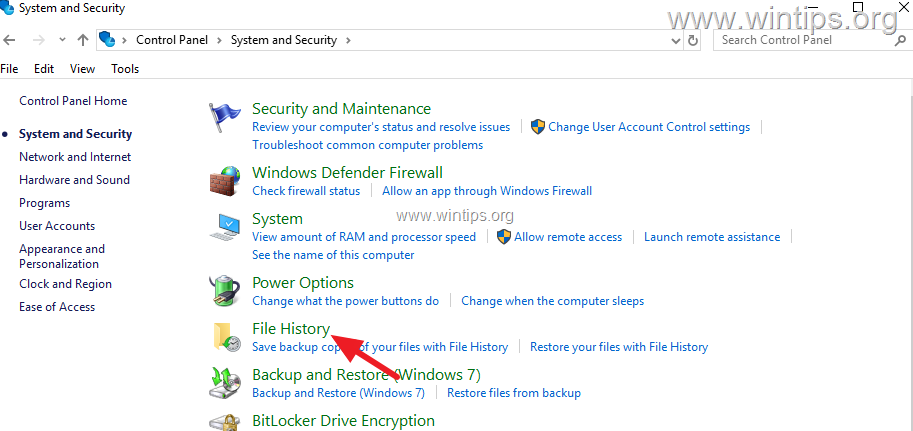
4. Make sure that the correct backup destination is displayed, and click Run now.
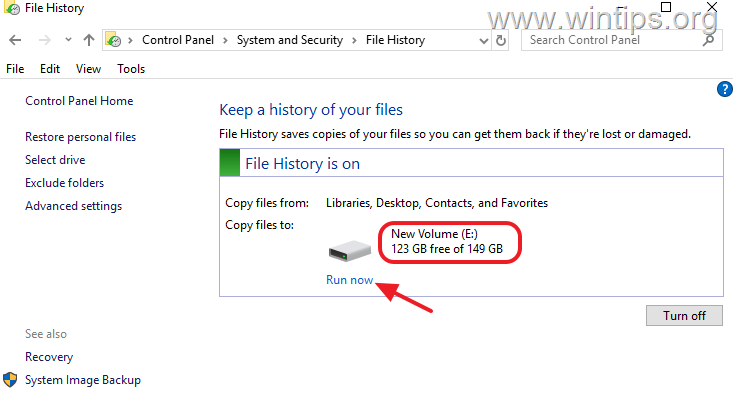
5. Wait for File History to complete the backup and verify that the Last Backup information is updated.
6. If File History creates a new backup successfully, no further action is required. If File History still doesn't work, continue to the next method.
Method 2. Reconnect or Reselect the File History Drive
File History requires access to the external drive or network location where the backups are stored.
Before changing anything in File History, verify that the backup destination is actually accessible.
1. Open File Explorer and verify that the external drive you're using for File History appears and that you can open it. *
* Note: If you're using a network location, make sure that the network share is accessible.
2. If the drive or network location works normally, navigate to Control Panel > System and Security and open File History
3. Click Select drive.
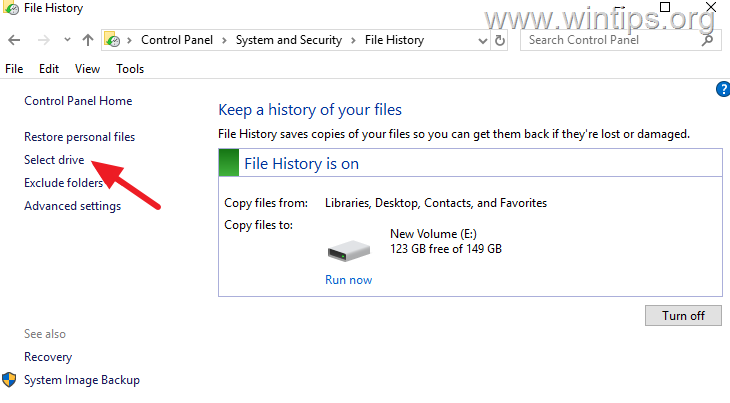
4. Reselect the drive or network location you want to use for File History and confirm your selection.
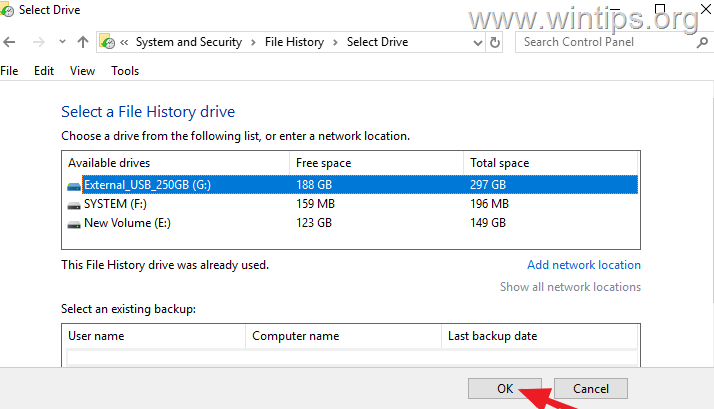
5. Return to File History and click Run now. Then, wait for the backup to complete.
6. If File History recognizes the correct destination but still doesn't back up your files, proceed to the next method.
Method 3. Restart the File History Service
File History uses the File History Service (fhsvc) to perform its operations. If the service isn't functioning correctly, restarting it may resolve ordinary File History problems.
1. Open PowerShell as Administrator.
2. Type the following command and press Enter:
Restart-Service fhsvc
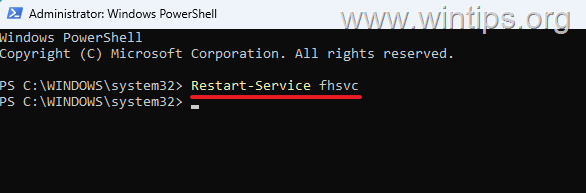
3. Then open File History and click Run now.
4. If the backup completes successfully, File History is working again. If the service is running but File History still can't create backups, continue to the next method.
Method 4. Reset the File History Configuration
If Windows is fully updated, the backup destination is accessible, and File History still doesn't work, its local configuration may need to be rebuilt.
You can safely test this by renaming the local File History configuration folder instead of deleting it. To do that:
IMPORTANT: The folder used in the following steps contains the local File History configuration. Don't delete or rename the
FileHistoryfolder stored on your external or network backup drive. That folder may contain your existing backups and previous file versions.
1. Open File History and click Turn off to disable File History backup.
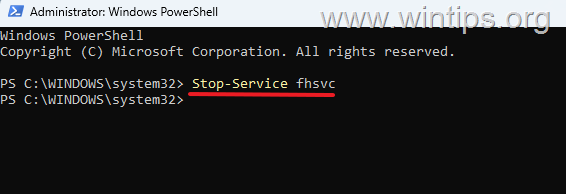
2. Now, open PowerShell as Administrator and stop the File History Service using this command:
Stop-Service fhsvc
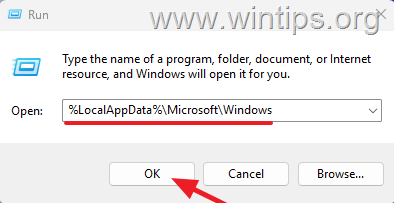
3. Then, press Windows + R, type the following path and press Enter:
%LocalAppData%\Microsoft\Windows
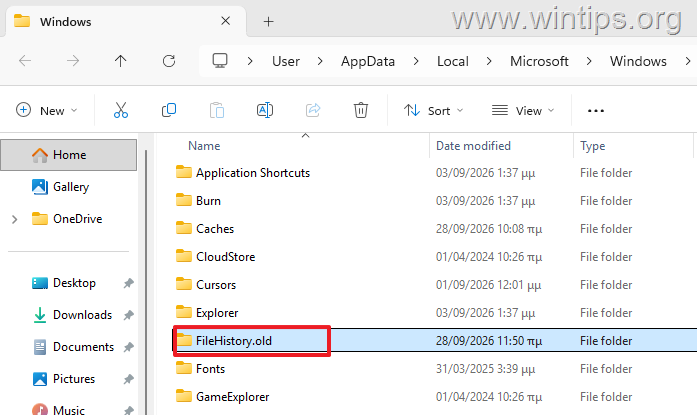
4. Locate the FileHistory folder.
5. Rename it to:
FileHistory.old
Info: Renaming the folder instead of deleting it preserves the old configuration in case you need to restore it.
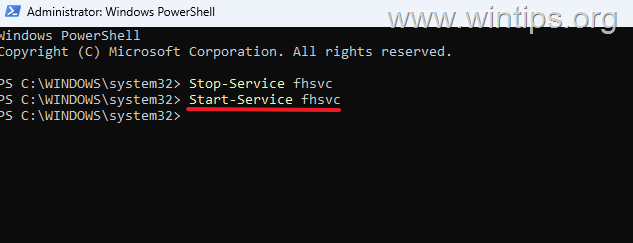
6. In PowerShell, start the File History Service using this command:
Start-Service fhsvc
7. Now, navigate to Control Panel > System and Security and open File History
8. Click Select drive and select your existing backup destination again.
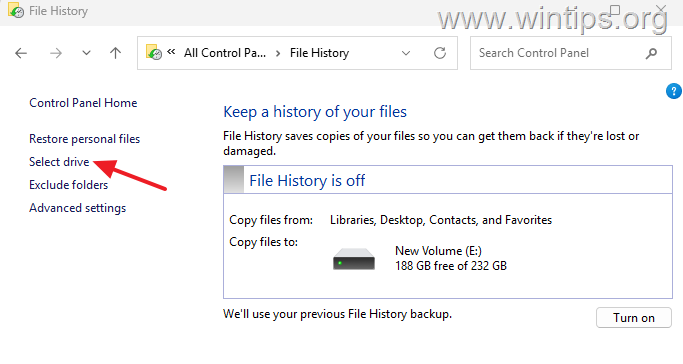
9. Turn on File History and click Run now.
Method 5. Restore the Missing File History Registry Value
If File History won't turn on at all after trying the previous methods, check whether the following REG_BINARY registry value is missing:
41960B29A3BC1475 REG_BINARY 0100000001000000
Note: This solution has been successfully reproduced and confirmed by multiple Windows 11 users, but it isn't officially documented by Microsoft as a File History fix. Therefore, use this method only if File History fails to turn on and the registry value described below is actually missing.
1. Open Command Prompt as Administrator.
2. Run the following command to check whether the registry value exists:
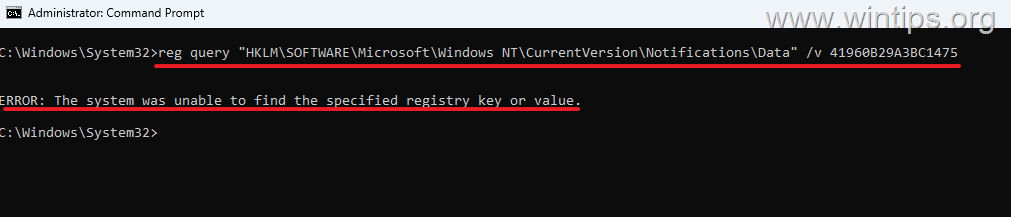
reg query "HKLM\SOFTWARE\Microsoft\Windows NT\CurrentVersion\Notifications\Data" /v 41960B29A3BC1475
3. Now, according to the result do the following:
-
If the value exists and you see output similar to the following, stop here and don't modify the Registry. In this case, this method doesn't apply to your computer.
41960B29A3BC1475 REG_BINARY 0100000001000000
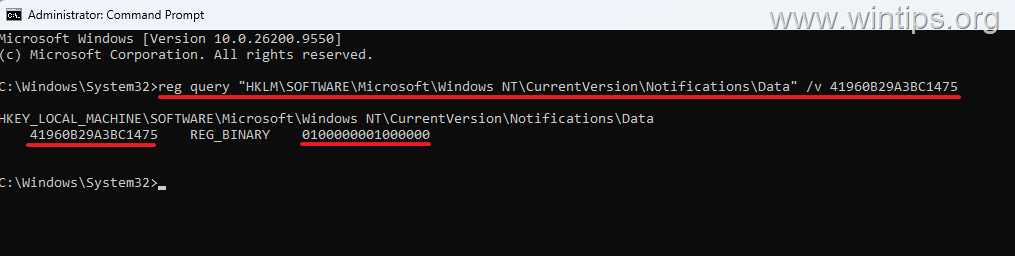
- If you receive an error indicating that the registry value can't be found, (like in screenshot below), apply the instructions below.
4. Back up the existing registry key by running:
reg export "HKLM\SOFTWARE\Microsoft\Windows NT\CurrentVersion\Notifications\Data" "%USERPROFILE%\Desktop\FileHistory-Notifications-Backup.reg"
5. Then run the following command to restore/add the missing value:
reg add "HKLM\SOFTWARE\Microsoft\Windows NT\CurrentVersion\Notifications\Data" /v 41960B29A3BC1475 /t REG_BINARY /d 0100000001000000 /f
Note: After running the above commands, you should receive: The operation completed successfully.
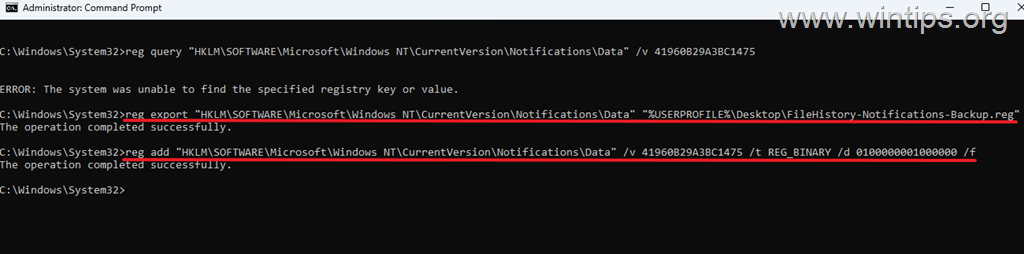
6. Close Command Prompt and restart your computer.
7. After Windows starts, open File History, Turn it on and click Run now to verify that a backup can be created successfully.
Note: This registry fix is intended for the specific scenario where File History silently fails to turn on and the
41960B29A3BC1475value is missing. It isn't a general fix for all File History problems and isn't the solution for Microsoft's September 2026 File History issue. For that known issue, install the latest Windows updates first.
Verify That File History Is Working
After applying the appropriate solution, don't rely only on the disappearance of an error message. Verify that File History can create and restore file versions.
1. Create a test file in a folder protected by File History.
2. Open Control Panel > System and Security > File History and click Run now.
3. After the backup completes, modify the test file and run File History again.
4. Right-click the test file, select Properties > Previous Versions, and verify that a previous version of the file is available.
If File History creates backups successfully and previous versions are available, File History is working correctly again.
Summary
If File History stopped working after the September 8, 2026 Windows updates, install the latest Windows updates first because Microsoft has released a fix for the known issue.
For other File History problems, verify that the backup destination is accessible, reselect the correct drive, restart the File History Service, and reset the local File History configuration if necessary. If File History still won't turn on, check whether the registry value described in Method 5 is missing.
Most importantly, don't delete the existing FileHistory folder on your external or network backup destination while troubleshooting, because it may contain your previous backups.
That's it! Which method worked for you?
Let me know if this guide has helped you by leaving your comment about your experience. Please like and share this guide to help others.
Frequently Asked Questions
What should I do first if File History stops working in Windows 11?
Ensure Windows 11 is fully updated. Microsoft may have resolved File History problems through a Windows cumulative update, especially following the September 2026 updates which caused known issues.
Why does 'Reconnect your drive' appear even when my backup drive is connected?
This message can occur if File History is not recognizing the drive correctly. Ensure the backup destination is accessible and that File History has the correct drive selected.
How do I make sure Windows 11 is updated to fix File History issues?
Go to Start > Settings > Windows Update and click 'Check for updates'. Download and install all available updates, then restart your computer if needed.
How can I check if File History is using the correct backup destination?
Navigate to Control Panel > System and Security > File History, and verify the backup destination is correct. Use the 'Select drive' option if you need to reselect your external drive or network location.


- File History Not Working in Windows 11: How to Fix - September 29, 2026
- Always On VPN Stuck on Connecting After KB5124008 Update: How to Fix - September 24, 2026
- How to Disable Passkey Prompts and Delay Enforcement in Microsoft 365 - September 24, 2026