Enable Archive Mailbox and Archive Auto Expanding in Office 365 Exchange Online (Microsoft 365).
This guide contains detailed instructions on how to enable the Archive mailbox (aka "Online Archive" or "In-Place Archive") and the Archive Auto Expanding feature in Microsoft/Office 365 Exchange Online, to resolve the problem "Your mailbox is full" when a mailbox reaches 50GB.
The default maximum mailbox size in Microsoft 365 Exchange Online is 50 GB, unless you increase it to 100 GB by paying for Exchange Online Plan 2 license, or by enabling the Exchange Online Archiving (aka "Exchange Mailbox Archiving") for free.
Mailbox archiving in Microsoft 365, also called "In-Place Archiving", provides users with an additional 50 GB of space in Exchange Online Plan 1, and almost unlimited space (1.5 TB), if you also enable the "Archive Auto Expanding" feature in case you own Office 365 E3/E5 or assign to users an Exchange Online Plan 2 license.
How Mailbox Archiving works.
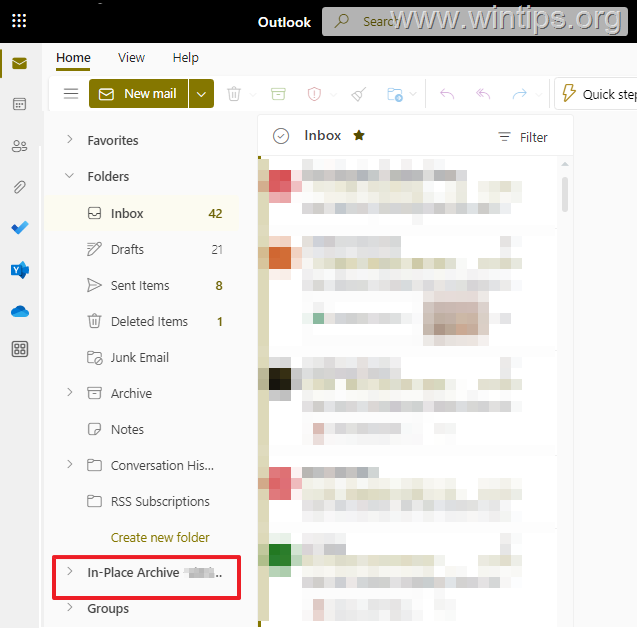
After activating the Mailbox Archive, users will see that an additional archive folder has been created, called "In-Place Archive" in Outlook for web or "Online Archive" in Microsoft Outlook, in which they can move messages from their main mailbox either using Outlook on desktop or Outlook on the web.
How Archiving Auto Expanding works.
In addition, if you own Microsoft Office 365 E3 or Microsoft Office 365 E5 or assign users' mailboxes to Exchange Online (Plan 2), you can also enable the Archive Auto Expanding feature to enable additional storage for archive mailboxes, so that when a user's archive mailbox reaches its storage limit (eg 50 GB), additional storage is automatically added until the 1.5 TB storage limit is reached.
- Enable In-Place Archive and Archive Auto Expanding in Certain Users.
- Enable In-Place Archive and Archive Auto Expanding in All Users on your Organization.
How to Enable the "Archive Mailbox" & the "Archive Auto Expanding" feature for Specific Users in Microsoft 365 Business/Enterprise.
Step 1. Enable In-Place Archive Mailbox for a User in Exchange Online Admin Center.
To enable the Archive mailbox for a specific user in your organization, do the following:
1. Navigate to Office365 Admin Portal, click Show All and then click Exchange.
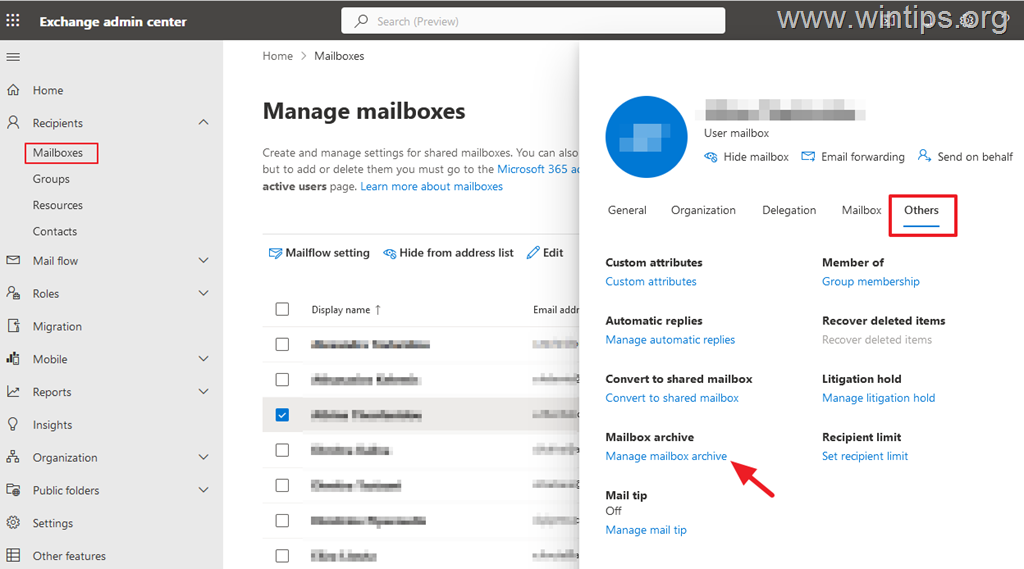
2. In 'Exchange admin center', go to Recipients > Mailboxes.
3. Click on the user you want to enable the "Archive" mailbox.
4a. Select the Others tab and then click Manage mailbox archive.
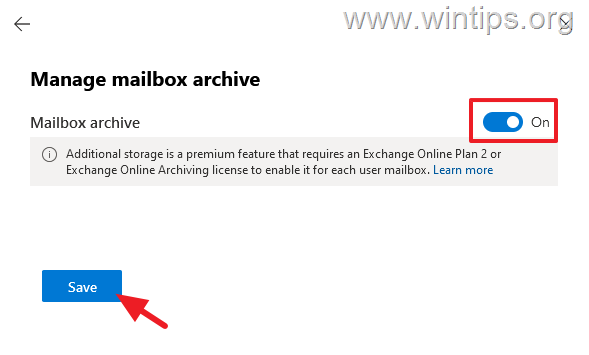
4b. Turn On the Mailbox archive and click Save.
Step 2. Enable Archive Auto Expanding for Specific Users in Exchange Online PowerShell.
Prerequisite: Office 365 Enterprise E3/E5, Exchange Online Plan 2 license(s)
The enable the archive auto-expanding in Office 365, use these steps:
1. Assign to the user(s) you want to enable the auto-expanding archiving feature an Exchange Online Plan 2 license in Office365 Admin Portal (Users), unless you own Microsoft Office 365 E3 or Microsoft Office 365 E5.
2. Then, follow the below steps to install the Exchange Online Management module, if you haven't already.
- Download and install Microsoft .NET Framework 4.6.2 or later.
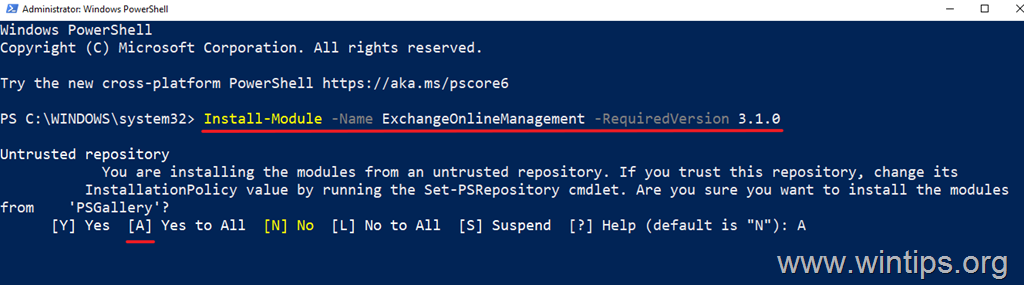
- Then, open PowerShell As Administrator and give the below command to install the Exchange Online Management module (press "A" when prompted):
- Install-Module -Name ExchangeOnlineManagement -RequiredVersion 3.1.0
3a. Connect to Exchange online from PowerShell (admin), using your admin username (email address), with the following command:
- Connect-ExchangeOnline -UserPrincipalName username@example.com -ShowProgress $true
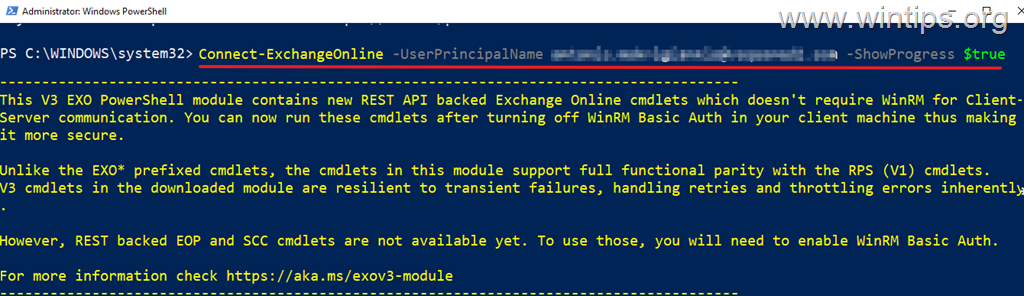
3b. On the pop-up windows type your admin credentials and click OK.
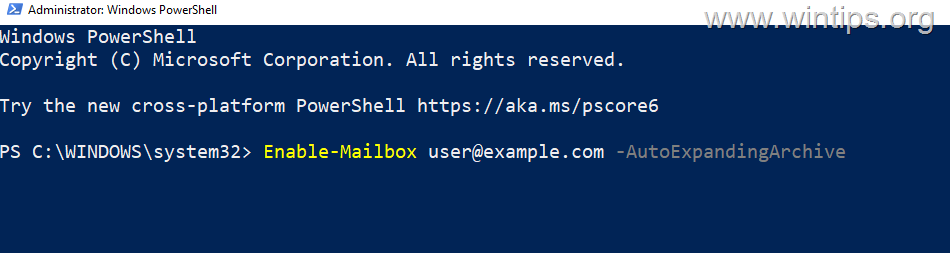
4. After connecting to Exchange online through PowerShell, give the following command to turn on the "Archive Auto Expanding" on the user you want:
-
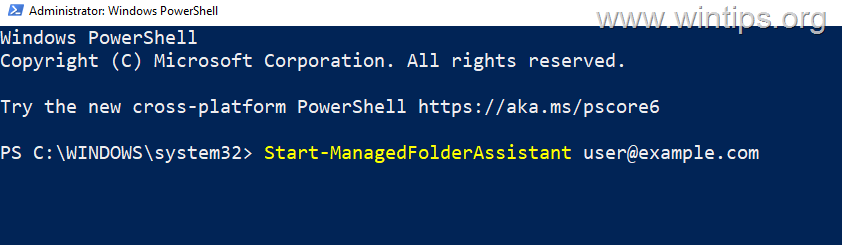
Enable-Mailbox user@example.com -AutoExpandingArchive
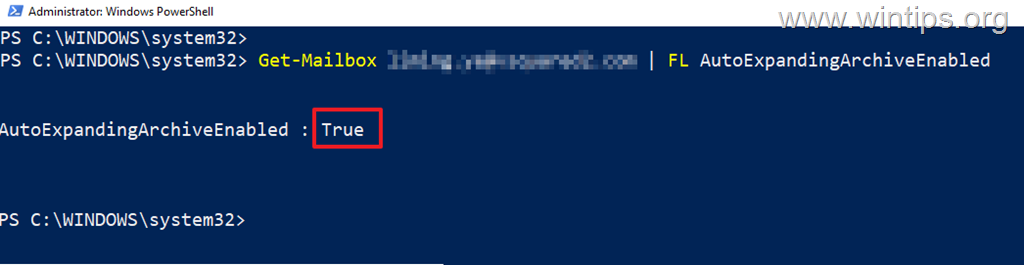
5. To verify that the auto-expanding archiving is enabled on the user, give this command:*
-
Get-Mailbox user@example.com | FL AutoExpandingArchiveEnabled
* Notes:
1. A value of True next to "AutoExpandingArchiveEnabled" indicates that auto-expanding archiving is enabled for the user.
2. When done, disconnect from Exchange Online using this command:
-
Disconnect-ExchangeOnline
6. You're done! After a few hours you will see the "In-Place Archive" folder in the user's mailbox. If this does not happen after 24 hours, make sure you have done the above steps correctly.
How to Enable the "Archive" Mailbox & "Archive Auto Expanding" for all Users in your Organization in Office 365 Business/Enterprise.
To turn on the archive mailbox and the Archive Auto Expanding feature in your organization:
Step 1. Assign to all the user(s) on your organization an Exchange Online Plan 2 license in Office365 Admin Portal (Users), unless you own Microsoft Office 365 E3 or Microsoft Office 365 E5.
Step 2. Then, follow the below steps to install the Exchange Online Management module, if you haven't already.
- Download and install Microsoft .NET Framework 4.6.2 or later.
- Then, open PowerShell As Administrator and give the below command to install the Exchange Online Management module (press "A" when prompted):
- Install-Module -Name ExchangeOnlineManagement -RequiredVersion 3.1.0
Step 3. Now, connect to Exchange online using your admin username (email address), with the following command: *
- Connect-ExchangeOnline -UserPrincipalName username@example.com -ShowProgress $true
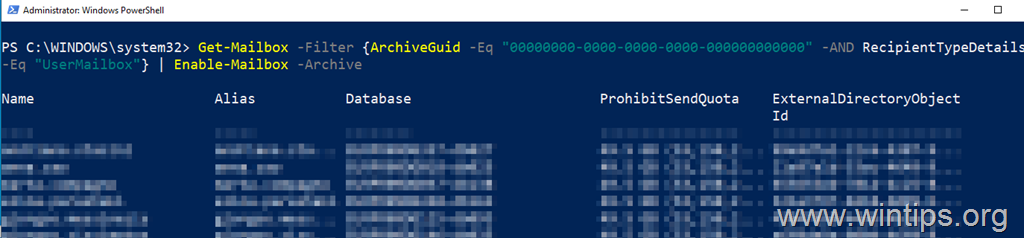
Step 4. Enable the Archive (aka "In-Place Archive) mailbox for all users in the organization.
After connecting to Exchange online through PowerShell, give the following command to turn on the "Archive" Mailboxes in your Entire Organization.
- Get-Mailbox -Filter {ArchiveGuid -Eq "00000000-0000-0000-0000-000000000000" -AND RecipientTypeDetails -Eq "UserMailbox"} | Enable-Mailbox -Archive
Step 5. Enable Archive Auto Expanding for all users in the organization.
Prerequisite: Office 365 Enterprise E3/E5, Exchange Online Plan 2 license(s)
1. Give the following command in PowerShell to enable auto-expanding archiving for your entire organization:
- Set-OrganizationConfig -AutoExpandingArchive
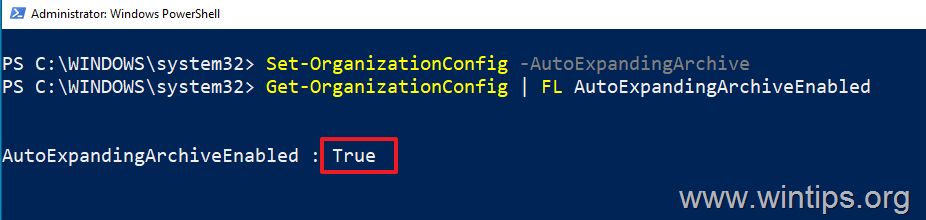
2. Then, give the following command to verify that the auto-expanding archiving is enabled: *
- Get-OrganizationConfig | FL AutoExpandingArchiveEnabled
* Notes:
1. If the value of "AutoExpandingArchiveEnabled" is True that means that auto-expanding archiving is enabled for the organization.
2. When done, disconnect from Exchange Online using this command:
-
Disconnect-ExchangeOnline
3. You're done! After a few hours you will see the "In-Place Archive" folder appear in users' mailboxes. If this does not happen after 24 hours (at least for some users), make sure you have done the above steps correctly.
That's it! Let me know if this guide has helped you by leaving your comment about your experience. Please like and share this guide to help others.


- Remote Desktop (RDP/RDS) Stops Working After September 2026 Windows Update: How to Fix - September 15, 2026
- Windows 11 KB5124008 Causes No Sound or USB Audio Code 10: How to Fix - September 14, 2026
- Copilot Missing or Grayed Out in Outlook: How to Fix - September 10, 2026