
FIX: Acrobat Reader can't start because api-ms-win-core-winrt-l1-1-0.dll is missing.
If Acrobat Reader (AcroRd32.exe) in Windows 7 can't start because "api-ms-win-core-winrt-l1-1-0.dll is missing from your computer", continue reading bellow to lean how to fix the problem.

The error "The program can't start because api-ms-win-core-winrt-l1-1-0.dll is missing from your computer. Try reinstalling the program to fix this problem" appears after auto-updating to version "25.001.21208" or later of Adobe Acrobat Reader (AcroRd32.exe) in computers running Windows 7.
Why "api-ms-win-core-winrt-l1-1-0.dll is misinng" after updating Acrobat Reader.
The latest Adobe Reader updates rely on "api-ms-win-core-winrt-l1-1-0.dll", which is not available in Windows 7, resulting in Adobe Reader not opening.
* Note: On Windows 10/11, this error is usually fixed by installing the Visual C++ Redistributables for Visual Studio 2015, but it is not fixed this way on Windows 7.
What can be done to fix the Acrobat Reader "api-ms-win-core-winrt-l1-1-0.dll is misinng" error?
To bypass the mentioned error in Acrobat Reader on Windows 7, you can do one of the following:
- Install a free alternative PDF viewer to view PDF documents, like Foxit Reader.
- Install an older compatible version of Acrobat Reader and prevent automatic program updates, as indicated below.
How to FIX: "api-ms-win-core-winrt-l1-1-0.dll is missing" when launching Acrobat Reader in Windows 7.
Since the problem has not been fixed to this day (March 2, 2026) and the last working version of Acrobat Reader that worked on Windows 7 is version "25.001.21111", below I will show you how to revert to this version and prevent Acrobat Reader from updating again.
Step 1. Uninstall the Problematic Version of Acrobat Reader.
1. Navigate to Control Panel > Program & Features.
2. Uninstall Adobe Acrobat Reader.

Step 2. Download & Install Acrobat Reader version 2500121111.
1. According to your preferred language, download the corresponding 2500121111 version of Acrobat Reader:
English:
French:
German:
Spanish:
2. When the download is complete, double-click the downloaded file to install Acrobat Reader.

Step 3. Disable Adobe Acrobat Update Service.
1a. Press Win + R keys
1b. Type "services.msc" & press Enter to open Services.
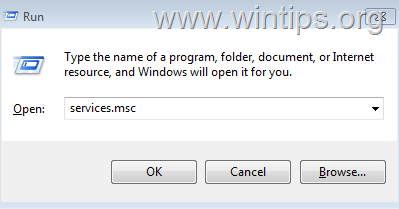
2. Open the Adobe Acrobat Update Service.

3. Here, Stop the service, then change the Startup type: to Disabled and click OK.
5. Close 'Services' window and continue the next step.

Step 4. Disable Adobe Acrobat Update Task.
1. Type "task scheduler" in Search and open Task Scheduler.
2. Select on the left the Task Scheduler Library.
3. Right-click on Adobe Acrobat Update Task and select Disable.

Step 5. Block Adobe Reader Updates via HOSTS file.
1a. In Search, type "Notepad"
1b. Right-click on Notepad application and select Run as administrator.

2. In Notepad click the File menu and choose Open.

3a. In 'Open' window, navigate to this location:
-
C:\Windows\System32\drivers\etc
3b. Change File type to: All Files
3c. Double-click the "hosts" file to open it.

4. Copy & paste the following lines at the end:
127.0.0.1 activate.adobe.com
127.0.0.1 arm.adobe.com
127.0.0.1 armmf.adobe.com
127.0.0.1 ereg.adobe.com
127.0.0.1 genuine.adobe.com
127.0.0.1 practivate.adobe.com
127.0.0.1 prod-rel-ffc-ccm.oobesaas.adobe.com
127.0.0.1 swupdl.adobe.com
127.0.0.1 update.adobe.com

5. When done, click File > Save
6. Restart the computer and you're done!
That's it! Let me know if this guide has helped you by leaving your comment about your experience. Please like and share this guide to help others.
Frequently Asked Questions
Why am I receiving the error 'api-ms-win-core-winrt-l1-1-0.dll is missing' when I try to open Acrobat Reader on Windows 7?
The error appears because the latest updates for Adobe Acrobat Reader rely on 'api-ms-win-core-winrt-l1-1-0.dll', which is not available in Windows 7. This results in the program not being able to start.
What alternative solutions are available if Acrobat Reader won't open due to the missing DLL file in Windows 7?
You can install a free alternative PDF viewer like Foxit Reader or revert to an older version of Acrobat Reader that's compatible with Windows 7 and disable automatic updates to avoid the issue.
How can I revert to a previous version of Acrobat Reader to fix the DLL issue on Windows 7?
First, uninstall the problematic version of Acrobat Reader via Control Panel > Programs & Features. Next, download and install version 25.001.21111 from the provided Adobe links. Finally, disable the update service and Adobe Reader updates via system settings to prevent automatic updates.
Can the missing DLL error be fixed in Windows 7 by installing Visual C++ Redistributables?
No, this method usually works for Windows 10/11 systems but does not resolve the DLL error in Windows 7. Instead, consider using alternative solutions like reverting to an older version of Acrobat Reader.


- Remote Desktop (RDP/RDS) Stops Working After September 2026 Windows Update: How to Fix - September 15, 2026
- Windows 11 KB5124008 Causes No Sound or USB Audio Code 10: How to Fix - September 14, 2026
- Copilot Missing or Grayed Out in Outlook: How to Fix - September 10, 2026




March 10, 2026 @ 6:09 pm
Perfect, exactly what was needed.
Surely software should be capable of knowing it shouldn't update itself so that it no longer works on the operating system it's installed on.
March 6, 2026 @ 8:29 pm
Yes worked for me too Thanks for guiding me through the path
March 5, 2026 @ 12:34 am
Your fix worked, much appreciated. This appears to be the only one that addresses the issue after reviewing several other sites.
March 3, 2026 @ 12:43 am
your fix worked perfectly