
FIX DISM Error: The scratch directory size might be insufficient to perform this operation.
The tutorial contains instructions to fix the following DISM error: "The scratch directory size might be insufficient to perform this operation. This can cause unexpected behavior. Use the /ScratchDir option to point to a folder with sufficient scratch space". The recommended size is 1024 MB. (Error 5)"
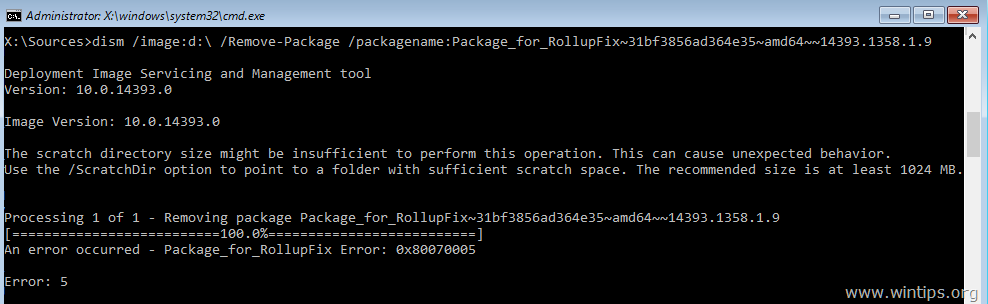
The above error may appear when you run any DISM command from the Windows Recovery Environment –> Command Prompt, in Windows 10, 8 or 7 OS.
How to fix the DISM error: The scratch directory size might be insufficient to perform this operation.
To solve the "The scratch directory size might be insufficient to perform this operation" error in DISM, you have to specify a scratch directory in the drive which contains the "Windows" folder.
1. By using the DIR (e.g. "dir D:"), or the BCDEDIT command, find out in which drive, is located the Windows folder.
2. For example, if the "Windows" folder is located at drive "D:", then navigate to the Windows drive by typing its drive letter (e.g. D: )
3. Create a new folder and name it "Scratch", by typing this command:
- mkdir D:\Scratch
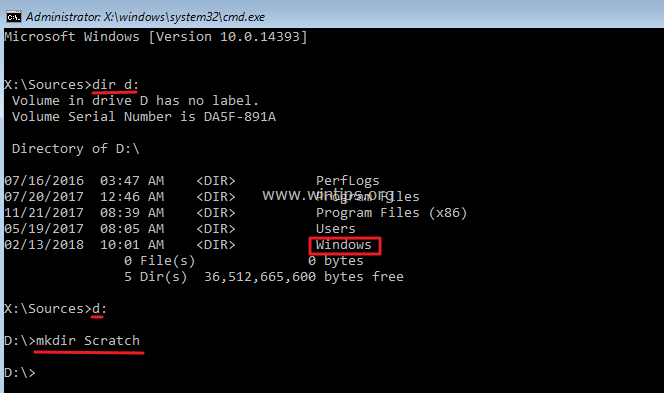
4. Then add the "/ScratchDir:D:\Scratch" option, on the DISM command: *
Example No 1:
– If you want to repair the offline Windows image by using the DISM command, you have to type this command:
- DISM /Image:D:\ /ScratchDir:D:\Scratch /Cleanup-Image /Restorehealth

Example No 2:
– If you want to rollback your system, after an unsuccessful Windows update by using the DISM command, then type:
- DISM /Image:D:\ /ScratchDir:D:\Scratch /Cleanup-Image /RevertPendingActions
Example No 3:
– If you want to remove a specific update package, by using the DISM command, then type:
- dism /image:D:\ /ScratchDir:D:\Scratch /Remove-Package /PackageName:Package_for_RollupFix~31bf3856ad364e35~amd64~~16299.192.1.9
* Note: Change the drive letter D according your case.
That's it! Let me know if this guide has helped you by leaving your comment about your experience. Please like and share this guide to help others.


- Remote Desktop (RDP/RDS) Stops Working After September 2026 Windows Update: How to Fix - September 15, 2026
- Windows 11 KB5124008 Causes No Sound or USB Audio Code 10: How to Fix - September 14, 2026
- Copilot Missing or Grayed Out in Outlook: How to Fix - September 10, 2026




March 28, 2019 @ 11:22 am
After trying to revert pending actions pops up error 123 unable to access the image, beside the disk d has windows directory in it. Also I've found number of packages that could lead to failure to start the system, but I don't have them, so what could you recommend?
March 28, 2019 @ 5:30 pm
If the "Windows" folder is on drive D:
1. Boot in Windows Recovery Environment and give this command: chkdsk D: /F /R
2. Then follow the instructions here: https://www.wintips.org/how-to-run-sfc-offline-system-file-checker-tool/
3. Then run the DISM command again