
How to Automatically Sign off Inactive Remote Desktop Users.
If you want to automatically sign off the remote desktop (RDP) users when they disconnected from the remote desktop session or when they are inactive after a period of time, then this guide will show you how to do it.
Logging off inactive Remote Desktop (RDP) users is a smart and often necessary practice in IT environments, in order to free up system resources on the remote host, improve security, avoid licensing issues, or for other reasons.
In this guide, we will show you how to automatically log out RDP users when they have closed the remote desktop session without logging out or are idle.*
* Note: To manually log off disconnected users from the RDP Server, open Task Manager, go to 'Users' tab, right-click on the Disconnected user(s) and then click Sign off.

How to Auto Log Off Disconnected or Idle Remote Desktop (RDP) Users on Windows 11/10 & Windows Server.
To automatically log off disconnected or idle users after a period of time, do the following on the Remote Desktop Server (on the Windows Host or Server to which users connect via remote desktop (RDP).
1a. Press Windows  + R keys to load the Run dialog box.
1b. Type gpedit.msc and press Enter, to open the Local Group Policy Editor.
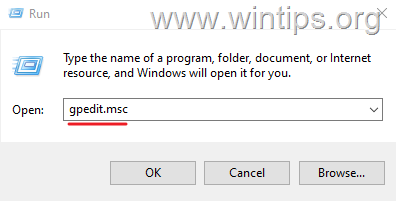
2. In Local Group Policy Editor navigate to the following location:
- Computer Configuration > Administrative Templates > Windows Components > Remote Desktop Services > Remote Desktop Session Host >Session Time Limits
3. To specify after how much time a disconnected user will be automatically logged off from the remote desktop server:
a. Open the Set time limit for disconnected sessions policy.

b. Set the policy to Enabled and below, next to 'End a disconnected session', specify after how long a disconnected out user will be logged out automatically (e.g. "3 hours"). When done, click Apply > OK.*
* TIP: As automatic logout will also close all open applications, do not set a too short time period here, as users may have logged out temporarily and want to log back in and continue their work where they left off.

4. To specify after how much time an active (connected) but idle user will be automatically disconnected from the remote desktop server:
a. Open the Set time limit for active but idle Remote Desktop Services sessions policy.

b. Set the policy to Enabled and below, in the 'Idle session limit", choose after how long time the idle user will be automatically disconnected (e.g "6 hours").

5. Close the Local Group Policy Editor and you're done!*
* Note: Upon enabling the "'Idle session limit", users will receive be disconnected after the specified time and will receive the message "Your Remote Desktop Services session ended because the remote computer didn't receive and input from you".

That's it! Let me know if this guide has helped you by leaving your comment about your experience. Please like and share this guide to help others.
Frequently Asked Questions
How can I automatically log off disconnected RDP users on Windows 10/11?
To automatically log off disconnected RDP users, open the Local Group Policy Editor by pressing Windows + R, typing gpedit.msc, and navigating to Computer Configuration > Administrative Templates > Windows Components > Remote Desktop Services > Remote Desktop Session Host > Session Time Limits. Enable the 'Set time limit for disconnected sessions' policy and specify the desired time.
What should I consider when setting a time limit for disconnected RDP sessions?
Ensure that the time limit isn't too short as it will close all open applications. Users may need to log back in to continue work, so choose a time period that balances resource management and user convenience.
How can I set a time limit for idle RDP users?
In the Local Group Policy Editor, find the 'Set time limit for active but idle Remote Desktop Services sessions' policy. Set it to Enabled and define the 'Idle session limit' to automatically disconnect users after a specified period of inactivity.
What happens when the idle session limit is reached on an RDP server?
Once the 'Idle session limit' is reached, users will be disconnected and they will see a message stating 'Your Remote Desktop Services session ended because the remote computer didn't receive any input from you.'


- Remote Desktop (RDP/RDS) Stops Working After September 2026 Windows Update: How to Fix - September 15, 2026
- Windows 11 KB5124008 Causes No Sound or USB Audio Code 10: How to Fix - September 14, 2026
- Copilot Missing or Grayed Out in Outlook: How to Fix - September 10, 2026



