How to Burn ISO file to DVD or CD (Create DVD, CD from ISO)
An ISO image file, commonly named ‘disc image’, can contain all the contents of an optical disk. The ISO image file has the extension ‘.iso’ following its name and you can use it (open, explore) as you use the traditional physical disc: How to Mount (Open & Explore) ISO image files.
In this tutorial you can find detailed instruction on how to burn an ISO image file to a DVD, CD, HD DVD or Blu-ray disk.
How to Burn an ISO file to CD / DVD / HD DVD or Blu-ray disc.
Step 1: Download and install “ImgBurn”.
ImgBurn is a lightweight CD / DVD / HD DVD / Blu-ray burning application that everyone should have in their toolkit!
1. Download ImgBurn from: http://www.imgburn.com/
2. Choose “Run” in the pop-up window.

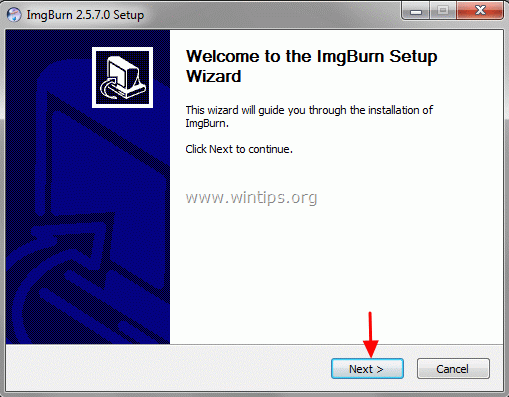
3. Choose “Next” at ImgBurn’s setup wizard 1st screen.
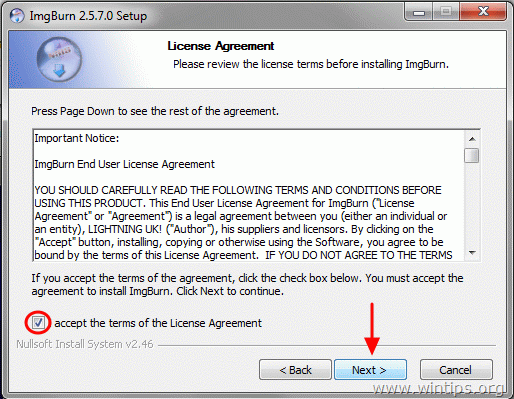
4. Accept the license agreement and choose “Next”.
5. Leave the default setup options and choose “Next”.

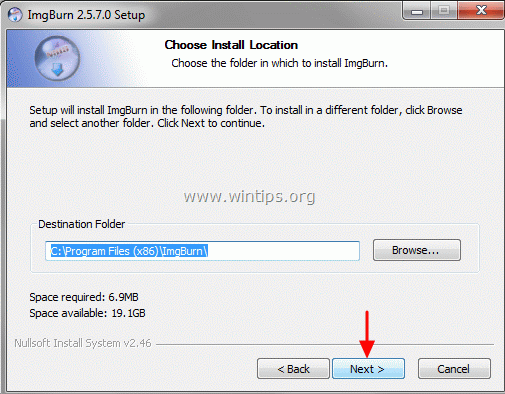
6. Leave the default install location (unless you are using another location to install programs) and choose “Next”.
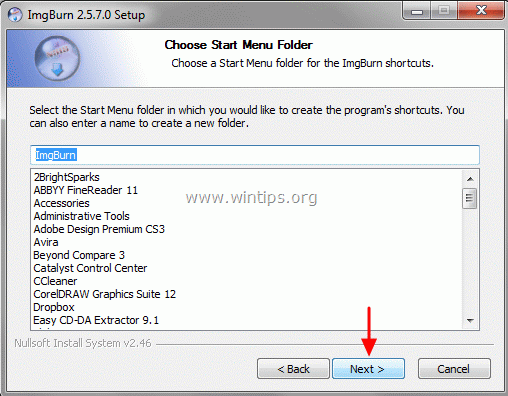
7. Choose “Next” in start menu folder options.
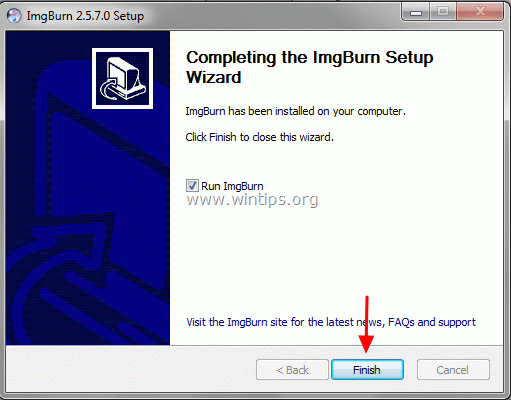
8. When the installation is complete, choose “Finish” and start using ImgBurn.
Step 2: Burn ISO image to CD / DVD / HD DVD / Blu-ray using ImgBurn.
1. Put the optical disk that you want to create image for, on the CD/DVD drive and double-click at ImgBurn application under Programs.
2. When ImgBurn application starts, click at the “Write Image file to disc” option.

3. Click at the “select a file” icon to select the ISO image file to burn to a DVD or CD disk.
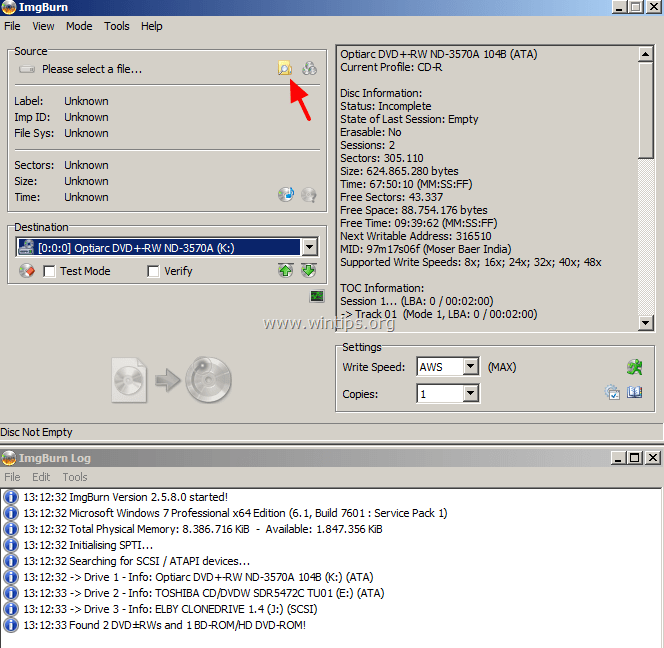
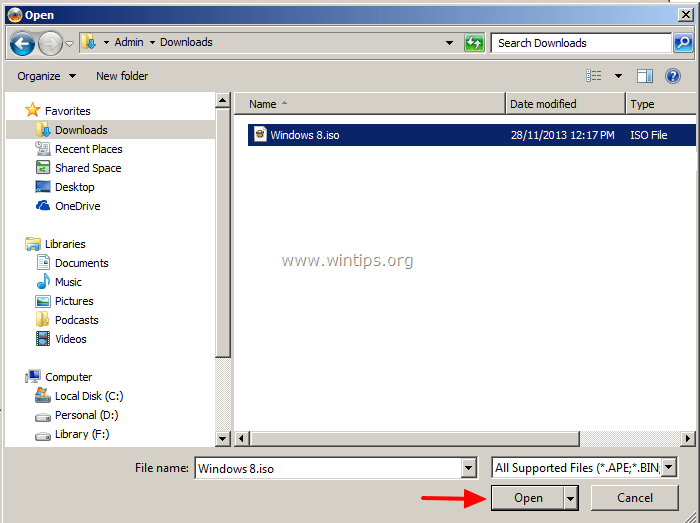
4. Select the ISO image file from your computer and click “Open”.
5. Finally click the ‘Write’ icon and then wait until your disc is created.

That’s it!
Still having trouble fixing this issue?
💬 Get WinTips Remote Support →

- How to Fix SecurityHealthSystray.exe – Bad Image Error (0xc000012f) on Windows 11. - October 26, 2026
- FIX: Windows Hello for Business PIN error 'Your credentials could not be verified' with 'status: 0xc000005e substatus: 0x0' or 'status: 0xc0000bb, substatus: 0x0'. - October 20, 2026
- FIX: This Device Is Already Set Up in Another Organization in Company Portal or During Intune Enrollment - October 13, 2026