How to reset Google Chrome browser's settings to factory default values
If you face errors or problems (crashes, slow speed, etc.) while you are using your Chrome browser, then you can reset its settings in order to bypass these errors. This means that all your settings (homepage, extensions, search provider) will be reverted to their default state (as in a fresh installation)
How to reset Chrome browser settings to default.
1. Open Google Chrome and go to chrome menu  and choose "Settings".
![wzc01nom_thumb[4]_thumb](https://www.wintips.org/wp-content/uploads/2014/02/wzc01nom_thumb4_thumb2.jpg "wzc01nom_thumb[4]_thumb")
2. Look at the end of “Settings” options and press the “Show advanced settings” link.
![chrome-show-advanced-settings_thumb[2]_thumb](https://www.wintips.org/wp-content/uploads/2014/02/chrome-show-advanced-settings_thumb2_thumb1.jpg "chrome-show-advanced-settings_thumb[2]_thumb")
3. Scroll all the page down and press the “Reset Browser Settings” button.
![chrome-reset-browser-settings_thumb[2]_thumb](https://www.wintips.org/wp-content/uploads/2014/02/chrome-reset-browser-settings_thumb2_thumb1.jpg "chrome-reset-browser-settings_thumb[2]_thumb")
4. Press the “Reset” button.
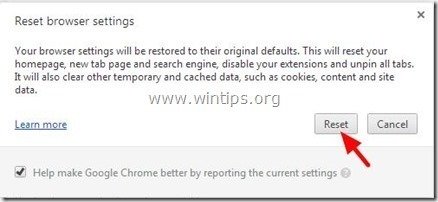
5. Restart Google Chrome.
Now see if your browser works smoothly, otherwise check your computer for malware infection by using this guide:
Malware Removal Guide to clean your infected computer.


- Fix New Outlook and Teams Not Opening After KB5121003 on ARM PCs - September 3, 2026
- Windows 11 KB5120998 Breaks Mouse Cursor and Wallpaper Personalization (FIX) - September 1, 2026
- Microsoft Defender Antivirus Is Turned Off Even Though It Is Running – How to Verify Your Protection - August 31, 2026