
How to Test & Diagnose RAM Memory problems.
Often Windows OS is unstable, hangs or displays blue screens during boot, because the system memory (RAM) is damaged. RAM Memory malfunctions can cause many problems while working on your PC in different ways and symptoms. So, it is a good precaution, before you proceed to troubleshoot your computer's operation and stability issues, to firstly test and diagnose the installed RAM for problems.
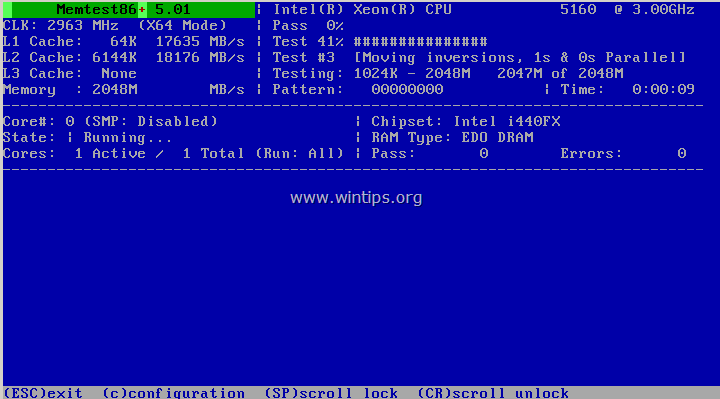
In this article you can find detailed instructions on how you can diagnose your computer's RAM for problems.
How to Diagnose (Test) your Computer's Memory RAM for problems.
To check and diagnose your system's memory for problems, you can use either the Memtest86+ or the Windows Memory Diagnostic utility.
Method 1. Memtest86+
Method 2. Windows Memory Diagnostic.
Method 1. Memtest86+
The first Memory Diagnostic utility, that you can use to test your RAM for problems, is the free and Open source Memtest86+ utility. Memtest86+ is the most used and reliable memory diagnostic utility for several years now.
To diagnose and test your System's Memory for problems with Memtest86+.
Step 1. Download Memtest86+
1. Get the memory diagnostic utility from MemTest86+ official page. (Download "Windows USB Installer (32/64 bit)").
2. Connect a blank* USB drive to your computer.
3. Run the downloaded file, select the empty USB drive and select Create to create a bootable USB drive with MemTest86+.
* ATTENTION: Ensure that the USB drive is empty to avoid losing files.
Step 2. Run Memtest86+ diagnostics.
1. Put the Memtest86+ created USB media on your computer.
2. Change the Boot order settings in BIOS Setup, in order to boot from Memtest86+ USB media. To do that:
- Power On your computer and press "DEL" or "F1" or "F2" or "F10" to enter BIOS (CMOS) setup utility.
(The way to enter into BIOS Settings depends on the computer manufacturer). - Inside BIOS menu, find the "Boot Order" setting.
(This setting is commonly found inside "Advanced BIOS Features" menu). - At “Boot Order” setting, set the first boot device to USB.
- Save and exit from BIOS settings.
3. The Memtest86+ tests should start automatically. Leave the diagnostic utility to run at least for one full pass (100%).
Notes:
1. The diagnostic time it depends from the amount of memory installed on your computer.
2. If the test fails then replace immediately the defected RAM module.
3. To identify which RAM module is bad (If you have more than one RAM module (DIMM) installed on your machine), then test the modules one by one.

Method 2. Windows Memory Diagnostic. (Windows 10, 8 & 7)
The second utility that you can use to diagnose computer memory problems, is the Windows Memory Diagnostic tool.
To test your RAM for problems, with Windows Memory Diagnostic utility:
1. Close all open programs.
2. Launch the Windows Memory Diagnostic tool. To do that:
- In Windows 7:
- Click the Start button and then type the word "memory" in the search box.
- Click Windows Memory Diagnostic from the results.

- In Windows 8, 8.1.
- Simultaneously press the Windows + S keys to open search.
- Type the word "memory" and click "Diagnose your computer's memory problems" from the results.

- In Windows 10:
- Type the word "memory" in the Cortana's search box.
- Click Windows Memory Diagnostic from the results.

2. At the next screen select Restart now and check for problems (recommended).

3. The Memory Diagnostics Tool will run automatically after the restart. Wait until the Windows Memory Diagnostic tool completes the testing. *
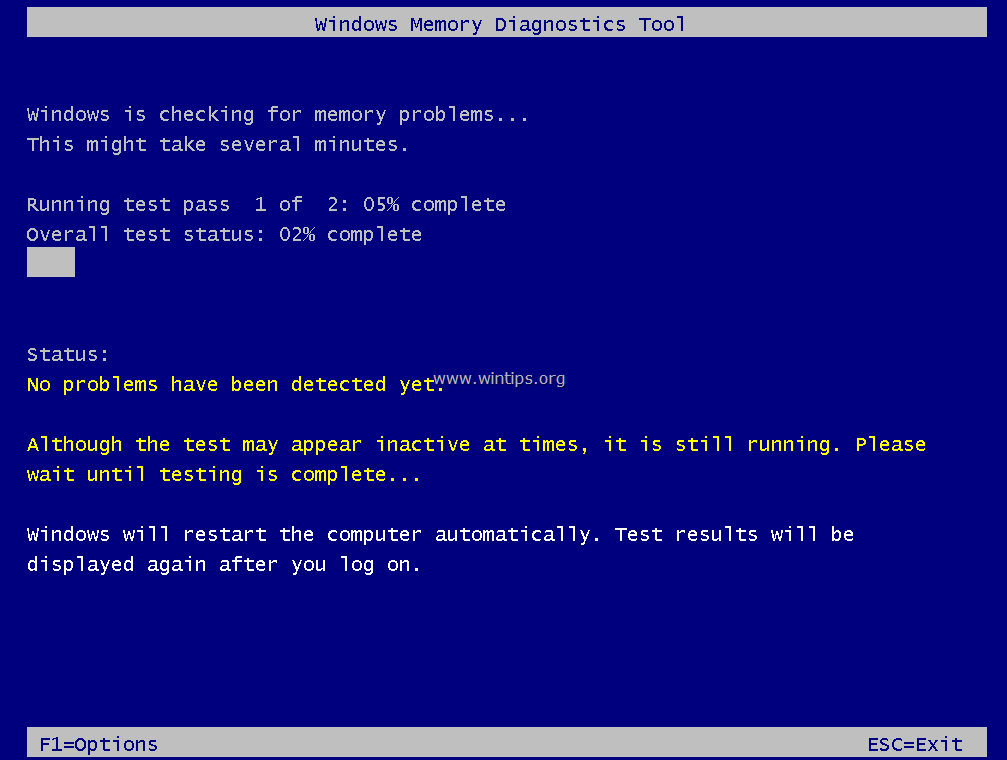
* Notes:
- Windows Memory Diagnostic tool uses the standard settings to run. If you 're an advanced user you can press the F1 key (Options) and customize the following settings:
Test mix. Choose what type of test you want to run: Basic, Standard, or Extended. The choices are described in the tool.
Cache. Choose the cache setting you want for each test: Default, On, or Off.
Pass count. Type the number of times you want to repeat the test. - The diagnostic time depends on the amount of memory installed on your computer.
- If the test fails then replace immediately the defected RAM module.
- To identify which RAM module is bad (If you have more than one RAM module (DIMM) installed on your machine), then test the modules one by one.
That's it! Let me know if this guide has helped you by leaving your comment about your experience. Please like and share this guide to help others.


- Remote Desktop (RDP/RDS) Stops Working After September 2026 Windows Update: How to Fix - September 15, 2026
- Windows 11 KB5124008 Causes No Sound or USB Audio Code 10: How to Fix - September 14, 2026
- Copilot Missing or Grayed Out in Outlook: How to Fix - September 10, 2026



