
Set default web page in your internet browser.
Every time I open my web browser, my browser window opens in my preferred website. If you would like to do this in your browser then read this tutorial.
How to set your preferred homepage in the most commonly used web browsers
Internet Explorer , Google Chrome, Mozilla Firefox, Apple Safari and Opera
A.Internet Explorer
How to set your preferred home page in Internet Explorer.
1. Open Internet Explorer and then open “Internet Options”.
To do this from IE’s file menu, choose “Tools” > “Internet Options”.
Notice*: At latest versions of IE, press the “Gear” icon  on the top right.

2. At General tab, type your preferred home page and press “OK”.

B. Google Chrome
How to set your preferred home page in Google.
1. Open Google chrome and go to chrome menu  and choose “Settings”.

2. Find the “On startup” section and choose “Set Pages”.
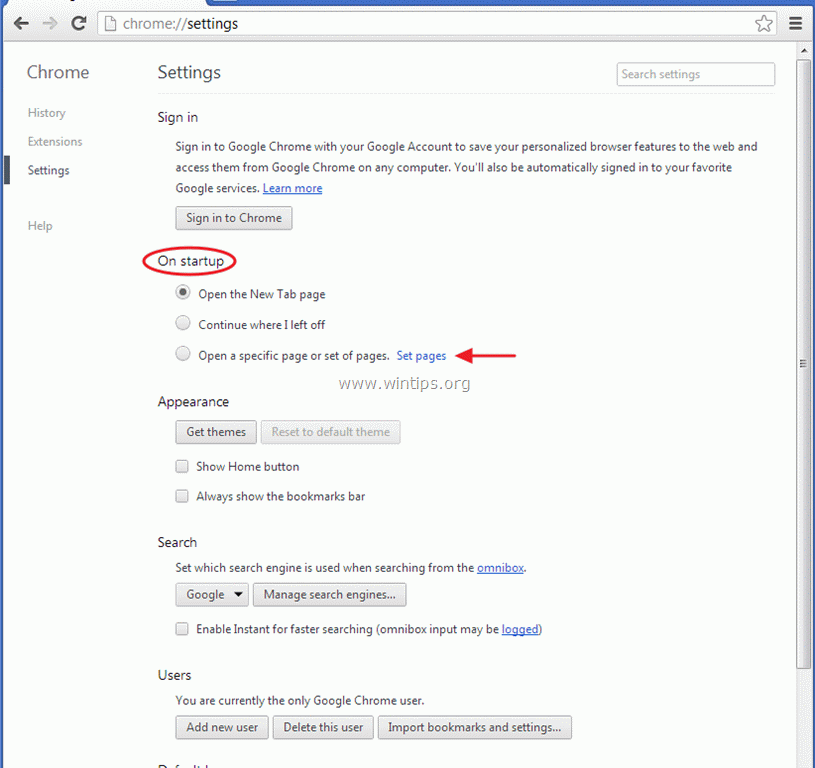
4. Set your preferred startup page (e.g. https://www.wintips.org) and press “OK”.

Mozilla Firefox
How to set your preferred home page in Mozilla Firefox.
1. First you must have enabled the Firefox’s main “Menu Bar”.
Right Click, on the empty space at the right of “Page Tab” and enable Firefox “Menu Bar”.
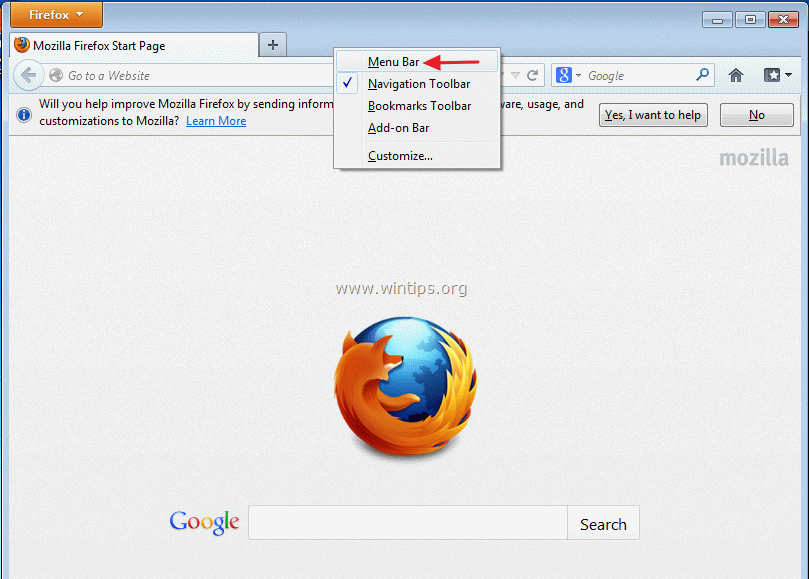
2. From Firefox’s main menu, go to: “Tools” > “Options”.

3. At “General” tab, go to “Home Page” settings and type your preferred home page: e.g. www.google.com. Then choose “OK” to exit Firefox options.

Apple Safari
How to set your preferred home page in Apple Safari .
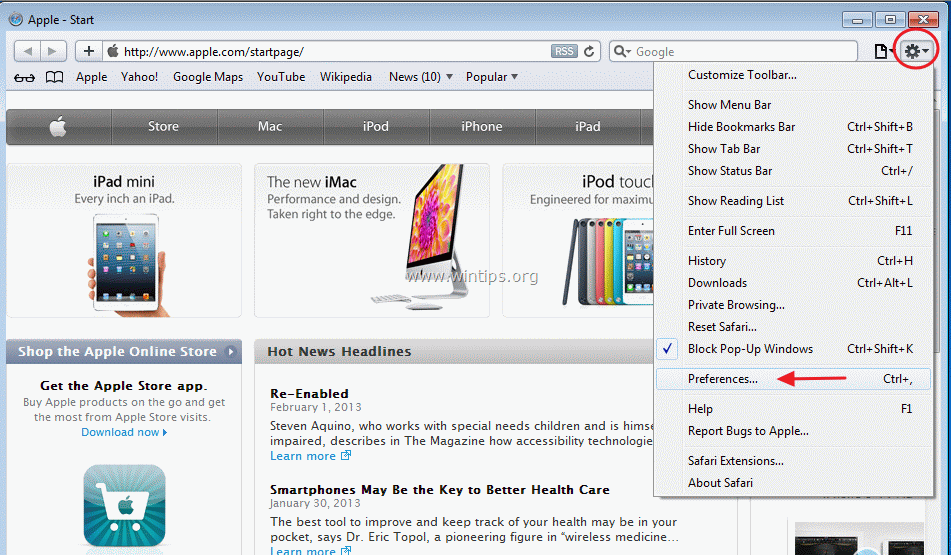
1. Open Safari and click on Safari menu icon  at the up right:
2. Choose “Preferences”.
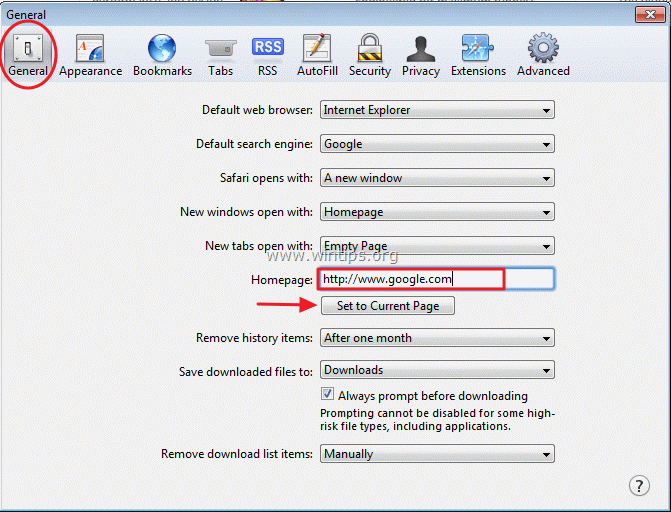
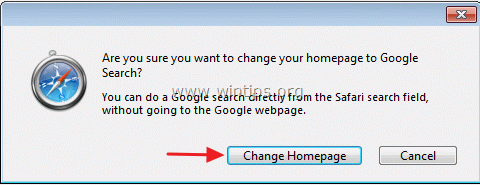
3. At “General” tab, go to “Homepage” settings and type your preferred home page: e.g. www.google.com. Then press the “Set to Current Page” button under this and press “Change Homepage” when the security warning dialog appears.
Opera
How to set your preferred home page in Opera:
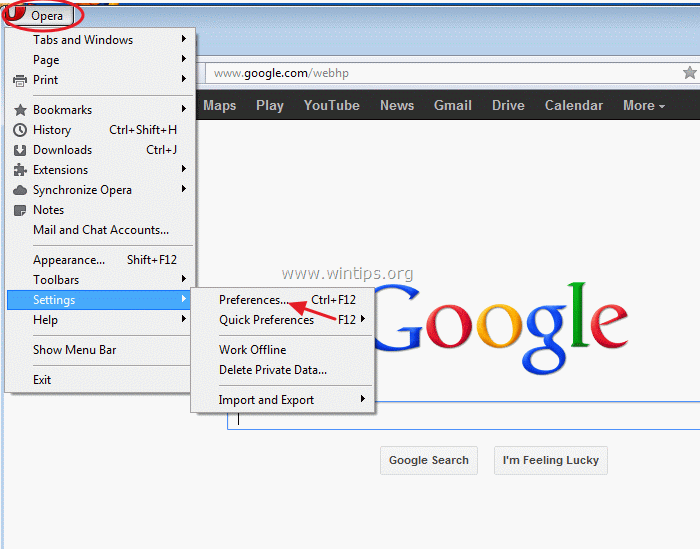
1. Click Opera’s main menu on the upper left corner of your browser window and choose “Settings > Preferences”.
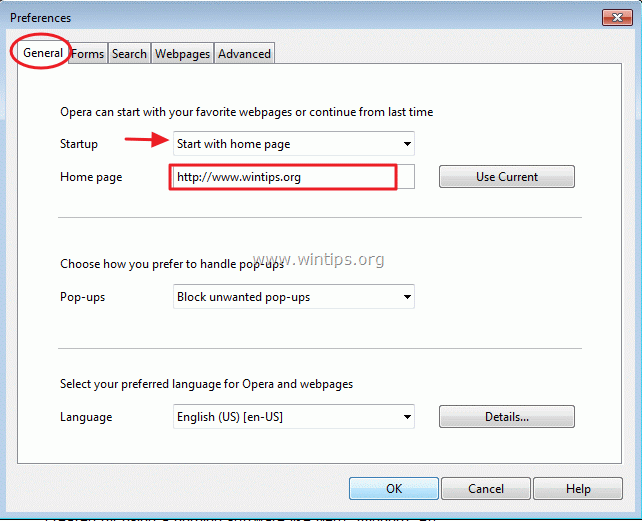
2. At “General” tab, first make sure that you have selected the “Start with home page” option in “Startup” section.
Then go to “Homepage” section and type your preferred home page e.g. https://www.wintips.org and choose “OK”.


- Remote Desktop (RDP/RDS) Stops Working After September 2026 Windows Update: How to Fix - September 15, 2026
- Windows 11 KB5124008 Causes No Sound or USB Audio Code 10: How to Fix - September 14, 2026
- Copilot Missing or Grayed Out in Outlook: How to Fix - September 10, 2026



